
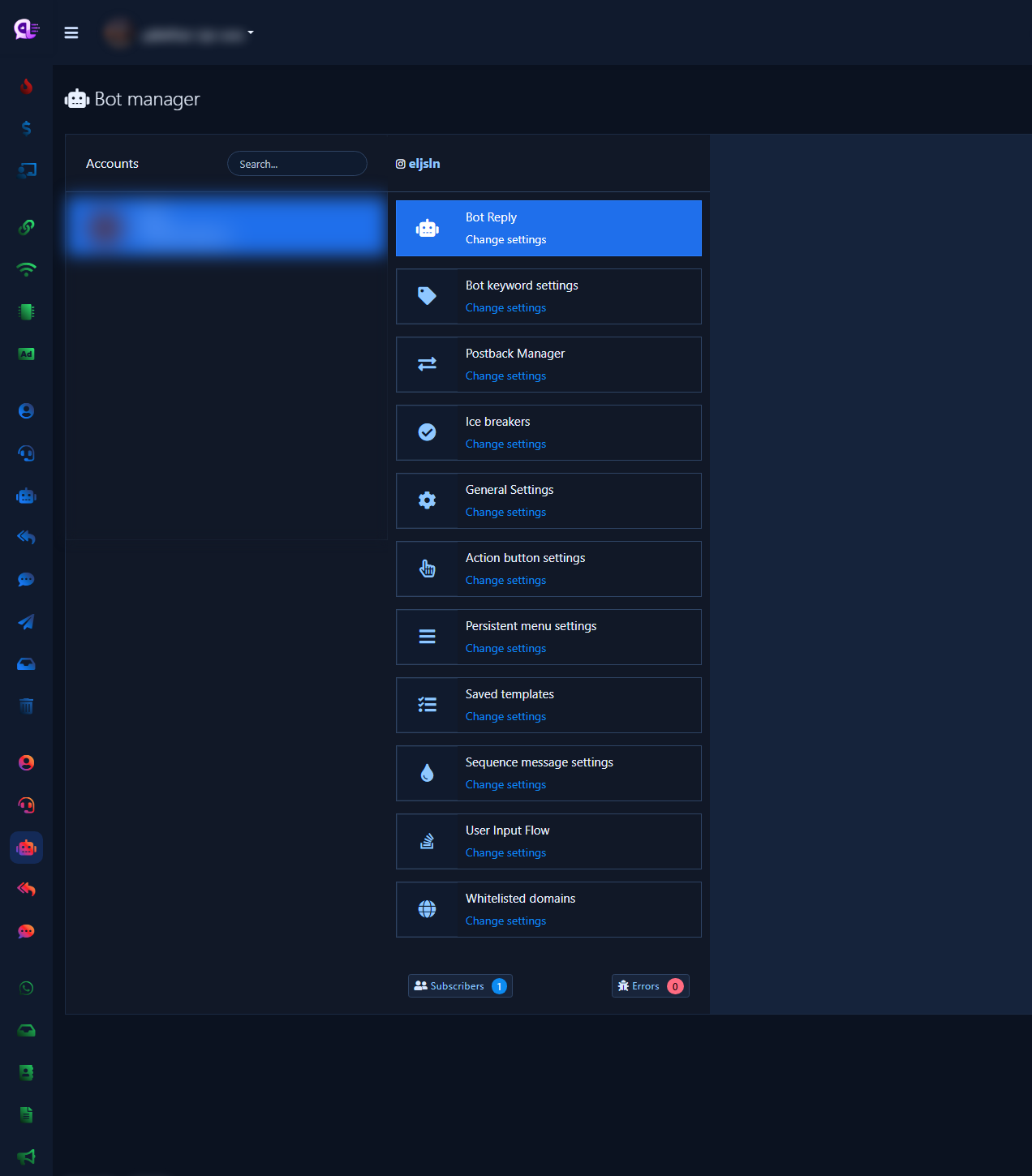
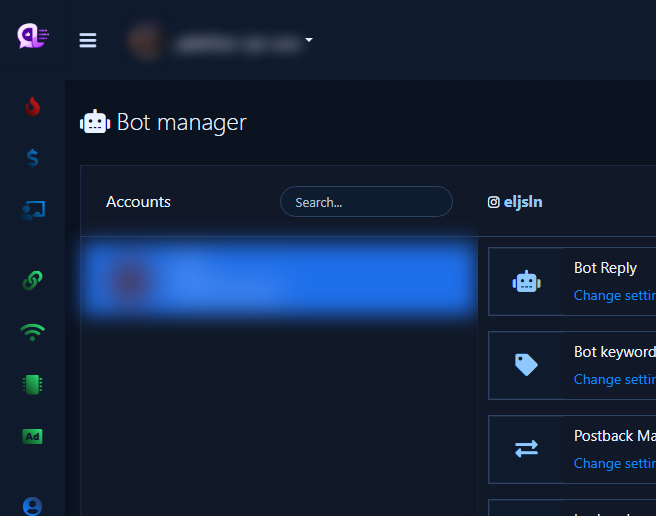
This is the Instagram Bot Manager encyclopedia in ChatLik: every middle-column card with OPENED interiors (not folded card faces only). Sidebar: Instagram Tools → Bot Manager. The list column is labeled Accounts (not Pages). Facebook twin: Facebook Bot Manager map.
Exact English UI card titles observed: Bot Reply, Bot keyword settings, Postback Manager, Ice breakers, General Settings, Action button settings, Persistent menu settings, Rcn post-back manager, Webform builder, Saved templates, Sequence message settings, User Input Flow, Whitelisted domains. Each card uses Change Settings.
Instagram has no Get Started button. Use the Ice breakers card instead. The Instagram Action button settings grid includes No Match Template, Story Mention Template, Story Private Reply Template, and Message Unsend Private Reply Template — not Get-started Template or Messenger quick-reply templates.
Before you start
- Under Integrations → Connect Accounts, sync Instagram and enable Enable Bot Connection. Connect accounts.
- Open from Instagram Tools only — never publish Facebook Page shots here.
- Settings apply only to the account selected under Accounts.
- Click Change Settings so interior fields are visible before relying on a shot.
1) Overview — Accounts + middle cards
- Sidebar: Instagram Tools → Bot Manager.
- Select the Instagram account under Accounts and wait for middle cards.
- Footer badges: Subscribers and Errors. Options may include export/import bot settings and import flow.
2) Bot Reply — open flow list
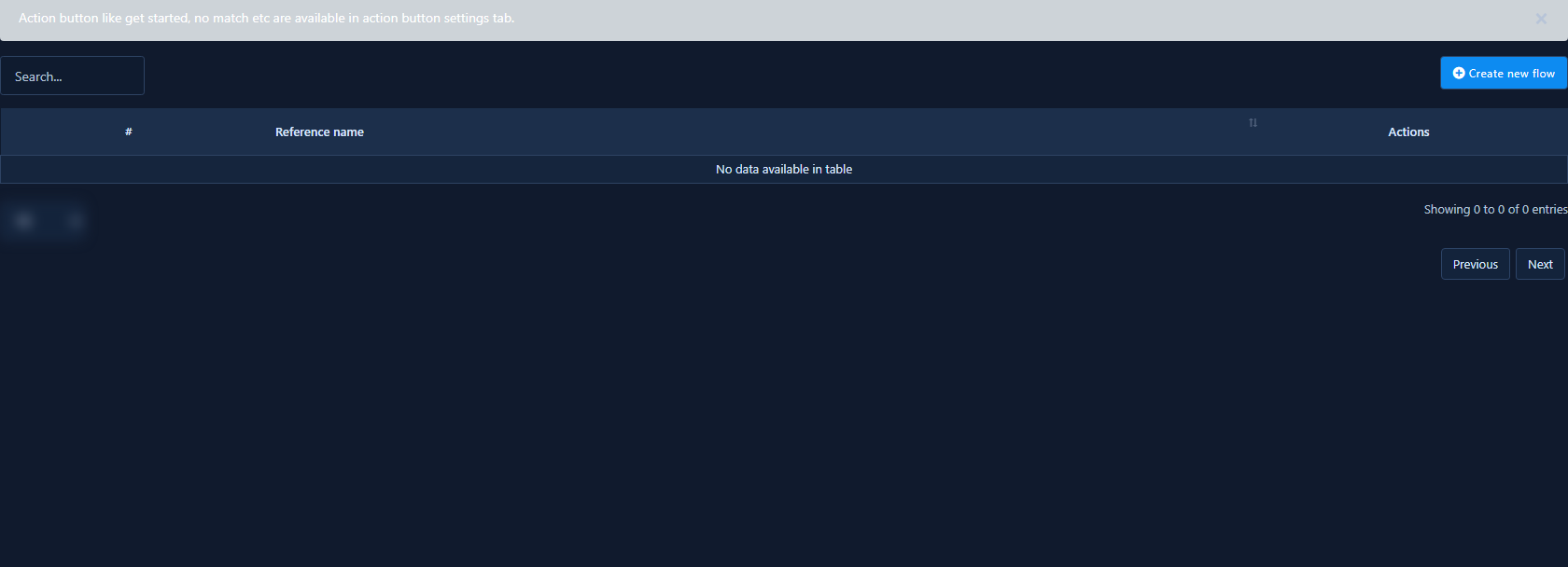
Bot Reply opens the Instagram Visual Flow Builder list. After Change Settings you see flows and Create New Flow for long scenarios (text, buttons, conditions, media).
- Guides: Instagram Flow Builder · Instagram bot setup.
3) Bot Keyword Settings — open editor
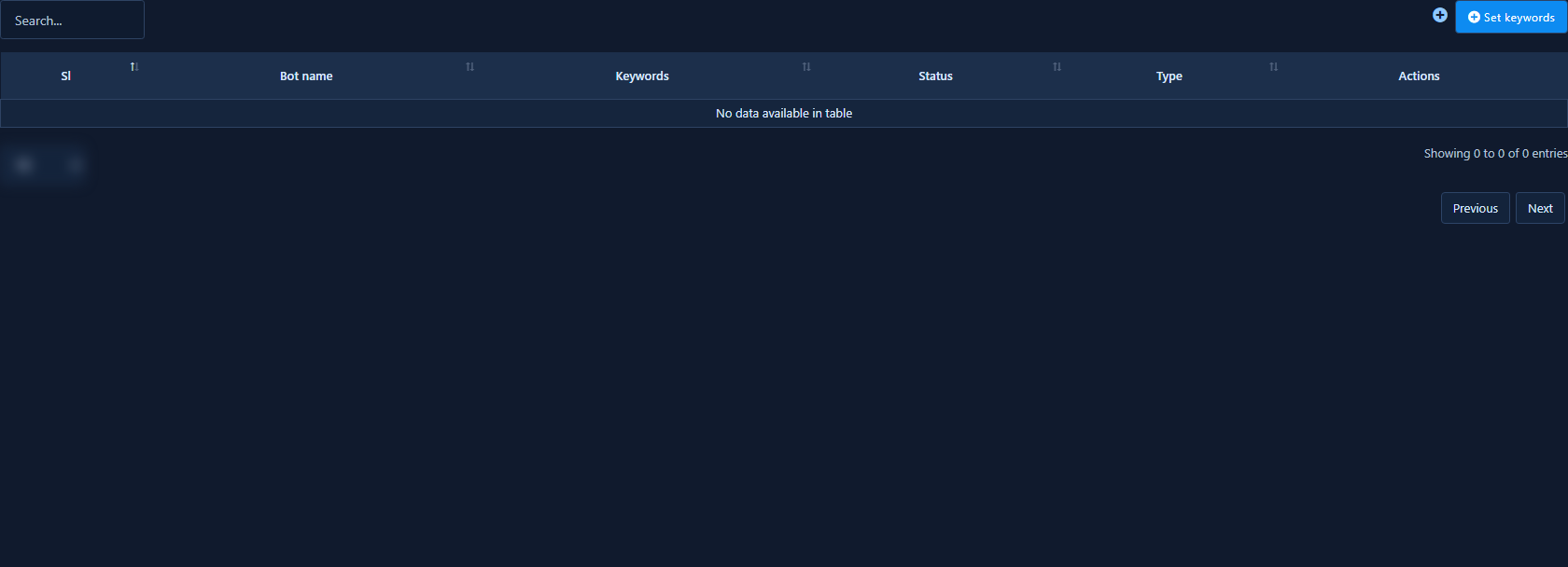
Bot Keyword Settings maps words like “price” or “delivery” to a reply. The open editor shows bot name, keywords, matching type, and reply content.
- See Keywords and triggers.
4) Postback Manager — open library
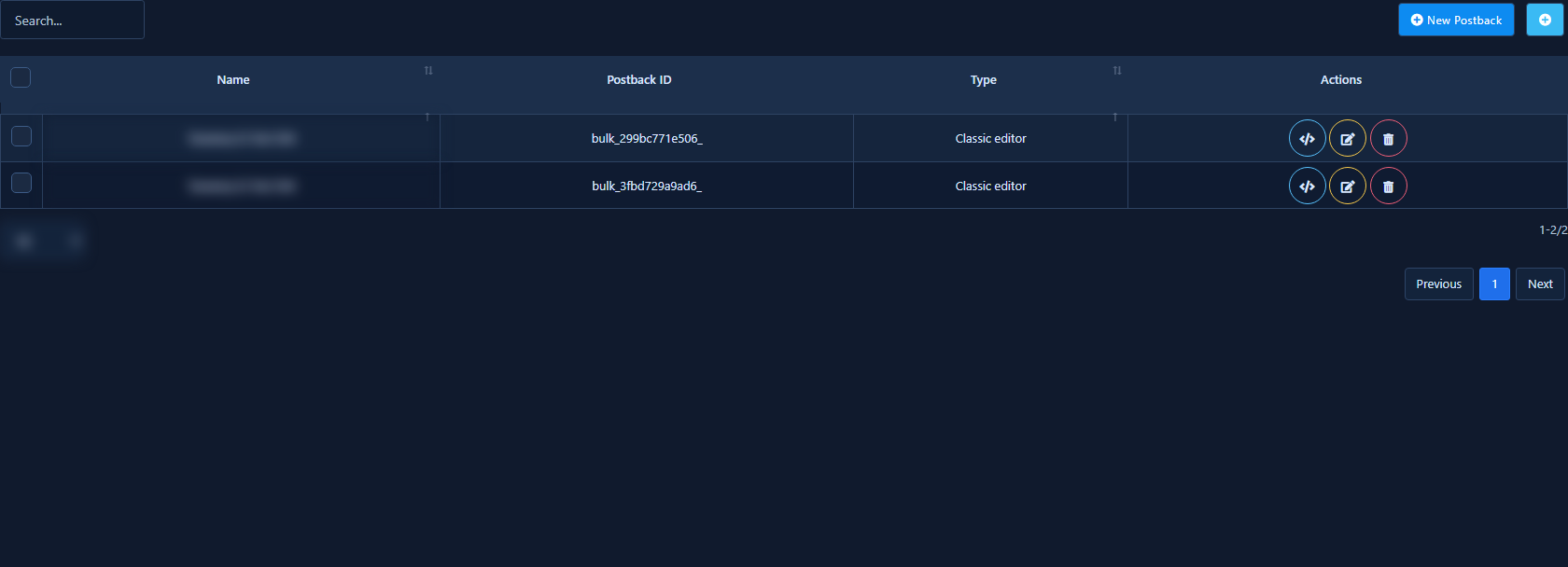
Postback Manager is the reusable auto-reply template library linked from buttons, flows, and Ice breakers.
- Details: Postback manager.
5) Ice breakers — open panel
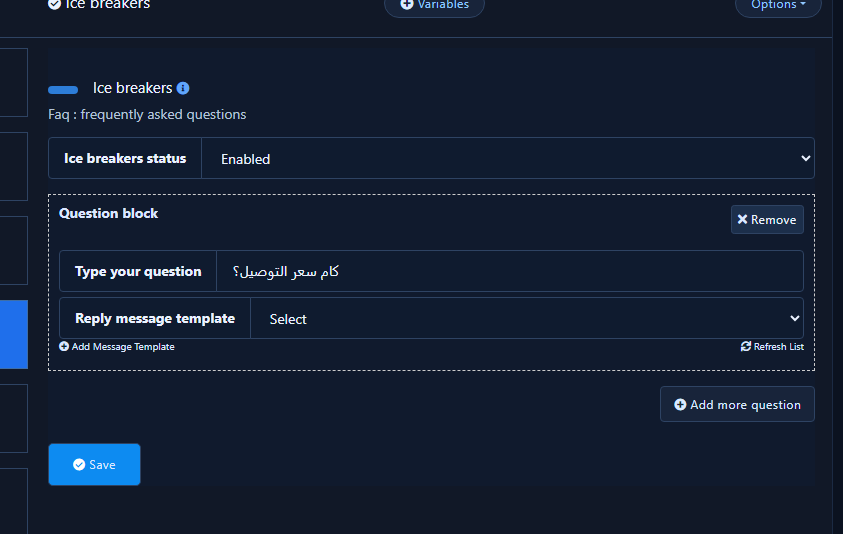
On Instagram, Ice breakers is a dedicated card (not inside Get Started). The open panel includes Ice Breakers Status (Enabled/Disabled), question blocks with Type your question and Reply Message Template, plus Add more / Add Message Template / Refresh / Save. Instagram UI cap is about 5 questions.
- Full guide: Instagram Ice breakers.
6) General Settings — open panel
Home of Reply if no match found. Without enabling and saving this switch, the No Match Template never sends. Human-contact email and the No Match enhancer may also appear here.
- Then edit the template from Action Buttons. See Instagram No Match and reply limits.
7) Action Button Settings — open template grid
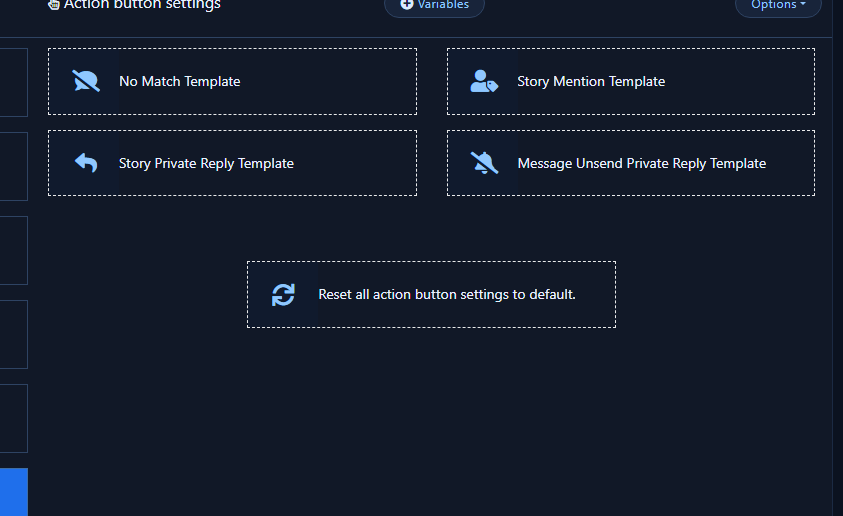
Instagram grid only: No Match Template, Story Mention Template, Story Private Reply Template, Message Unsend Private Reply Template, plus reset-to-default.
8) No Match Template — open editor
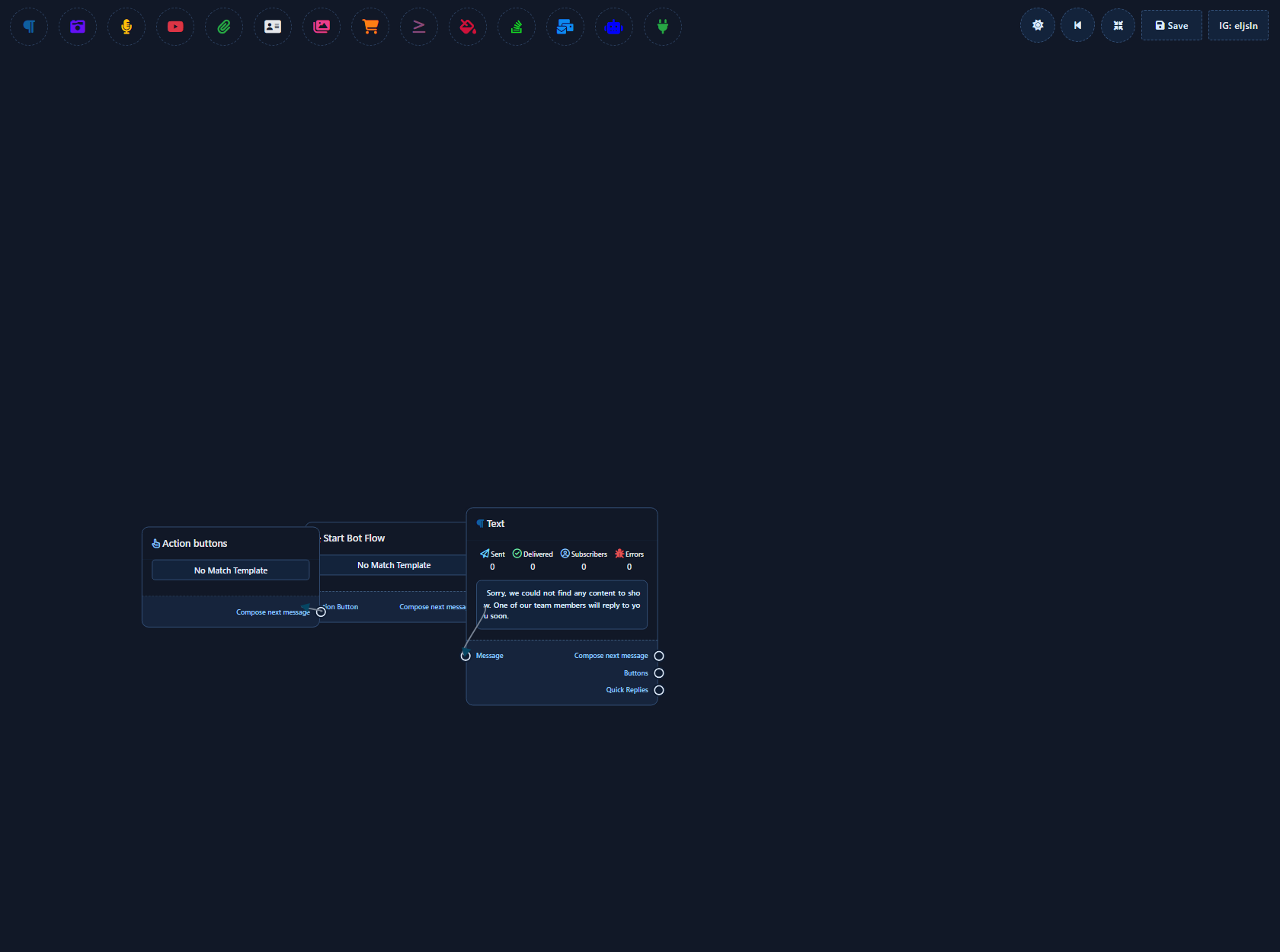
Fallback reply when nothing matches. Enable the General Settings switch first.
9) Story Mention Template — open editor
DM reply when someone mentions your account in a Story. Keep a thank-you + clarifying question.
- Story mention.
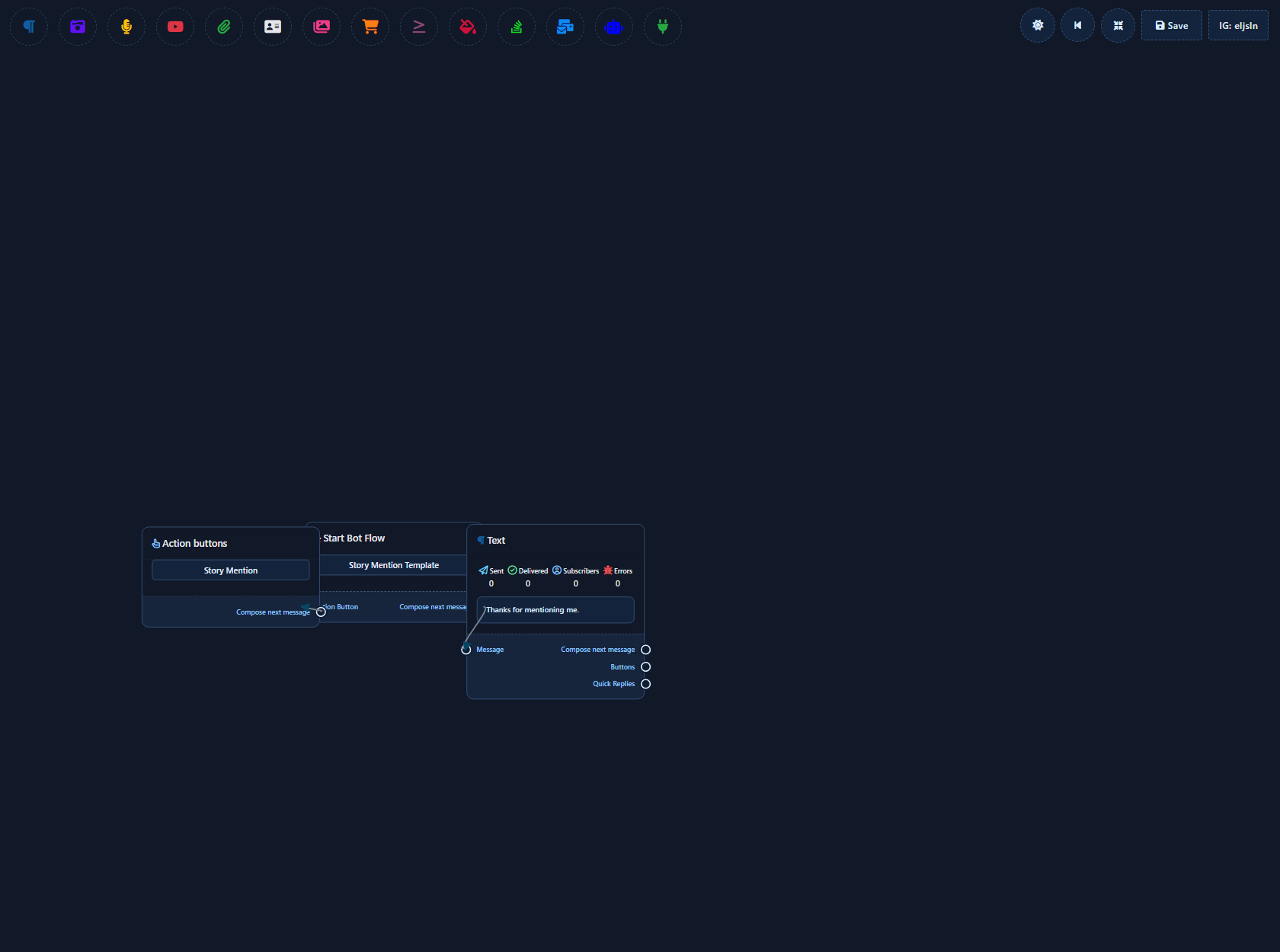
10) Story Private Reply Template — open editor
Separate template for Story interaction private replies (not only mentions).
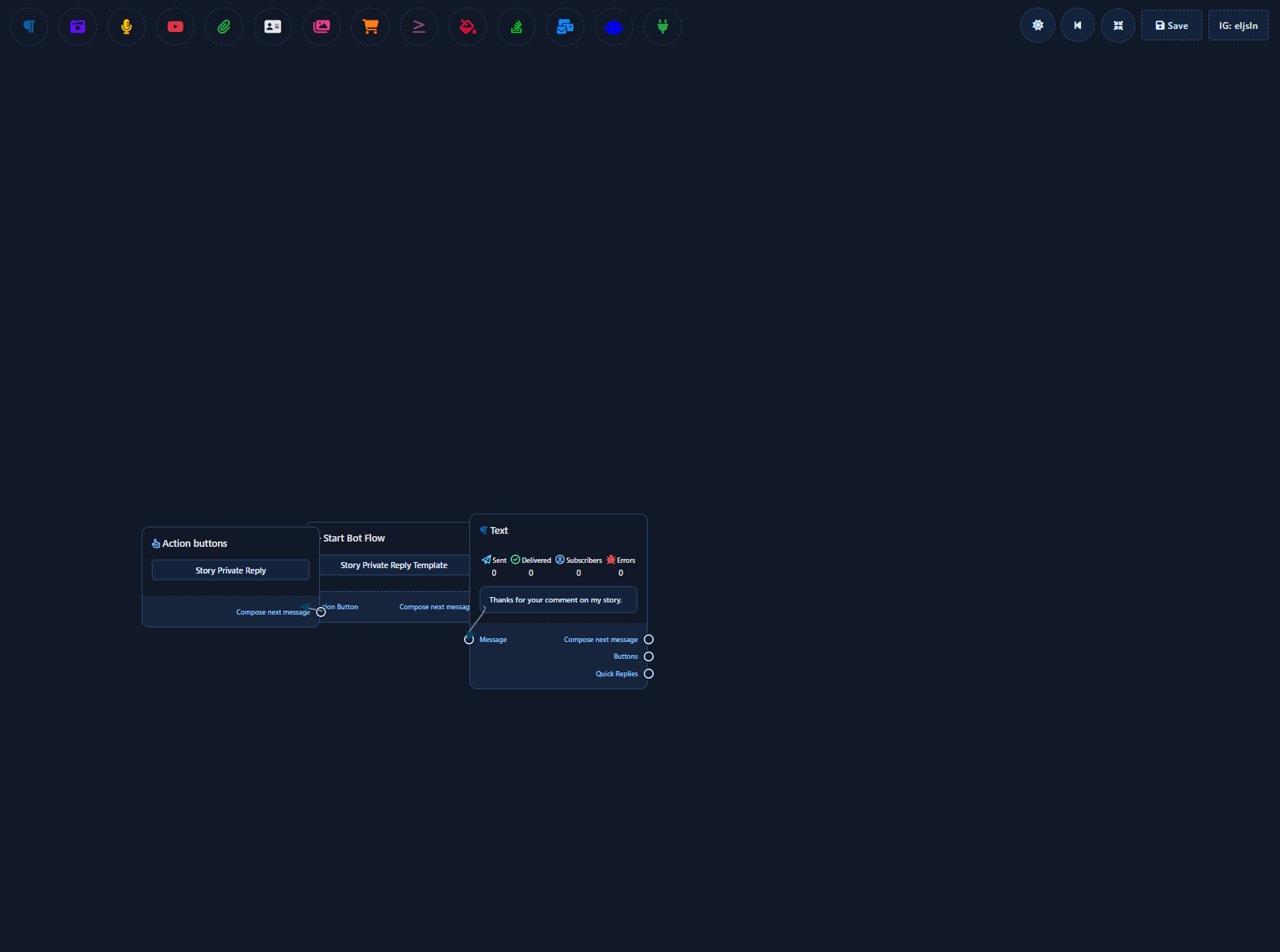
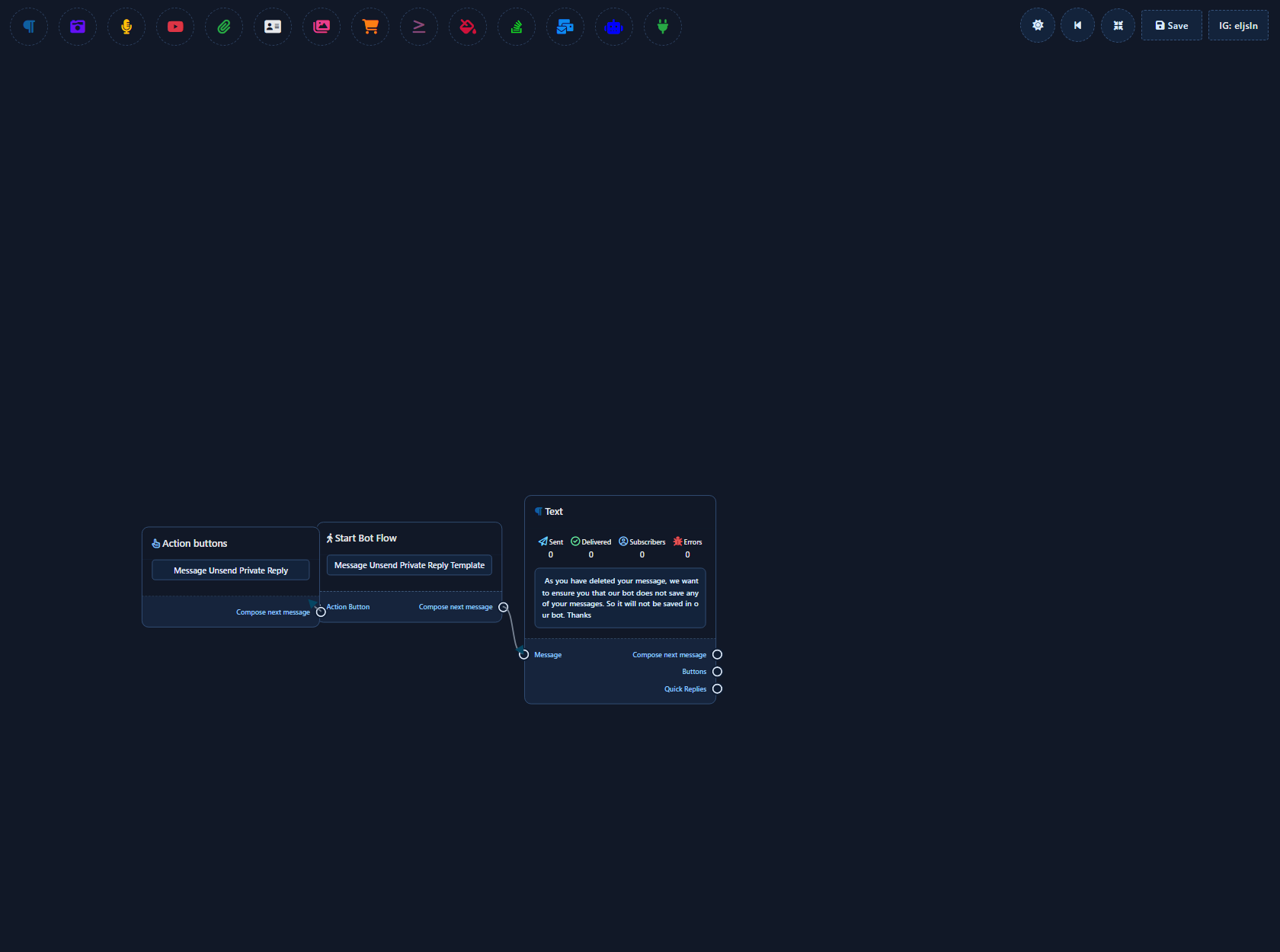
11) Message Unsend Private Reply Template — open editor
Private reply when a message is unsent — confirm or invite the customer to rewrite.
12) Persistent menu settings — open UI
Standing chat shortcuts (label + Web URL or Postback). Less central on Instagram than Messenger but available when the module is enabled; may show a Published badge.
- Messenger reference: Persistent menu.
Extra cards that may appear
- Rcn post-back manager — recurring notification templates (Messenger-oriented; often less central on Instagram).
- Webform builder — webview forms inside chat.
If they appear on your account, open them via Change Settings from the same middle column — never mix in separate Facebook Page screenshots.
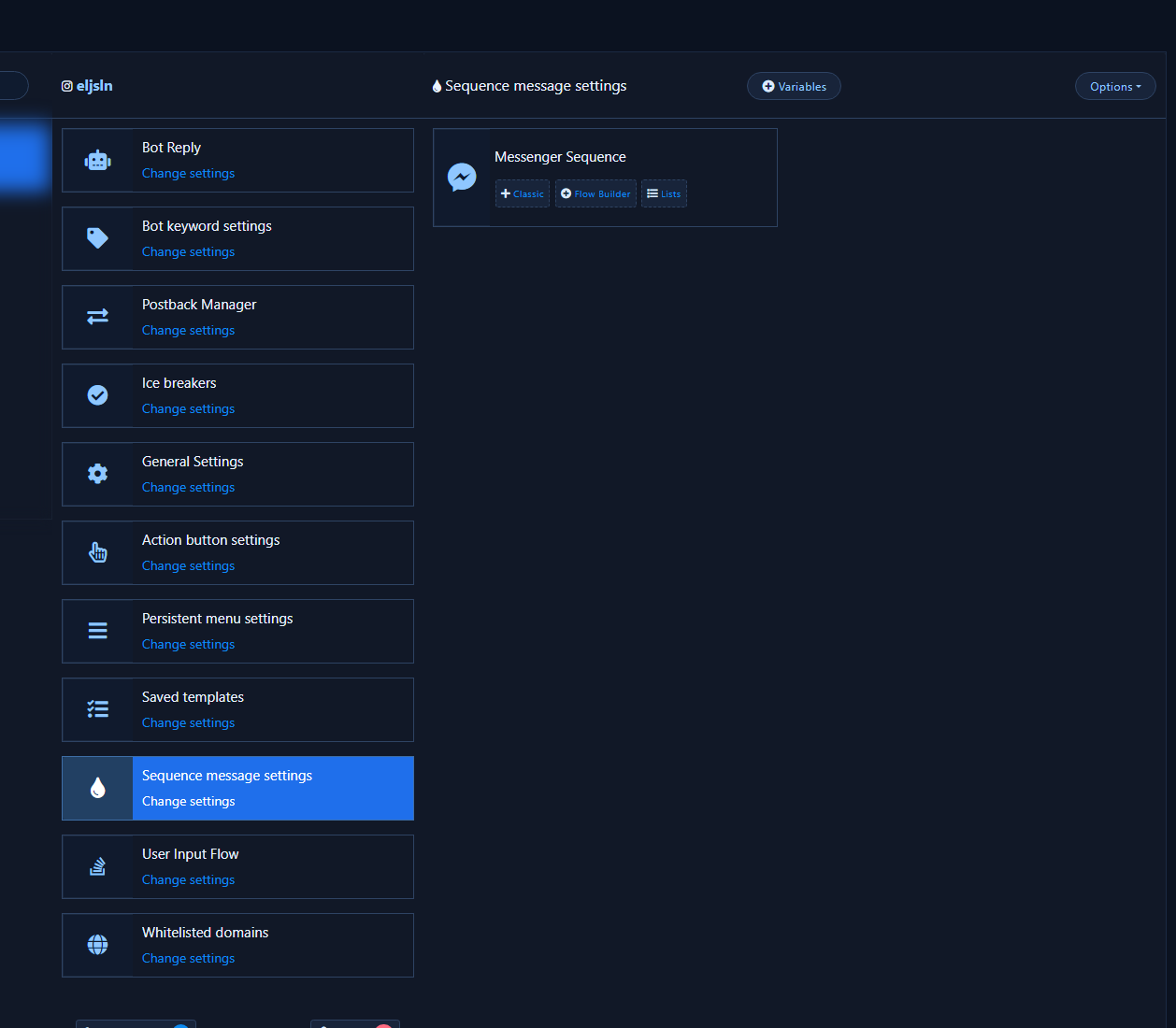
13) Sequence message settings — open choices
Opens Classic / Flow Builder / Lists for drip sequences. Instagram typically shows the chat/Messenger sequence path (not Facebook-only SMS/Email Sequence).
- Sequence campaigns.
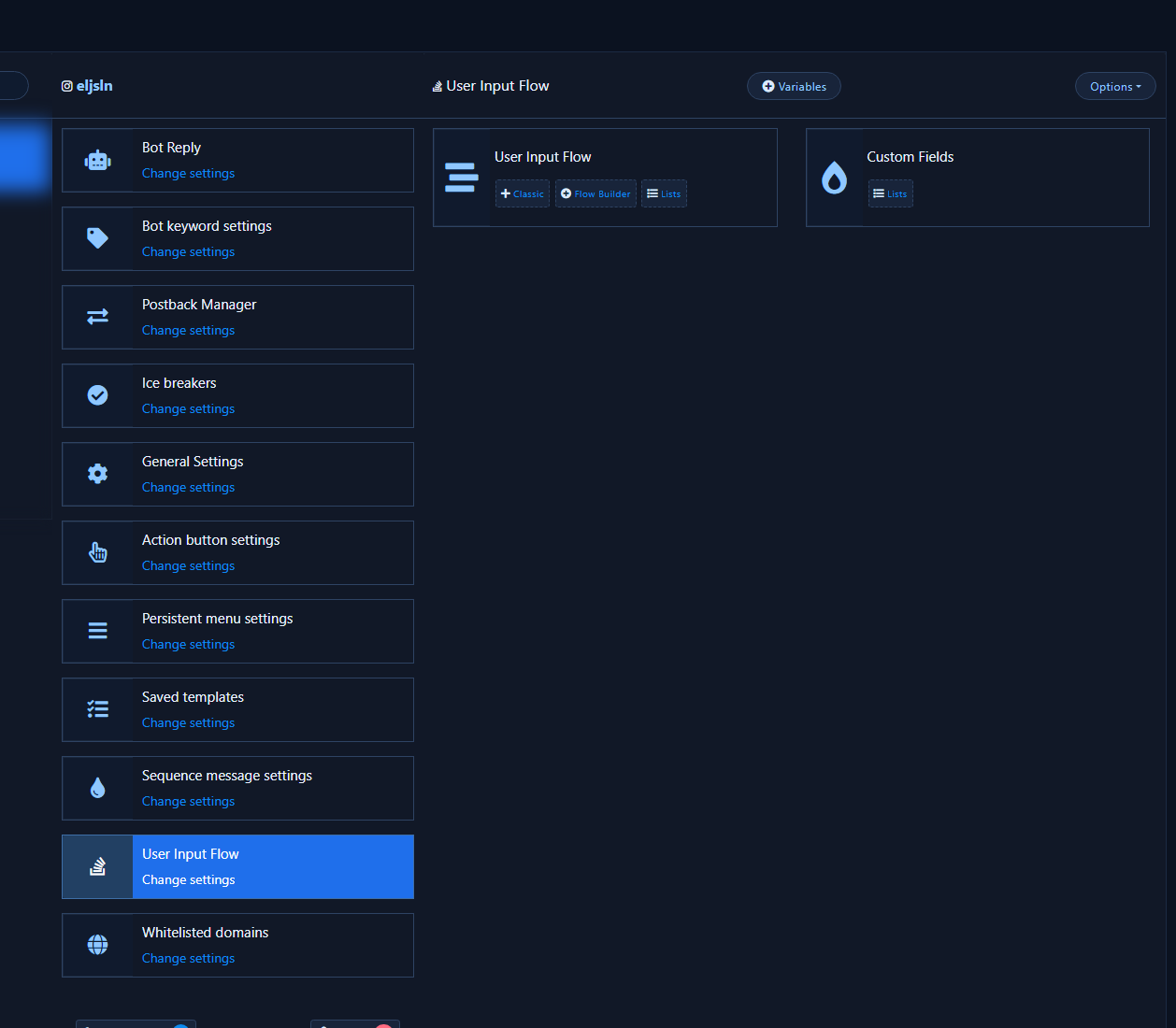
14) User Input Flow — open choices
Collect fields inside the conversation. Child options include Classic / Flow Builder / Lists and may include Custom Fields.
- User input flow.
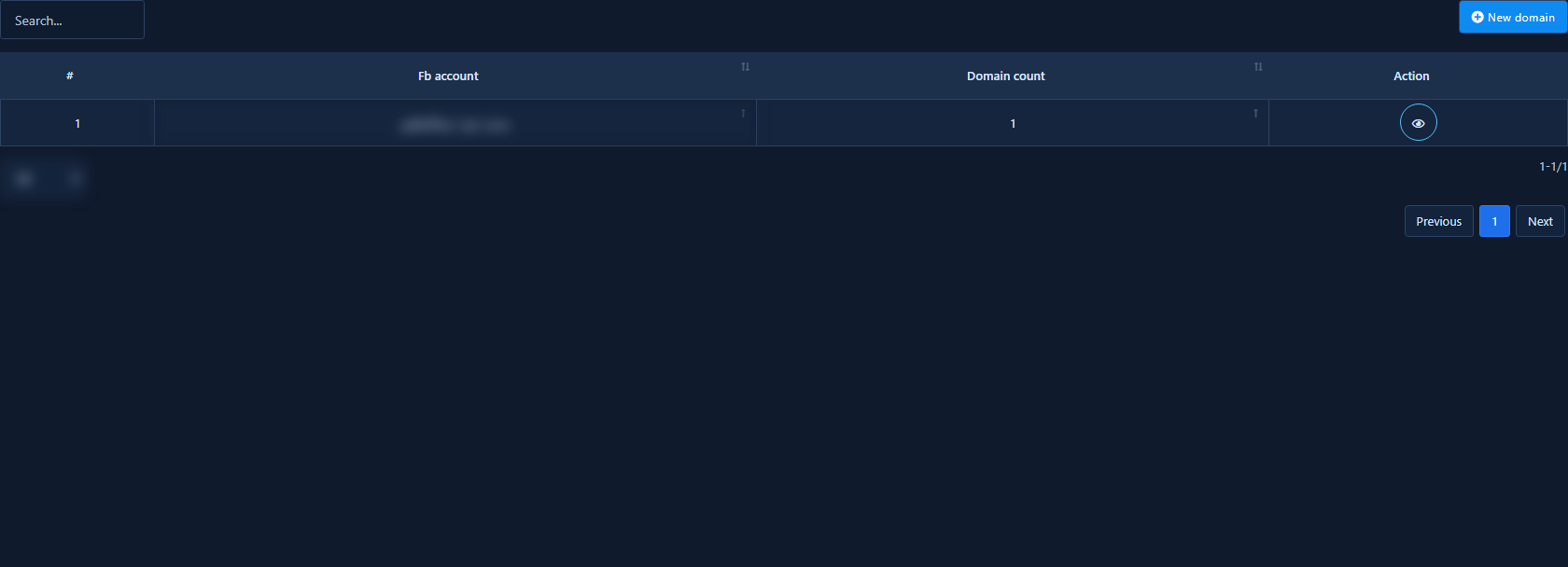
15) Whitelisted Domains — open list
Allowed URL domains for bot buttons / webviews. Add only domains you actually use.
- Subscribers and domains.
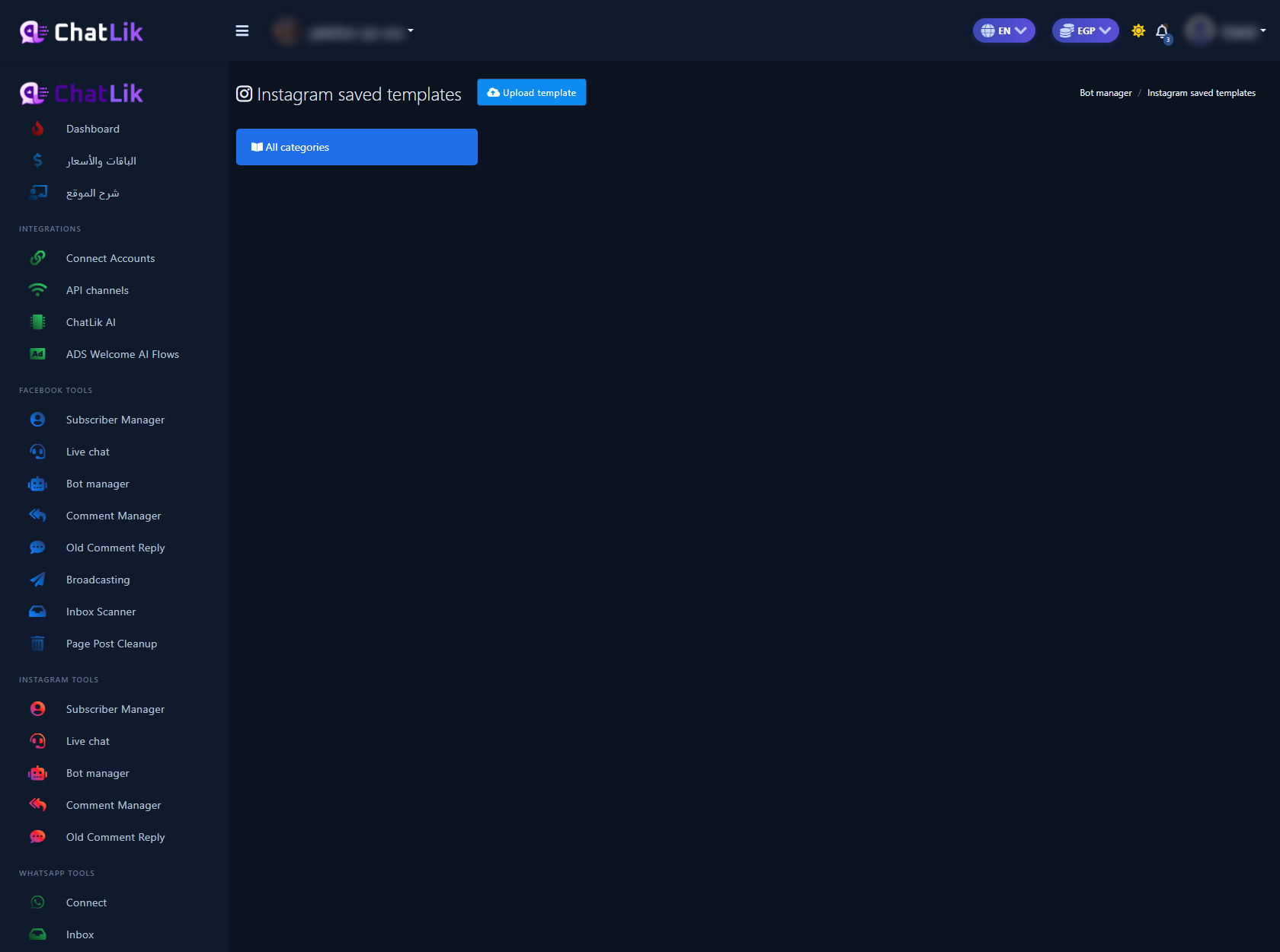
16) Saved Templates — open library
Reusable message templates for flows, replies, and export/import between accounts.
Recommended order
- Connect Instagram + Enable Bot Connection.
- Select the account.
- General Settings: enable No Match and Save.
- Ice breakers: Enabled + questions + templates.
- Action Buttons: No Match, then Story Mention / Private Reply.
- Keywords → Bot Reply flows → test from a real DM.
Common mistakes
- Shooting a folded card instead of Change Settings interiors.
- Publishing Facebook Page screenshots in an Instagram guide.
- Editing No Match without enabling Reply if no match found.
- Looking for Get Started on Instagram — use Ice breakers.
- Mixing Story Mention with Story Private Reply or comment tools.
Related: Instagram bot setup · Ice breakers · No Match · Facebook Bot Manager map.


