
This is a full Instagram-only bot setup guide in ChatLik — from connecting the account through Ice breakers, No Match, real keyword phrases, Story templates, and handing off to a human in Live Chat. It does not mix Facebook/Messenger (see Messenger bot setup). Instagram has no Get Started button; use Ice breakers instead.
Recommended order: Connect Accounts + Enable Bot Connection + Sync Instagram → Instagram Tools → Bot Manager → enable Reply if no match found in General Settings → configure Ice breakers → keywords from real DMs → Story Mention / Story Private Reply if needed → test in Instagram, then human reply from Live Chat.
Before you start
- Business/Creator Instagram linked to a Facebook Page you administer.
- Sidebar: Integrations → Connect Accounts (screen Connect Facebook & Instagram). Full path: Connect Facebook and enable the bot.
- Draft 3–4 short Ice breaker questions + replies, real DM keywords (e.g. price, available, delivery — not dummy “123”), and a No Match fallback line.
- Use Instagram Tools only — never publish Facebook Page screenshots here.
1) Connect the account
- Open Integrations → Connect Accounts.
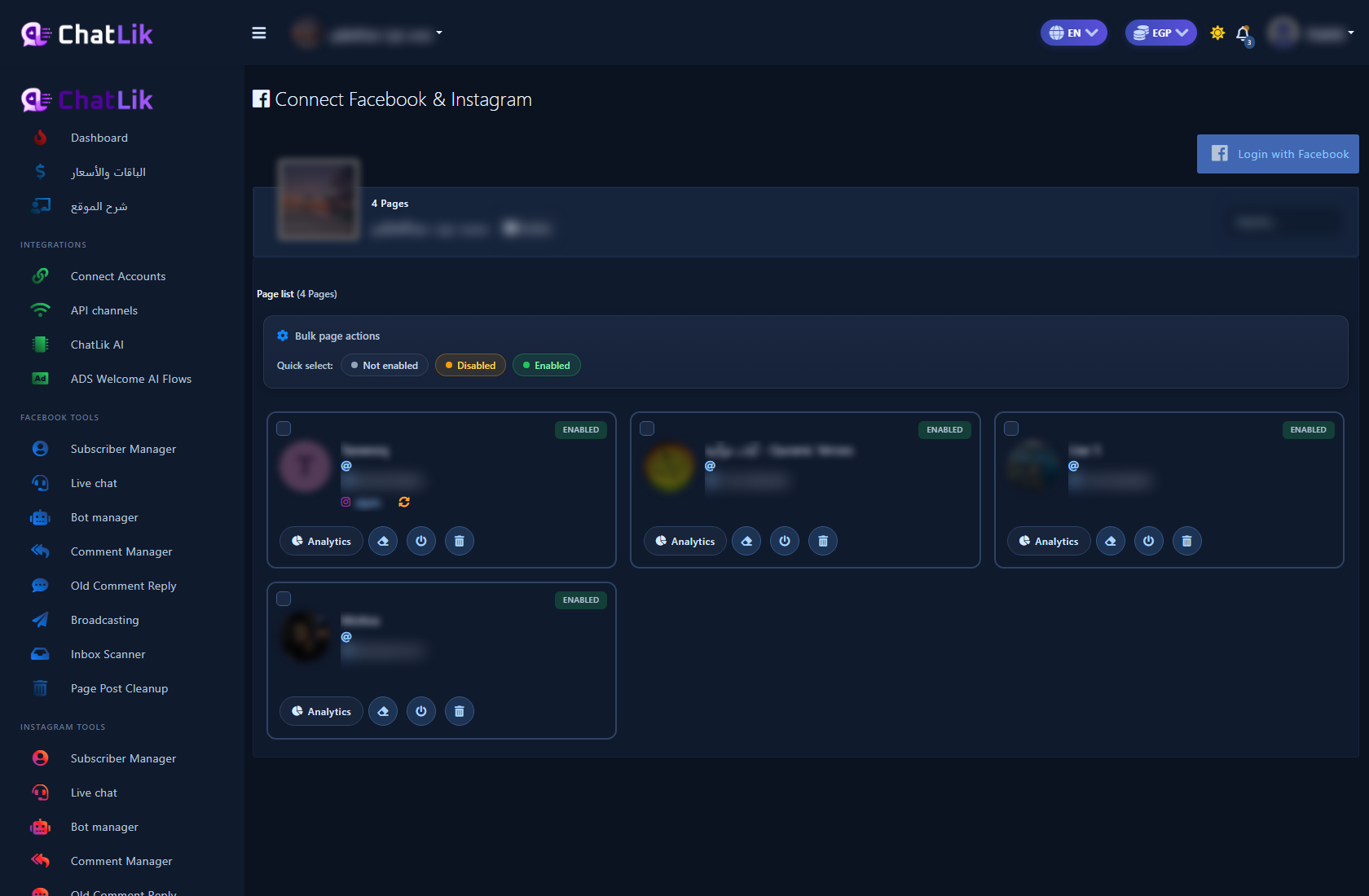
- You should see Connect Facebook & Instagram with the login CTA and Page cards.
- Click Login with Facebook, complete Meta permissions (Pages, business assets, Instagram), then confirm the Page/account appear in the list.
2) Enable Bot Connection
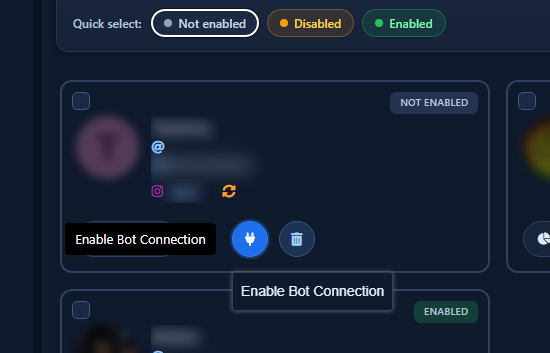
- On the Page card, if status is Not enabled, use the plug icon.
- Hover until the tooltip shows Enable Bot Connection, click, and confirm.
- Status should become Enabled.
3) Sync the Instagram account
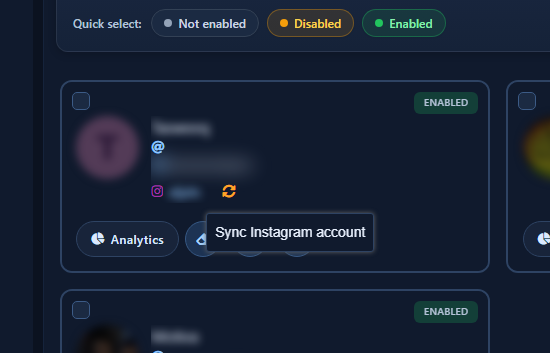
- On the same card, use the Instagram slot / Sync Instagram Account control.
- After sync, the account should show under Accounts in Instagram Bot Manager.
4) Open Instagram Bot Manager
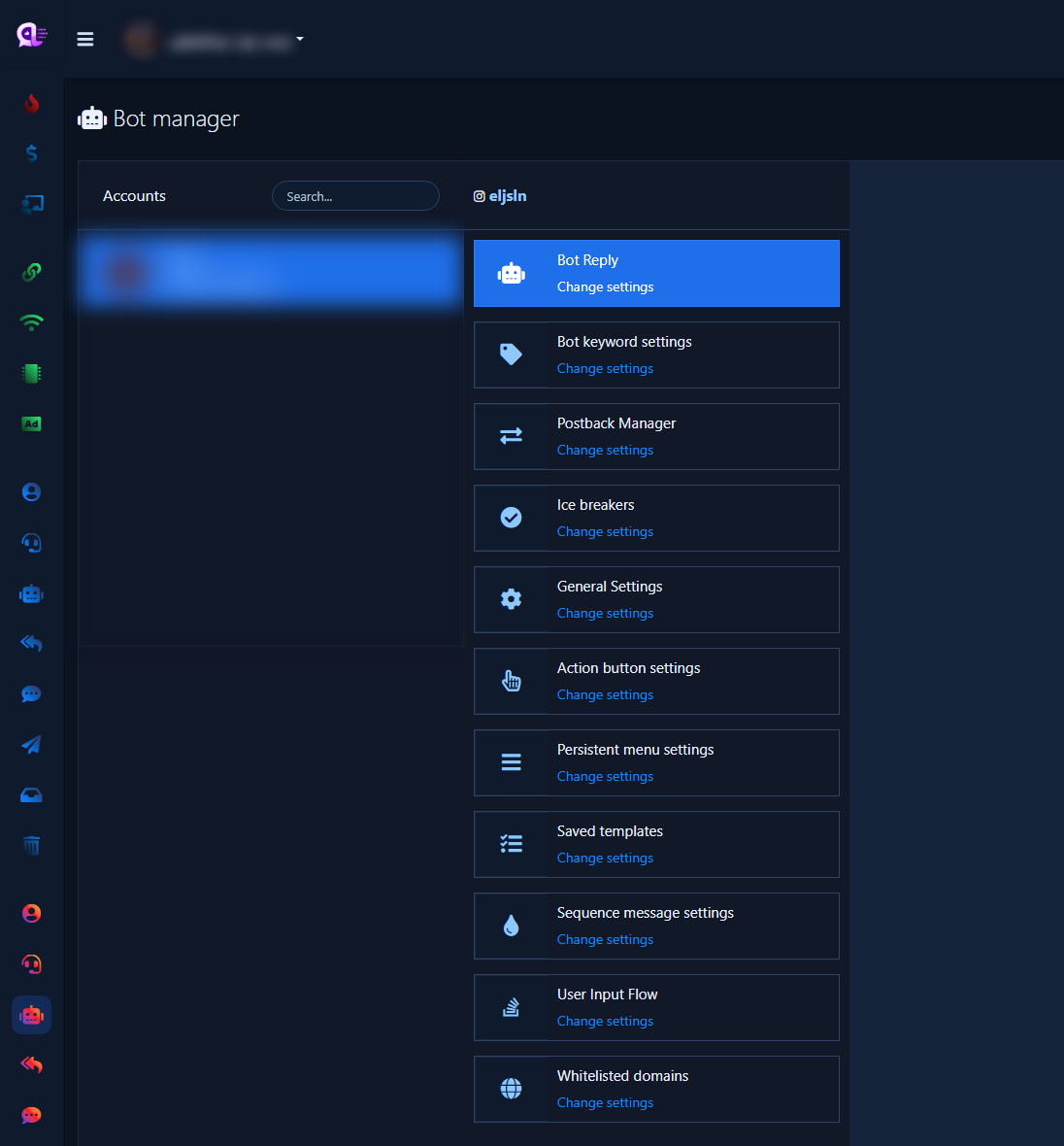
- Sidebar: Instagram Tools → Bot Manager (not Facebook Tools).
- Select the account under Accounts and wait for middle cards: Bot Reply, Bot Keyword Settings, Ice breakers, General Settings, Action Button Settings, and more.
- Card map: Instagram Bot Manager map.
5) Ice breakers (instead of Get Started)
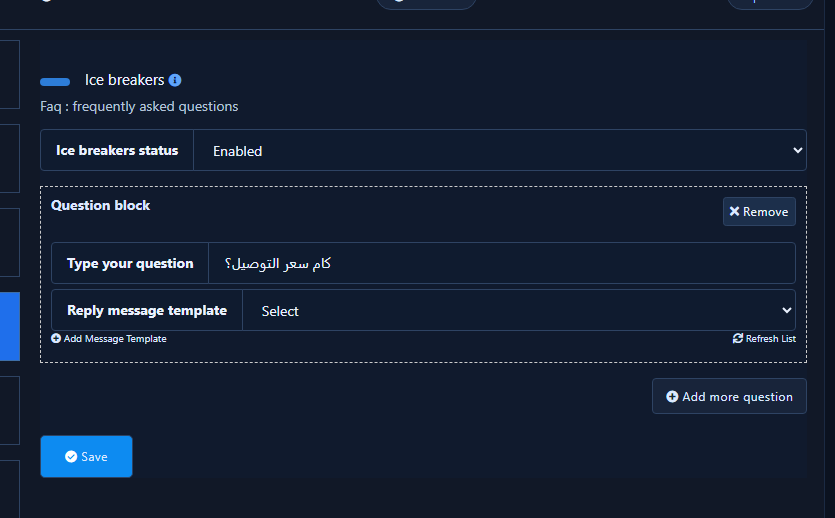
- Open Ice breakers → Change Settings.
- Set Ice breakers status to Enabled.
- In each question block, fill Type your question with real phrases (e.g. “What’s delivery cost?”, “Where is the nearest branch?”, “Working hours?”).
- Attach a Reply Message Template per question, then Save.
- Deep dive: Instagram Ice breakers.
6) Enable No Match in General Settings
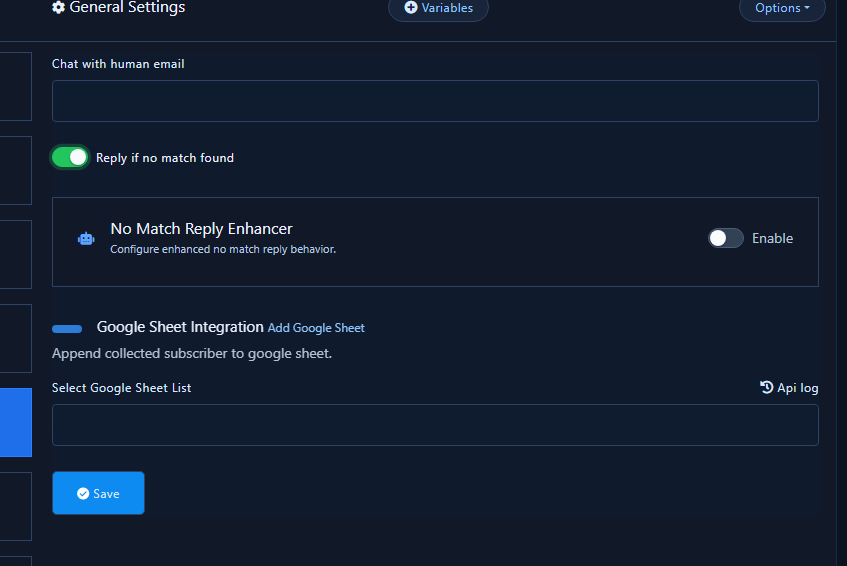
Editing the template alone is not enough — the switch must be on and saved.
- Open General Settings → Change Settings.
- Enable Reply if no match found, then Save.
7) Action Buttons and No Match template
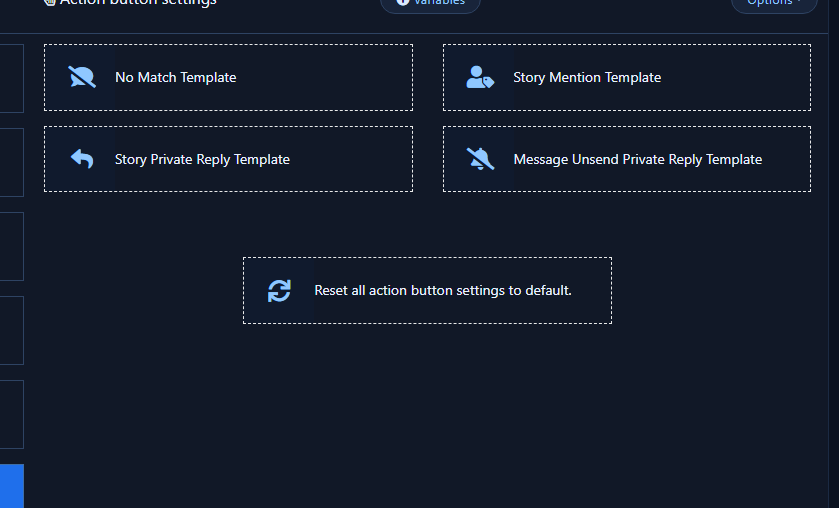
- Open Action Button Settings for the IG template grid (No Match, Story Mention, Story Private Reply — no Messenger Get-started Template).
- Open No Match Template and write a clear fallback, e.g. “I didn’t catch that 🙂 Reply with: price / available / delivery, or type support to reach our team.” Then save.
- See Instagram No Match and No Match reply limits.
8) Keywords with real phrases (not “123”)
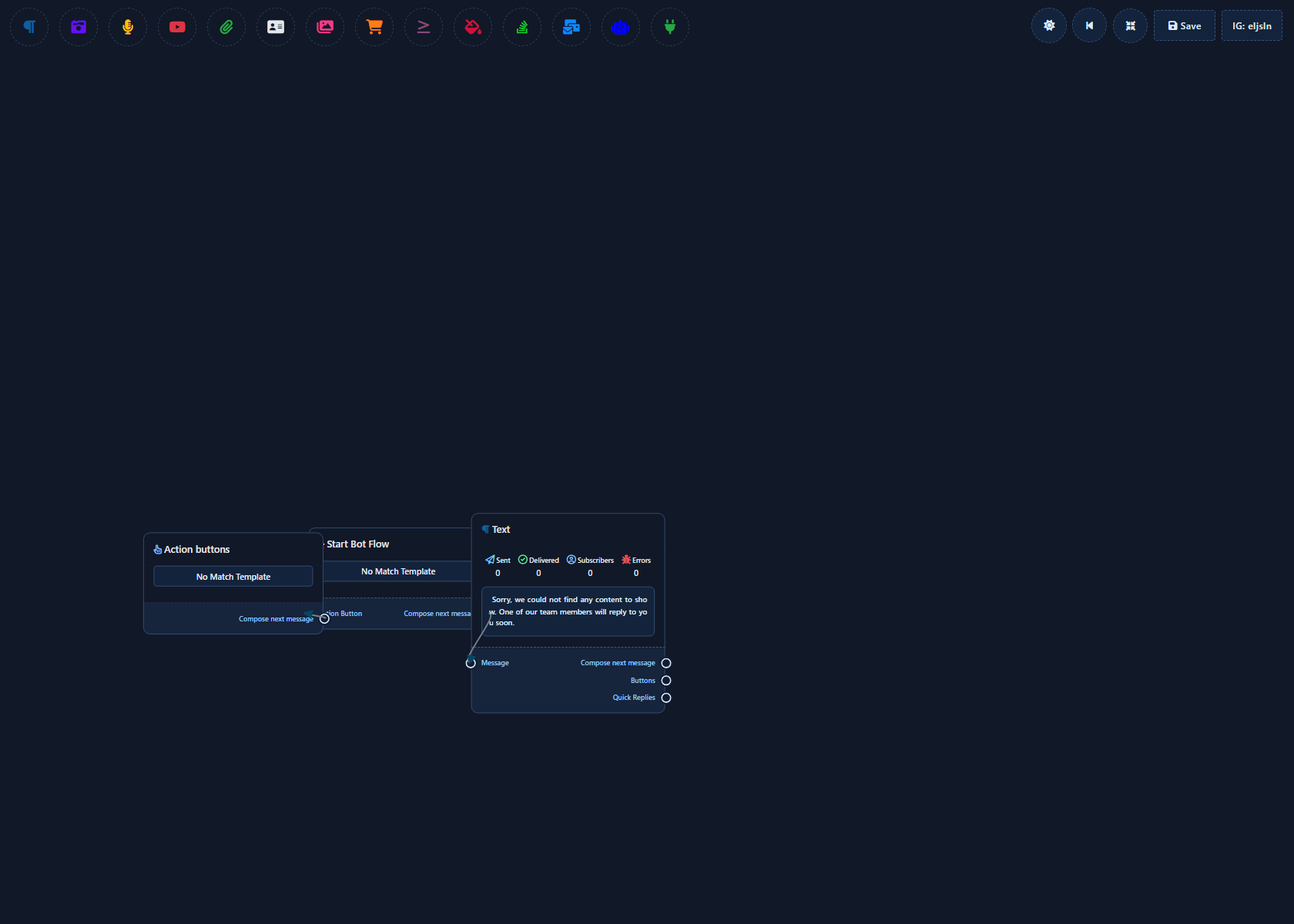
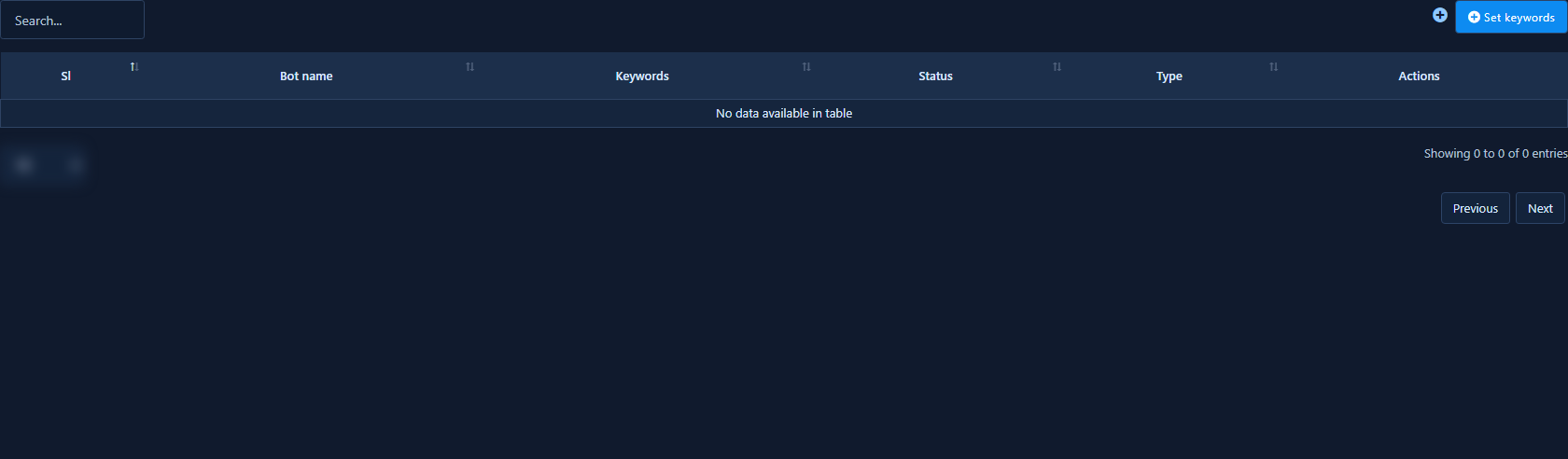
From Bot Keyword Settings, the list shows existing keyword bots. The blue Set Keywords button opens the Visual Flow Builder, where keywords live in Configure Reference on the Start Bot Flow node.
- Open Bot Keyword Settings → Change Settings, then click Set Keywords.
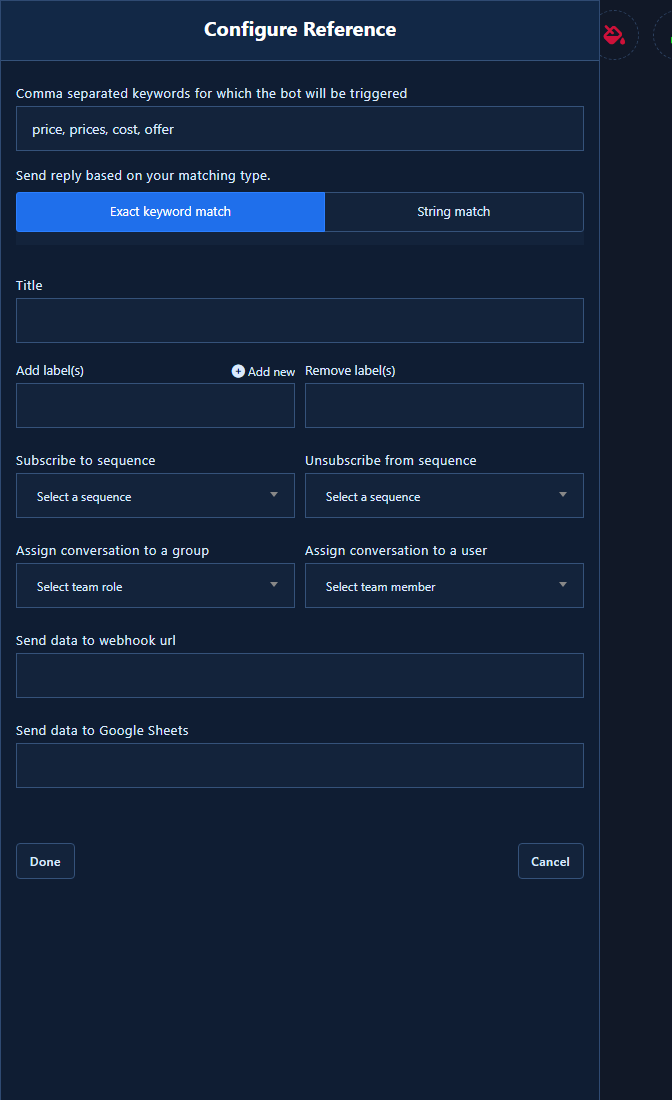
- Double-click Start Bot Flow to open Configure Reference.
- Enter real comma-separated phrases, e.g. price, prices, cost, offer (never dummy “123”).
- Choose Exact keyword match for sensitive triggers, or String match for partial containment inside longer messages.
- Connect a reply via Compose next message (e.g. “Prices start from 150 EGP…”) and Save.
Same idea from Bot Reply → Create New Flow. See Bot keywords and triggers and Keyword reply via Flow Builder.
9) Story Mention and Story Private Reply
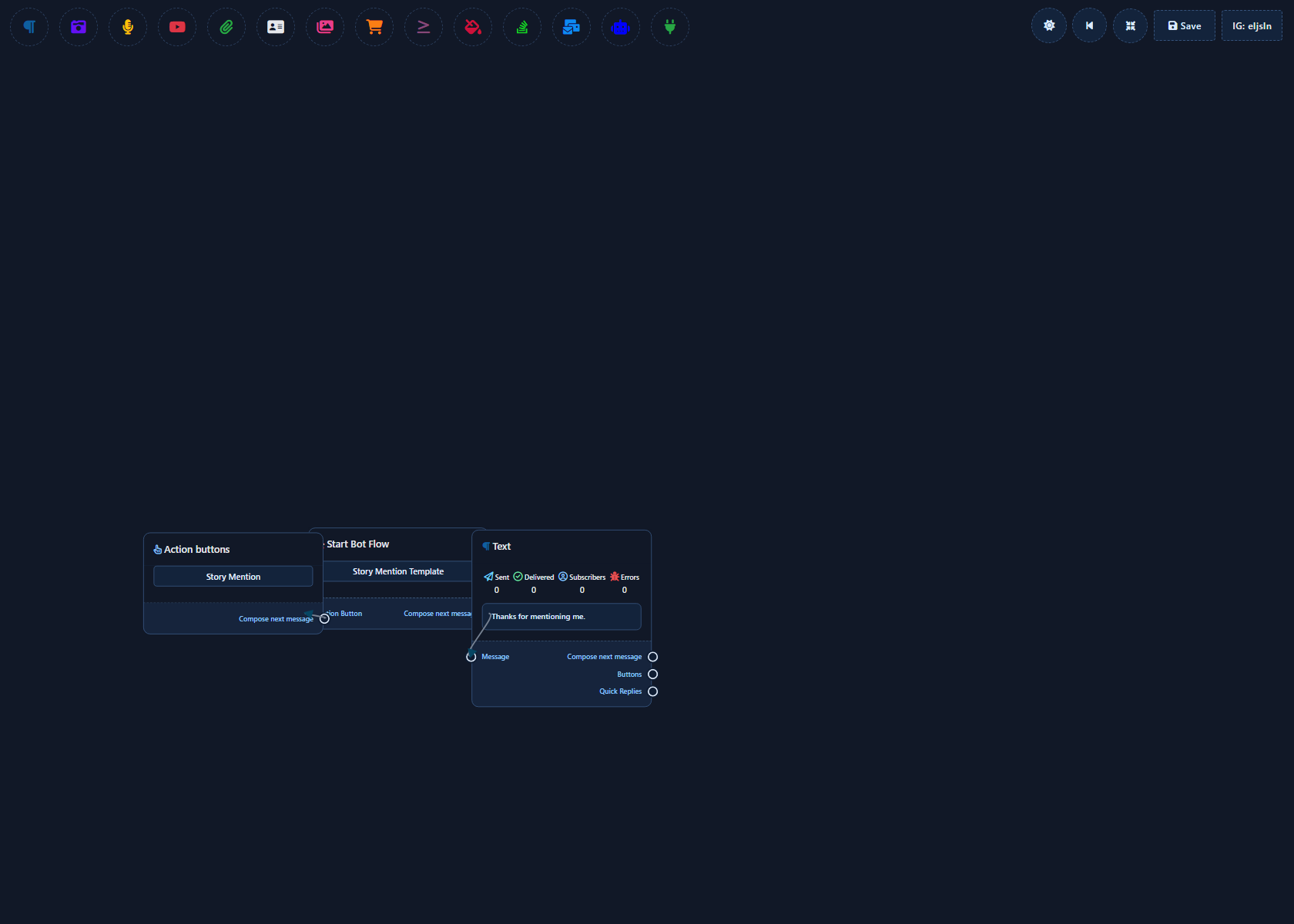
- Story Mention Template — auto DM when someone mentions your account in a Story.
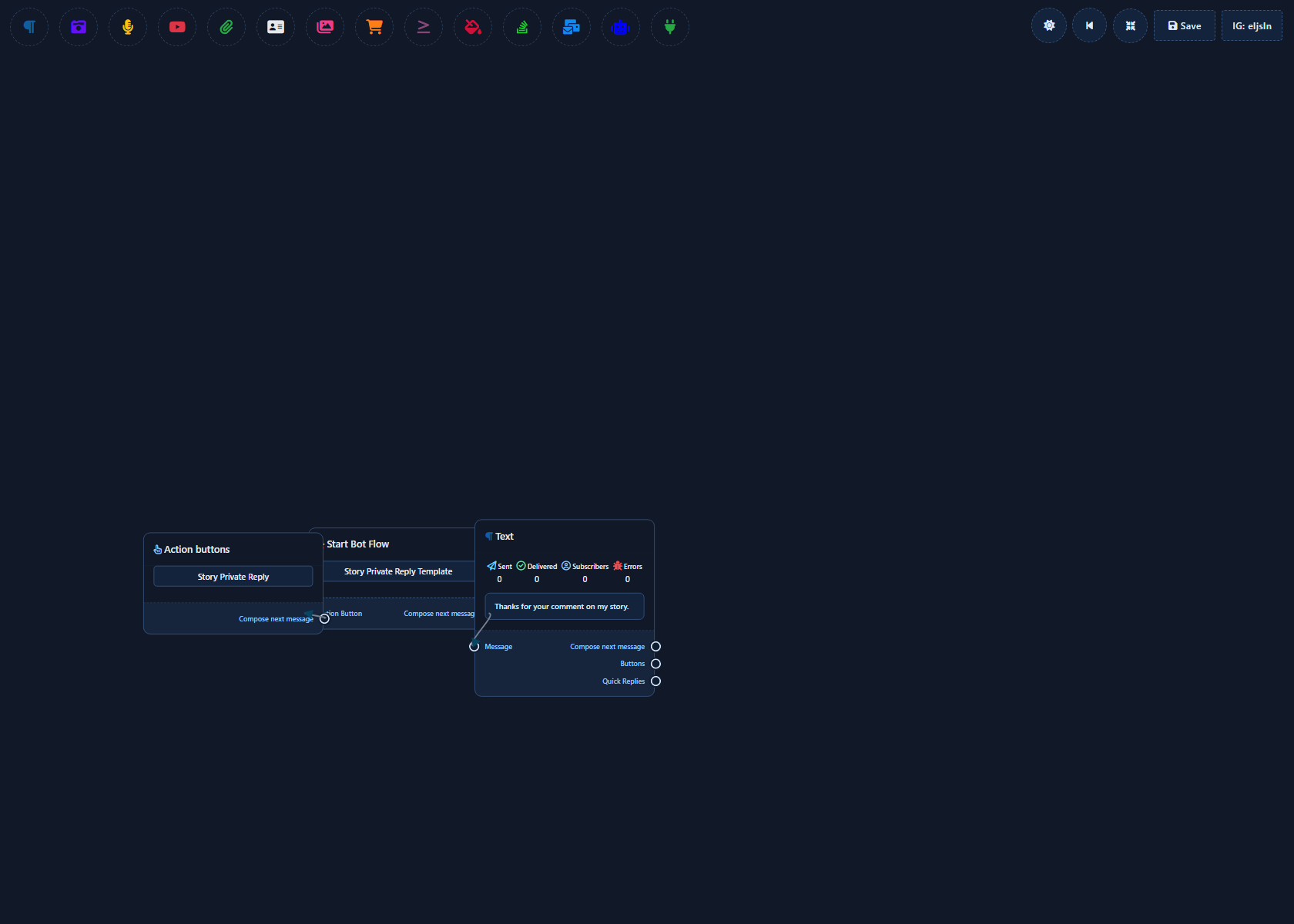
- Story Private Reply Template — private reply path for Story interactions supported in your setup.
- Guide: Instagram Story mention.
10) Human support: Live Chat and Subscribers
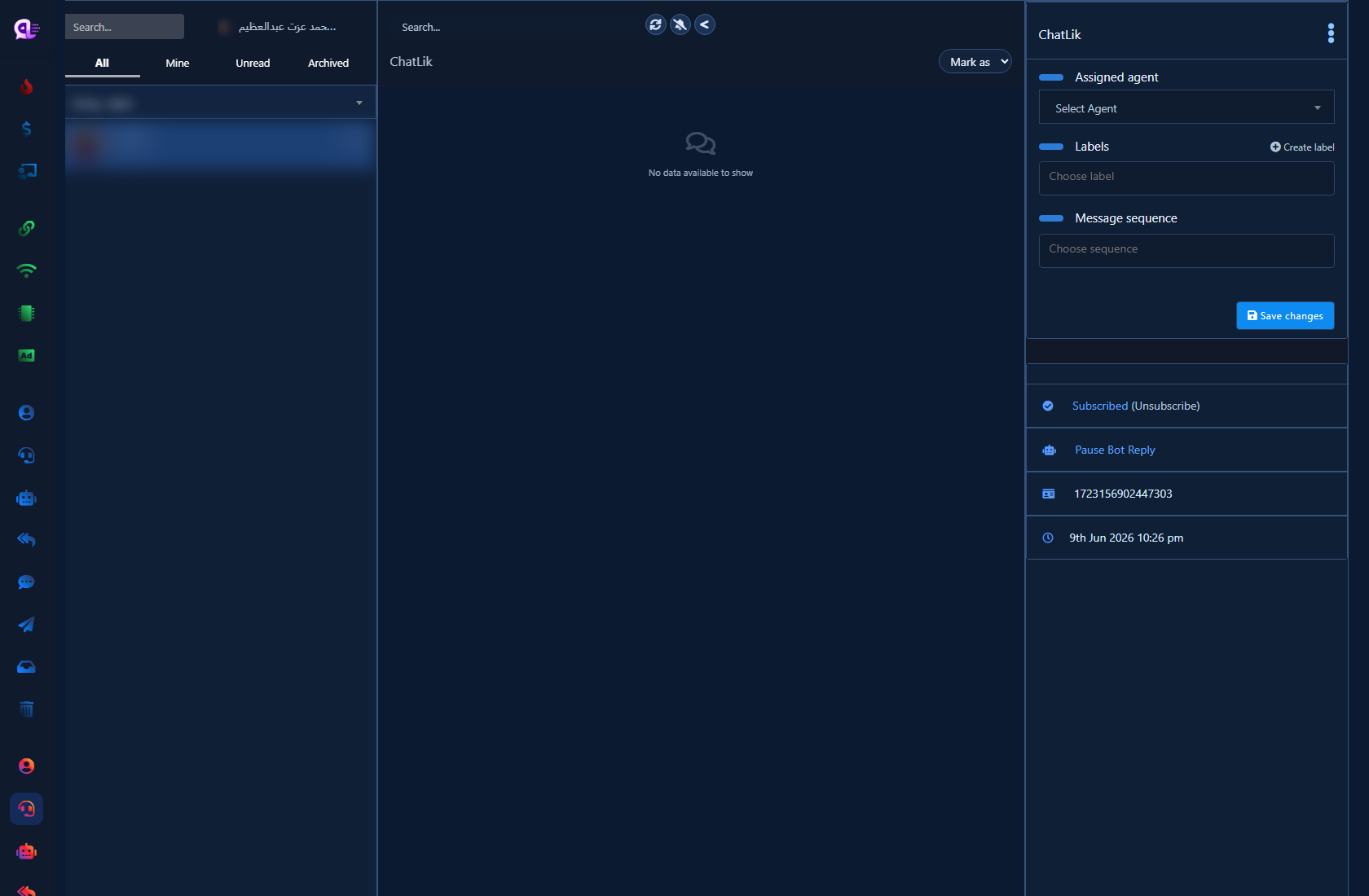
- Open Live Chat (Instagram filter if available) and reply as a human when the customer asks for support or automation should stop.
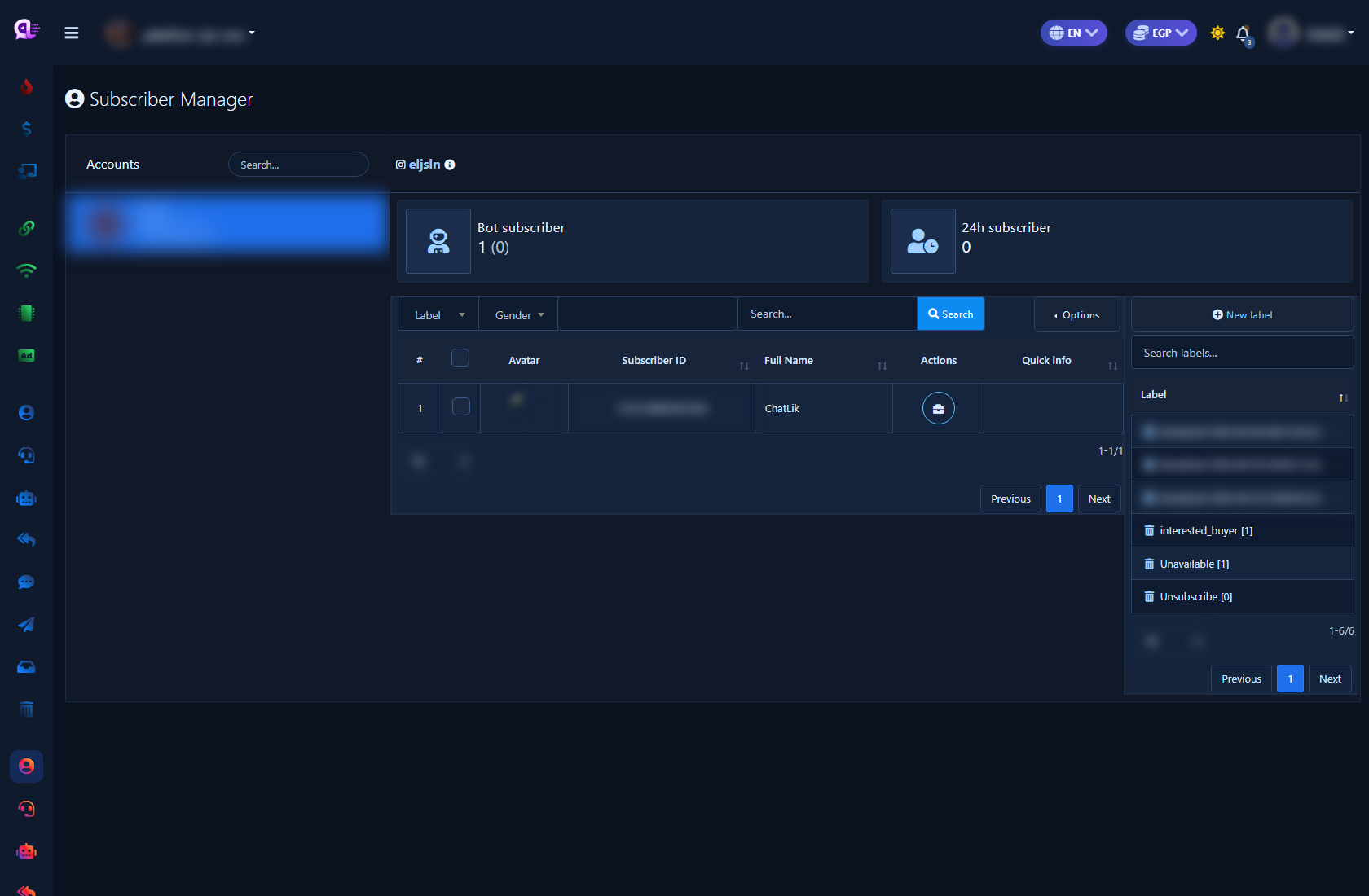
- Use Subscribers to review who messaged the account, apply labels, and export.
- Related: Unified inbox · Subscribers and domains.
11) Test before go-live
- From a personal Instagram account, open a fresh chat with the business account.
- Confirm Ice breakers appear and a templated question works.
- Send “price” / “available” and confirm the keyword reply.
- Send a nonsense line and confirm No Match (with the General Settings switch on).
- If configured, mention the account from a test Story.
- Ask for a human and confirm the team replies in Live Chat.
Common mistakes
- Looking for Get Started on Instagram — use Ice breakers.
- Editing No Match without enabling Reply if no match found.
- Using dummy keywords like “123” instead of real customer phrases.
- Opening Facebook Tools by mistake.
- Skipping Enable Bot Connection or Instagram sync after login.
Related: IG Bot Manager map · Ice breakers · No Match · Story mention · Messenger bot setup.


