
This article is a map of Comment Manager under Facebook Tools only — screen title: Facebook Comment Growth Tools. Learn every card, then pick the right path (full Page, single post, old comments, Page first-comment, templates, reports) instead of clicking at random. For Instagram use the separate guides at the end.
Before any campaign: sidebar Integrations → Connect Accounts, confirm the Facebook Page is linked, and enable Enable Bot Connection if you will send private replies (see Connect Facebook and enable the bot).
1) Open Facebook Comment Growth Tools
- Sidebar: Facebook Tools → Comment Manager.
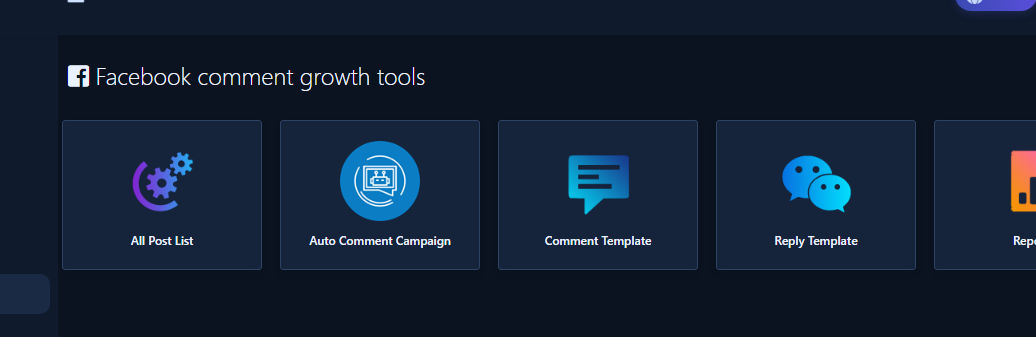
- You see Facebook Comment Growth Tools cards (package-dependent): All Post List, Auto Comment Campaign, Comment Template, Reply Template, and Reports. Tag Campaign appears only when that module is enabled on your plan.
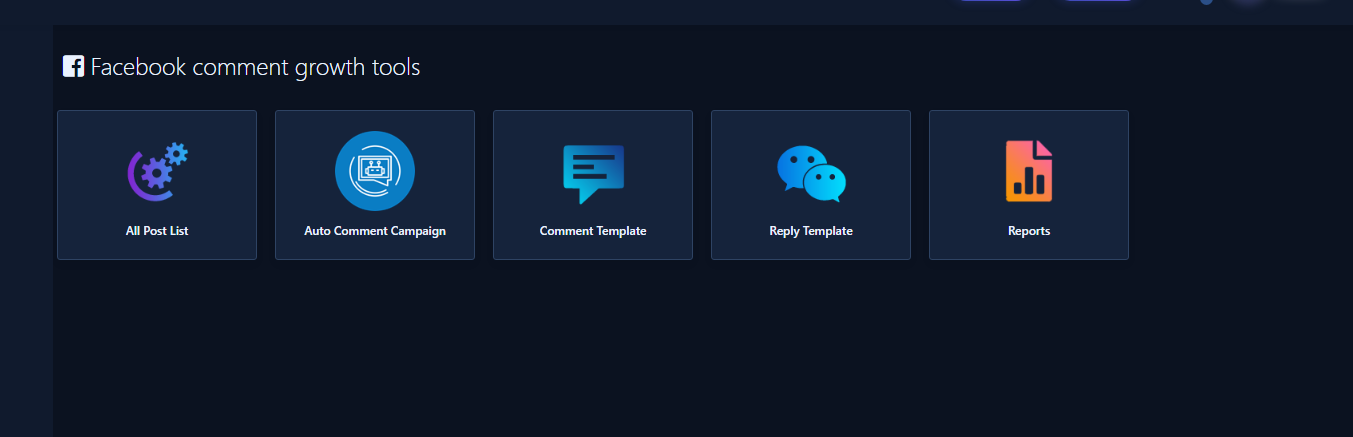
2) All Post List card
- Click All Post List.
- Pick the Page in the Pages column, then wait for the middle tools (Full Page Campaigns) and the posts column when needed.
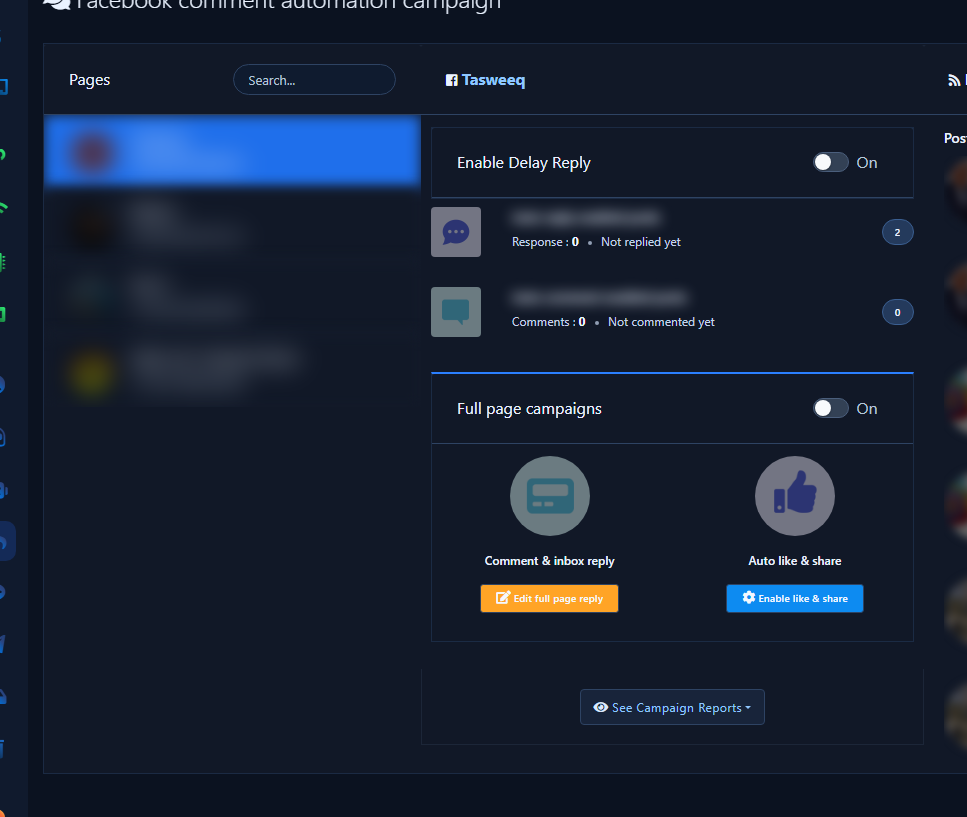
From here two visitor-comment paths branch:
- Full Page Campaigns → Enable Full Page Reply or Edit Full Page Reply — detailed guide: Full-Page reply.
- Latest Posts → post gear → enable auto reply or edit auto reply — guide: single-post reply.
3) Full-Page reply path
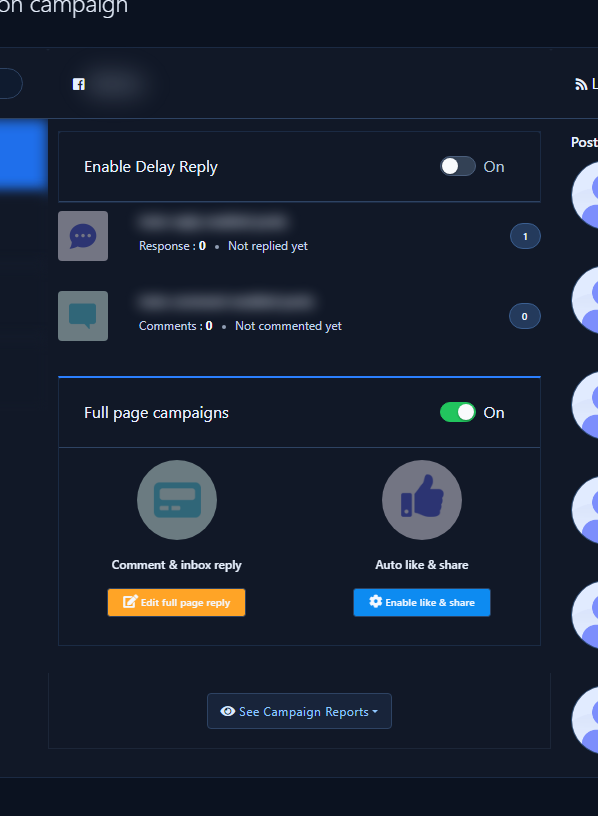
- After selecting the Page, find the Full Page Campaigns block.
- Click Enable Full Page Reply if empty, or Edit Full Page Reply if a campaign already exists.
- In the modal, configure offensive-comment handling, multiple-reply / like / hide toggles, then pick one mode: AI reply, generic message, or word/sentence filter — with a private reply template when needed.
4) Single-post reply path
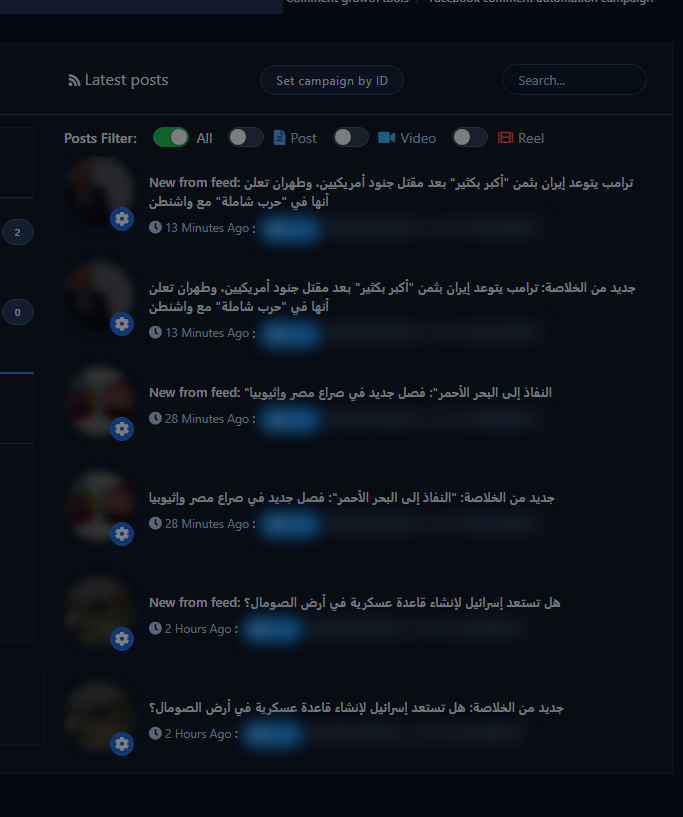
- Still under All Post List, after picking the Page, open Latest Posts.
- From the post gear choose enable auto reply or edit auto reply.
- The system may ask do you want to use saved template? — No to configure from scratch, or Yes to pick a Reply Template.
5) Auto Comment Campaign card (Page first comment)
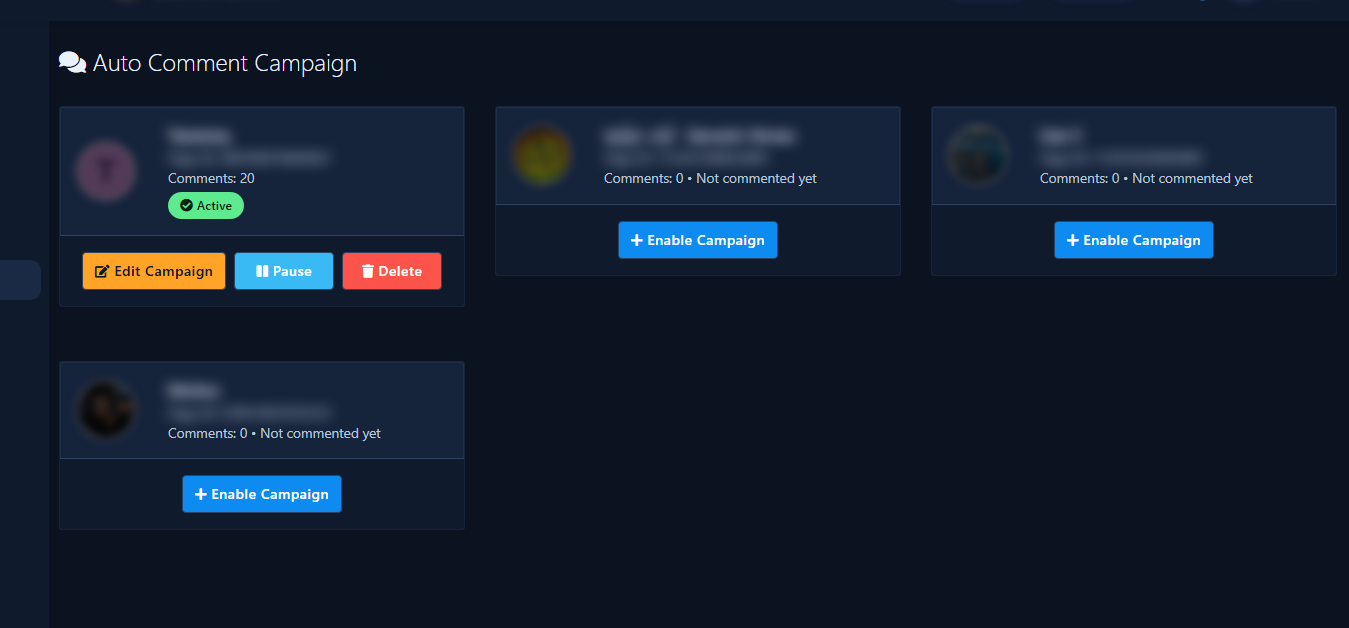
- Return to Facebook Comment Growth Tools and open Auto Comment Campaign.
- This tool makes your Page write the first comment on new posts — it is not visitor-comment auto-reply.
- Per Page: Enable Campaign or Edit Campaign (details: Auto Comment Campaign). Do not confuse it with Scheduler first comment — see the comparison.
6) Comment Template and Reply Template cards
- Reply Template: reusable visitor-comment reply setups (generic / filter / private reply) used by full-Page and single-post campaigns — Reply Template guide.
- Comment Template: Page self-comment texts (different from Reply Template) — Comment Template Manager.
7) Reports card
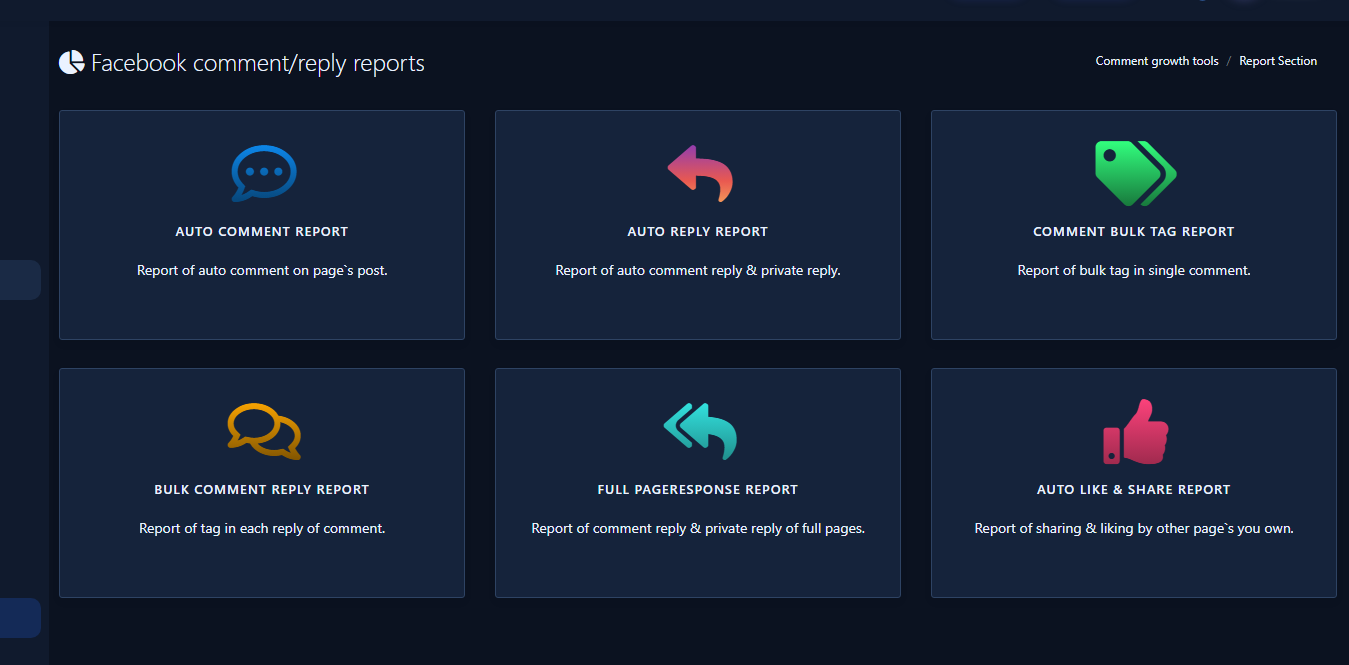
- From growth tools open Reports to reach the Report Section / Facebook comment & reply reports screen.
- Pick the matching report type (e.g. auto reply report vs auto comment report), then review the table and campaign detail — Read Comment Campaign Reports.
8) Old Comment Reply (sidebar — not a growth card)
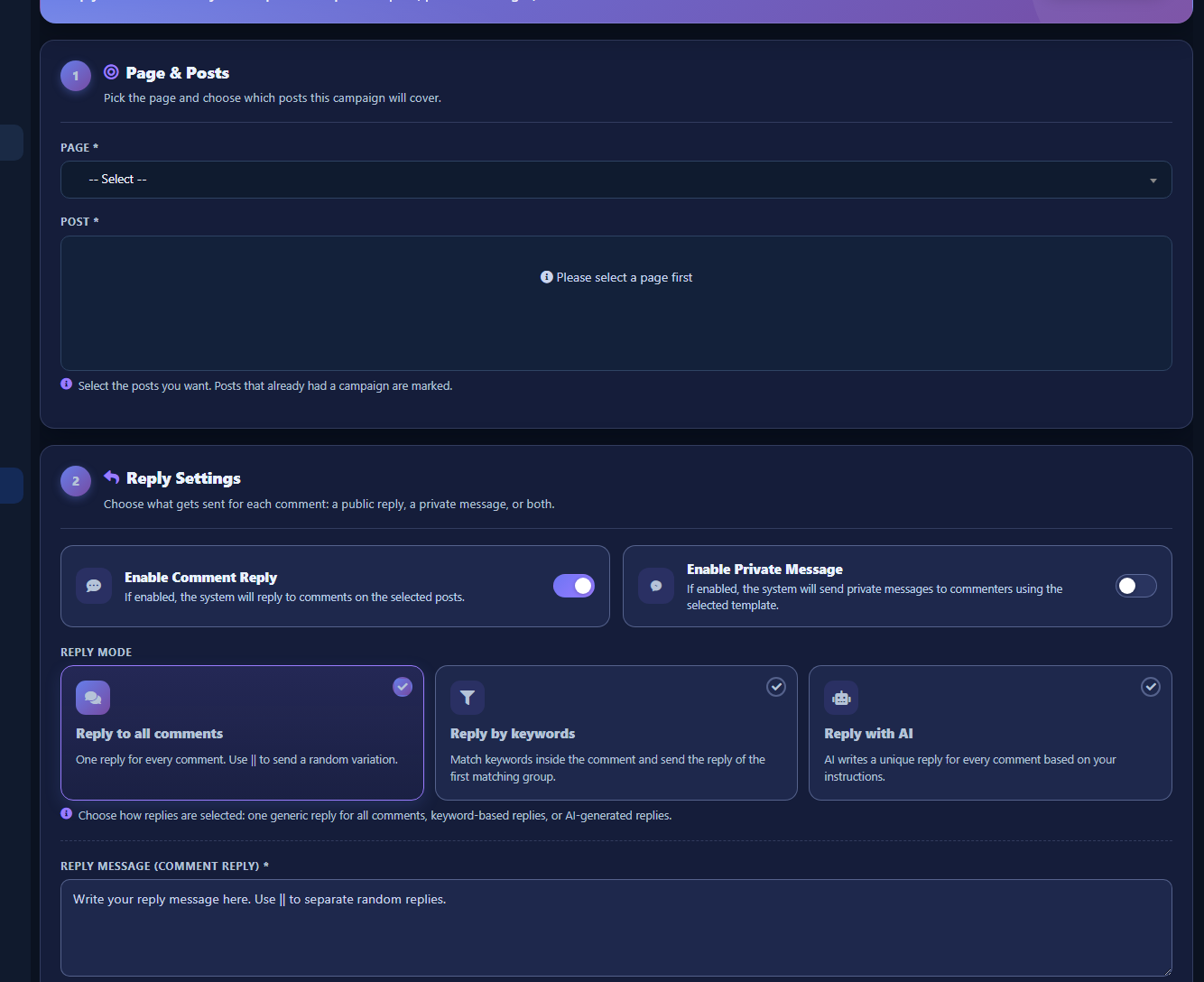
- This tool is not a growth-tools card: sidebar Facebook Tools → Old Comment Reply (screen title: Reply Old Comments).
- It runs a one-shot campaign on comments that already exist: Page & Posts → Reply Settings → Extra Options → Launch Campaign.
- It does not replace standing full-Page or single-post rules for new posts — Old Comment Reply guide.
Which path should you choose?
- Auto-reply on comments across all Page posts → Full-Page reply.
- Reply on one post only → single-post reply.
- Batch on already existing comments → Old Comment Reply.
- Page writes the first comment on its posts → Auto Comment Campaign.
- Reuse reply copy → Reply Template.
- Review results → Reports.
Instagram? Separate guides
Common mistakes
- Mixing Auto Comment Campaign (Page self-comment) with Full Page Campaigns (visitor replies).
- Opening Comment Template when you need Reply Template.
- Looking for Old Comment Reply among growth cards instead of the sidebar item.
- Launching private-reply campaigns without Enable Bot Connection.
Related: Full-Page · Single-post · Old comments · First comment · Templates · Reports.


