
M.me Link shortcuts from ads/bio/print into your Page’s Messenger thread. Path: Facebook Tools → Bot Manager → Page → Messenger Engagement → M.me Link.
Before you start
- Enable Bot Connection.
- Prepare Get Started / welcome.
- Plan a unique ref per traffic source.
1) Open the M.me list
- Open M.me Link.
- Review the table or create a new entry.
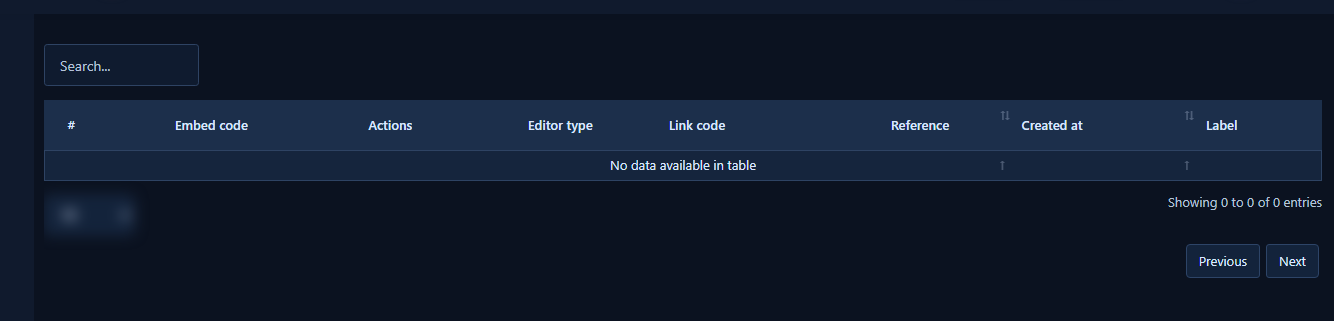
2) Create the link/button
- Set button text/colors/size if shown.
- Attach an opt-in confirmation template.
- Fill Reference with a clean campaign ref.
- Click Generate Embed Code and copy the link/code.
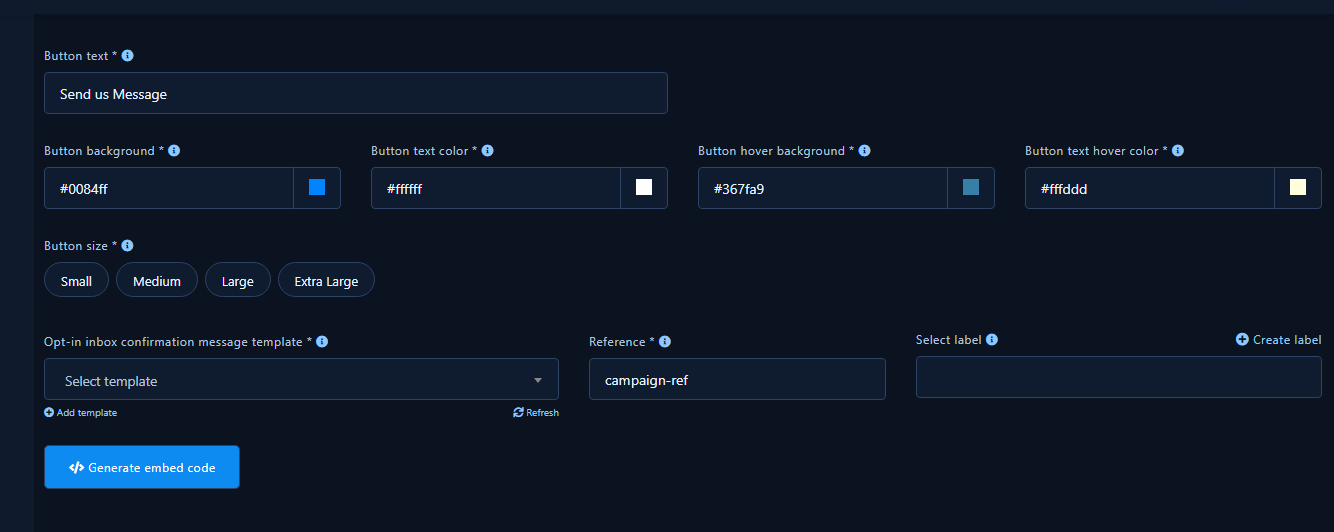
3) Publish and test
- Place the link in bio/ads/print.
- Open it on a real phone and verify the first reply.
Practical tips
- Unique refs per campaign.
- Test Android and iOS.
- Do not mix lab Page links into production ads.
Common mistakes
- Linking a Page with Bot Connection off.
- Reusing a deleted plugin link.
- Skipping Get Started setup.


