
Manual replies in ChatLik follow two clear channel paths: the WhatsApp Inbox under WhatsApp Tools, and Live Chat for Messenger/Instagram under Facebook Tools or Instagram Tools. This guide opens the inbox, the thread list, the conversation pane, then the composer — using real UI labels, not marketing fluff.
Before you start
- Connect WhatsApp and/or a Facebook Page under Integrations → Connect Accounts and enable Enable Bot Connection.
- Agree who watches Unread and Mine.
- For bot→human handoff see also Live Support.
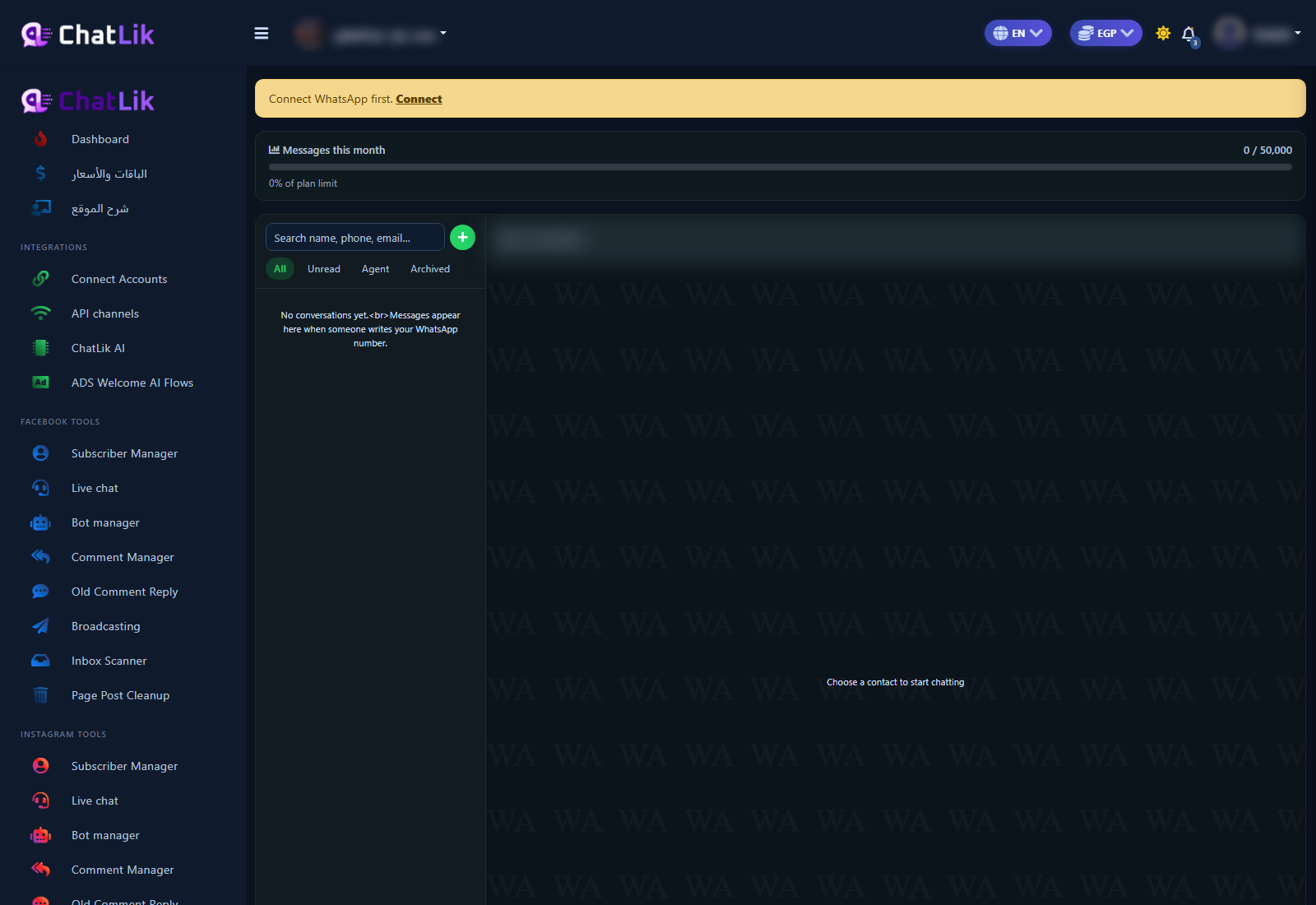
1) Open the WhatsApp Inbox
- Sidebar: WhatsApp Tools → Inbox.
- Confirm list/chat columns and filters such as All / Unread / Agent / Archived.
- Confirm the connected number is selected; empty state means a new number.
2) Open Messenger Live Chat
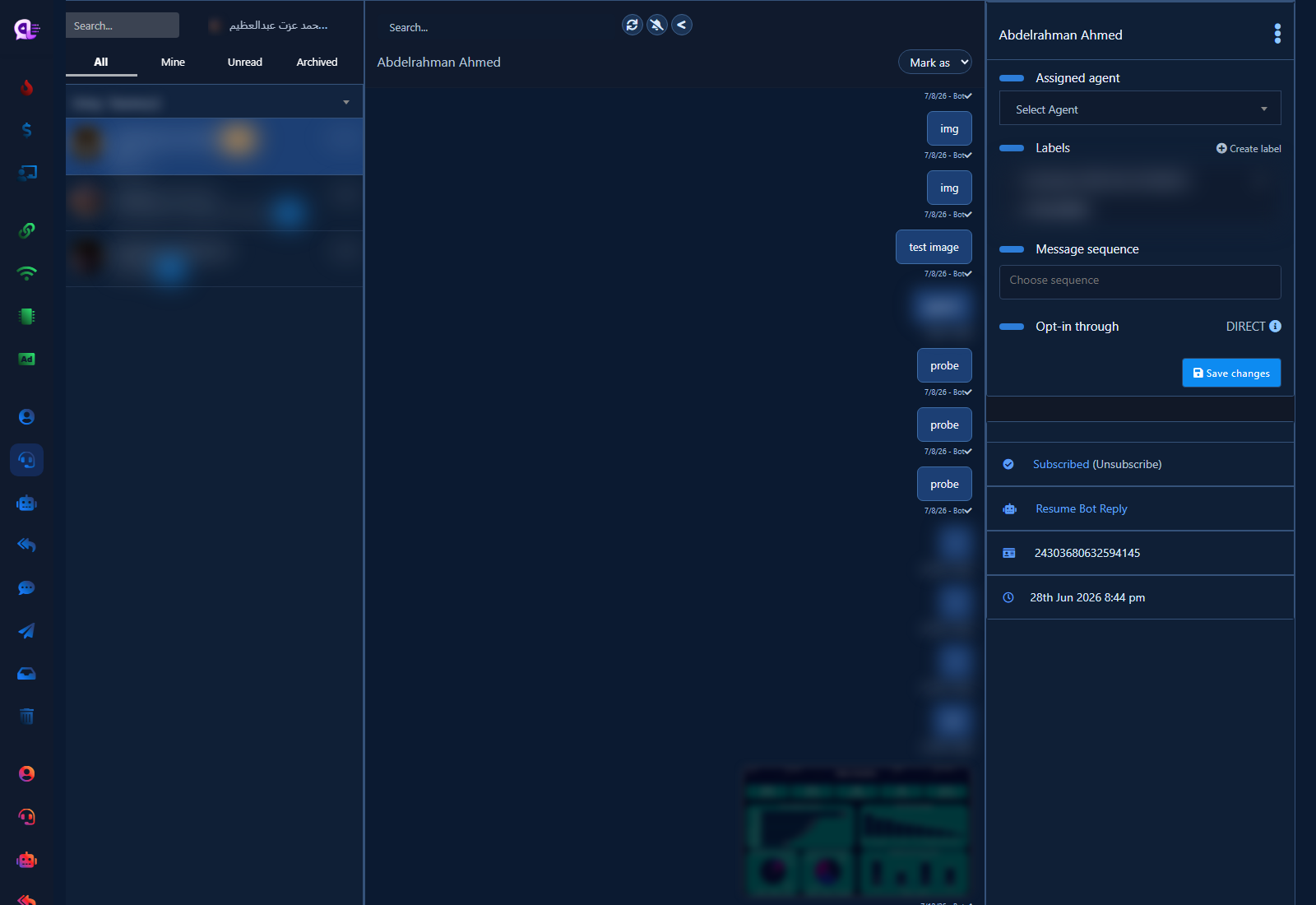
- Sidebar: Facebook Tools → Live Chat (Instagram: Instagram Tools → Live Chat).
- Wait for the conversation list to load.
3) Page picker and list filters
- Pick the correct Page if a page switcher is shown.
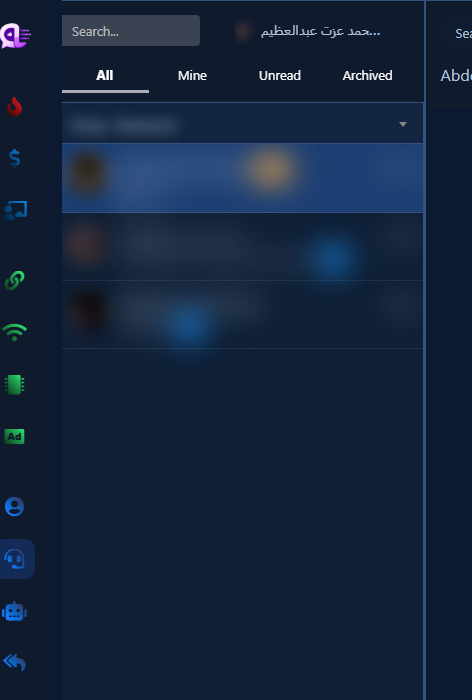
- Use tabs like All, Mine, Unread, Archived.
- Use Search to narrow by name or message text.
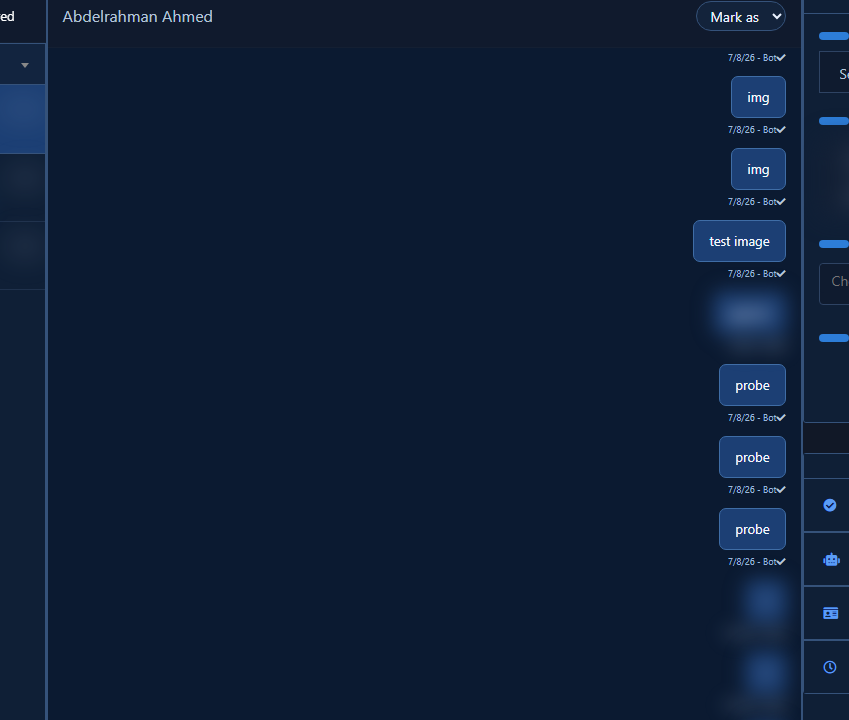
4) Open a conversation thread
- Click a row to open the message pane.
- Review bot and customer messages (blog shots blur PII).
5) Manual reply and subscriber tools
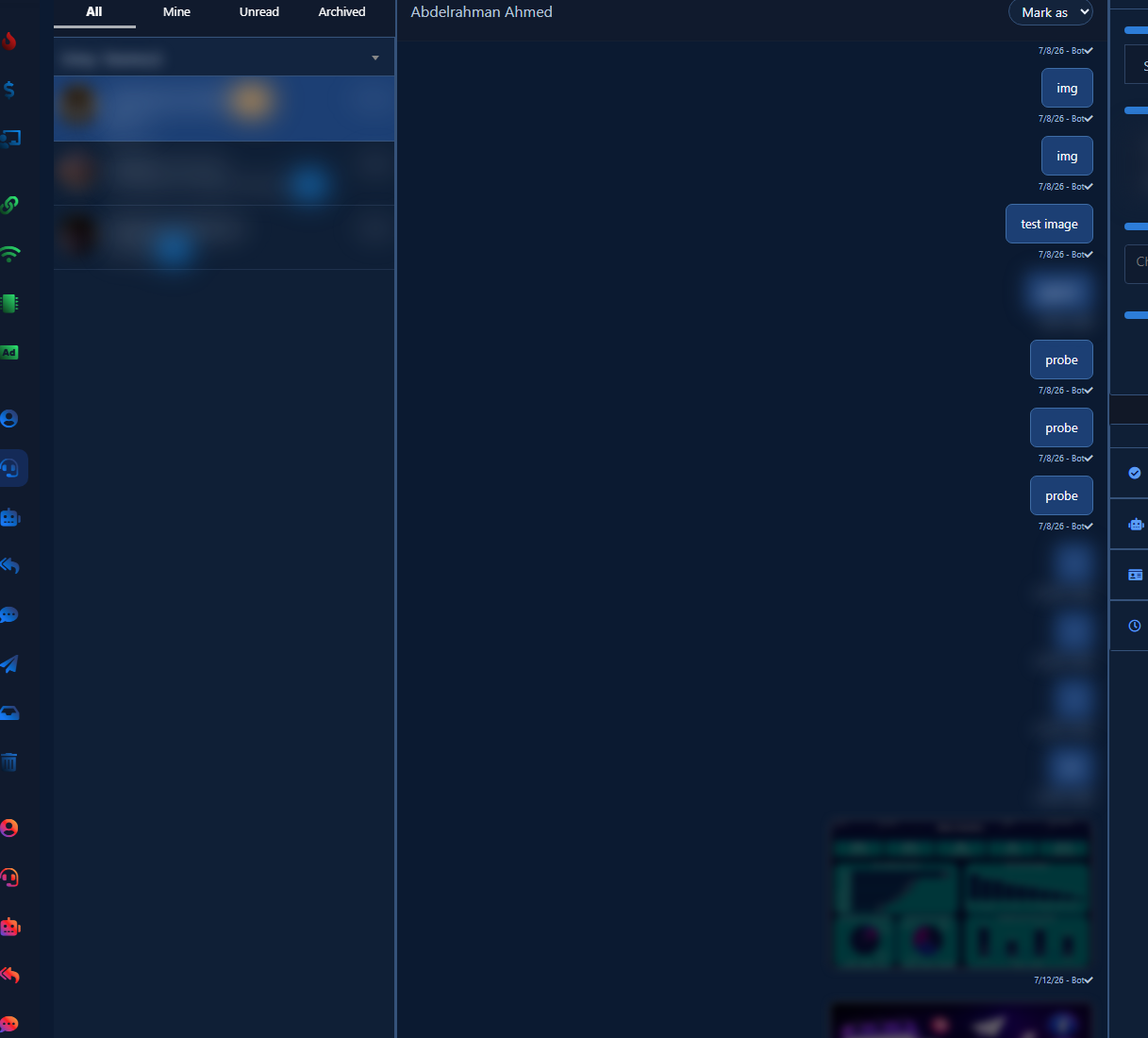
- Type in the composer and send.
- In the subscriber details pane (when shown): set Assigned agent, add a Label, or use Resume bot reply after human help.
- Click Save changes if you edited agent/labels.
Practical tips
- Start peak shifts on Unread.
- After human help, resume the bot when automation should continue.
- Deeper tags/assignment: Inbox tags and assignment.
Common mistakes
- Replying on the wrong Page because the switcher was not updated.
- Mixing WhatsApp Inbox with Messenger Live Chat — separate menu paths.
- Leaving threads unassigned in a multi-agent team.
Next step
See Live Support and Messenger bot setup.


