
Once messages land in the inbox, Labels and assignment help the team filter without losing threads across WhatsApp and Messenger. This guide covers WhatsApp contact labels and Messenger bulk assignment from Subscriber Manager.
Before you start
- Connect WhatsApp/Facebook and enable Bot Connection where needed.
- Agree on a short shared label list (inquiry, ready-to-order, shipping, done).
1) WhatsApp labels from Inbox
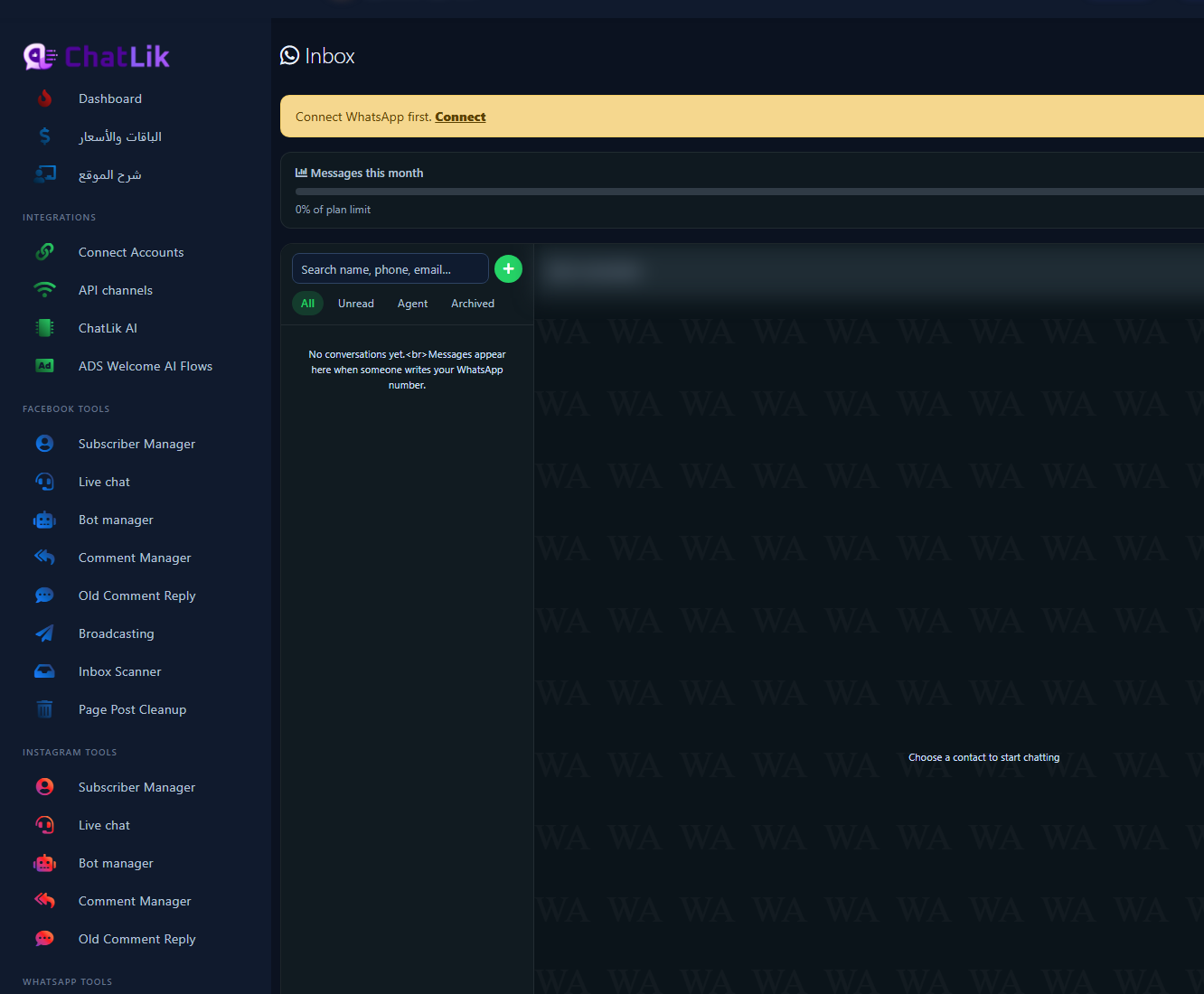
- Open WhatsApp Tools → Inbox.
- Select a conversation (or note the empty state if none yet).
- Open Contact info, enter comma-separated Labels, and save.
2) Bulk Messenger label assignment
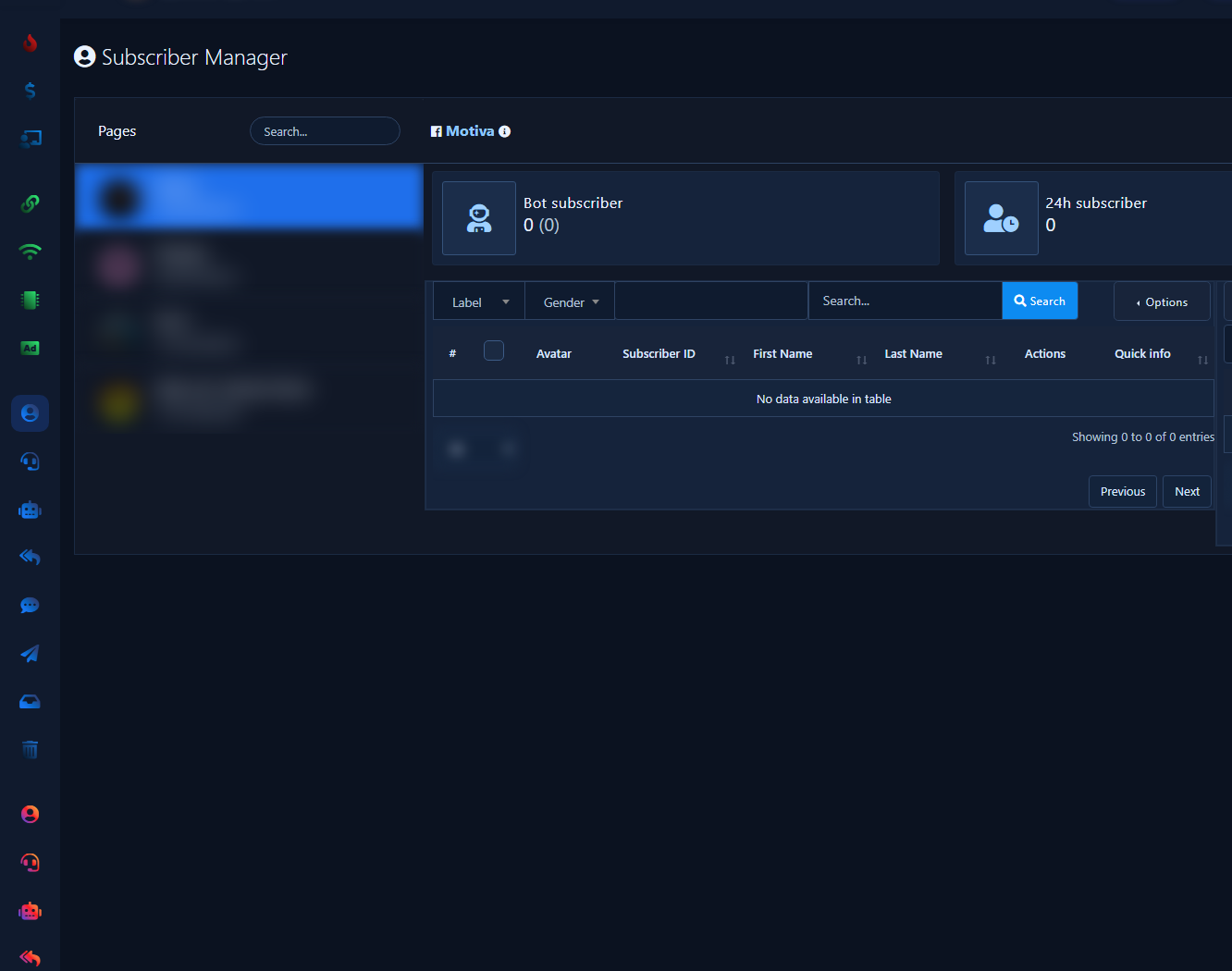
- Open Facebook Tools → Subscriber Manager and pick the Page.
- Filter by label/gender/search.
- Use Options → Assign labels, or create a New label in the labels panel.
3) Keep labels current
- Confirm the label appears so teammates can filter or broadcast.
- Update labels when an order closes (e.g. done).
Practical tips
- Prefer a short shared vocabulary.
- Reuse the same labels for broadcast targeting.
- See Unified Inbox for daily manual reply flow.
Common mistakes
- Leaving every thread unlabeled.
- Per-agent private label taxonomies.
- Forgetting to update labels after closing orders.


