
This guide shows how to create a keyword reply for Messenger messages via the Visual Flow Builder (also labeled Flow Builder / scenario builder) in ChatLik. The correct entry is the Bot Reply card — not Bot Keyword Settings (that classic editor is covered in Bot keywords and triggers). Focus here: Facebook/Messenger. Instagram uses the same Visual Flow idea under Instagram Tools → Bot Manager → Bot Reply; see also Instagram Flow Builder.
Sidebar path: Facebook Tools → Bot Manager → select the Page → Bot Reply → Change Settings → Create New Flow → double-click Start Bot Flow → Configure Reference (keywords + matching type) → connect a reply node (e.g. Text or Card) via Compose next message → Save.
Keyword match vs No Match
- On match: the customer types a word (e.g. “price”, “prices”, or “offer”) that matches Configure Reference → this flow runs and sends the connected reply nodes.
- On no match: the message matches no keyword and no known path (and no Get Started / Persistent Menu hit) → No Match Template sends only if Reply if no match found is enabled in General Settings.
- Do not mix roles: Flow keywords cover structured FAQs; No Match is the safety net — not a substitute for clear keywords.
Exact keyword match vs String match
Under Send reply based on your matching type. there are two options. The choice controls when the flow fires — not just a label.
- Exact keyword match: the whole customer message must equal one keyword (after normal trimming). Example list:
price, prices, cost, offer— “price” alone → fires; “what is the price” or “price please” → does not fire (message is longer than the exact token). Best for sensitive triggers (pricing, short promo codes) so casual sentences do not steal the flow. - String match (contains / partial): any keyword appearing inside the message is enough. Same list: “what is the price today?” or “any offer now?” → fires because “price” / “offer” is contained. Best for everyday synonyms and longer questions — avoid tiny tokens (“ok”, “no”) that over-match.
- Multiple keywords: put real synonyms in one comma-separated field (Arabic + English together is fine), e.g.
سعر, أسعار, price, عرضorprice, prices, cost, offer. Any listed synonym triggers the same flow — you do not need a separate flow per spelling.
Before you start
- Under Integrations → Connect Accounts → Page List, enable Enable Bot Connection (see Connect Facebook and enable the bot).
- Prepare 3–8 real customer keywords (e.g. price, prices, cost, offer — not placeholder numbers).
- Choose matching before you save: Exact keyword match for sensitive words, or String match for contains-in-sentence.
- Test on a lab Page (e.g. صفحة اختبار) before production.
1) Open Bot Manager and select the Page
- Sidebar: Facebook Tools → Bot Manager.
- Select the Facebook Page under Pages and wait for the middle cards.
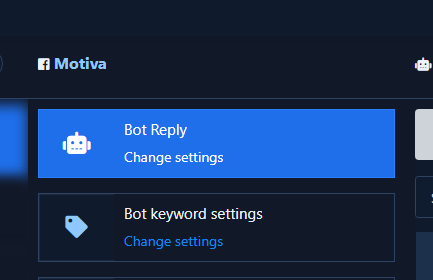
- Note two related cards: Bot Reply (Visual Flow — this guide) and Bot Keyword Settings (classic editor — different path).
2) Open the flow list from Bot Reply
- On Bot Reply click Change Settings.
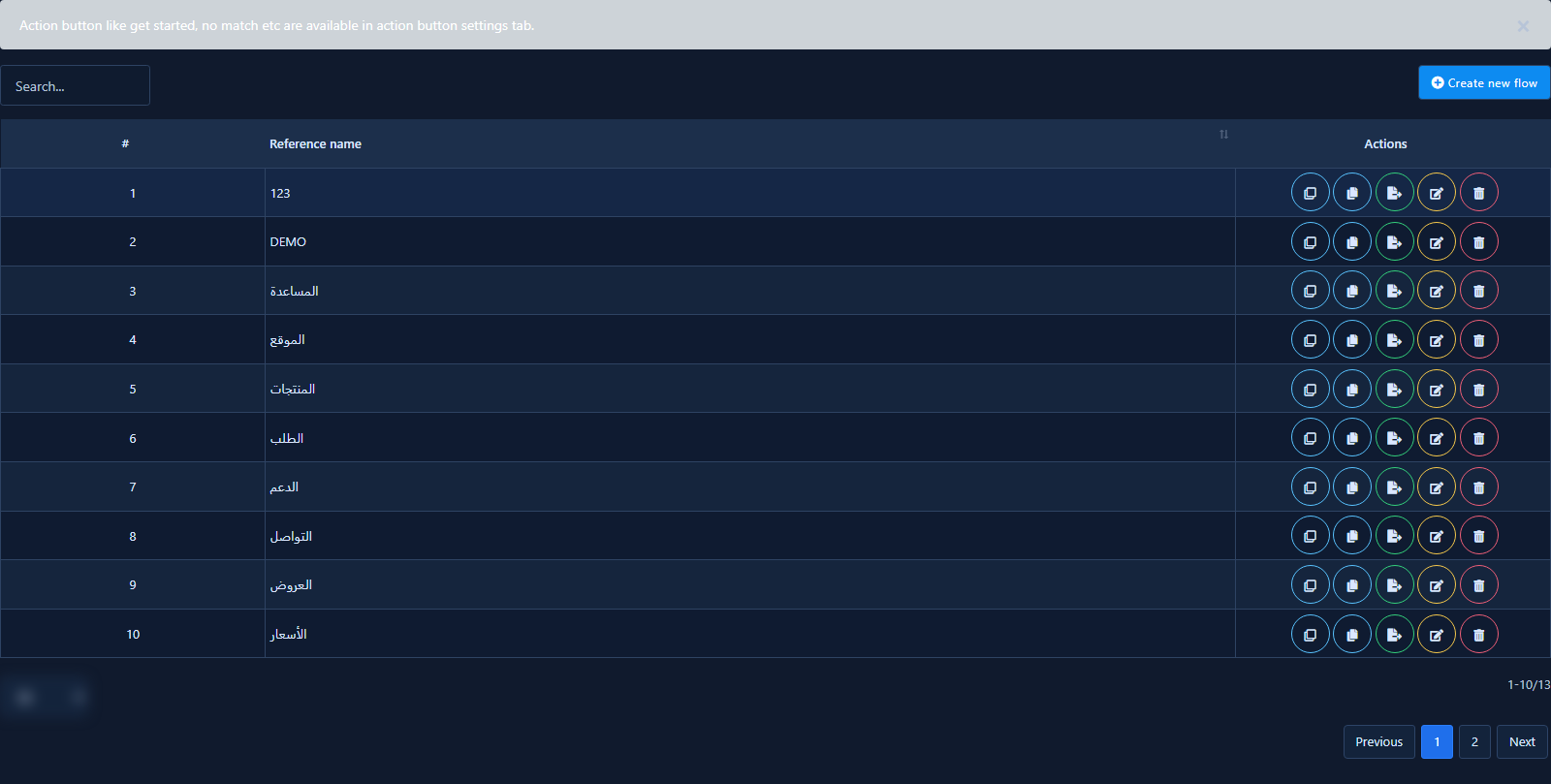
- You see the flow list (Reference Name + Actions) and a note that action buttons (Get Started / No Match, etc.) live under Action Button Settings — not here. Do not open the Get-started template from there for this path.
- Click Create New Flow for a fresh keyword scenario (or later use the yellow edit icon on an existing row such as “prices”).
3) Start from the Start Bot Flow node
- The Visual Flow editor opens with the Page badge (e.g. FB: …) and a component toolbar.
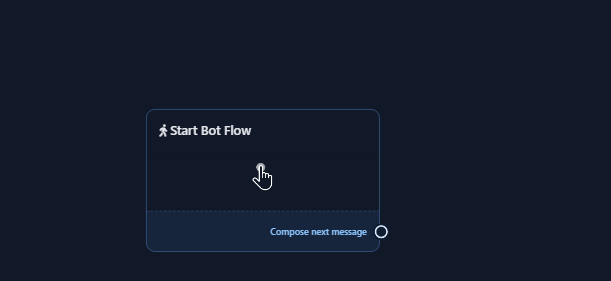
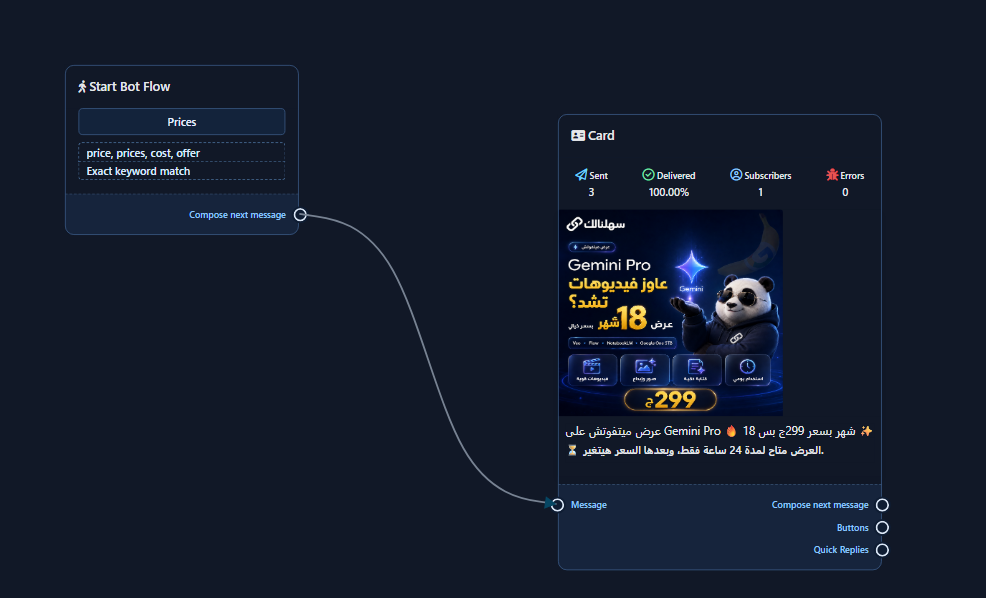
- On the canvas you get Start Bot Flow with a Compose next message port. This is a new keyword-flow start node — not the Get-started template screen.
- Double-click it to open Configure Reference (keywords + matching).
4) Set keywords in Configure Reference
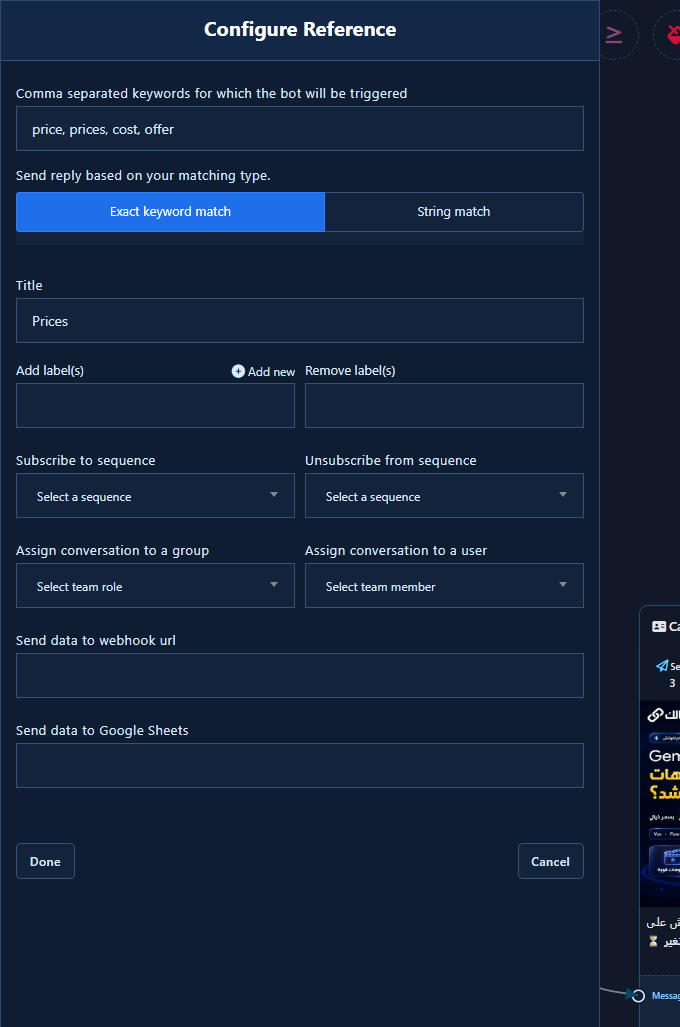
- Double-click opens the Configure Reference panel.
- In Comma separated keywords for which the bot will be triggered, enter several real synonyms (e.g.
price, prices, cost, offer). - Under Send reply based on your matching type. choose Exact keyword match or String match using the rules above — the sample shot uses Exact keyword match.
- Optional: Title, labels, sequences, team assignment, webhook.
- Click Done (or Cancel to discard the panel).
5) Connect a reply node and save
- From the toolbar drag Text or Card (or another reply type) onto the canvas.
- Connect Compose next message from the start node to the reply node’s Message input.
- Double-click the reply node and write the content (prices, buttons, quick replies…).
- In the top bar click Save (tooltip: Save (Ctrl+S)).
6) Test in Messenger
- From a test account send one listed keyword alone (e.g. “price” or “offer”) — the flow reply should arrive.
- Exact match check: send “price” alone → expect the reply; then send “what is the price” → with Exact keyword match this flow usually does not fire.
- String match check: switch to String match, save again, then “what is the price” should fire because “price” is contained.
- Send another synonym from the comma list (e.g. “prices” or “cost”) to confirm multi-keywords work.
- Send a random unmatched message (e.g. “good morning”) — if No Match is enabled you get the No Match Template; otherwise the bot may stay silent.
- If the keyword never replies: confirm you clicked Done then Save, Bot Connection is on, the correct Page, that an older classic rule under Bot Keyword Settings is not stealing the same word, and that you did not edit the Get Started template by mistake.
Practical tips
- Start with a short precise keyword list — random expansion creates conflicts between flows.
- Map price keywords to a short flow + human button; keep Get Started and Ice breakers for first-open entry — a different path from keyword replies here.
- For the broader Visual Flow overview see Facebook Flow Builder — this article stays on the keyword path only.
Common mistakes
- Opening Bot Keyword Settings instead of Bot Reply.
- Opening Action Button Settings → Get-started template instead of Create New Flow — Get Started is not the keyword path.
- Setting keywords without Done then Save on the flow.
- Overly broad words (“hi”, “yes”) stealing other paths.
- Editing one Page’s flow while testing another.
- Relying on No Match instead of clear FAQ keywords.
Related: Classic bot keywords · No Match · Get Started · Ice breakers · Connect Facebook.


