
Reply Template is a card under Facebook Comment Growth Tools that stores a full visitor comment-reply campaign setup for reuse — instead of rebuilding the form each time. It is not Comment Template, which stores Page self-comment texts for posts — that is a separate guide: Comment Template Manager. It is also not a live campaign like Full-Page reply or single-post reply; those flows can pick a saved reply template when enabling. For Page auto-comments on posts see Auto Comment Campaign.
Sidebar path: Facebook Tools → Comment Manager (Facebook Comment Growth Tools screen) → Reply Template card. Inner screen title: Auto reply template manager.
Before you start
- Sidebar: Integrations → Connect Accounts. Confirm the Facebook Page is listed. If you will attach a private reply, enable Enable Bot Connection (see Connect Facebook and enable the bot).
- Draft generic or keyword replies, and any private message template you will select.
- Mentally separate: Reply Template = replies to visitor comments; Comment Template = Page comments on posts.
1) Open Comment Growth Tools and Reply Template
- Sidebar: Facebook Tools → Comment Manager.
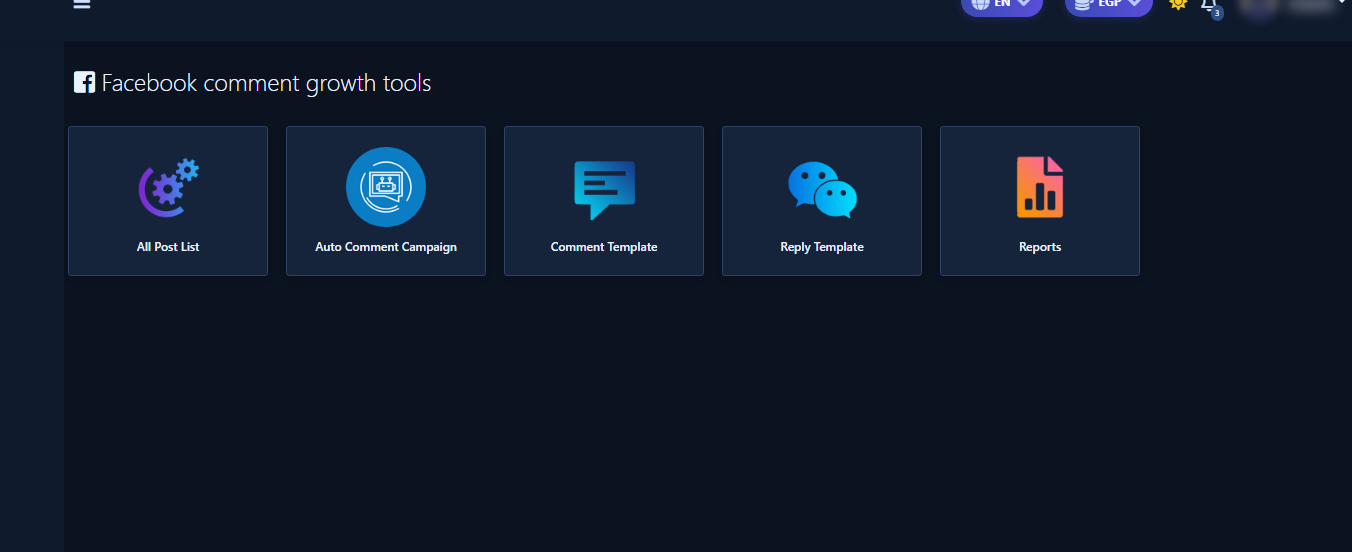
- On Facebook Comment Growth Tools you see cards: All Post List, Auto Comment Campaign, Comment Template, Reply Template, Reports.
- Click Reply Template (not Comment Template).
2) Auto Reply Template Manager list
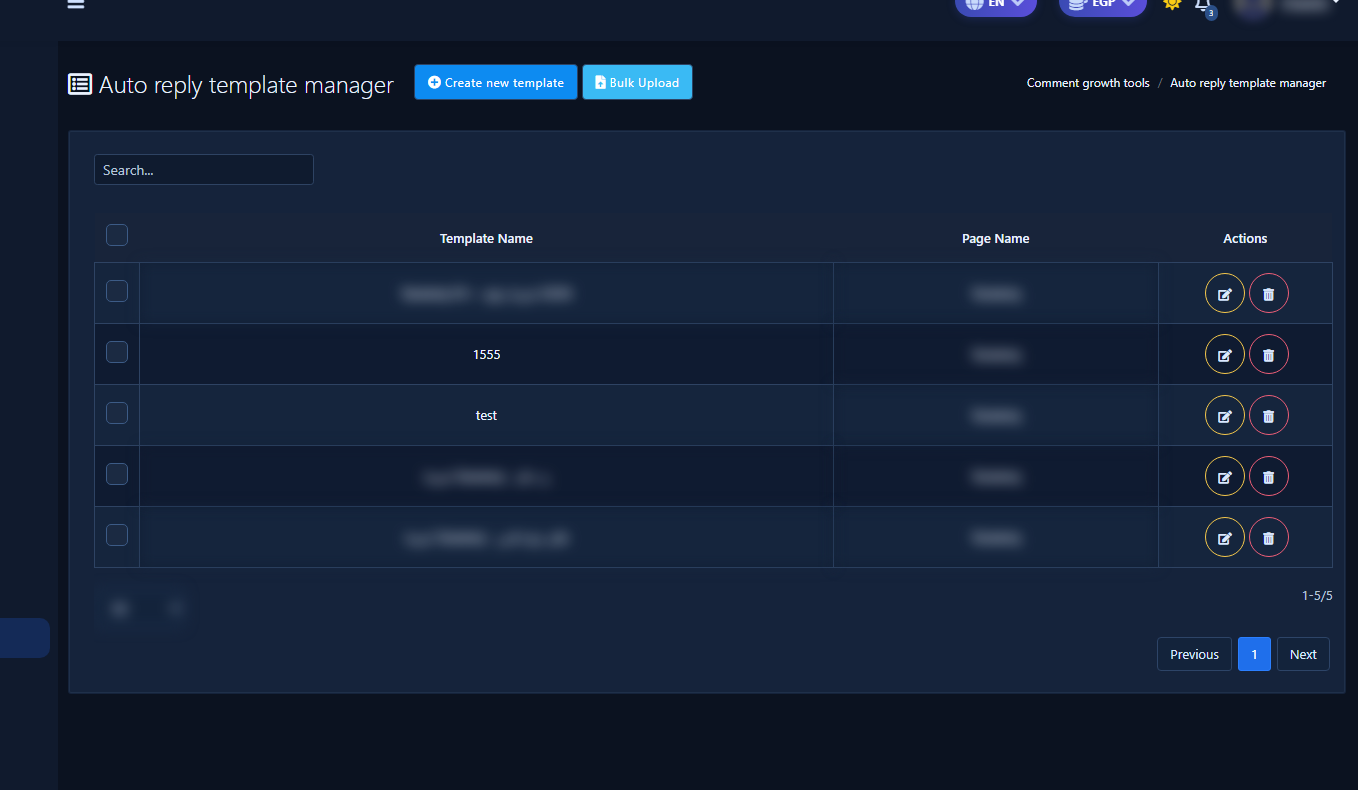
- You land on Auto reply template manager with the saved templates table (Template Name, Page Name, Edit/Delete actions).
- Top buttons: Create new template and optional Bulk Upload.
- Use Search when the table is crowded.
3) Create modal: Page and offensive comments
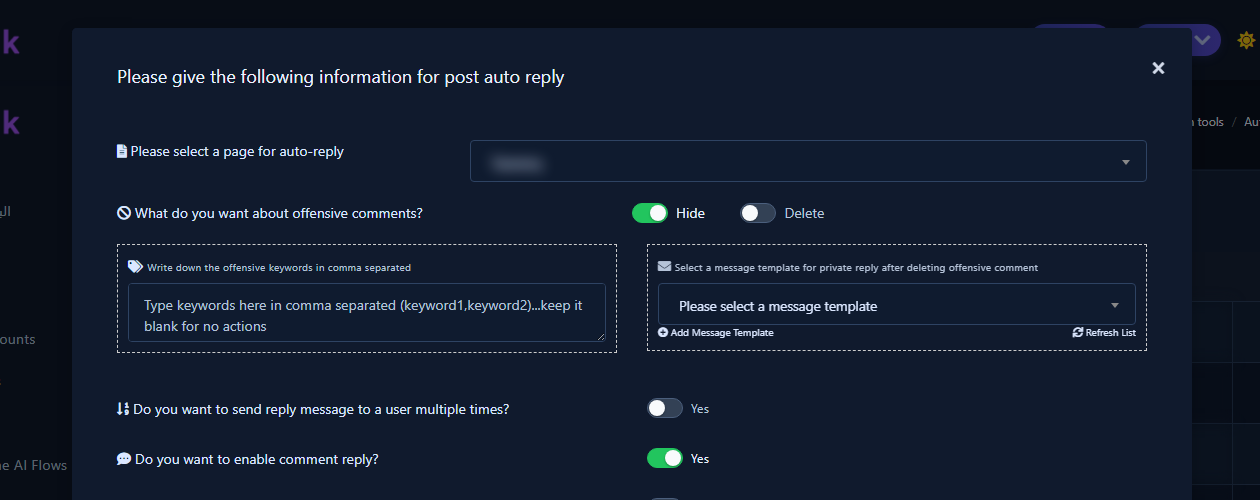
- Click Create new template. The modal title is along the lines of Please give the following information for post auto reply.
- Under Please select a page for auto-reply, pick the Page (this guide’s shots use a data Page such as صفحة العملاء or صفحة اختبار).
- Under offensive comments choose hide or delete, and optionally enter comma-separated offensive keywords.
- You can attach a message template for private reply after deleting offensive comment, plus Add Message Template / Refresh List.
4) Behavior toggles and reply types
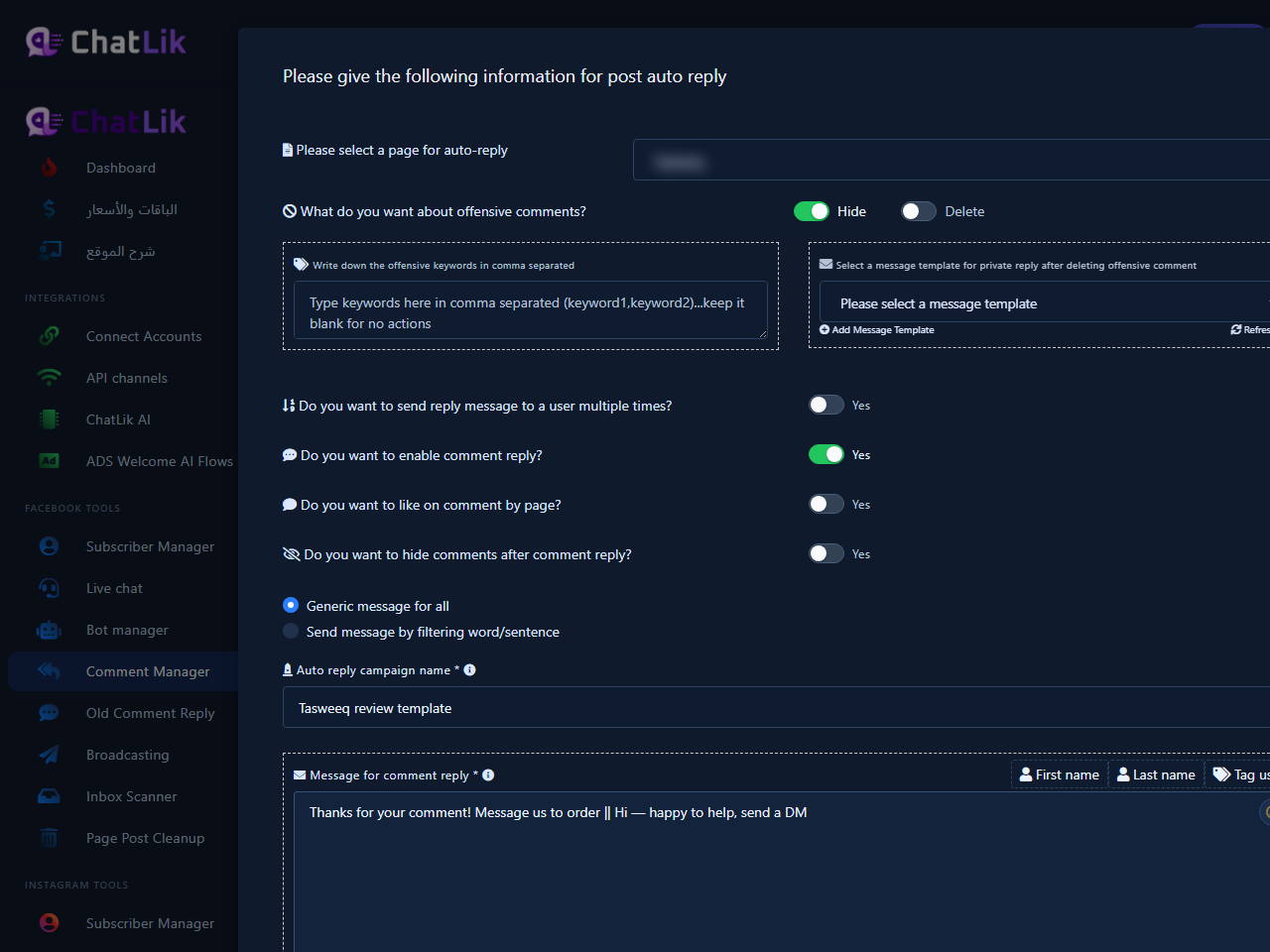
Below the offensive section: multiple-reply, enable comment reply, like/page comment, and hide-after-reply toggles. The create UI then offers two reply types:
- generic message for all — one shared reply (or random variants) for every comment.
- send message by filtering word/sentence — keyword-based replies.
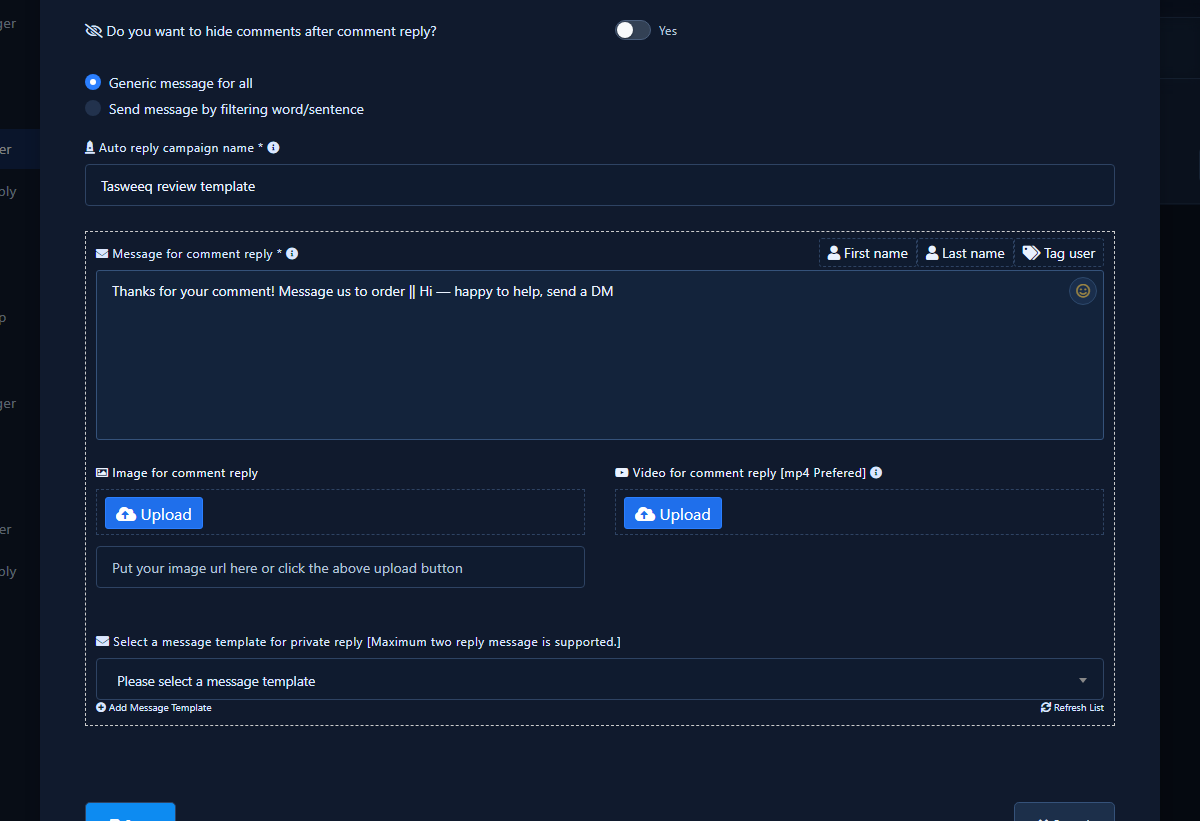
Fill auto reply campaign name (required) with a clear label such as “Base price” or “Friday offer”.
5) Mode A — generic message for all
- Select generic message for all.
- In Message for comment reply, write the text. Separate variants with
||so one is chosen at random per comment. Example:
Thanks for your comment! Message us to order || Hi — happy to help, send a DM
Use first name / last name / tag-user buttons above the field, and optionally upload an image or video.
6) Mode B — filter word/sentence
Best when the same post mixes intents (price, availability, shipping…). See also Comment replies with keyword filtering.
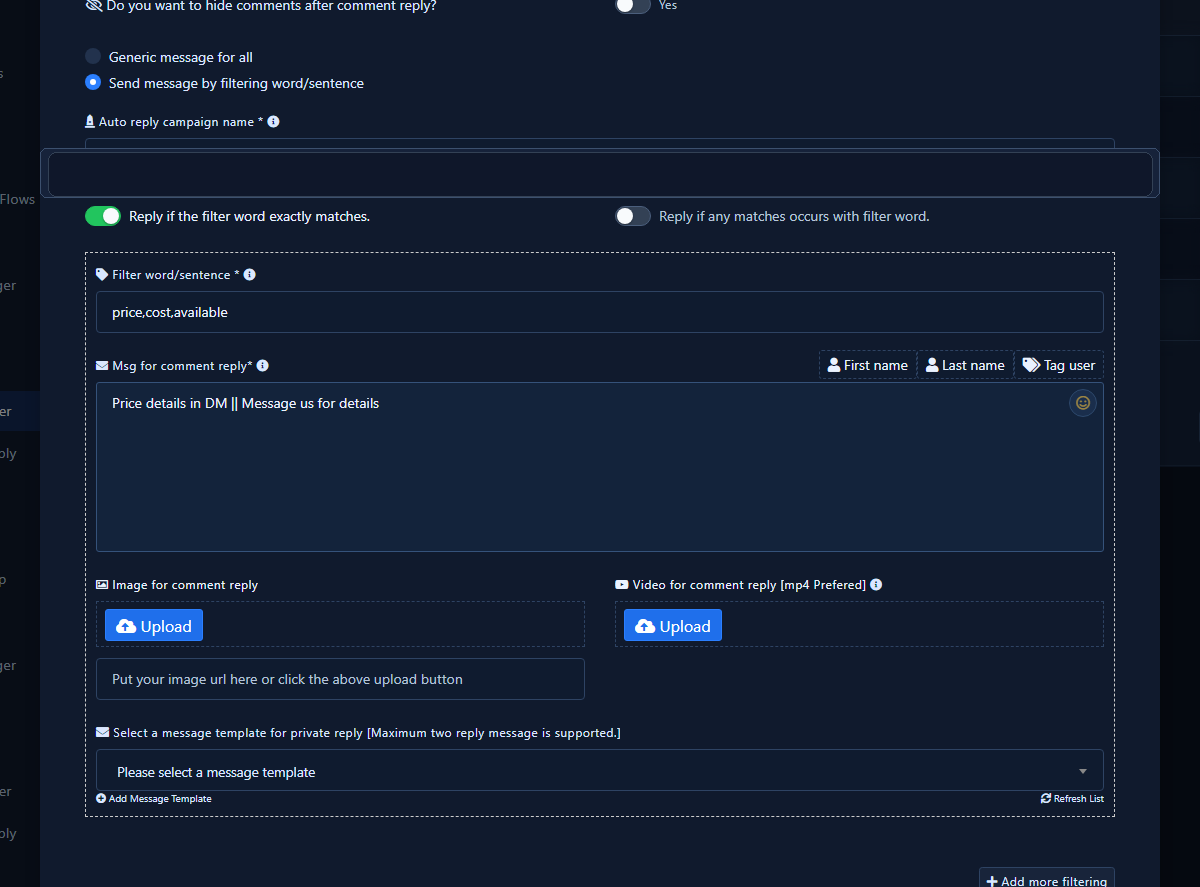
- Select send message by filtering word/sentence.
- Choose exact match or any-contains matching.
- In the first group enter comma-separated words (e.g.
price,cost,available) and the reply text (supports||). - Use Add more filtering for extra groups. Each group can pick a private reply template.
7) Private reply
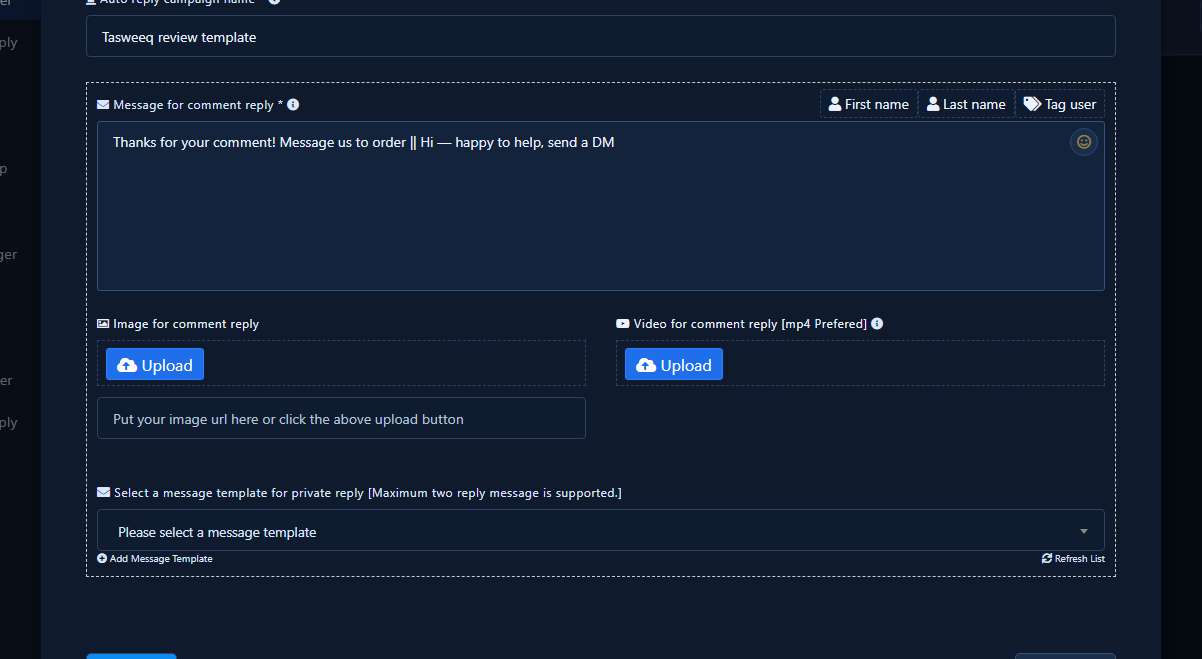
- Under the public reply (or filter group), open Select a message template for private reply (after Page select; UI notes a maximum of two reply messages).
- If none fit, use Add Message Template, or Refresh List after creating one.
- Without Bot Connection and message templates, the list may stay empty or unusable.
8) Save
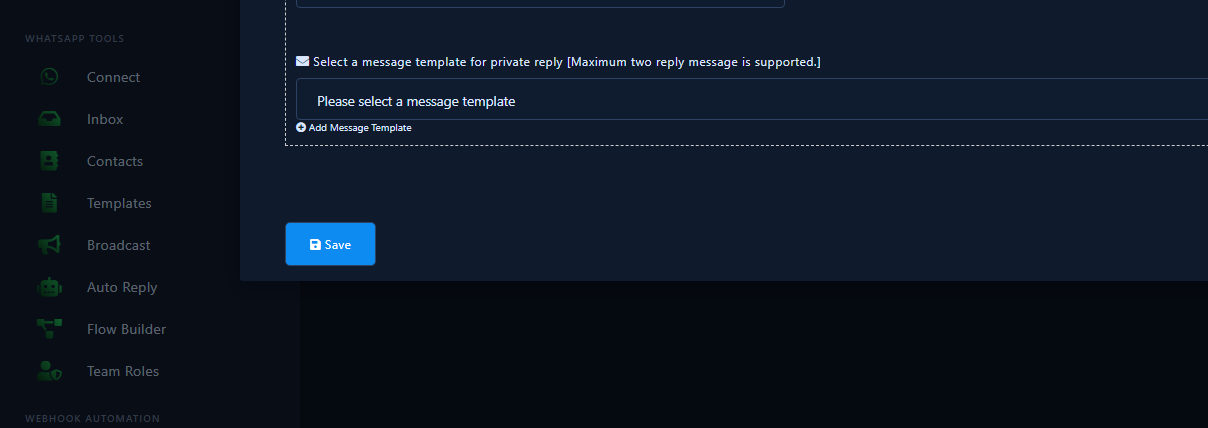
- Review Page, campaign name, reply type, and private template.
- Click Save (or Cancel to discard).
- After save, the template appears in the manager table and can be chosen when enabling Full-Page or single-post campaigns (“do you want to use saved template?”).
Practical tips
- Name templates by offer date or product so they stay findable.
- Update prices inside the template instead of spawning unnamed duplicates.
- Test via a non-sensitive campaign enable before relying on it.
Common mistakes
- Opening Comment Template instead of Reply Template.
- Leaving old prices inside a template still selected by live campaigns.
- Enabling private reply without Bot Connection or a message template.
- Confusing this path with Auto Comment Campaign (Page self-comments).
After you finish
Reuse the template from Full-Page reply or single-post reply, and monitor reports. For Page comment texts see Comment Template Manager and Auto Comment Campaign.


