
After Facebook comment-reply campaigns run — whether Full-Page reply, single-post reply, or Old Comment Reply — the Reports card under Facebook Comment Growth Tools opens the report section. Operationally you verify whether replies fire, which post, and any error message — instead of guessing from gut feel.
Sidebar path: Facebook Tools → Comment Manager (Facebook Comment Growth Tools screen) → Reports card → Auto reply report card → All auto reply report screen. From a table row you can open Campaign Report (eye icon) for per-comment detail.
Before you start
- Create at least one reply campaign (full Page / single post / old comments) and let it run briefly so rows appear.
- Prefer a Page with real data so the table is not empty.
- Sidebar: Integrations → Connect Accounts. Confirm the Page is linked and Enable Bot Connection is on if the campaign sends private replies (see Connect Facebook and enable the bot).
1) Open growth tools and the Reports card
- Sidebar: Facebook Tools → Comment Manager.
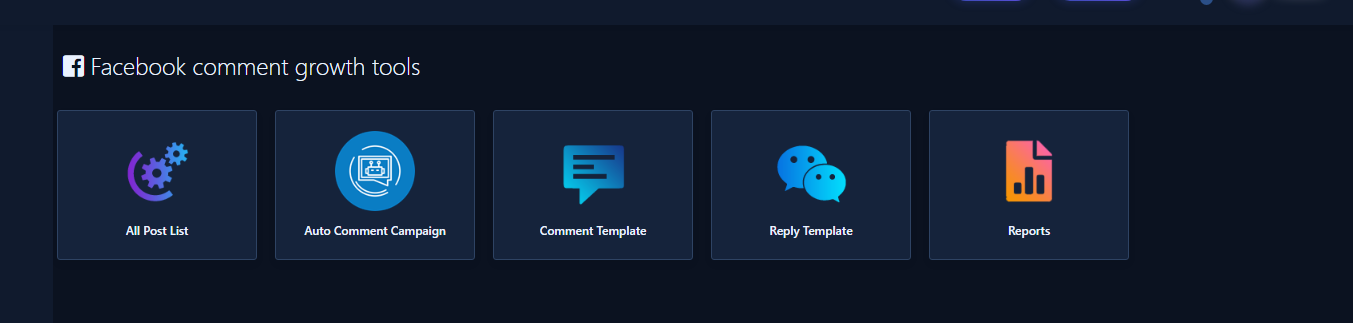
- You see Facebook Comment Growth Tools cards: All Post List, Auto Comment Campaign, Comment Template, Reply Template, and Reports.
- Click the Reports card.
2) Comment/Reply report section
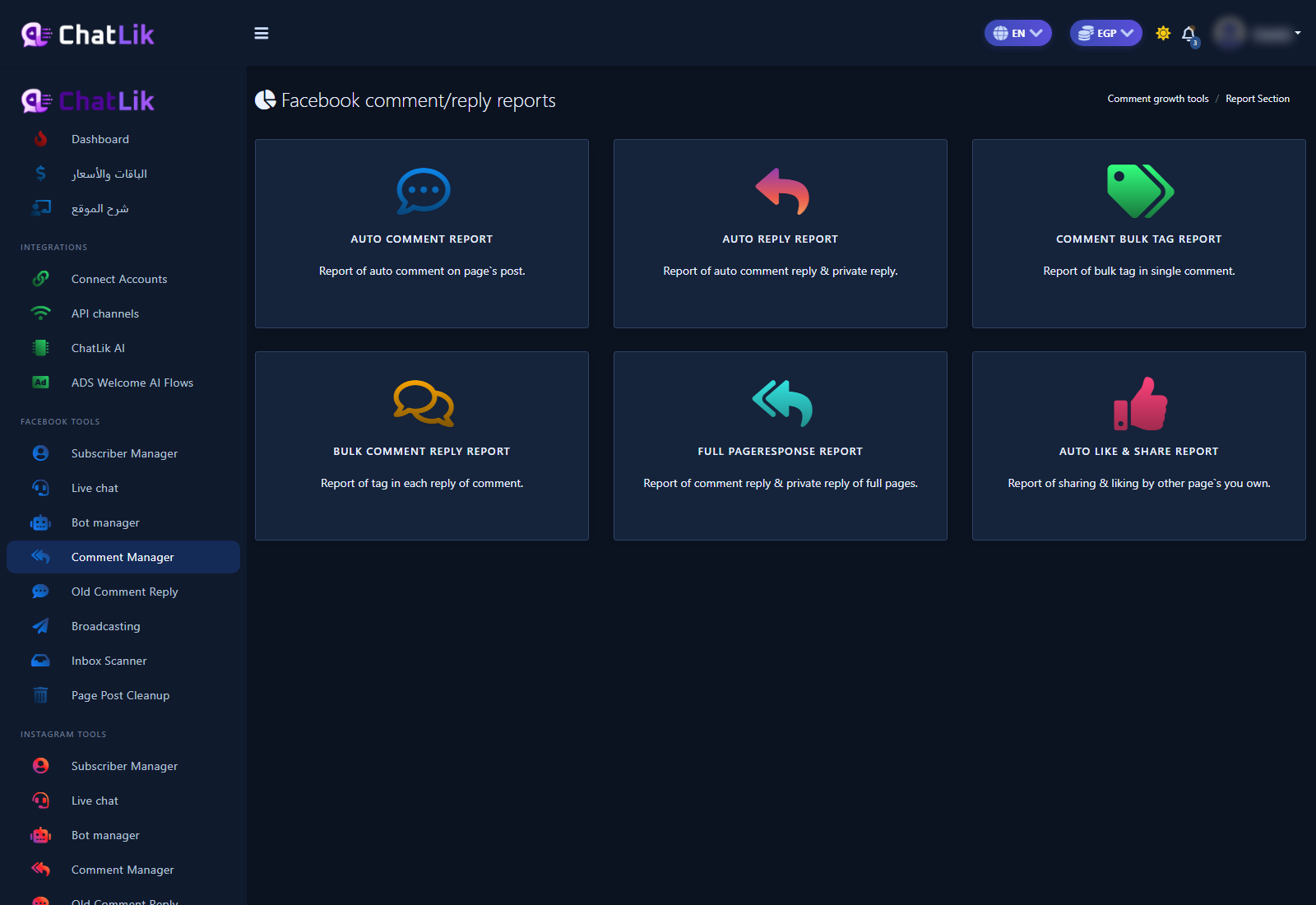
- You land on Facebook Comment/Reply Reports (page title may also show Report Section) with report-type cards.
- For this guide open Auto reply report (described as report of auto comment reply & private reply) — not Auto Comment Report (Page self-comments on posts).
3) All auto reply report table
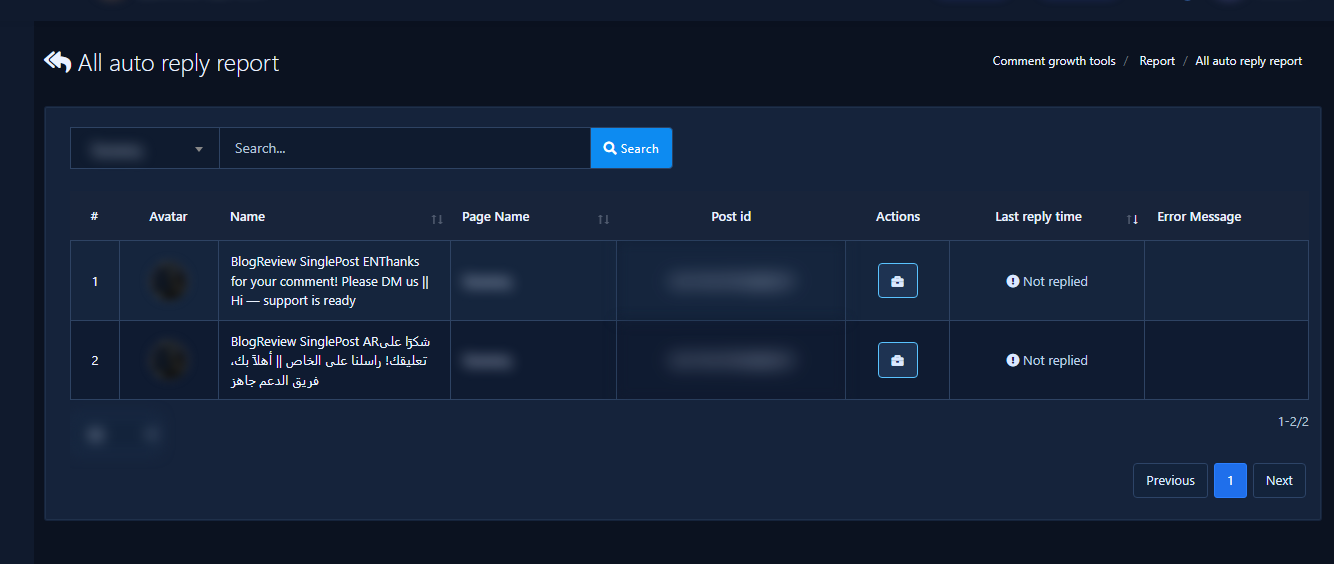
- The All auto reply report screen opens.
- Core columns: Name, Page Name, post id, Actions, Last Reply Time, and Error Message. A post avatar appears when available.
- Actions shows a briefcase button; open it for Campaign Report (eye), edit campaign, pause/play, and delete.
4) Page filter and Search
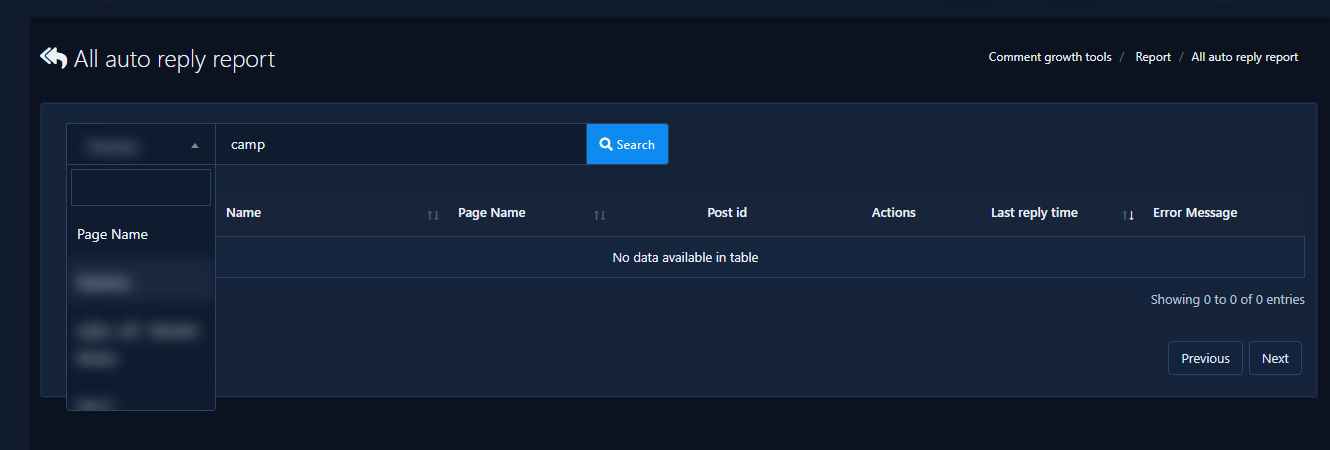
- Above the table: Page Name dropdown, Search... field, and Search button.
- Pick a Page to narrow campaigns, or type a campaign name / post id in Search and click Search.
- When the table is crowded, search by campaign name first; read the Error Message column before restarting.
5) Campaign report detail (when rows exist)
- In Actions open the briefcase menu, then click the eye (Campaign Report).
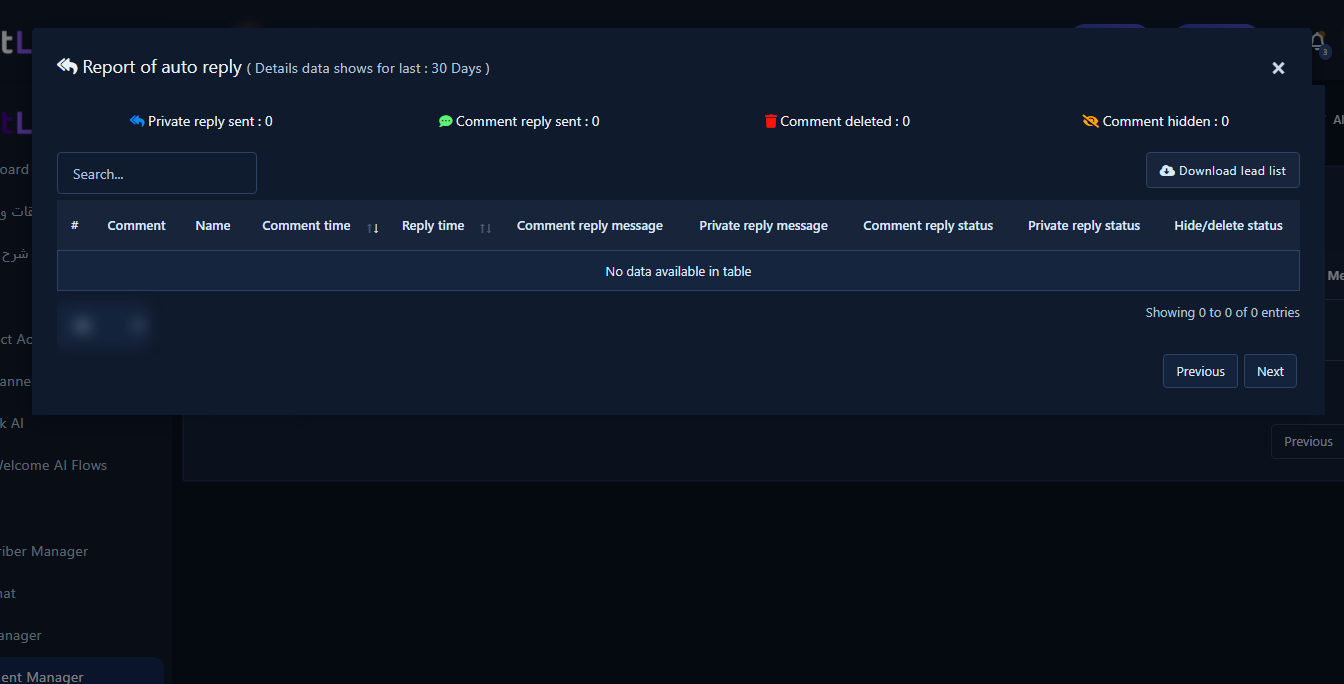
- The Report of Auto Reply modal opens with a detail table: Comment, name, comment time, reply time, comment reply message, private reply message, and status columns (Hide/Delete status may appear when that addon is available). If nothing has replied yet the detail table may be empty — the modal still confirms you opened the right campaign.
- Search inside the modal or use Download lead list if shown.
- If permission or deleted-post errors repeat: pause from the actions menu, fix connection or campaign settings (see Full-Page reply or single-post reply), then restart.
Practical tips
- Make report review part of a fixed morning or weekly routine.
- Compare launch-day vs next-day rows to spot silent campaigns.
- Immediately pause sold-out product campaigns that still promise old offers.
- Document recurring errors for the integrations owner.
Common mistakes
- Relying on gut feel without opening reports.
- Ignoring the Error Message column.
- Confusing Auto reply report with Auto Comment Report (Page self-comments).
- Leaving a paused campaign for months with no delete/fix decision.
Related: Full-Page reply · Single-post reply · Old comments · Reply templates · Auto Comment Campaign · Connect Facebook and enable the bot.


