
Old Comment Reply is a Facebook-only batch tool: it runs a one-shot campaign against comments that already exist on the Page posts you select. It is not a standing rule for every new post, and it does not replace Full-Page reply or single-post reply. For Instagram see Reply to Old Instagram Comments.
Sidebar path: Facebook Tools → Old Comment Reply (screen title: Reply Old Comments). On-page sections: Page & Posts → Reply Settings → Extra Options → Launch Campaign.
Before you start
- Sidebar: Integrations / Connect → Social Accounts (or Connect Accounts). Confirm the Facebook Page is linked. If you will send private messages, enable Enable Bot Connection (see Connect Facebook and enable the bot).
- Prepare private message templates first — without a template, campaign creation fails when PM is on.
- Facebook private replies usually apply to comments newer than 7 days; older ones may get a public reply only.
1) Open Old Comment Reply
- Sidebar: Facebook Tools → Old Comment Reply.
- You should see the hero with View Reports, then Page & Posts with an empty Page picker (prompt: please select a page first).
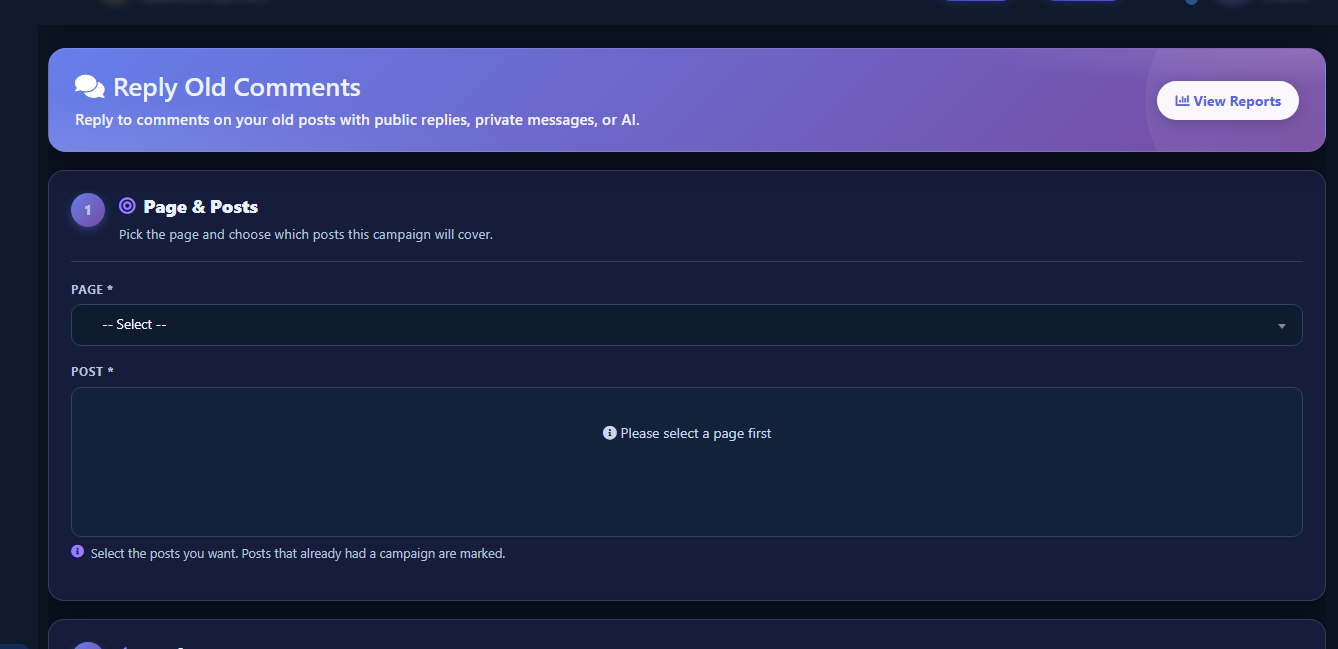
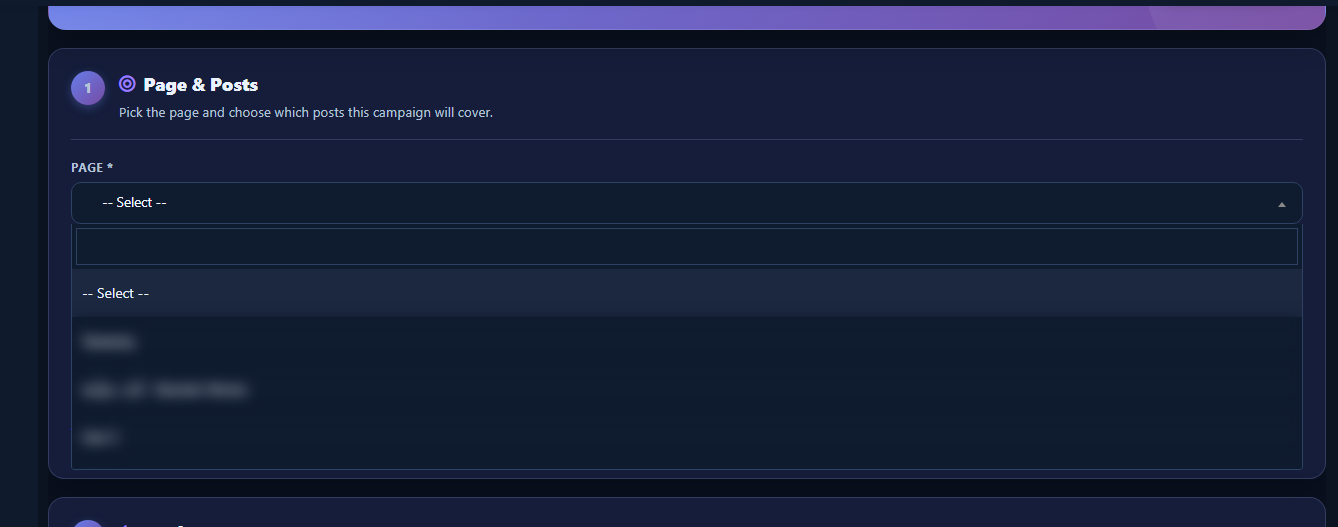
2) Select the Page (dropdown close-up)
- Open the Page dropdown and pick the Page. This guide’s shots use a data Page with loaded posts (e.g. صفحة العملاء).
- The next shot is a close-up of the open list — not a repeat of the full hub frame.
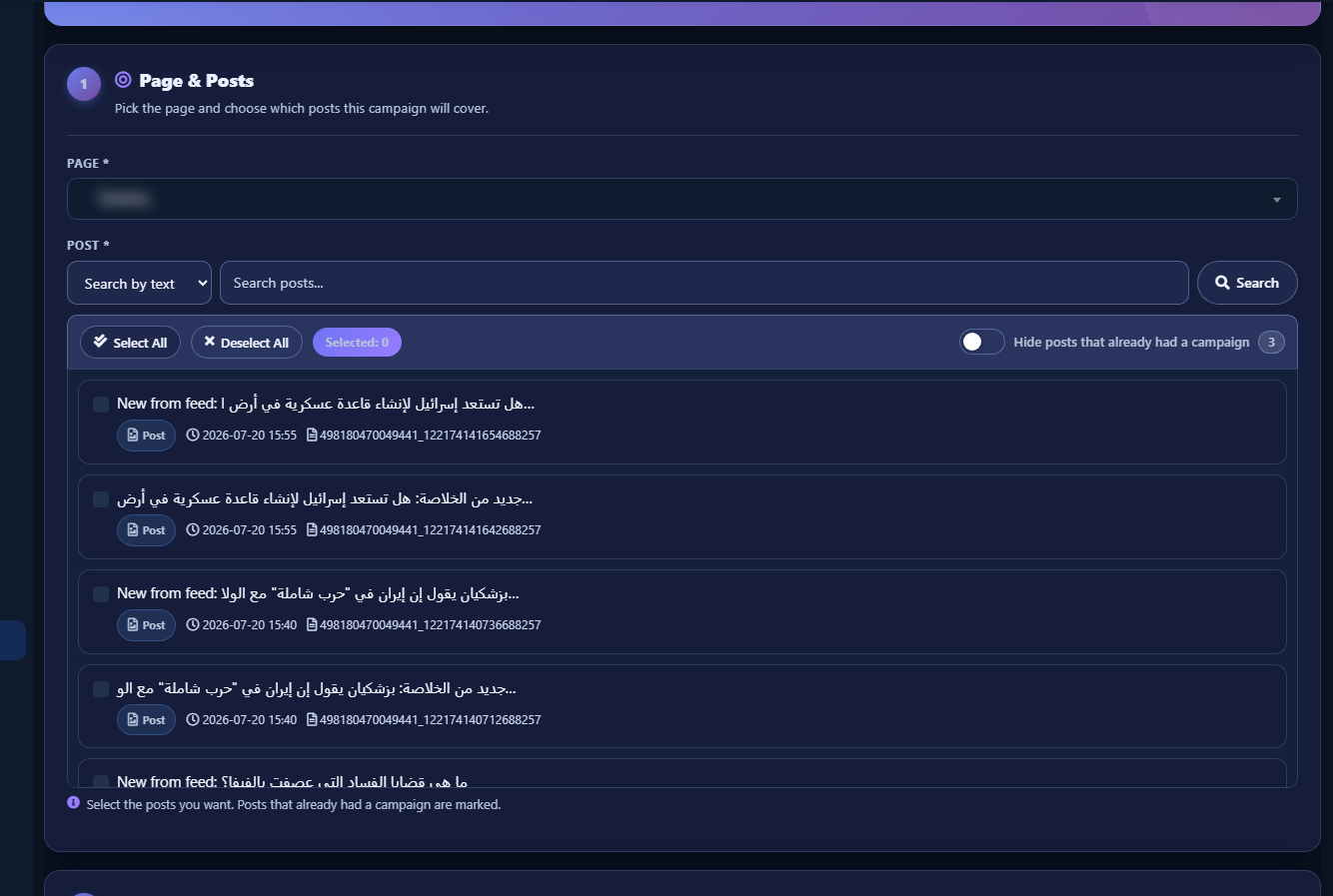
3) Load and search posts
- After the Page is selected, wait until Loading posts… finishes and post cards appear in the container.
- Use Search by text or Search by ID, and optionally Hide posts that already had a campaign.
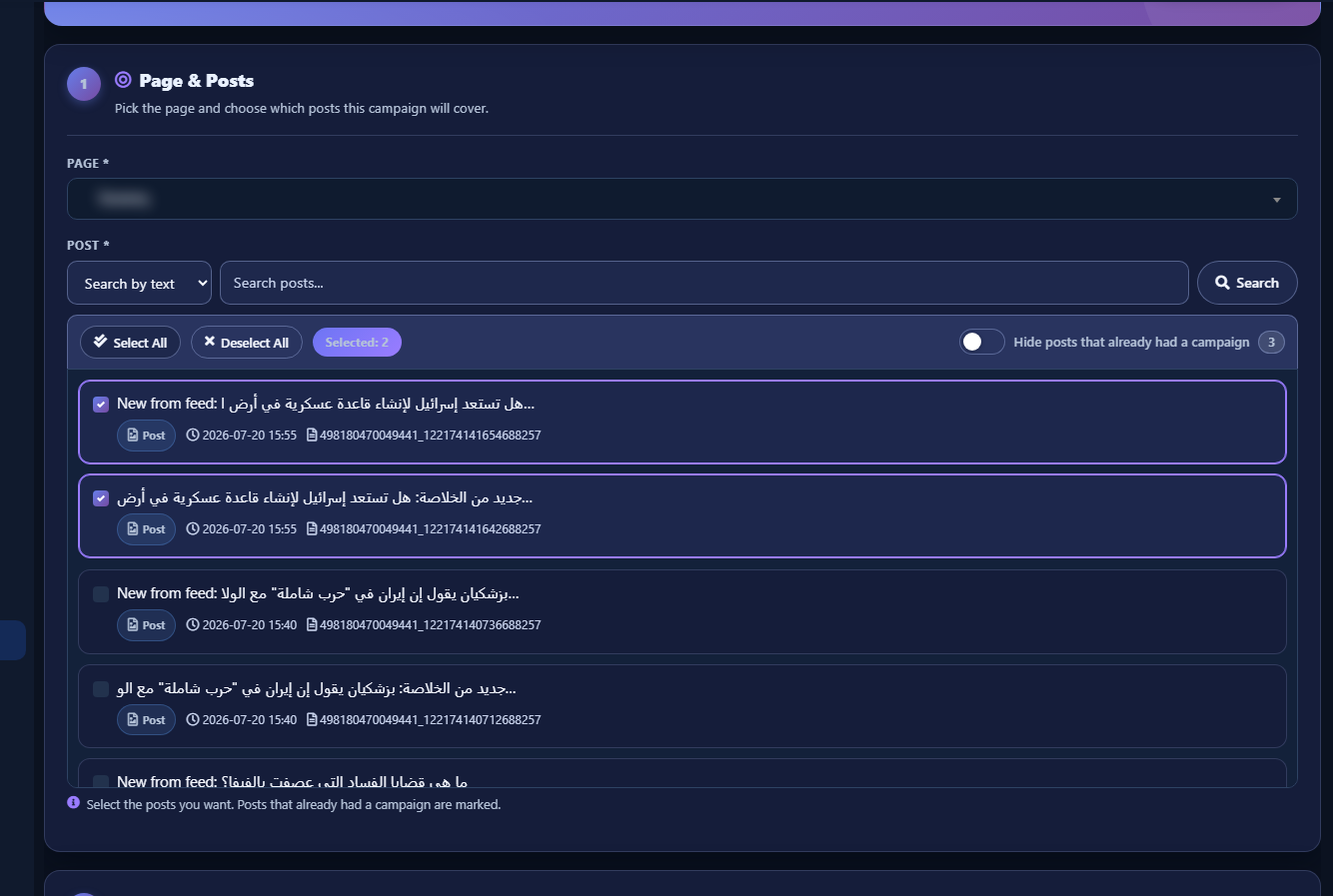
4) Select posts
- Select one or more posts and watch the Selected counter.
- Previously campaigned posts show a Campaign done badge; Facebook may skip already-replied comments unless you enable the extra option later.
5) Reply Settings — three modes
Under Reply Settings, enable Enable Comment Reply for a public reply and/or Enable Private Message for Messenger. Under Reply mode, pick one of three cards:
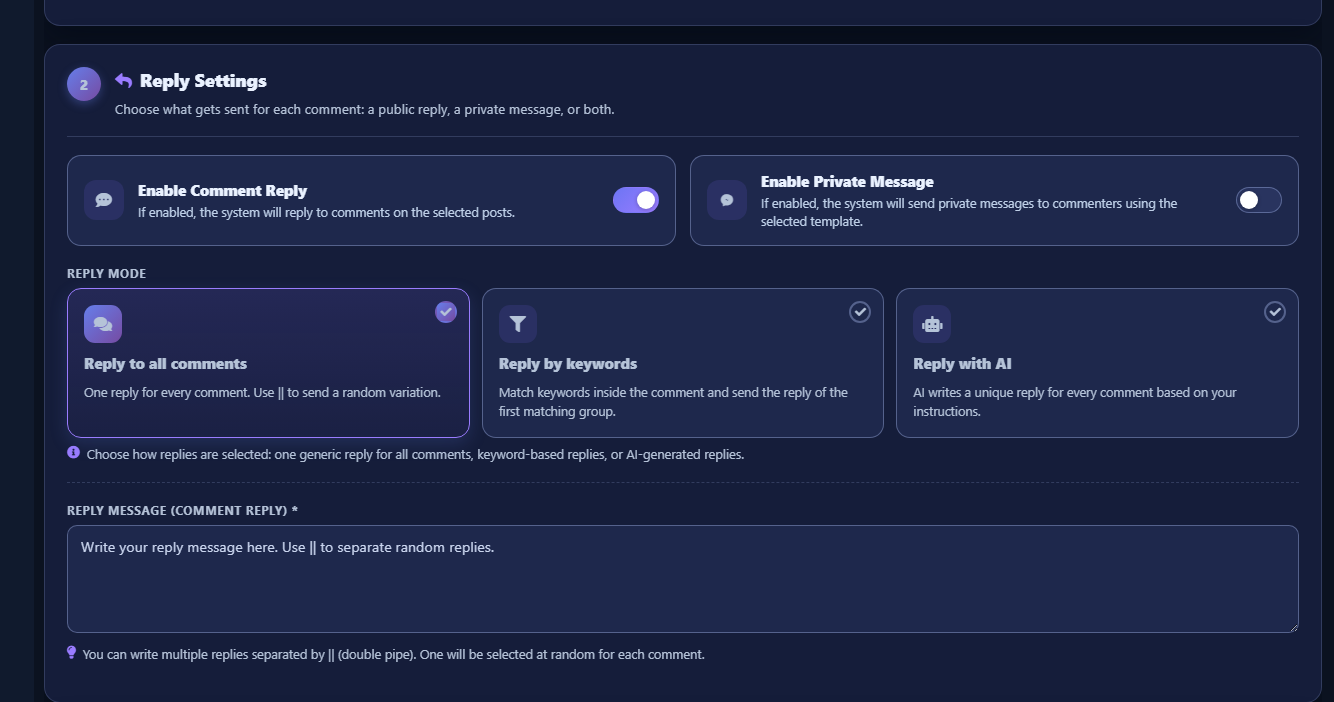
Mode A — Reply to all comments
When to use: One shared reply (or a small random set) for every old comment — thanks, DM invite, welcome — without keywords or AI generation.
- Select Reply to all comments.
- Fill Reply message (comment reply). The UI notes you can write multiple replies separated by
||; one is chosen at random per comment.
Mode B — Reply by keywords
When to use: Reply only when comments contain specific words (price, available, shipping…) and skip or handle the rest via the no-match field.
- Select Reply by keywords.
- Choose matching type: Contains (anywhere in the comment) or Exact match (whole word/phrase).
- Add Keyword groups: each group has Keywords (comma separated) and a group reply (also supports
||). The first matching group wins. - Optionally fill Reply when no keyword matches — leave empty to skip non-matches.
- Use Add keyword group for extra rows.
Mode C — Reply with AI
When to use: Comment questions vary and you want a unique contextual reply each time.
- Select Reply with AI.
- Write AI instructions (required): language, tone, allowed topics. You may use
#USER_COMMENT#; it is replaced with the comment text. - Requires an OpenAI API key or ChatLik AI module access — otherwise the campaign fails at run time.
6) Reply message and ||
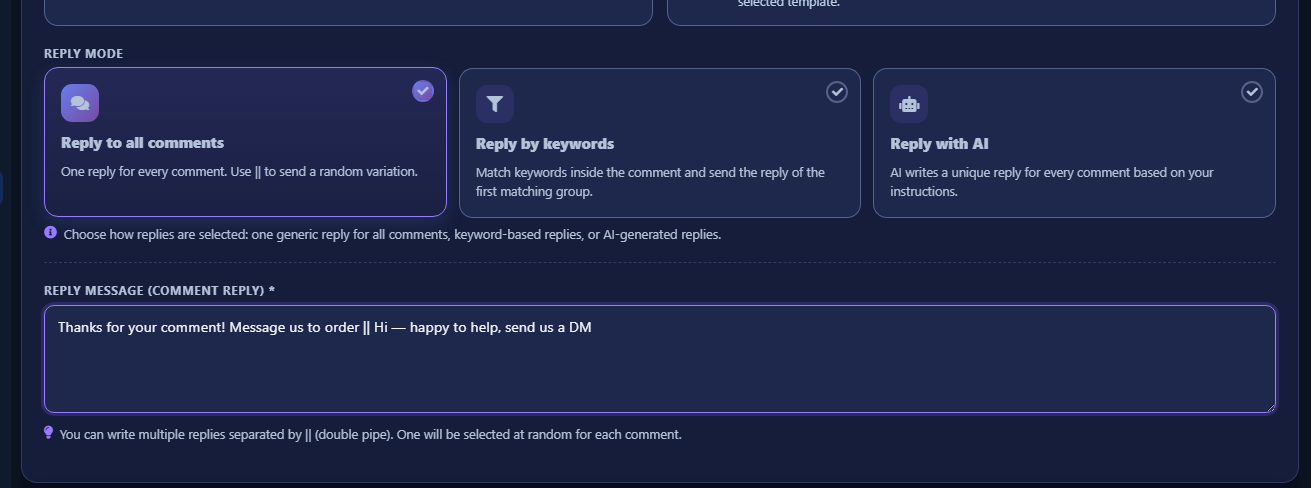
- In “all comments” mode, write the message. Practical example:
Thanks for your comment! Message us to order || Hi — happy to help, send us a DM
The system splits on || and picks one variant at random per comment — less repetition, more natural.
7) Private template and create campaign
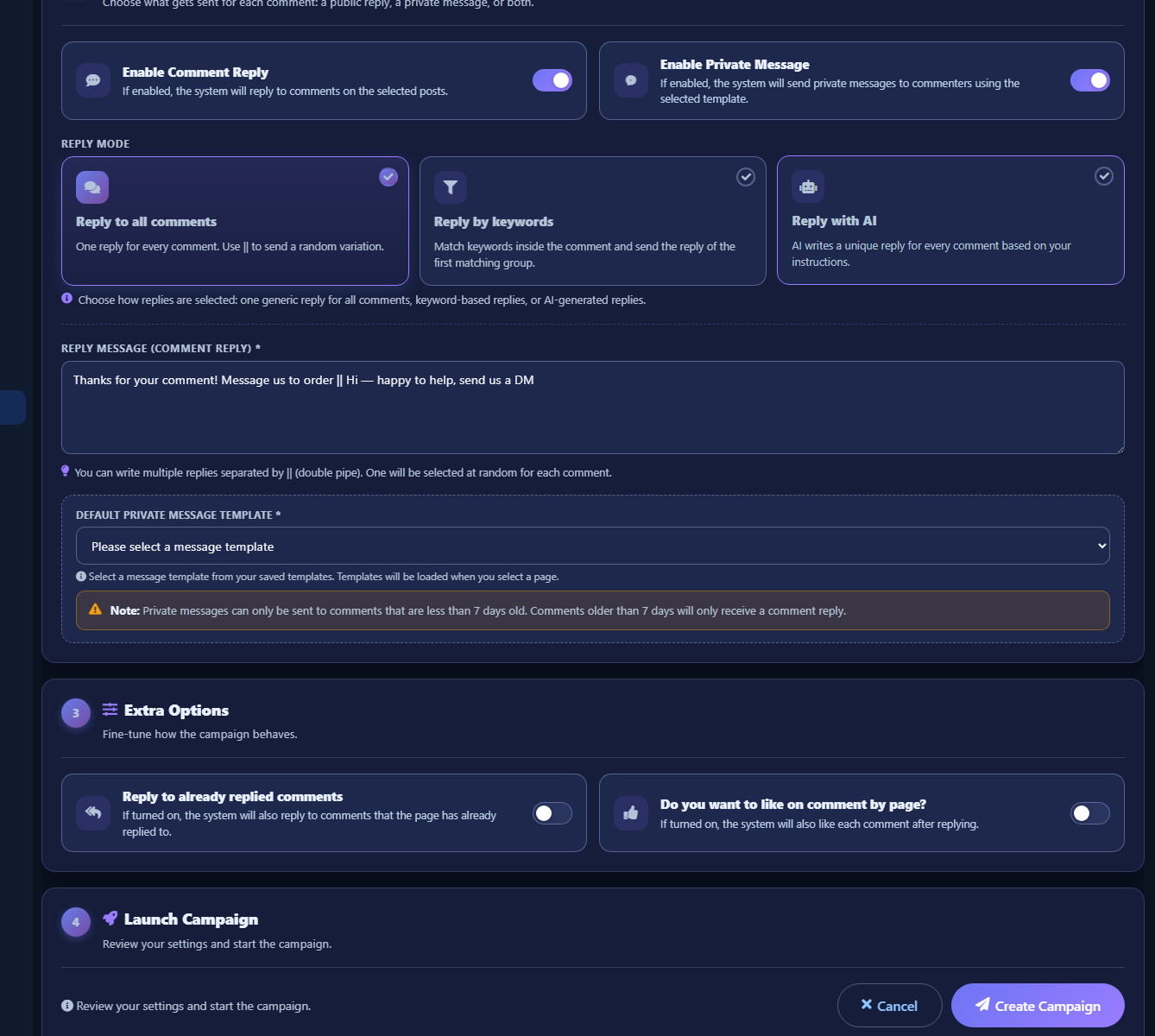
- Enable Enable Private Message, then choose a Default private message template from saved templates (loaded after Page select). Without a template, creation fails.
- Note the warning: private messages only for comments less than 7 days old.
- Under Extra Options: Reply to already replied comments, and do you want to like on comment by page?.
- Under Launch Campaign, click create campaign.
For private message templates in general, see Messenger template guides (Get Started / No Match) after Bot Connection is enabled.
8) Reports
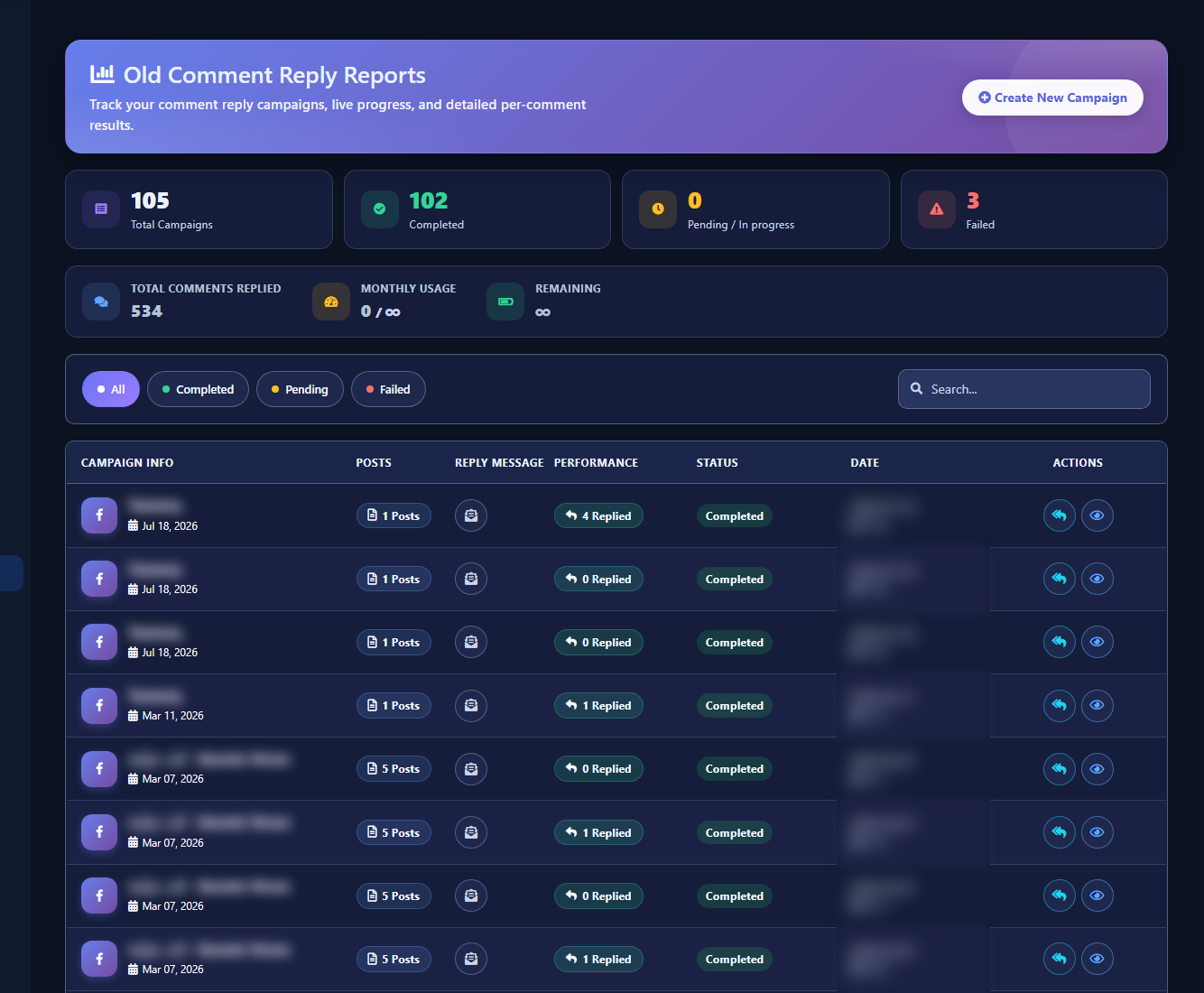
- From View Reports in the tool hero (or the linked reports screen), open Old Comment Reply Reports.
- Track campaign status, live progress, and per-comment results.
Quick mode chooser
- All comments: one message or
||variants for every comment. - Keywords: groups + Contains/Exact + per-group reply + optional no-match reply.
- AI: instructions +
#USER_COMMENT#+ AI access.
Related: Full-Page reply · Single-post reply · Connect Facebook and enable the bot.


