
Ice breakers (UI label: Ice breakers / conversation starters) are suggested questions shown at the start of a Messenger chat with your Facebook Page — before the customer types. They tap a prompt (price, delivery…), and the bot replies from the Reply Message Template you mapped. Setup lives inside Get started settings in Bot manager (same panel as the welcome message) — not a separate card. This is Facebook/Messenger; Instagram has its own card: Set Up Instagram Ice Breakers.
Sidebar path: Facebook Tools → Bot manager → select the Page → Get started settings → Change settings → panel Get started & welcome message → section Ice breakers.
Before you start (prerequisites)
- Sidebar: Integrations → Connect Accounts. Confirm the Page appears under Page list.
- Turn on Enable Bot Connection (plug icon). Without it, suggestions will not appear. Walkthrough: Connect Facebook and enable the bot.
- Prepare Reply Message Templates for common intents (prices, delivery, branch, hours, talk to agent).
- Draft 2–4 short questions in your customers’ language.
- Prefer a clean lab Page (e.g. صفحة اختبار) before production.
1) Open Bot manager and select the Page
- Sidebar: Facebook Tools → Bot manager.
- Select the Page and wait for the settings cards (including Get started settings).
- Confirm the correct Page — ice breakers are per Page.
2) Open Get started & welcome message
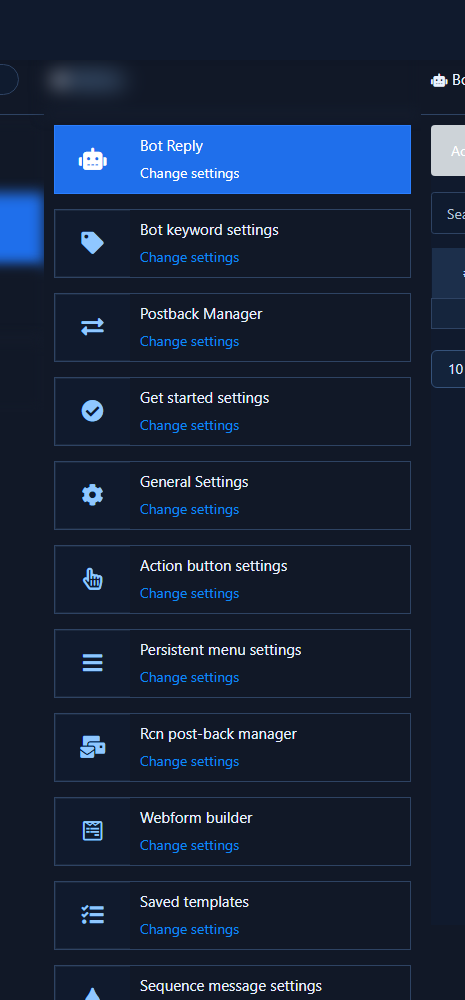
- Click Change settings on Get started settings.
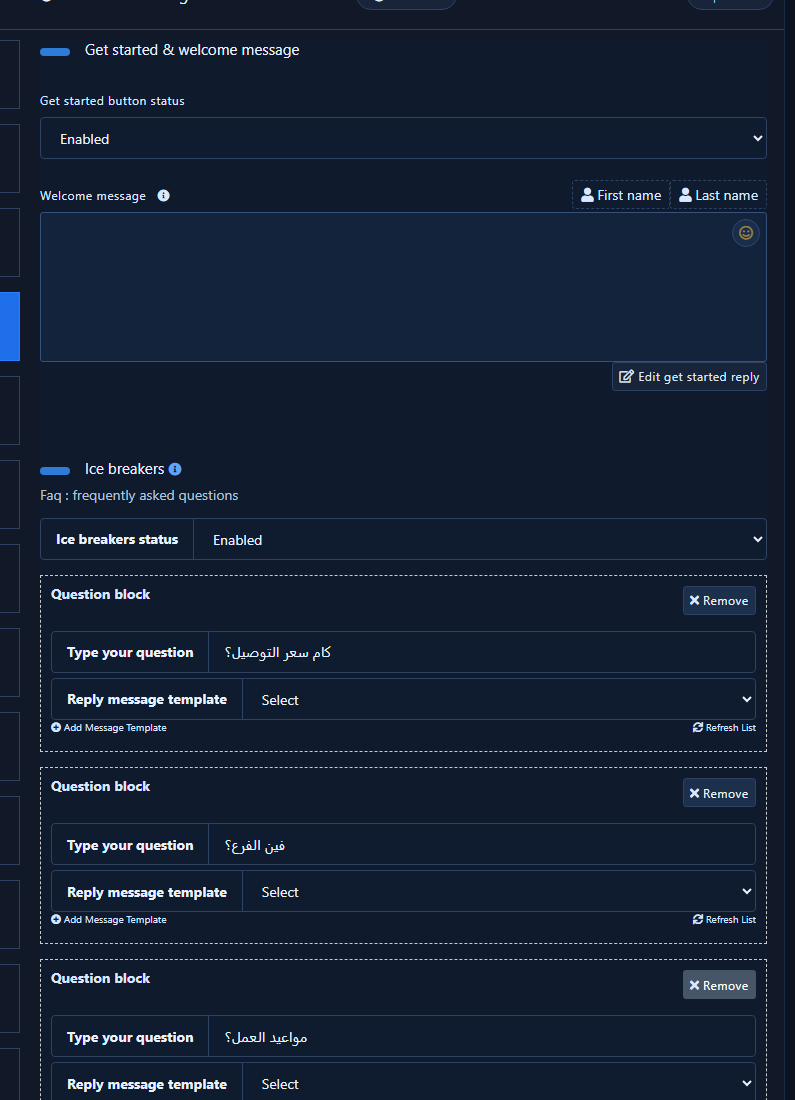
- The panel title is Get started & welcome message: top has Get started button status and Welcome message; lower section is Ice breakers with FAQ : Frequently Asked Questions.
- Get Started and Ice breakers share this panel and save together. Full Get Started template guide: Set Up the Facebook Get Started Template.
3) Enable Ice breakers status
Enabling is a dropdown — not a separate Switch.
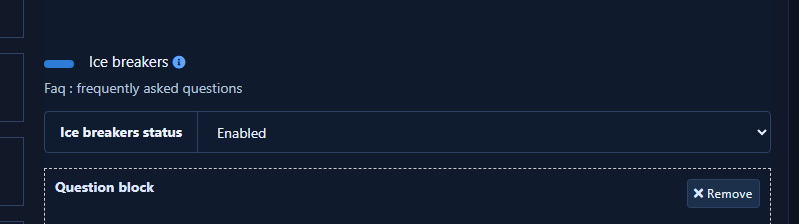
- Scroll to Ice breakers.
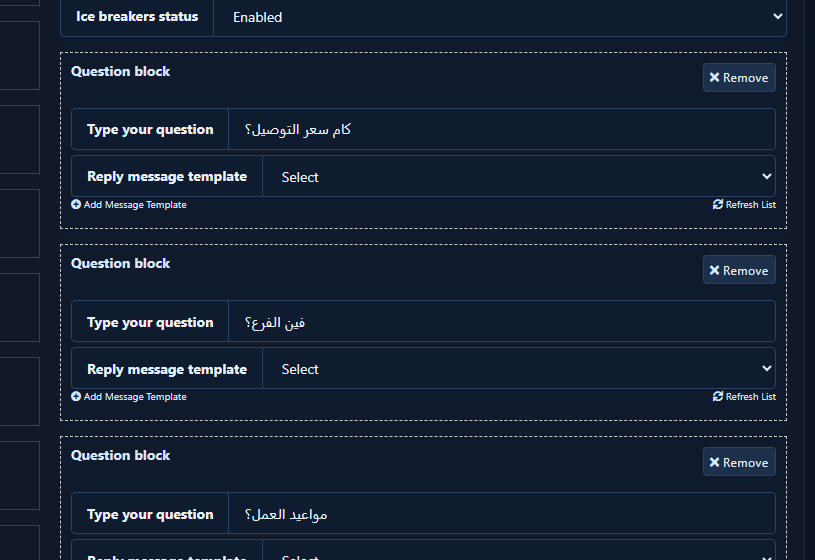
- Set Ice breakers status to Enabled. If it shows Disabled, customers will not see suggestions.
- When Enabled, the question block area appears. When Disabled, it hides.
4) Add questions and map each to a Reply Message Template
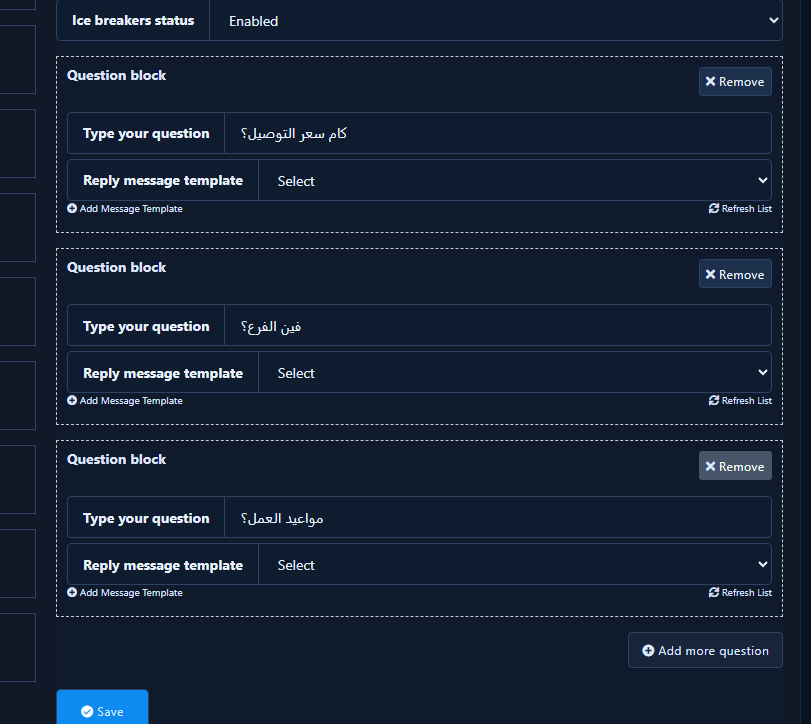
- In each Question Block, type the customer-facing text in Type your question (e.g. “What is the delivery fee?”).
- Under Reply Message Template, pick the template that runs when they tap. Without a mapped template, enable-on-save will fail.
- Need a new template? Click Add Message Template, then Refresh List after closing so it appears in the dropdown.
- Add another with Add more question. Remove a block with Remove.
Practical limits
- ChatLik’s Messenger UI allows up to about 10 questions (Add more disables after the cap). Prefer 2–4 clear prompts — Meta’s API may reject extras beyond its limit.
- Keep each question short and focused.
- To set status to Enabled you need at least one question paired with a reply template — otherwise you get a validation message.
5) Page profile priority (when Get Started also conflicts)
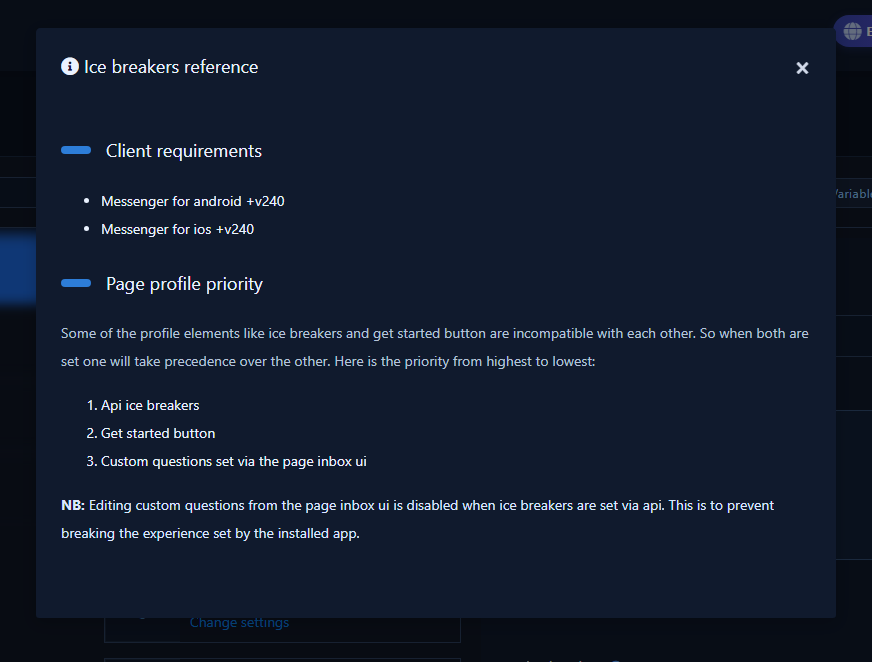
Click the info icon beside Ice breakers to open Ice Breakers Reference.
- Client Requirements: Messenger for Android/iOS +v240.
- Under Page Profile Priority: Ice breakers and Get Started can conflict. Priority highest→lowest: API Ice Breakers → Get Started button → Custom Questions set via the Page Inbox UI.
- If both are enabled, always test from a fresh account — Meta may show one element over the other.
6) Save and test in Messenger
- Click Save at the bottom and wait for success (e.g. “Ice breakers has been enabled successfully.”).
- Test: Open a new Messenger thread with the Page (old threads may hide suggestions). Tap a question and confirm the mapped reply.
- If nothing appears: Bot Connection on? Status Enabled + saved? Question+template present? Fresh thread / test account? Messenger app version?
Practical tips
- Map each question to a useful path (prices / delivery / agent).
- Complete Get Started via the Get Started guide when you need a full welcome with buttons.
- A Persistent menu usually requires Get Started enabled first — see Persistent menu.
- Do not mix this path with Instagram Ice Breakers.
Common mistakes
- Leaving Ice breakers status on Disabled after drafting questions.
- Saving without a Reply Message Template on each filled question.
- Testing an old thread instead of a new conversation.
- Editing a lab Page then testing a different production Page.
- Expecting Page Inbox custom questions to override API-set ice breakers (Inbox editing is disabled when ice breakers are set via API).
Related: Facebook Get Started · Persistent menu · Instagram Ice Breakers · Connect Facebook and enable the bot.


