
No Match Template is Messenger’s fallback when a customer message matches no keyword and no known bot path (and no Get Started / Persistent Menu hit). Editing the template alone is not enough: you must enable Reply if no match found in General Settings and save — otherwise the template never sends.
Sidebar path: Facebook Tools → Bot Manager → select the Page → General Settings (enable the switch), then Action Button Settings → No Match Template (opens the Visual Flow / Flow Builder editor).
What “no match” means and when it fires
- Meaning: the customer typed something the bot could not map to a keyword, flow, Get Started, Persistent Menu item, or similar rule.
- When it sends: only if Reply if no match found is on and saved, and a saved template exists for the correct Page.
- When it stays silent: switch off, empty/unsaved template, another rule matched first, or a reply-limit cap was hit (see Control No Match Reply Limits).
- vs Get Started: Get Started covers the first open; No Match covers unmatched messages afterward. See Set Up the Facebook Get Started Template.
Before you start
- Under Integrations → Connect Accounts → Page List, confirm Enable Bot Connection is on (see Connect Facebook and enable the bot).
- Draft a short fallback: brief apology + what to type next (price / delivery / agent) or a quick-reply button for the same goal.
- Prefer a lab Page (e.g. صفحة اختبار) before relying on production.
1) Open Bot Manager and select the Page
- Sidebar: Facebook Tools → Bot Manager.
- Select the Facebook Page on the left and wait for the middle settings cards (including General Settings, Action Button Settings, and Get Started Settings).
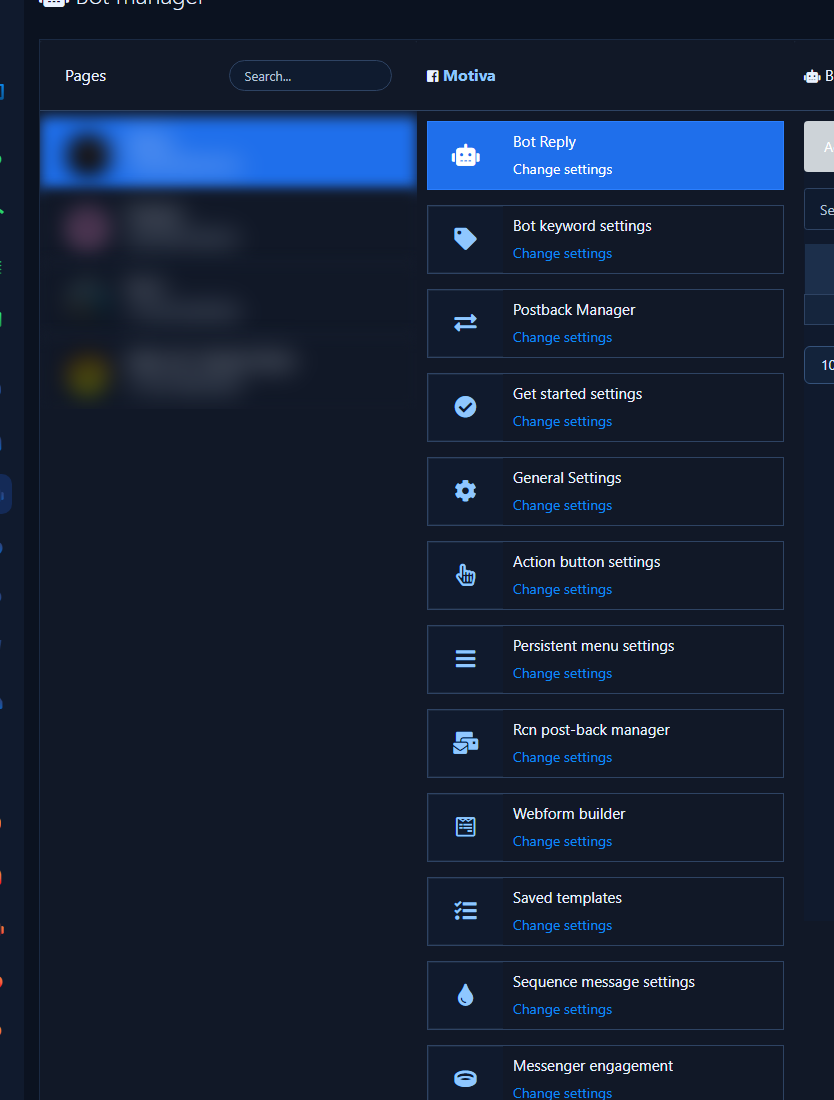
2) Enable “Reply if no match found” in General Settings
- Open the General Settings card, then click Change Settings.
- Find the switch labeled exactly Reply if no match found (Arabic UI: الرد إذا لم يتم العثور على تطابق).
- Turn the switch on (enabled).
- Click Save at the bottom, wait for the success message that general settings were stored, then close and return to the Page cards.
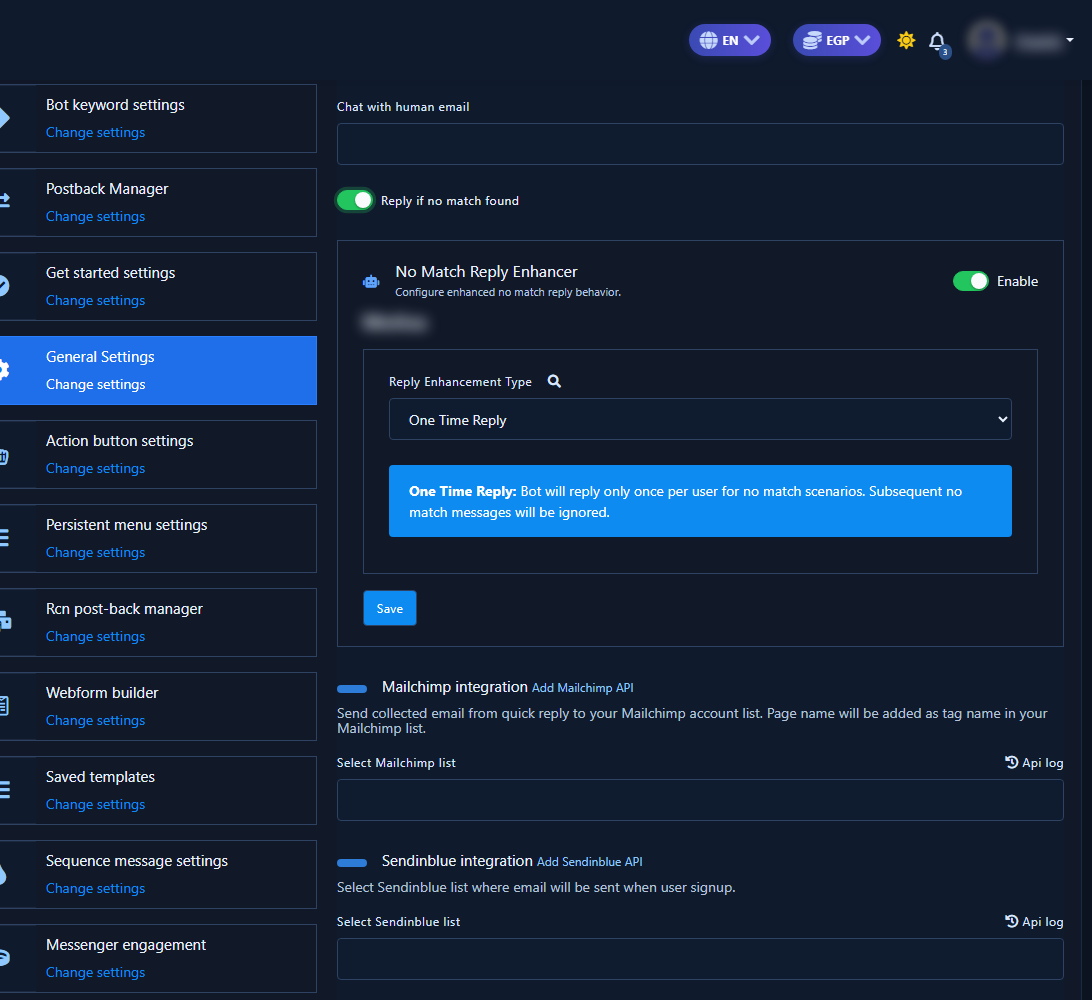
Without this step, later template edits will not reach customers.
3) Open the Action Button template grid
- From the Page cards open Action Button Settings → Change Settings.
- You should see the template grid (No Match, Get-started, and others).
- Click No Match Template (wording may appear as No match template) — do not stop at the grid screenshot.
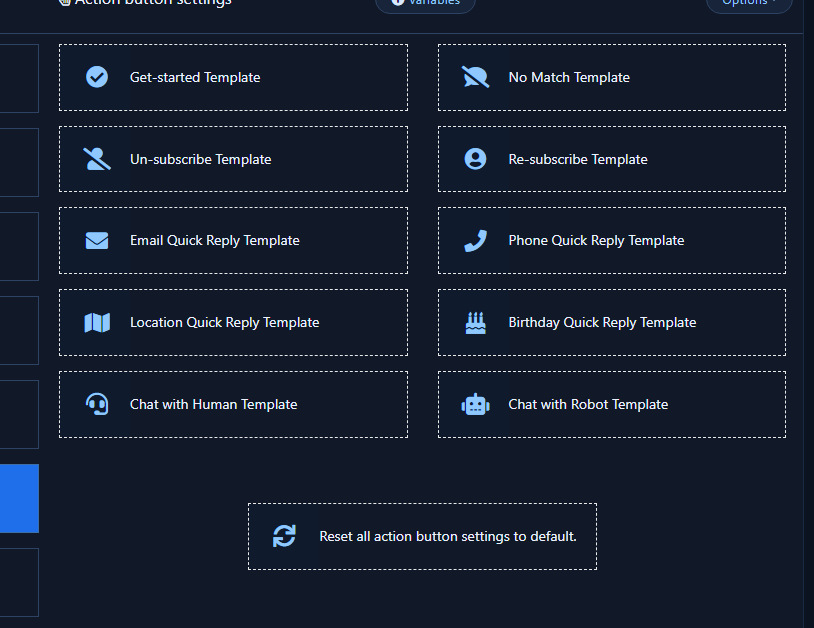
4) Edit the template in Visual Flow
- Clicking the card opens the Visual Flow editor titled Start Bot Flow / No Match Template with connected nodes — not just the card list.
- You should see an Action buttons node linked to a Text node via Compose next message.
- Inside the Text node, edit the fallback: short apology + practical next step (what to type next, e.g. price / delivery / agent).
- From the node ports you can attach Buttons or Quick Replies if needed.
- Click Save in the editor toolbar, then return to Bot Manager.
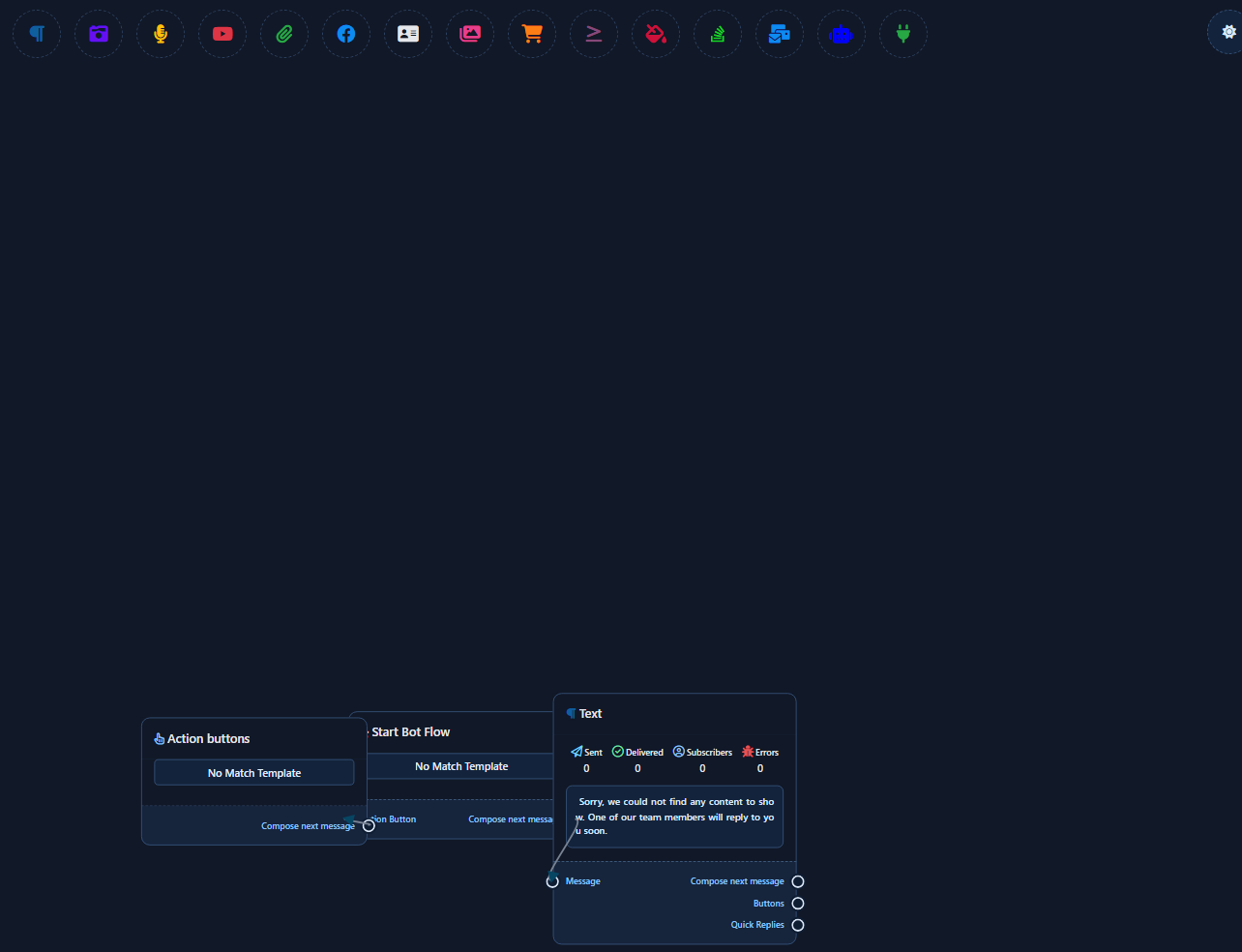
5) How to write it and how to test
- Suggested copy: “I didn’t catch that — type price, delivery, or agent so we can help.” Add two quick replies if available.
- Test: From Messenger send a random unmatched message (e.g. test123 or asdf). The new template should reply.
- If nothing arrives: check in order — Bot Connection on? Switch saved on? Editor saved? Correct Page? Accidental keyword match? Reply-limit reached?
Control how many times it fires
After enabling the switch and template, you can limit how many times No Match replies per subscriber, or pause after a human reply. Full guide: Control No Match Reply Limits.
Practical tips
- Keep the fallback short and directional — not a long paragraph.
- Link a human-handoff or FAQ path so random chats do not loop.
- Re-test an unmatched message after keyword edits.
- Do not rely on the template until General Settings shows a save success.
Common mistakes
- Editing the template without enabling Reply if no match found.
- Closing General Settings without Save.
- Screenshotting only the template grid without opening Visual Flow.
- Editing a lab Page then testing a different production Page.
- Ignoring reply limits after the customer repeats unmatched noise.
Related: Control No Match Reply Limits · Facebook Get Started · Instagram No Match · Messenger bot checklist.


