
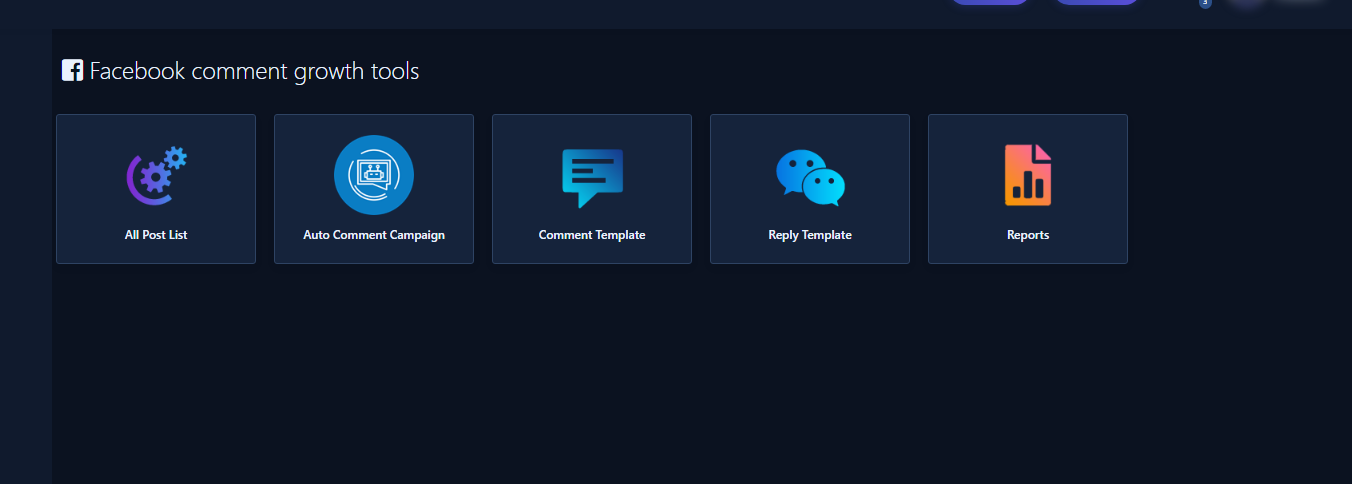
Full Page Reply auto-replies to comments across a Facebook Page without a separate campaign per post. Path: Comment Growth Tools → All Posts List → Full Page Campaigns card → Enable Full Page Reply or Edit Full Page Reply.
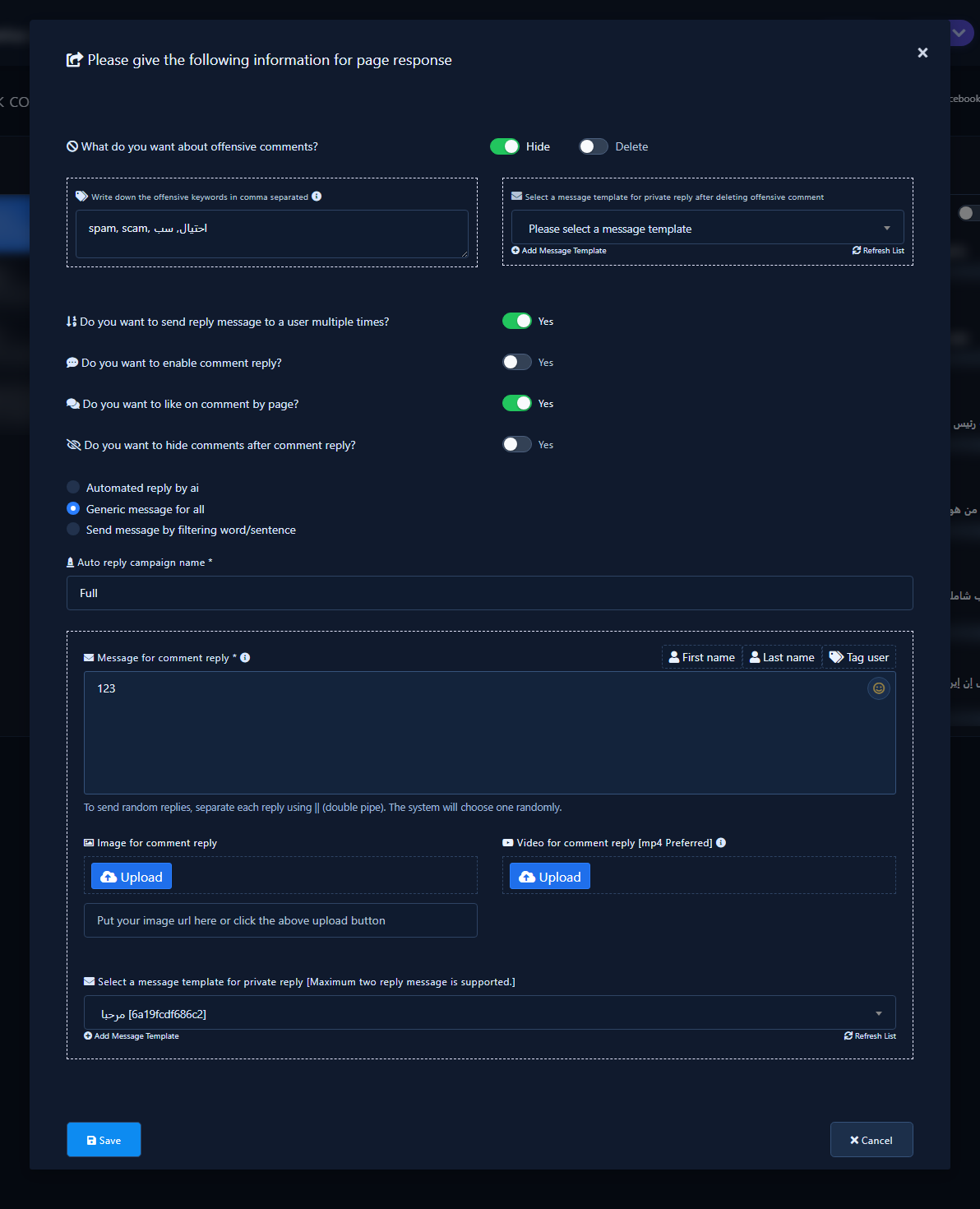
In the modal titled Please give the following information for page response (UI wording may vary slightly), configure offensive-comment handling, multiple-reply / like / hide toggles, then pick one reply mode: Automated reply by ai, Generic message for all, or Send message by filtering word/sentence. A private reply message template is available in all three modes.
Open growth tools and the Full Page Campaigns card
- From the sidebar open Comment Manager / Facebook Comment Growth Tools, or go.
- Open All Posts List, select a Page in the list, then find the Full Page Campaigns card.
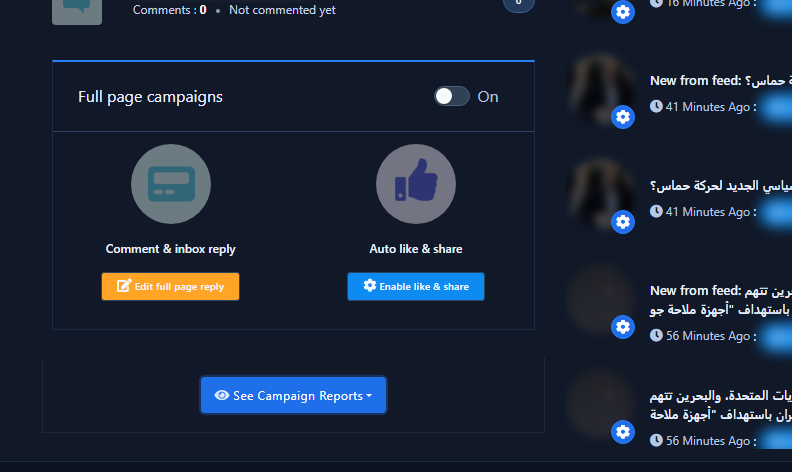
- If not enabled yet, use the blue Enable Full Page Reply button. After saving it becomes orange Edit Full Page Reply, with a run/pause switch and campaign reports.
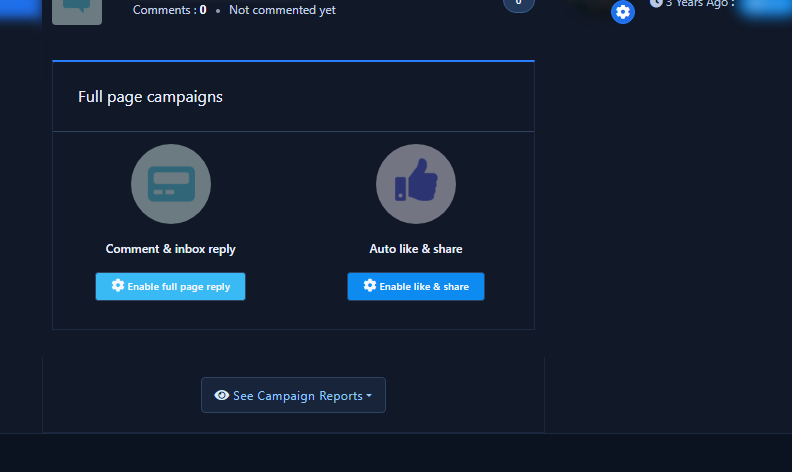
Full setup modal
- Enable or Edit opens the page-response modal.
- Top: offensive comments (Hide / Delete), comma-separated offensive keywords, and a private template after hide/delete.
- Then toggles: reply multiple times, enable comment reply, like the comment as the Page, hide comments after reply.
- Next: the three reply-type radios, then Auto reply campaign name *.
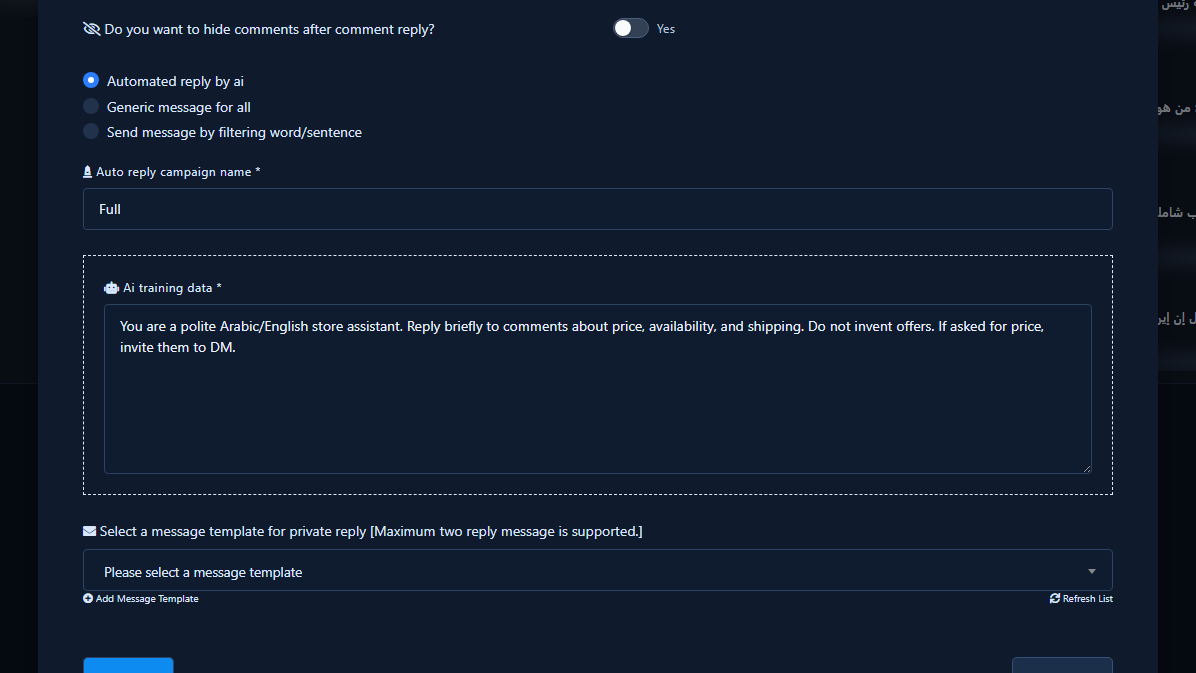
Mode 1 — Automated reply by AI
When to use: Comment questions vary (price, stock, shipping) and you want contextual answers instead of one fixed line. Requires AI on your plan (ai_reply_exist); if the radio is missing, the plan does not include it.
- Select Automated reply by ai (
pageresponse_edit_ai_reply, valueai_reply). - Generic and filter blocks hide. The Ai training data * block (
pageresponse_edit_ai_training_data) appears with Select a message template for private reply, plus Add Message Template and Refresh List. - Enter clear store instructions (language, tone, allowed topics, what not to invent, when to send people to DM). The field is required.
- Pick a private-reply template (UI notes a maximum of two reply messages in the template).
- Save. On each comment the model drafts the public reply from training data and can send the private template.
Mode 2 — Filter by word/sentence
When to use: Reply only when comments contain keywords (price, available, shipping…) and handle non-matches via the no-match section.
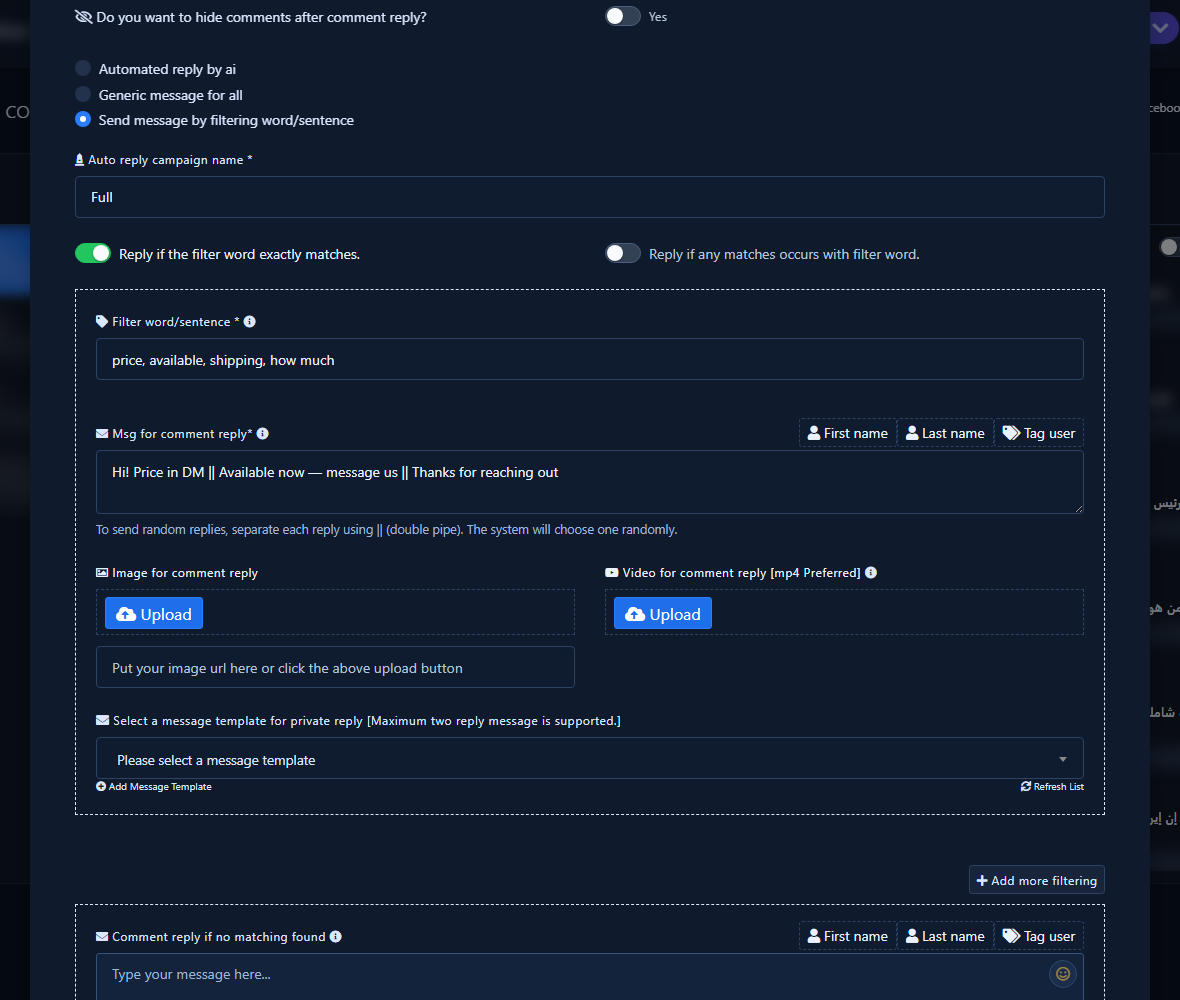
- Select Send message by filtering word/sentence (
pageresponse_edit_filter, valuefilter). - The filter block appears; generic and AI blocks hide. Two match controls show:
- Reply if the filter word exactly matches.
- Reply if any matches occurs with filter word.
- In Filter word/sentence * enter comma-separated keywords, e.g.
price, available, shipping, how much(Arabic shops often useسعر, متوفر, شحن, كام السعر). - In Message for comment reply * write the reply. For random variants, separate with
||as shown under the field. Use First name, Last name, and Tag user buttons for variables. - Optionally upload image/video, select a private template, and use Add more filtering for extra keyword rows.
Mode 3 — Generic message for all
When to use: One shared reply (or a small random set) for every comment — thanks, DM invite, welcome — without keywords or AI generation.
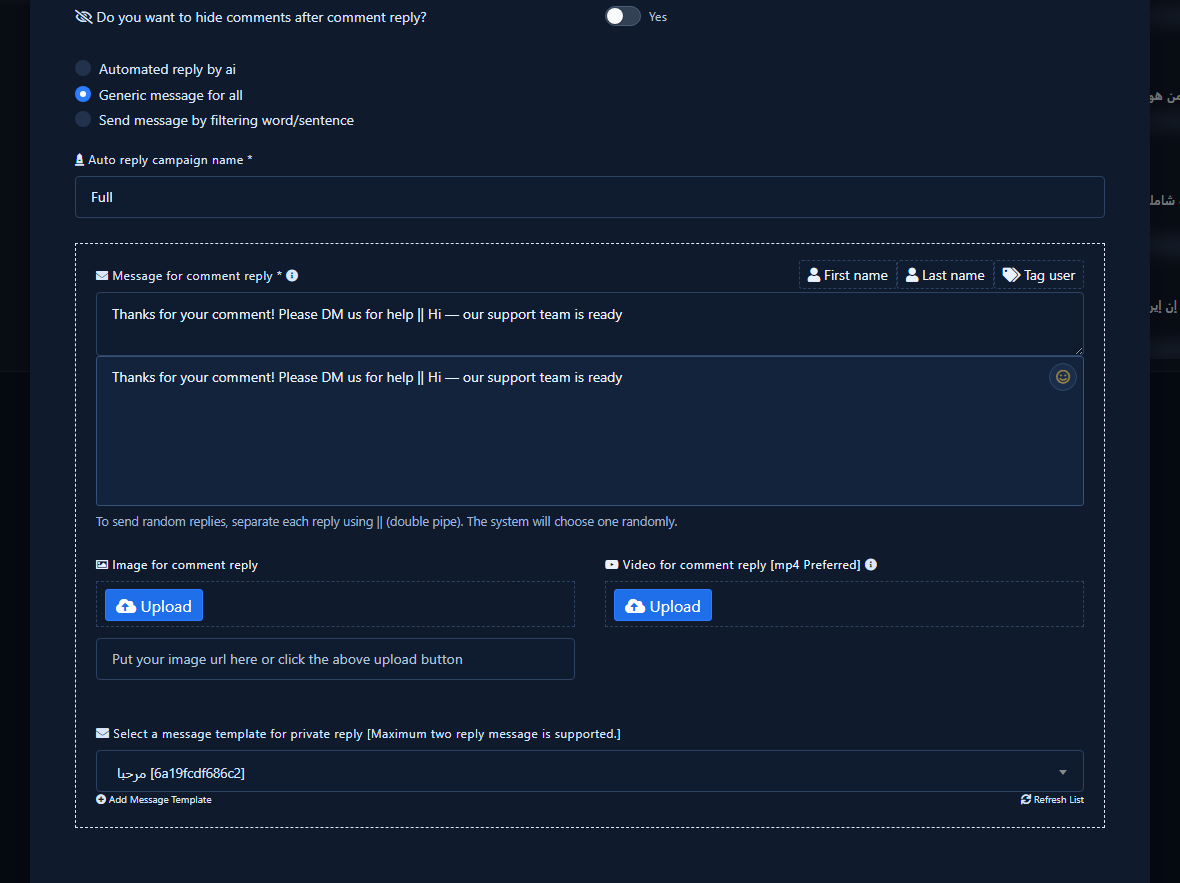
- Select Generic message for all (
pageresponse_edit_generic, valuegeneric). - The Message for comment reply * block (
pageresponse_edit_generic_message) appears with name/tag buttons, the||instruction, image/video fields, and Select a message template for private reply. - Write one message, or several variants separated by
||so the system picks one at random per comment. - Save. Eligible comments get the same logic (subject to offensive and multiple-reply settings).
Private reply template and Add Message Template
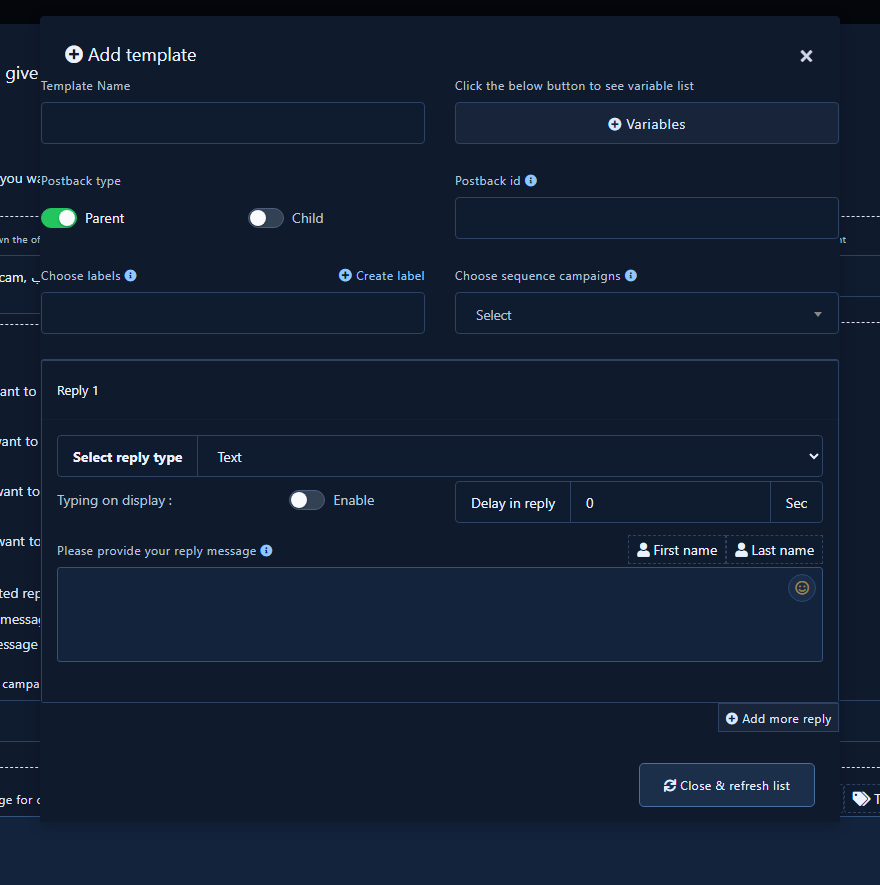
AI, generic, and filter modes all expose Select a message template for private reply [Maximum two reply message is supported.] with Add Message Template and Refresh List. The template sends a Messenger private reply alongside the public comment reply.
- Choose an existing template, or click Add Message Template to open Add Template (template name, variables, text reply type, then Close and update list).
After save: edit, report, pause
- After Save, return to the Full Page Campaigns card for that Page.
- The control becomes Edit Full Page Reply, with a run/pause switch and View Campaign Reports including Full Page Reply Report.
Quick mode chooser
- AI: varied questions → Automated reply by ai + training data + private template.
- Filter: keyword triggers → filter radio + comma keywords + exact/any + optional ||.
- Generic: same reply for all → Generic message for all + message (and ||) + private template.
Related: Connect Facebook and enable the bot.


