
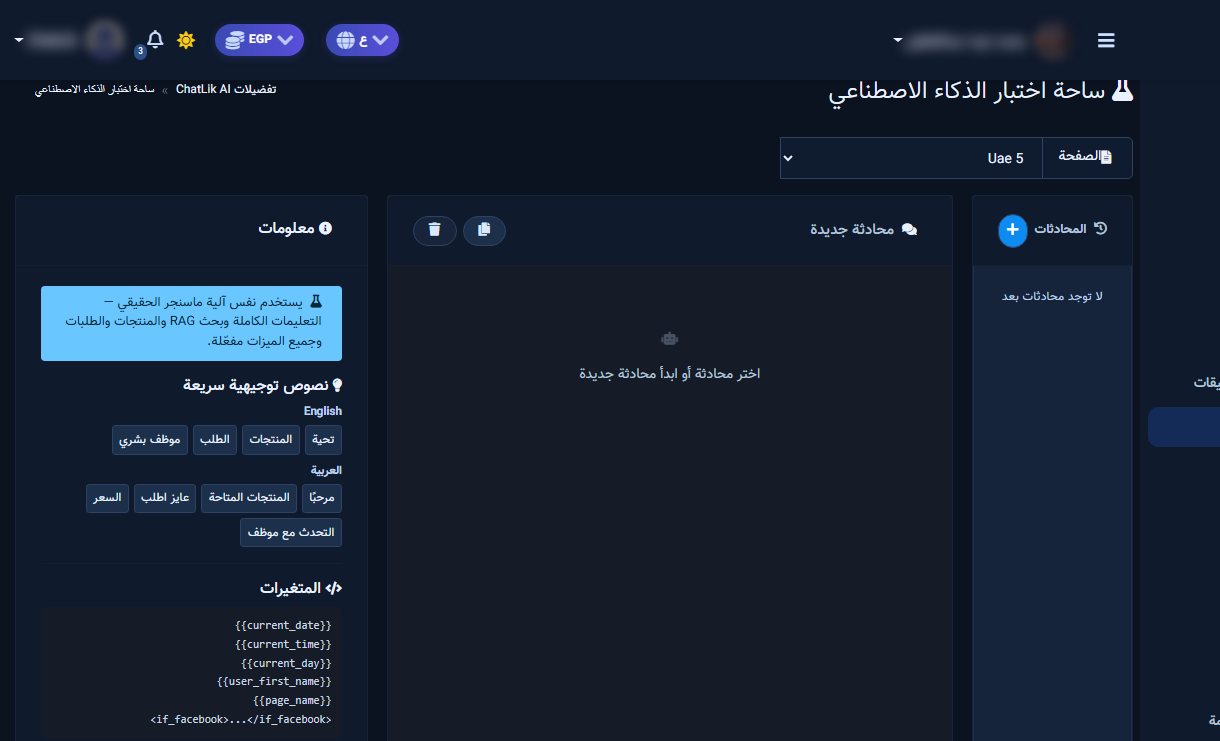
AI Playground runs the same pipeline as real Messenger — full instruction, RAG, products, orders, and human handoff — without customer risk. Select the Page, start a New conversation, and use Quick Prompts: Greeting, Products, Order, Human.
Before you start
- Save Business Profile, FAQ, products, and settings for the Page under test.
- Check credits — Playground consumes them like live chat.
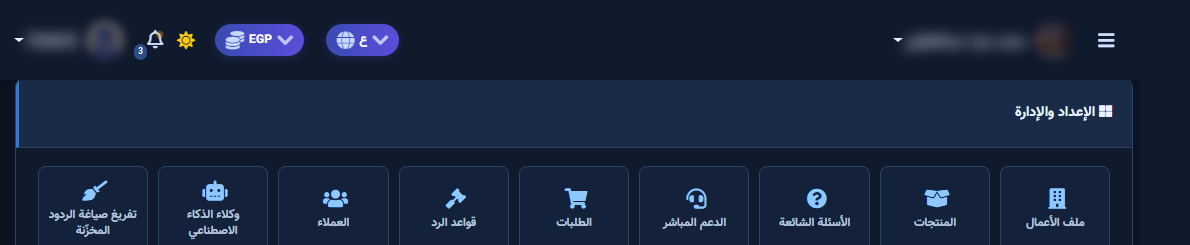
- Open Playground from ChatLik AI Preferences or its tile.
Run a test session
- Select the Page inside Playground.
- From the Chats sidebar start a New conversation.
- Type in Type a message... or use Quick Prompts: Greeting / Products / Order / Human.
- Review the reply and stats (Model / Tokens / Time) when shown.
- Test an image if Receive Images in Chat is enabled.
Manage chats and verify
- Copy the full chat to share with the team when needed.
- Clear messages or delete the conversation from the sidebar after testing.
- Mandatory go-live scenarios: price, out of stock, returns, out of scope, human request.
- If human handoff fires, confirm the row in Live Support.
After setup and verification
- Document for the team: selected Page, who owns review, and when Playground was last tested.
- Review day-one live replies, any error logs, and unexpected credit usage.
- If price, policy, or hours change the same week, re-run the critical scenarios before trusting automation.
- Keep a clear human escalation path when automation fails — never leave the customer without a fallback.
Ongoing quality control
- Assign one owner to review this screen weekly so responsibility is not diffused.
- On repeating customer complaints, reopen related settings and compare them with Business Profile and FAQ.
- Log pause/edit decisions with a date so the next teammate knows what changed and why.
- Do not treat setup as finished after the first save — review it with every new offer or season.
Practical tips
- Retest on the production Page after copying settings from a sandbox.
- Log failures with the reply text for the team.
- Retest after every major catalog or instruction change.
- Recheck permissions if Save/Refresh buttons disappear after a role change.
Common mistakes
- Going live without a Human prompt test.
- Trusting a good reply while the wrong Page is selected.
- Deleting the failing chat before sharing it with whoever fixes prompts.
- Treating Save alone as success without a realistic customer scenario test.
Related: Agents · Products · Module map.


