
The Customer Data tile in ChatLik AI stores name, phone, email, city, address, and notes captured from chats or entered manually. Use it for order follow-up and campaigns without re-copying Messenger details. Records belong to the Page/channel selected in Select Page/Account.
Before you start
- Open ChatLik AI and confirm Bot Connection under Integrations → Connect Accounts → Page List.
- Pick the production Page in Select Page/Account (not a test Page).
- If Enable Customer Data appears in preferences, confirm plan access and AI credits.
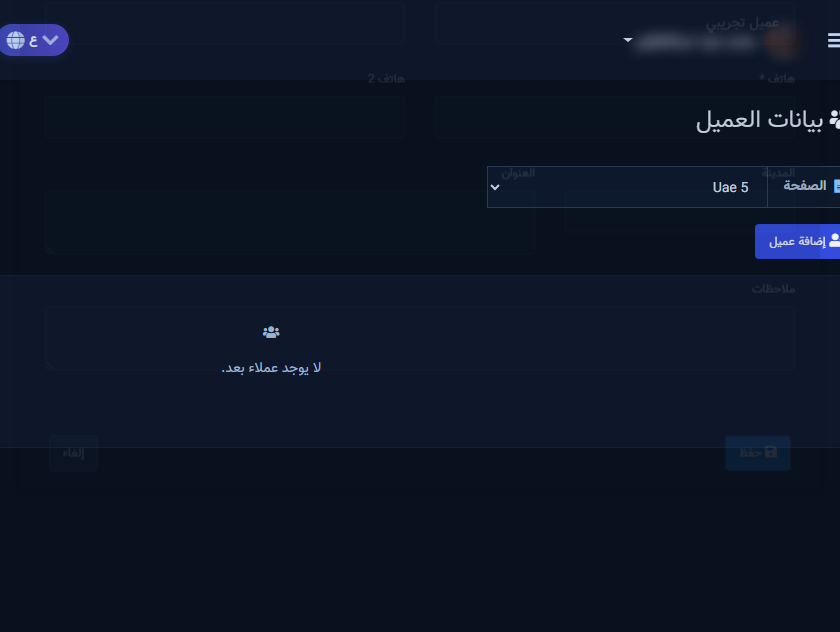
Open Customer Data
- From the hub open Customer Data (chatlik_ai/customers).
- Review columns: Name, Channel, Phone, Email, City, Address, Actions.
- If you see No customers yet, add manually or wait for capture from an order chat.
Add or edit a customer
- Click Add Customer.
- Fill Full Name and Phone (required); optionally Phone 2, Email, City, Address, Notes.
- Click Save. Edit via row Actions, then save again.
- A cross-channel phone badge means the same number on Messenger/Instagram/WhatsApp — do not duplicate.
Use data operationally
- Before fulfilling a Chat Orders row, verify phone and address here.
- Copy/export only with team permission; keep data inside support.
- After resolving a complaint, update Notes for the next agent.
After setup and verification
- Document for the team: selected Page, who owns review, and when Playground was last tested.
- Review day-one live replies, any error logs, and unexpected credit usage.
- If price, policy, or hours change the same week, re-run the critical scenarios before trusting automation.
- Keep a clear human escalation path when automation fails — never leave the customer without a fallback.
Ongoing quality control
- Assign one owner to review this screen weekly so responsibility is not diffused.
- On repeating customer complaints, reopen related settings and compare them with Business Profile and FAQ.
- Log pause/edit decisions with a date so the next teammate knows what changed and why.
- Do not treat setup as finished after the first save — review it with every new offer or season.
Practical tips
- Normalize phone format (country code) to reduce duplicates.
- Train the team: never create a new row for an existing phone.
- Playground-channel rows are for tests — keep them out of production ops.
- Recheck permissions if Save/Refresh buttons disappear after a role change.
Common mistakes
- Saving a customer on the wrong Page from the picker.
- Incomplete phone numbers used for shipping.
- Sharing customer data in public chats or screenshots.
- Treating Save alone as success without a realistic customer scenario test.
Related: Chat Orders · Module map · Playground.


