
Conversation Summaries compress long threads so agents (and the model) see key points without replaying every message. Enable them under Conversation & Memory in ChatLik AI Preferences with Enable Conversation Summary, then review them on the Summaries screen.
Before you start
- Open ChatLik AI Preferences and pick the correct Page in Select Page/Account.
- Confirm credits can cover periodic summaries — they cost tokens but shrink raw history later.
- Agree with the team: summaries aid human replies; still read recent messages on sensitive complaints.
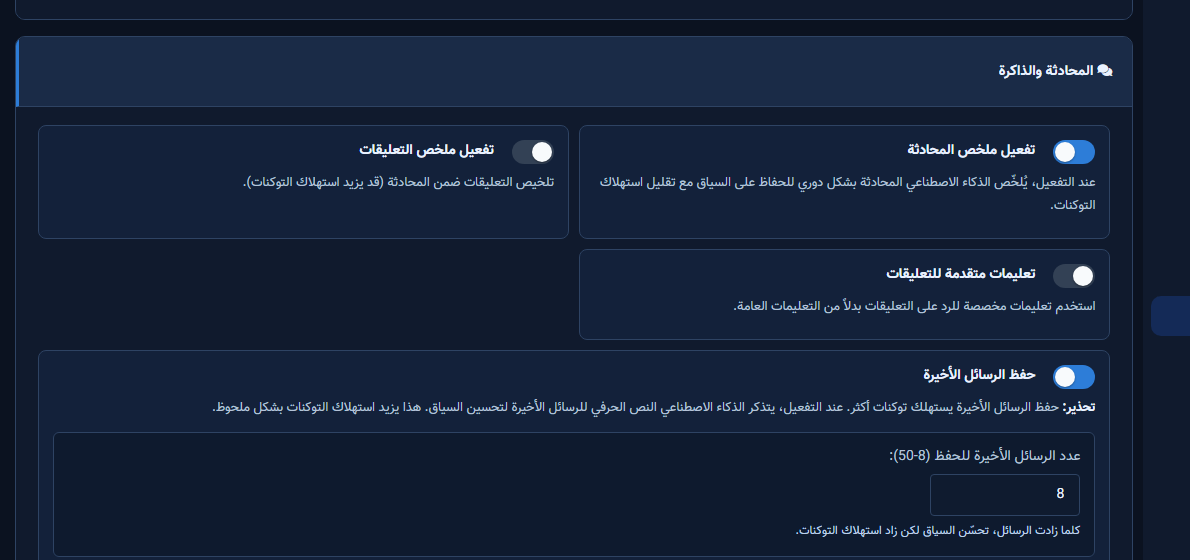
Enable summaries in Conversation & Memory
- In Conversation & Memory turn on Enable Conversation Summary.
- Optionally enable Enable Comment Summary if you summarise comments with the thread (may raise usage).
- Save settings and wait for success before testing.
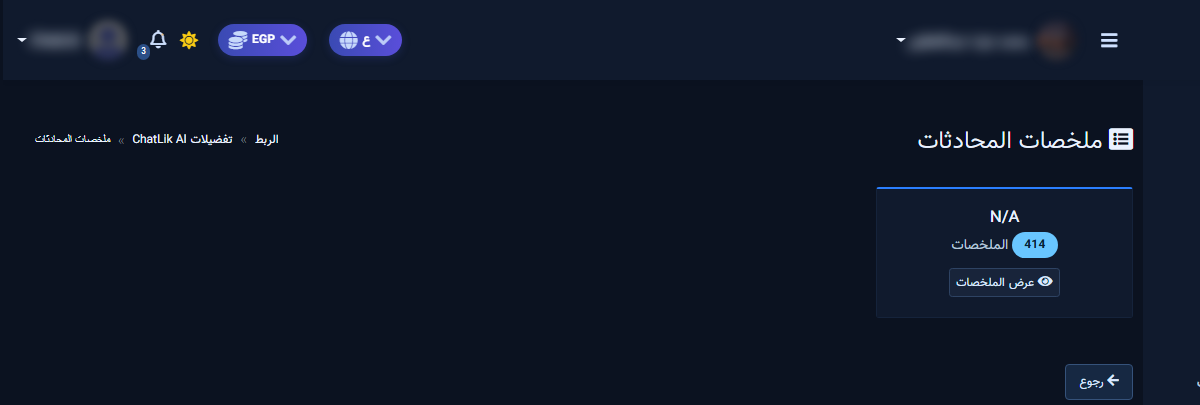
View and edit summaries
- Open Conversation Summaries (or View Summaries).
- Review Subscriber, Last Updated, Summary, and Actions.
- View the full text, or Edit Summary then Save if product names/addresses are wrong.
- In Unified Inbox or Live Support, read the summary before a long reply on an old thread.

Quality check
- Run a multi-turn test in AI Playground and confirm the summary updates.
- After major policy changes, edit stale summaries so the model does not reuse outdated facts.
After setup and verification
- Document for the team: selected Page, who owns review, and when Playground was last tested.
- Review day-one live replies, any error logs, and unexpected credit usage.
- If price, policy, or hours change the same week, re-run the critical scenarios before trusting automation.
- Keep a clear human escalation path when automation fails — never leave the customer without a fallback.
Ongoing quality control
- Assign one owner to review this screen weekly so responsibility is not diffused.
- On repeating customer complaints, reopen related settings and compare them with Business Profile and FAQ.
- Log pause/edit decisions with a date so the next teammate knows what changed and why.
- Do not treat setup as finished after the first save — review it with every new offer or season.
Practical tips
- Enable summaries after Business Profile and FAQ are stable.
- Fix summary errors as soon as wrong prices/addresses appear.
- Pair with Live Support so agents skim faster.
- Recheck permissions if Save/Refresh buttons disappear after a role change.
Common mistakes
- Enabling summaries without sampling quality first.
- Trusting a stale summary after a return-policy change.
- Turning on comment summary when you do not need it (extra cost).
- Treating Save alone as success without a realistic customer scenario test.
Related: AI live support · Live Support · Core settings.


