
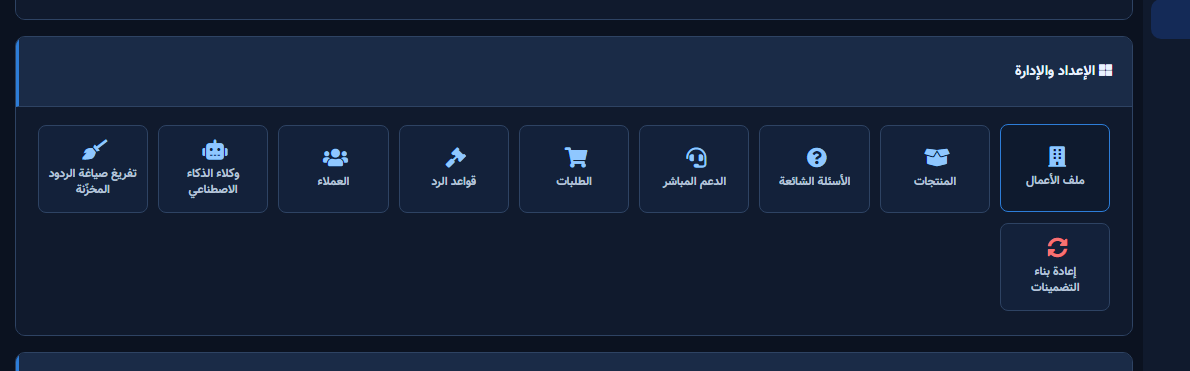
The AI Agents tile lets you run multiple configs on one Page: each agent has a Name, Instruction, Model, Priority, and Trigger Type. Agents are evaluated by priority (lower number first); the first match handles the message. With no agents, default Page AI settings apply.
Before you start
- Open ChatLik AI and select the Page in Select Page/Account.
- Finish Business Profile and core preferences first so agents are not empty shells.
- Plan clear roles: sales, complaints, wholesale — with non-colliding priorities.
Create an agent
- Open AI Agents and click Add Agent.
- Enter Agent Name (e.g. Sales Bot, Support Agent).
- Pick a Model or leave Use Default.
- Set Priority — UI hint: lower = checked first.
- Write the agent Instruction (tone, prohibitions, when to hand off).
- Choose Trigger Type: All Messages (default handler), Keyword Match, or Fallback (if no other agent matches).
- For keywords fill Trigger Keywords (comma-separated), then Save Agent.

Order, toggle, and test
- Keep complaints at a lower priority number than general sales when needed.
- Edit / disable / delete from the agent card. Disabled shows a Disabled badge.
- Test in AI Playground with matching and non-matching phrases; document Live Support handoff.
After setup and verification
- Document for the team: selected Page, who owns review, and when Playground was last tested.
- Review day-one live replies, any error logs, and unexpected credit usage.
- If price, policy, or hours change the same week, re-run the critical scenarios before trusting automation.
- Keep a clear human escalation path when automation fails — never leave the customer without a fallback.
Ongoing quality control
- Assign one owner to review this screen weekly so responsibility is not diffused.
- On repeating customer complaints, reopen related settings and compare them with Business Profile and FAQ.
- Log pause/edit decisions with a date so the next teammate knows what changed and why.
- Do not treat setup as finished after the first save — review it with every new offer or season.
Practical tips
- Start with one All Messages agent; add keyword agents after scenarios stabilize.
- Document the priority table for the team.
- Do not duplicate long facts in every agent — keep them in Business Profile.
- Recheck permissions if Save/Refresh buttons disappear after a role change.
Common mistakes
- Identical priorities with unclear ownership.
- Over-broad keywords stealing traffic from another agent.
- Saving an agent without an AI Playground test.
- Treating Save alone as success without a realistic customer scenario test.
Related: Playground · Reply Rules · Module map.


