
No Match Reply Enhancer controls how often the bot sends the fallback when a customer message matches no keyword and no known path — and when it pauses after a human agent replies. It is not a separate sidebar item: it lives inside the General Settings card in Bot Manager, after Reply if no match found is enabled.
Before limits: finish the base switch and template from Set up Facebook No Match (Instagram: Set up Instagram No Match). Without the base switch, no fallback sends and enhancer settings do nothing.
Before you start
- Sidebar: Integrations → Connect Accounts; confirm Enable Bot Connection for the Page (or Instagram account).
- Open Facebook Tools → Bot Manager (or Instagram Tools → Bot Manager) and select the Page/account.
- Enable Reply if no match found, save, and review the template — see Facebook No Match.
- Decide which mode fits: one reply only, a max count in a time window, or pause after a human reply (UI allows one mode at a time).
1) Open General Settings and enable the enhancer
- Open the General Settings card → Change Settings.
- Confirm Reply if no match found is on.
- Scroll to No Match Reply Enhancer.
- Turn on Enable so the controls appear (Reply Enhancement Type and Save).
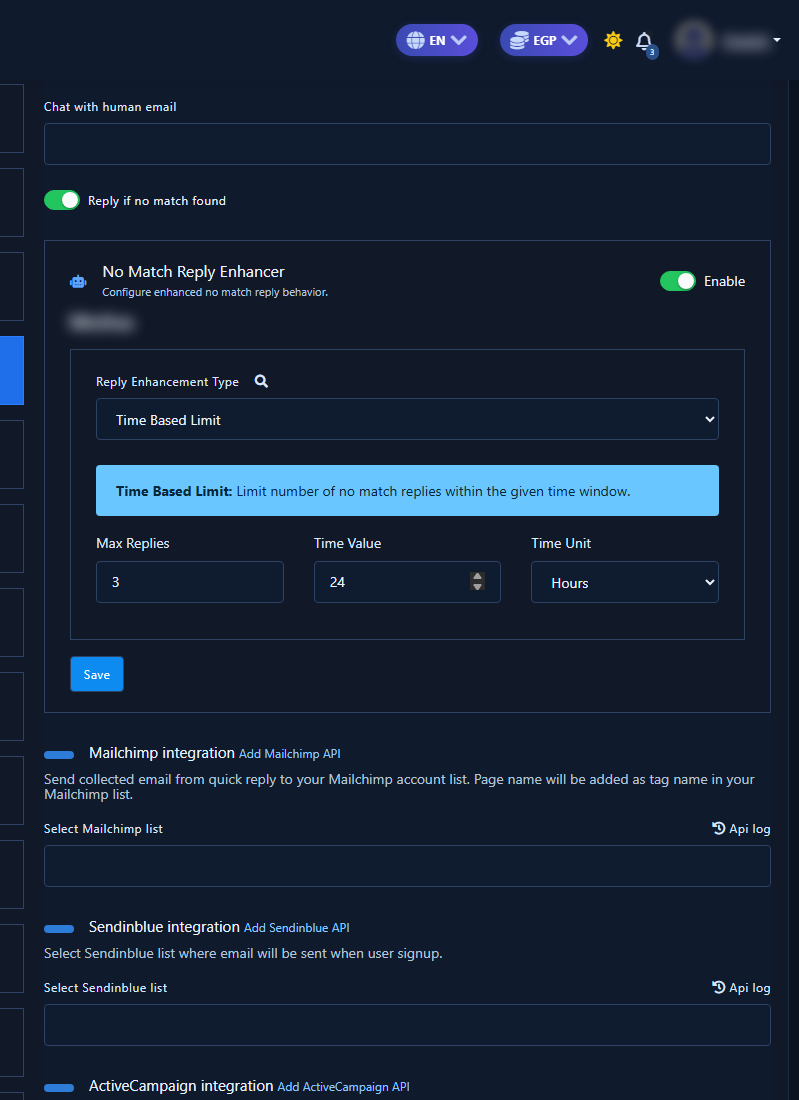
2) Choose Reply Enhancement Type (one mode only)
Under Reply Enhancement Type you get three mutually exclusive options:
- One Time Reply
- Time Based Limit
- Pause After Human Reply
A search icon beside the label opens Subscriber Status Checker (optional diagnostics).
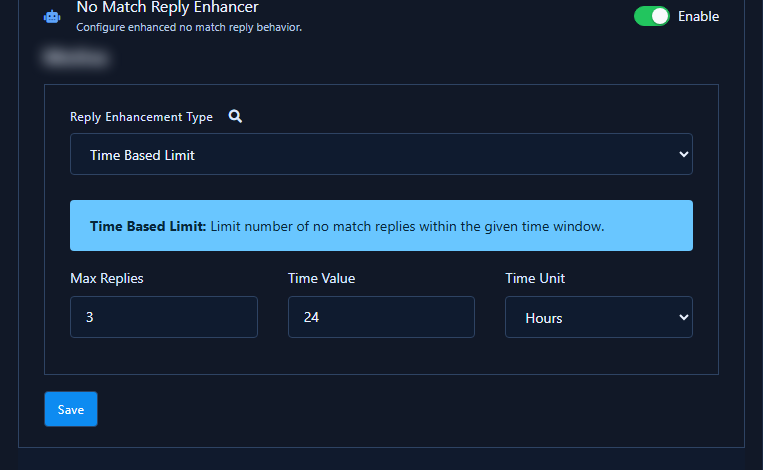
3) Mode A — Time Based Limit (max replies in a window)
Use this when you need an explicit count inside a time window.
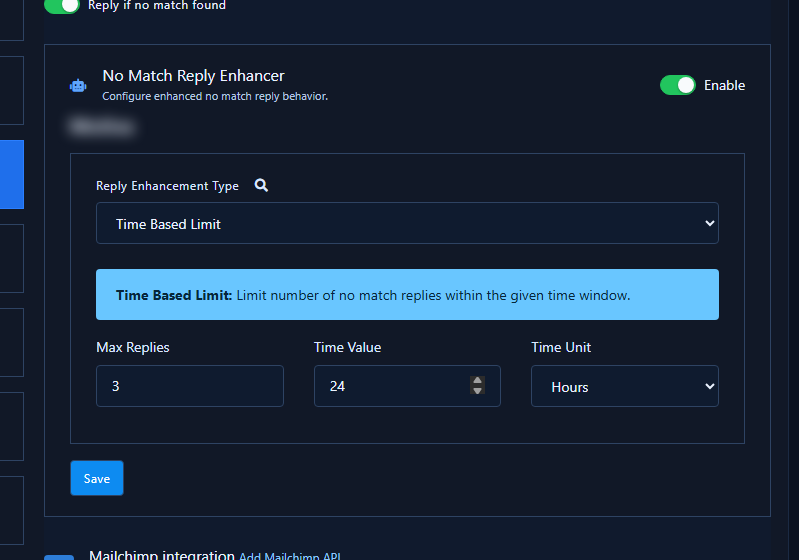
- Select Time Based Limit.
- Set Max Replies (example:
3). - Set Time Value (example:
24). - Under Time Unit choose Minutes, Hours, or Days.
Worked example: Max Replies = 3, Time Value = 24, Time Unit = Hours → at most 3 no-match replies per subscriber in 24 hours; later unmatched messages in that window are skipped.
When to use: stores that get repeated random questions and want a capped reminder without endless spam.
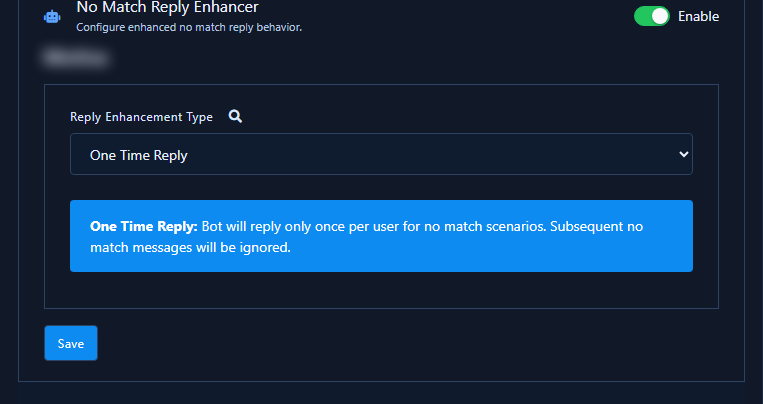
4) Mode B — One Time Reply
Select One Time Reply. The UI explains: the bot replies only once per user for no-match scenarios; subsequent no-match messages are ignored.
When to use: one nudge is enough (“type menu” / “contact support”) and you do not want the same fallback on every random character.
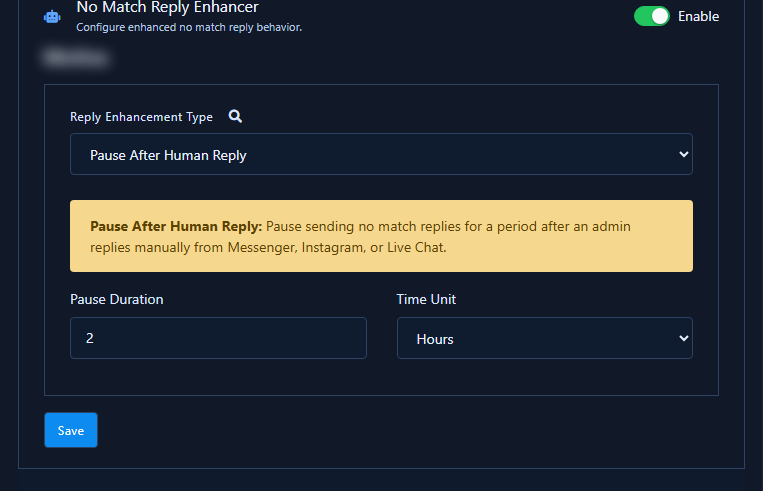
5) Mode C — Pause After Human Reply
This mode is available in the UI. Select Pause After Human Reply, then set:
- Pause Duration (example:
2). - Time Unit: Minutes / Hours / Days.
After an admin replies manually from Messenger, Instagram, or Live Chat, no-match replies pause for that duration so the bot does not interrupt a human thread.
Example: Pause Duration = 2, Time Unit = Hours → after an agent reply, No Match stays silent for two hours.
When to use: support teams that jump into chats often and need the fallback muted during handoff.
6) Save and test
- Review the selected mode and numbers.
- Click Save on the enhancer form.
- Also save General Settings if prompted before closing.
- Test with a random unmatched message from a trial account; repeat to verify the cap, one-time behavior, or pause-after-agent behavior.
Quick mode comparison
- One Time Reply — simplest anti-repeat; no adjustable window.
- Time Based Limit — most flexible: count + duration + unit.
- Pause After Human Reply — protects agent chats; does not cap No Match before a human replies.
Practical tips
- Start with a low Time Based Limit (e.g. 2–3 replies / 24 hours), then raise if needed.
- Facebook/Messenger settings are separate from Instagram — use the matching Bot Manager.
- If the enhancer card is missing, confirm the No Match switch is on and the addon is available.
- Use Subscriber Status Checker when a subscriber may have hit the limit.
Common mistakes
- Tuning limits without enabling Reply if no match found first.
- Editing only the template and skipping Facebook No Match setup.
- Changing numbers without clicking Save.
- Turning No Match off entirely instead of picking a limit mode.
- Configuring Instagram while still inside Facebook Bot Manager (or the reverse).
After you finish
Review the template copy in Facebook No Match or Instagram No Match, then test on a real thread. For a broader checklist see Messenger bot basics.


