
Facebook and Instagram connect from one ChatLik screen under Integrations → Connect Accounts. Do not start in Bot Manager; finish Connect Accounts and Meta permissions first, enable bot connection per Page, then sync Instagram when needed. Note: API channels is a separate hub with only a short Facebook tile — it is not the full connect flow documented here.
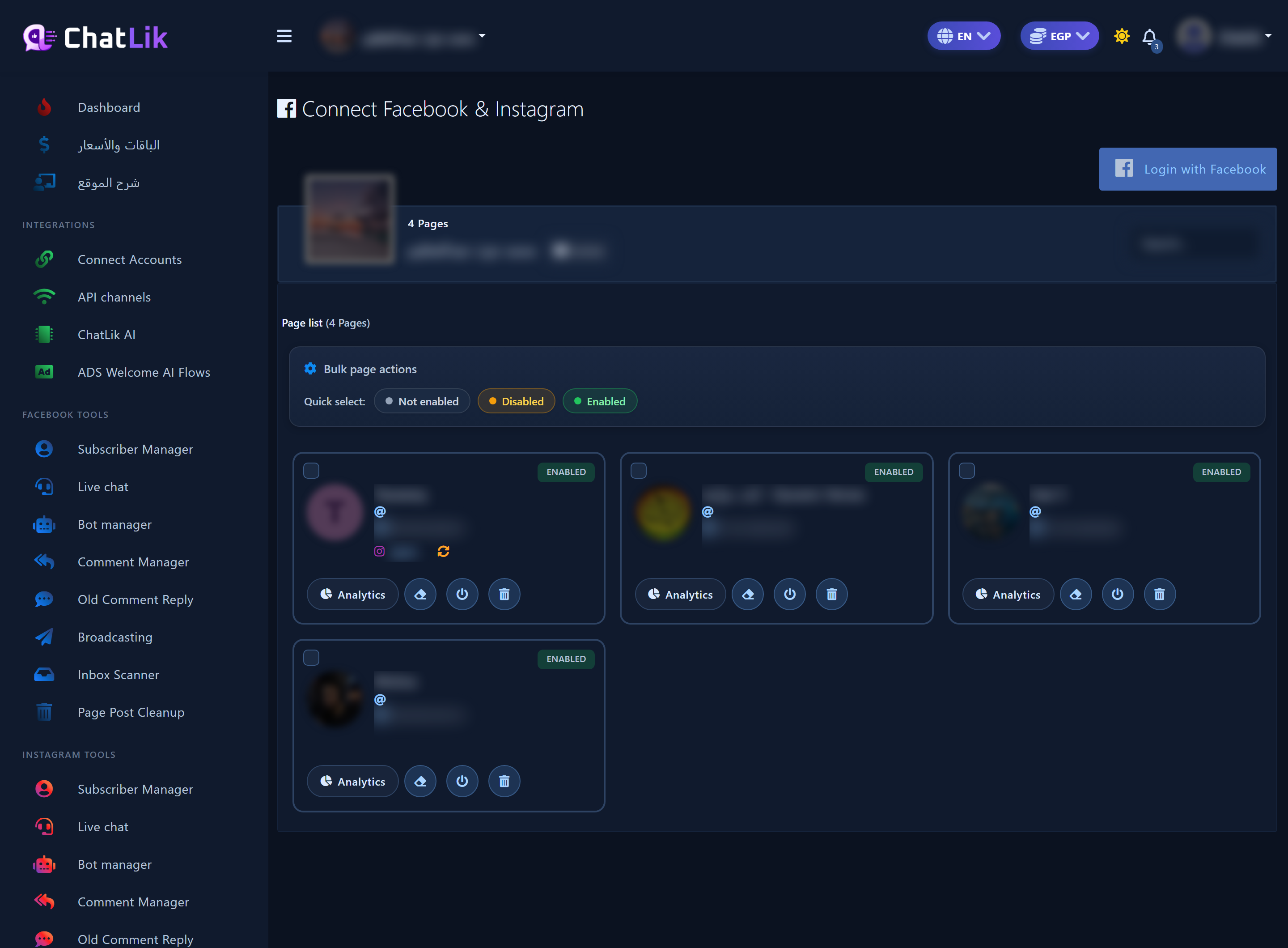
Open Connect Accounts and the login button
- In the sidebar, open Integrations, then click Connect Accounts. You should see Connect Facebook & Instagram with the Page list and action controls.
- Click the blue Login with Facebook button once to open Meta’s permission windows.
Meta permissions (Login with Facebook)
Meta’s official dialogs ask which Pages, Businesses, and Instagram accounts ChatLik may access. Use the Facebook account that can manage the Pages you need.
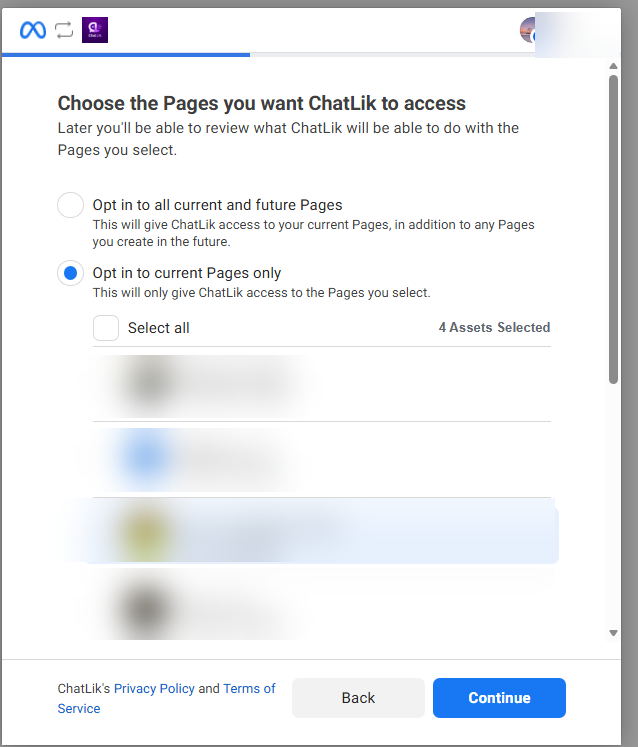
1) Choose Pages
On Choose the Pages you want ChatLik to access you see two options:
- Opt in to all current and future Pages — current Pages plus any you create later.
- Opt in to current Pages only — only the Pages you tick now.
If you chose current Pages only, select the Pages you need (or Select all), then click Continue.
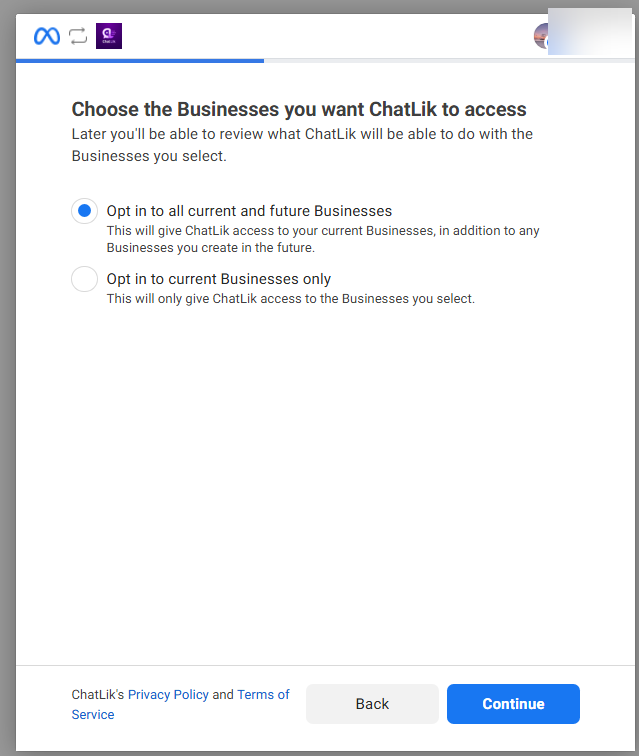
2) Choose Businesses
Choose the Businesses you want ChatLik to access uses the same pattern. Then click Continue.
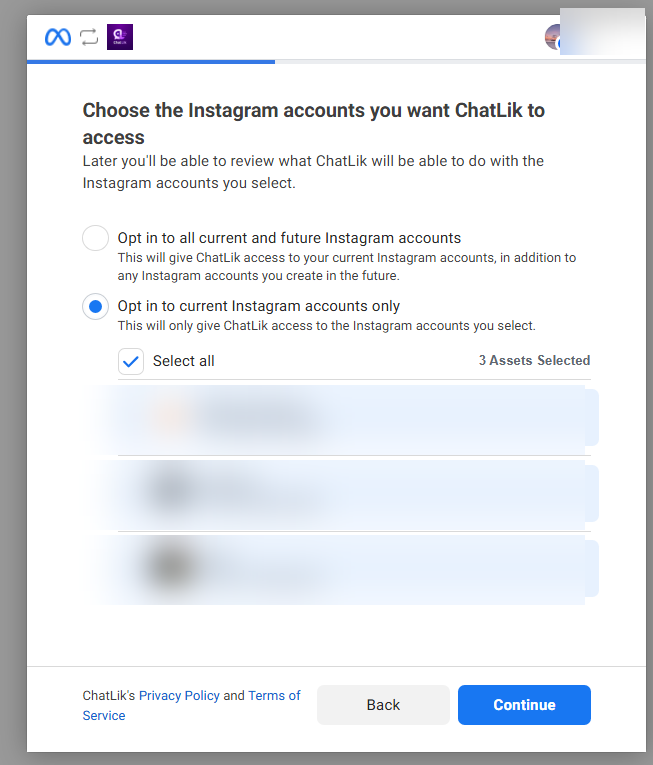
3) Choose Instagram accounts
Choose the Instagram accounts you want ChatLik to access repeats the same choice for Instagram. Then click Continue.
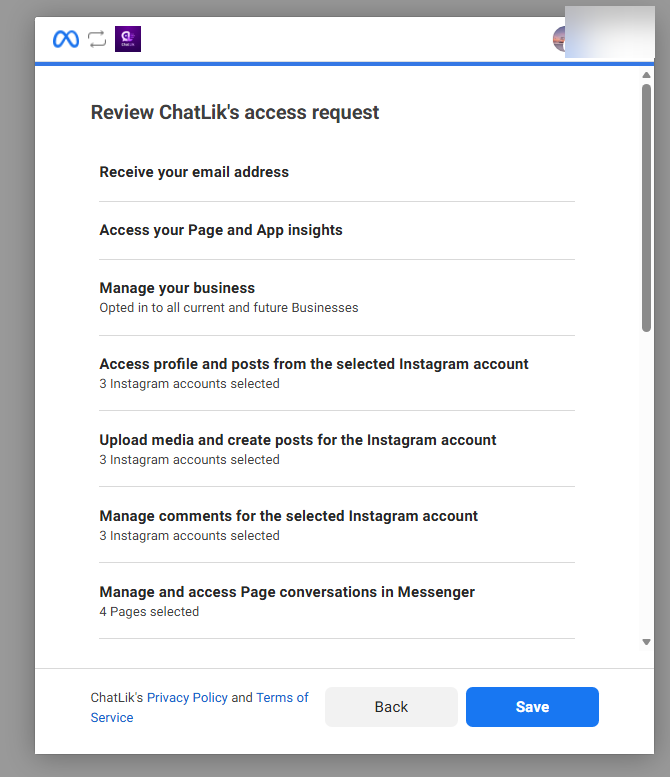
4) Review the access request
Review ChatLik's access request summarizes what you approved. Use Back to change scope, or Save when correct.
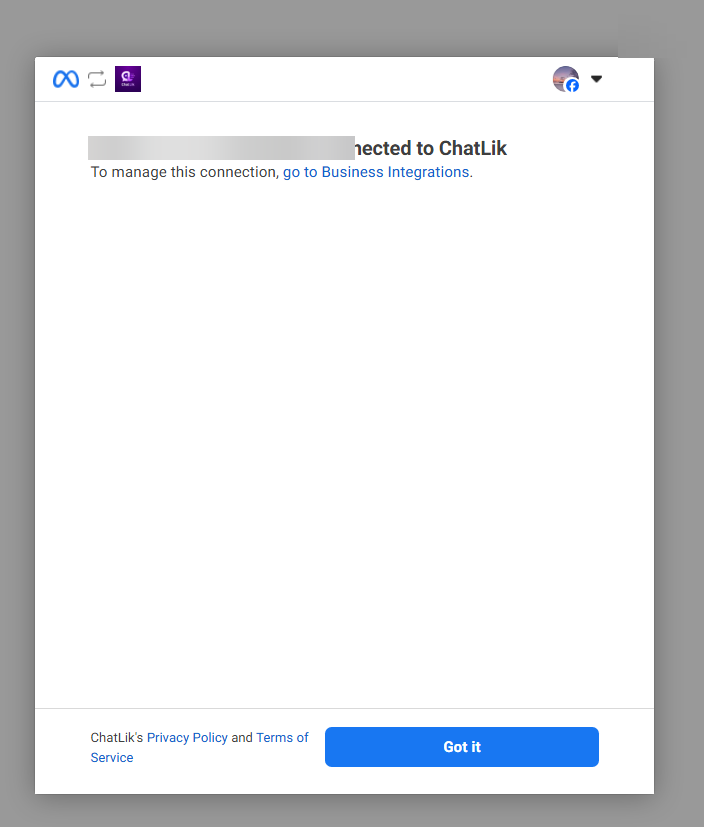
5) Connected confirmation
Meta shows that the account has been connected to ChatLik. Click Got it to return to ChatLik.
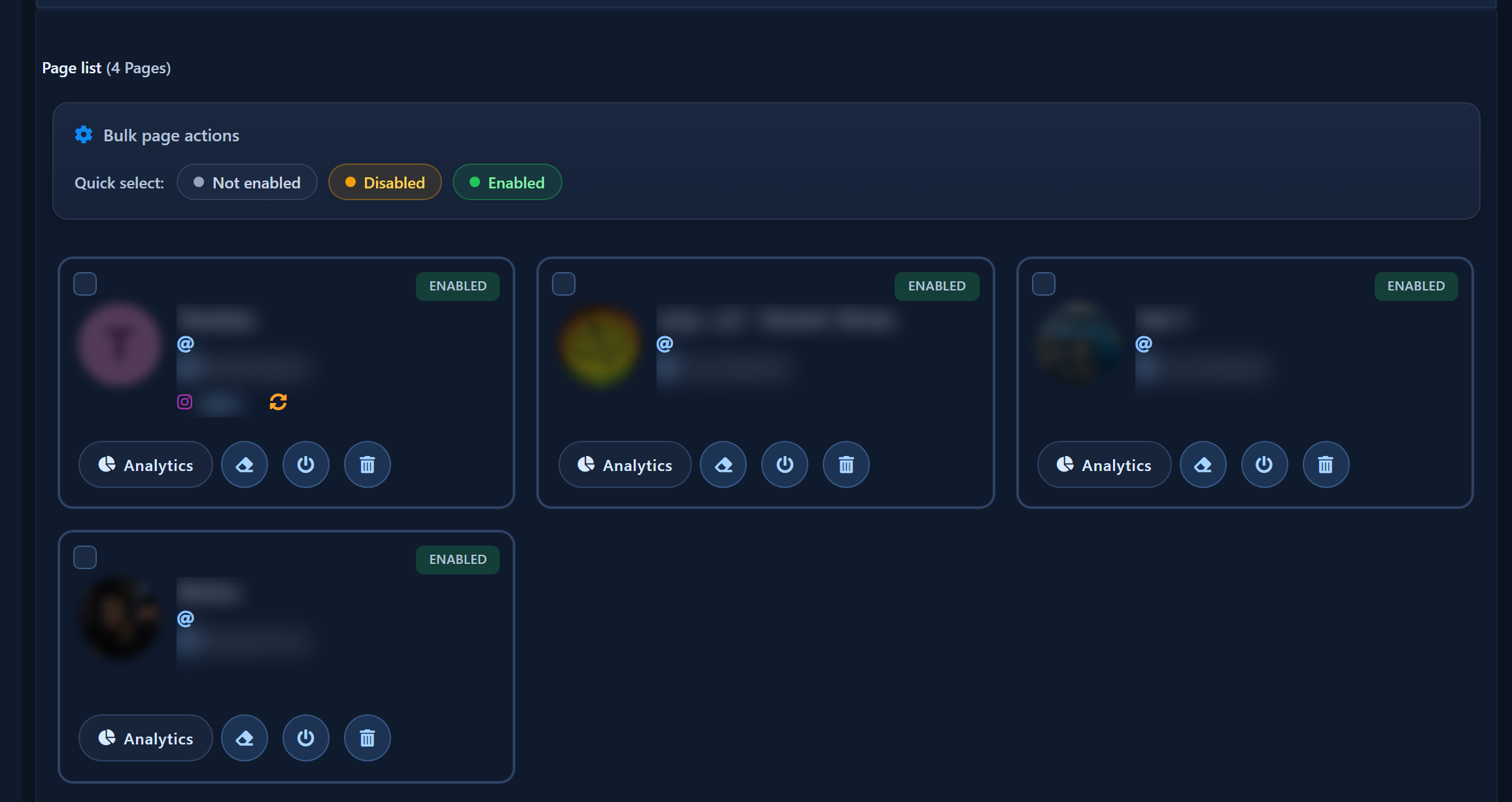
Page cards in ChatLik
- After closing Meta, scroll Page list and Bulk page actions with Quick select. Confirm the Pages you authorized appear. Each card shows bot status (Enabled / Not enabled) and action controls.
Enable Bot Connection (plug icon)
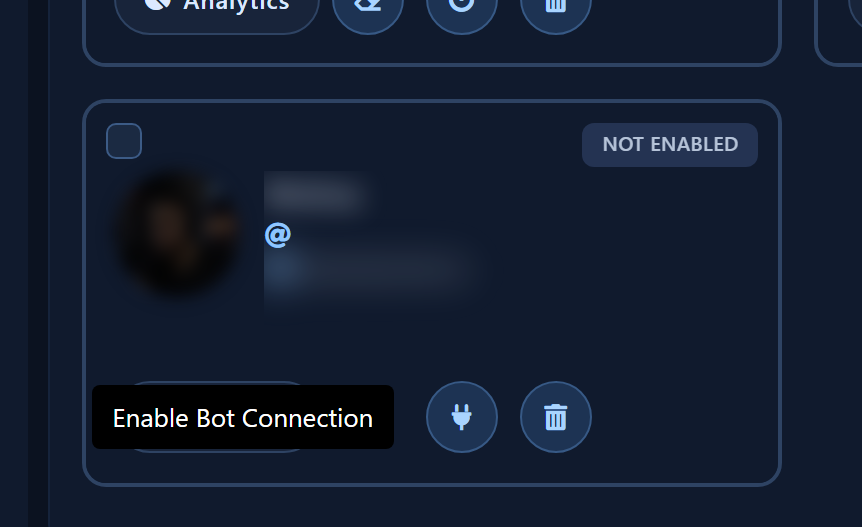
- On a card marked Not enabled (prefer a clean Page such as صفحة اختبار for first setup), hover the plug icon until the tooltip reads Enable Bot Connection (UI may also show Enable bot connection).
- Click the plug and confirm the prompt.
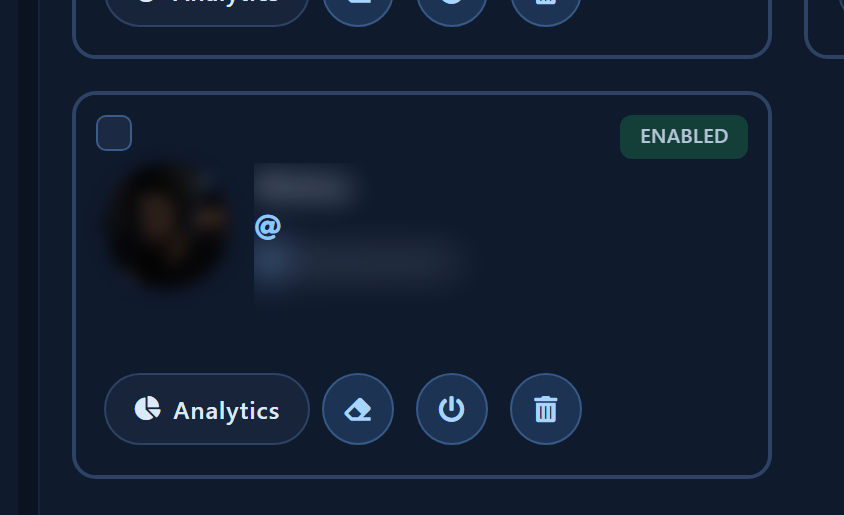
- When finished, the same card shows Enabled and the plug is replaced by the power / disable control.
Sync Instagram
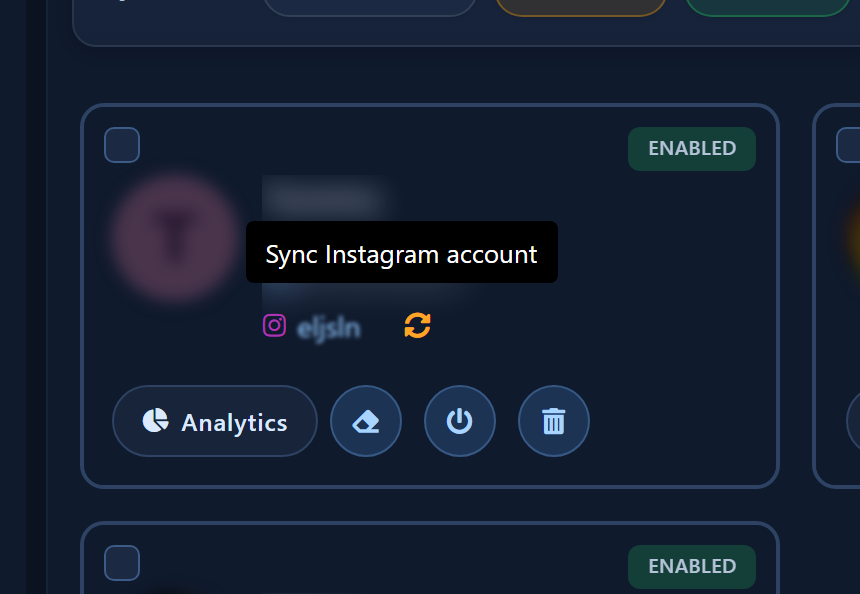
- On a Page card linked to a professional Instagram account, find the Instagram logo, handle, and sync icon. Hover until the tooltip reads Sync Instagram account, then click it.
- Confirm the Instagram account appears after sync before opening Instagram Tools.
- To remove the account connection completely, use Unlink at the top of this screen — not to stop a single campaign.
Related: Get Started template · Facebook No Match.


