
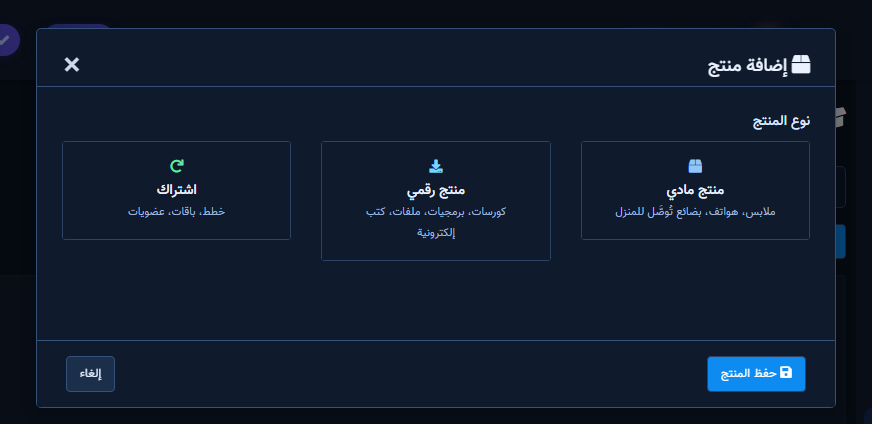
Products Catalog is the source of truth for prices, stock, and media that ChatLik AI uses in replies and orders. Add items with Add Product, set Product Type (Physical / Digital / Subscription), name, price, currency, AI Keywords, options/packages, and stock.
Before you start
- Open ChatLik AI and select the correct Page.
- Prepare SKUs: clear name, price, currency, and Physical/Digital/Subscription.
- Ready a main image — it is what product cards send.
Add a product
- Open Products Catalog → Add Product.
- Pick Product Type: Physical, Digital, or Subscription.
- Fill Name, Description, Price, Currency, Category.
- Add comma-separated AI Keywords for matching.
- Use Options / Variants or Packages / Plans as needed.
- Set In Stock, images, optional external link, and Digital Delivery for digital goods.
- Click Save Product.
Update and test
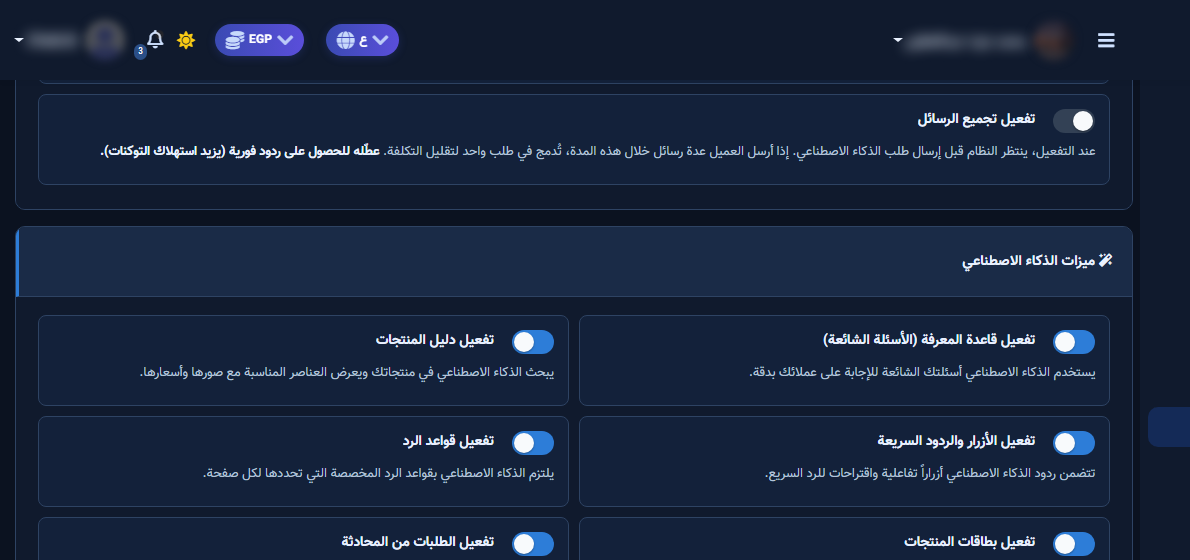
- Edit price or mark out of stock immediately when sold out.
- Ask price/availability questions in AI Playground.
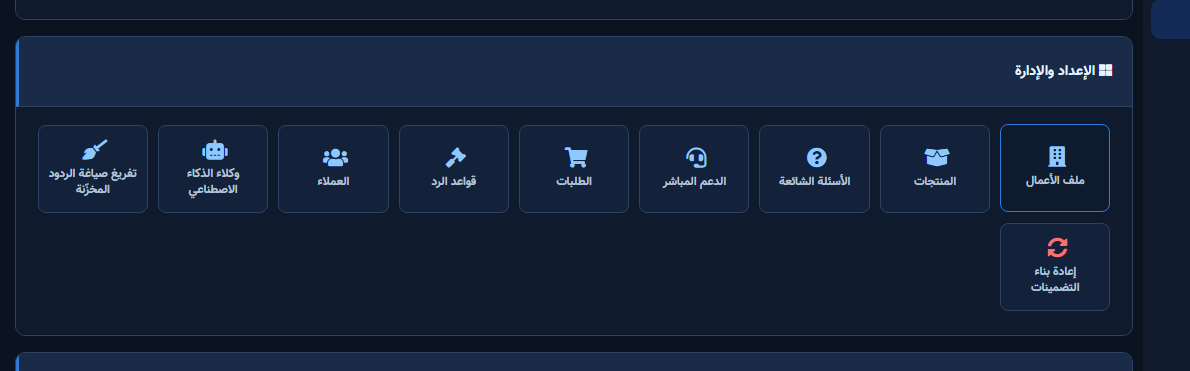
- Rebuild embeddings/index from the UI tools after large FAQ/product edits if offered.
After setup and verification
- Document for the team: selected Page, who owns review, and when Playground was last tested.
- Review day-one live replies, any error logs, and unexpected credit usage.
- If price, policy, or hours change the same week, re-run the critical scenarios before trusting automation.
- Keep a clear human escalation path when automation fails — never leave the customer without a fallback.
Ongoing quality control
- Assign one owner to review this screen weekly so responsibility is not diffused.
- On repeating customer complaints, reopen related settings and compare them with Business Profile and FAQ.
- Log pause/edit decisions with a date so the next teammate knows what changed and why.
- Do not treat setup as finished after the first save — review it with every new offer or season.
Practical tips
- Use AI Keywords in your customers’ real phrasing.
- Do not keep prices only in free-text instructions — update the catalog.
- Check Out of Stock / Disabled badges before campaigns.
- Recheck permissions if Save/Refresh buttons disappear after a role change.
Common mistakes
- Products without price or match keywords.
- Broken main image → empty product cards.
- Leaving test products Enabled on production.
- Treating Save alone as success without a realistic customer scenario test.
Related: Type instructions · FAQ · Orders.


