
ChatLik AI image understanding is typically enabled with Receive Images in Chat in preferences: the model then receives and analyses customer images (Vision path such as GPT-4o) at higher token cost. Related toggles cover including post images when replying to comments, with Vision warnings.
Before you start
- Confirm your plan/model supports Vision and credits can cover images.
- Open ChatLik AI Preferences and select the Page.
- Prepare clear product photos for testing (no real customer PII).
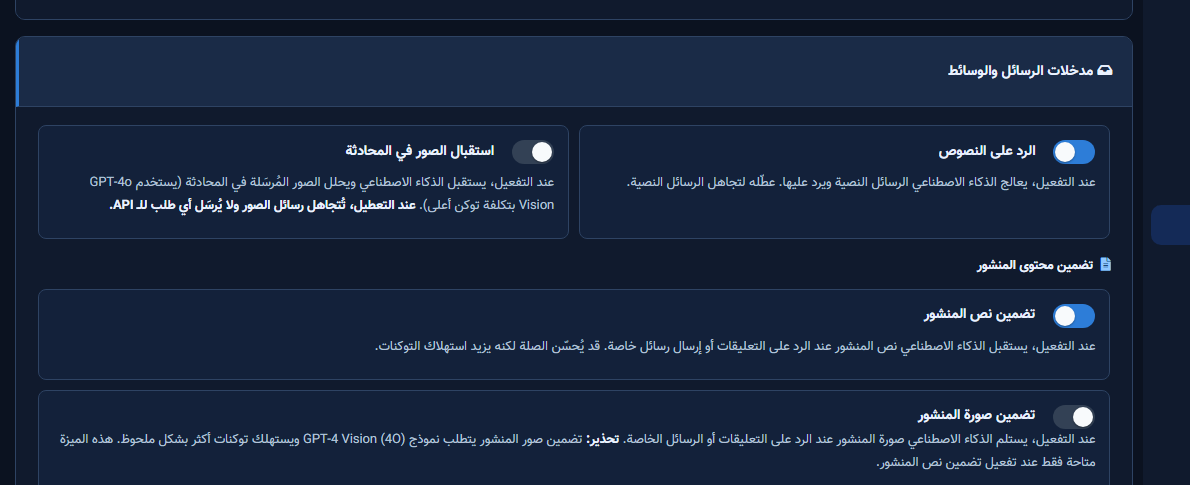
Enable image receive
- Turn on Receive Images in Chat.
- Read the hint: analysis uses GPT-4o Vision at higher cost.
- For comment replies with post images, review Include Post Image and its requirement that post text is enabled.
- Save settings.
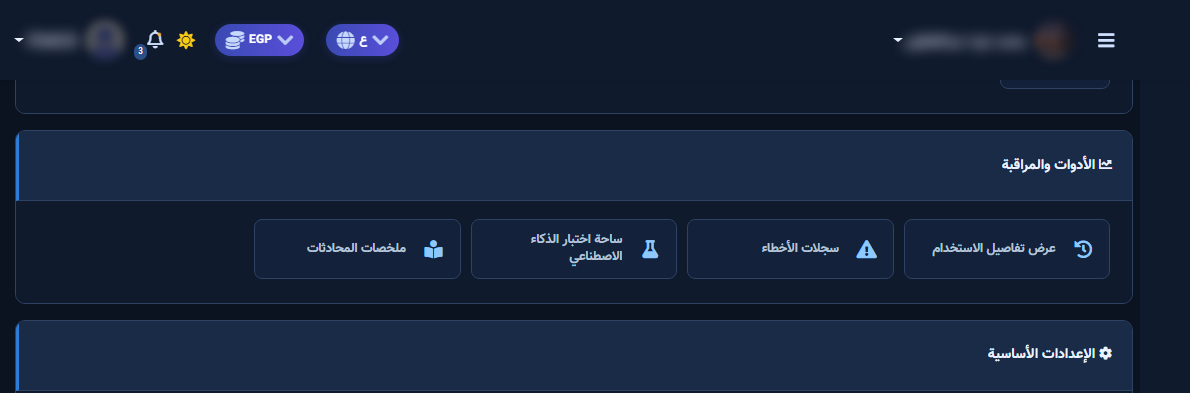
Test in Playground
- Open AI Playground on the same Page.
- Send a product image with a question (“Is this size available?” / “What’s the price?”).
- If colour/model is wrong, improve AI Keywords and product description, or instructions.
- Watch credit usage after image sessions.
After setup and verification
- Document for the team: selected Page, who owns review, and when Playground was last tested.
- Review day-one live replies, any error logs, and unexpected credit usage.
- If price, policy, or hours change the same week, re-run the critical scenarios before trusting automation.
- Keep a clear human escalation path when automation fails — never leave the customer without a fallback.
Ongoing quality control
- Assign one owner to review this screen weekly so responsibility is not diffused.
- On repeating customer complaints, reopen related settings and compare them with Business Profile and FAQ.
- Log pause/edit decisions with a date so the next teammate knows what changed and why.
- Do not treat setup as finished after the first save — review it with every new offer or season.
Practical tips
- Use clear photos on simple backgrounds while tuning.
- Do not rely on Vision alone for price — catalog is source of truth.
- Temporarily disable if credits are critically low.
- Recheck permissions if Save/Refresh buttons disappear after a role change.
Common mistakes
- Enabling Vision on an unsupported model/plan.
- Testing real customer invoice photos in a shared workspace.
- Ignoring credit spikes after image-heavy campaigns.
- Treating Save alone as success without a realistic customer scenario test.
Related: Playground · Products · Credits.


