
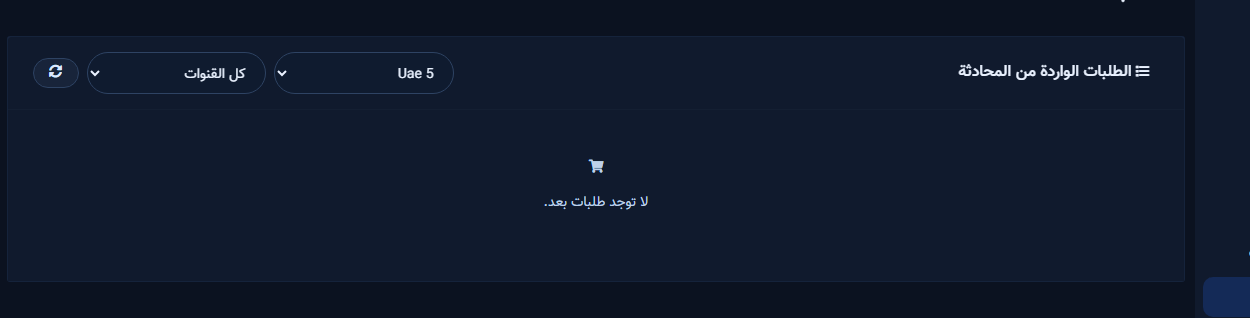
The Chat Orders tile lists Orders from Chat captured by ChatLik AI commerce flows from Messenger, Instagram, WhatsApp, or even Playground. Update status through Pending, Confirmed, Shipped, Delivered, and Cancelled.
Before you start
- Add items in Products Catalog with price, stock, and type (Physical/Digital/Subscription).
- Enable chat ordering if Enable Orders from Chat appears in settings.
- Define internal fulfillment: who confirms and who marks shipped.
Open and filter the list
- From ChatLik AI open Chat Orders.
- Use All Pages and All Channels filters (Messenger / Instagram / WhatsApp / Playground).
- If you see No orders yet, place a Playground or live test order after catalog setup.
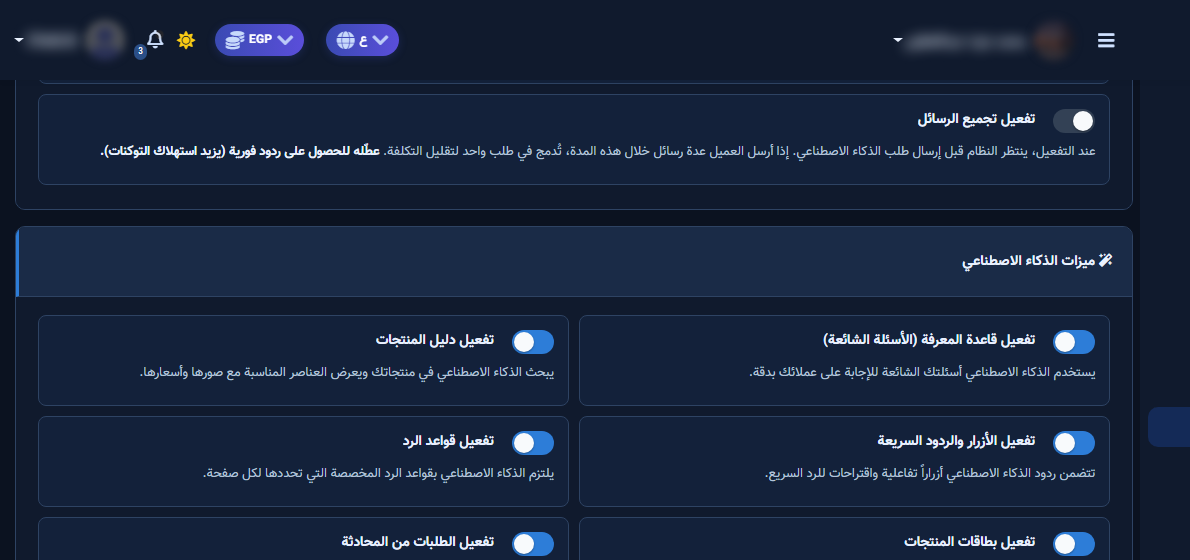
Update order status
- Open the order row; review products, customer, and channel.
- Move status per your process (e.g. Pending → Confirmed after calling the customer).
- Cross-check Customer Data for phone/address before shipping.
- For digital goods, review Digital Delivery on the product (manual vs automatic link after confirm).
After setup and verification
- Document for the team: selected Page, who owns review, and when Playground was last tested.
- Review day-one live replies, any error logs, and unexpected credit usage.
- If price, policy, or hours change the same week, re-run the critical scenarios before trusting automation.
- Keep a clear human escalation path when automation fails — never leave the customer without a fallback.
Ongoing quality control
- Assign one owner to review this screen weekly so responsibility is not diffused.
- On repeating customer complaints, reopen related settings and compare them with Business Profile and FAQ.
- Log pause/edit decisions with a date so the next teammate knows what changed and why.
- Do not treat setup as finished after the first save — review it with every new offer or season.
Practical tips
- Clear Pending daily so nothing piles up.
- Do not treat Playground orders as production.
- Update catalog stock when an ordered SKU sells out.
- Recheck permissions if Save/Refresh buttons disappear after a role change.
Common mistakes
- Confirming with incomplete phone/address.
- Leaving duplicate orders uncancelled.
- Treating digital products like physical shipments.
- Treating Save alone as success without a realistic customer scenario test.
Related: Products Catalog · Customer Data · Type instructions.


