
Business Profile stores stable facts the model relies on: under Business Information fill name, type, working hours, location, delivery, payments, returns, then contact fields, response tone/language, and page instruction.
Before you start
- Gather return policy, delivery fees, and hours from one approved source.
- Open ChatLik AI → Business Profile and select the Page — profile is per Page.
- Decide default response language: Arabic / English / Auto-detect.
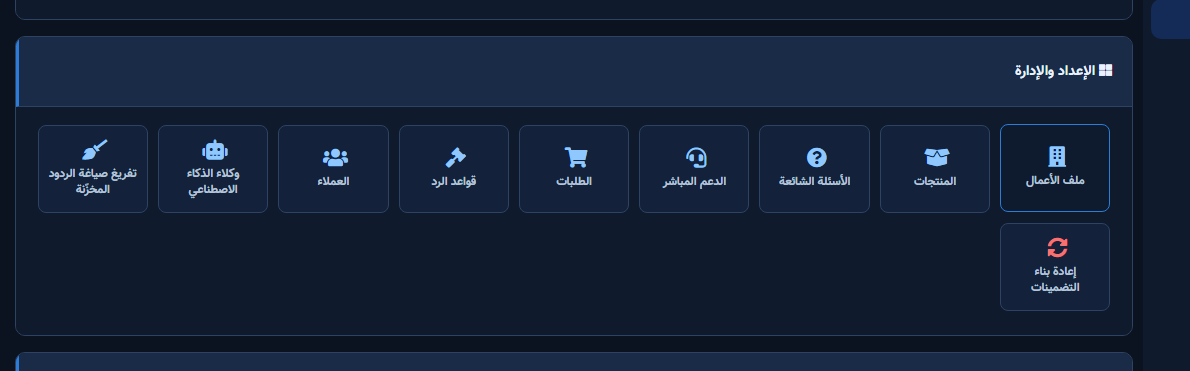
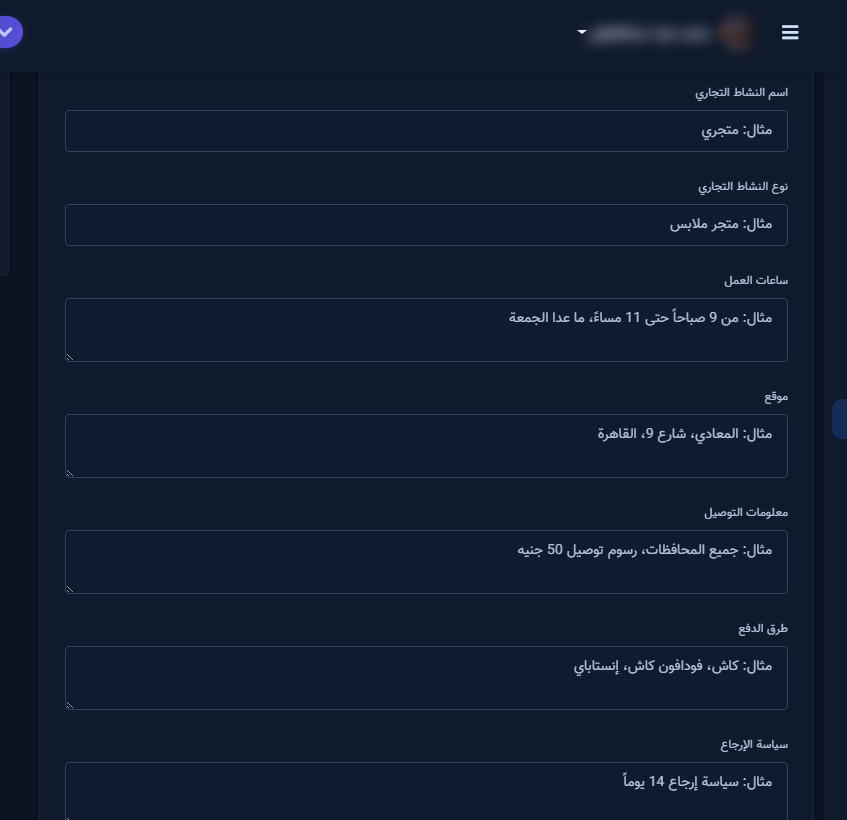
Fill business and contact info
- Enter Business Name, Business Type, Working Hours, Location.
- Write accurate Delivery Information, Payment Methods, and Return Policy.
- Under Contact Information fill website/email/phone or mark Not available.
- Choose AI Response Tone, Response Language, and Store Country.
Instructions and save
- Under AI Instruction write the Page AI Instruction for this Page (overrides global when set).
- Optionally add Custom Instructions.
- Click Save, then test delivery/returns/hours questions in Playground.
After setup and verification
- Document for the team: selected Page, who owns review, and when Playground was last tested.
- Review day-one live replies, any error logs, and unexpected credit usage.
- If price, policy, or hours change the same week, re-run the critical scenarios before trusting automation.
- Keep a clear human escalation path when automation fails — never leave the customer without a fallback.
Ongoing quality control
- Assign one owner to review this screen weekly so responsibility is not diffused.
- On repeating customer complaints, reopen related settings and compare them with Business Profile and FAQ.
- Log pause/edit decisions with a date so the next teammate knows what changed and why.
- Do not treat setup as finished after the first save — review it with every new offer or season.
Practical tips
- Keep Business Profile the single source for general policies.
- Update hours immediately for seasonal changes.
- Do not store volatile SKU prices here — use the catalog.
- Recheck permissions if Save/Refresh buttons disappear after a role change.
Common mistakes
- Leaving fields empty then blaming the model for inventing facts.
- Return policy conflicting with FAQ.
- Saving a test Page profile and forgetting production.
- Treating Save alone as success without a realistic customer scenario test.
Related: FAQ · Settings · ChatLik AI hub.


