
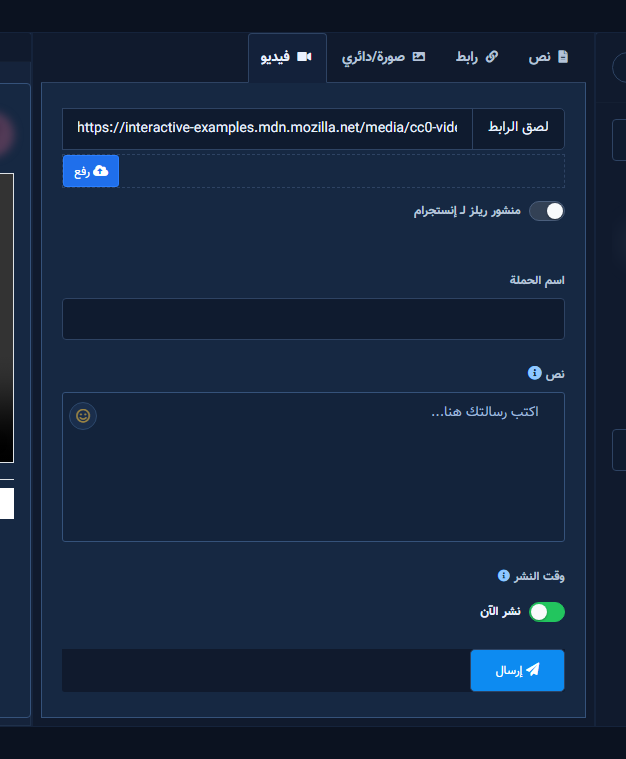
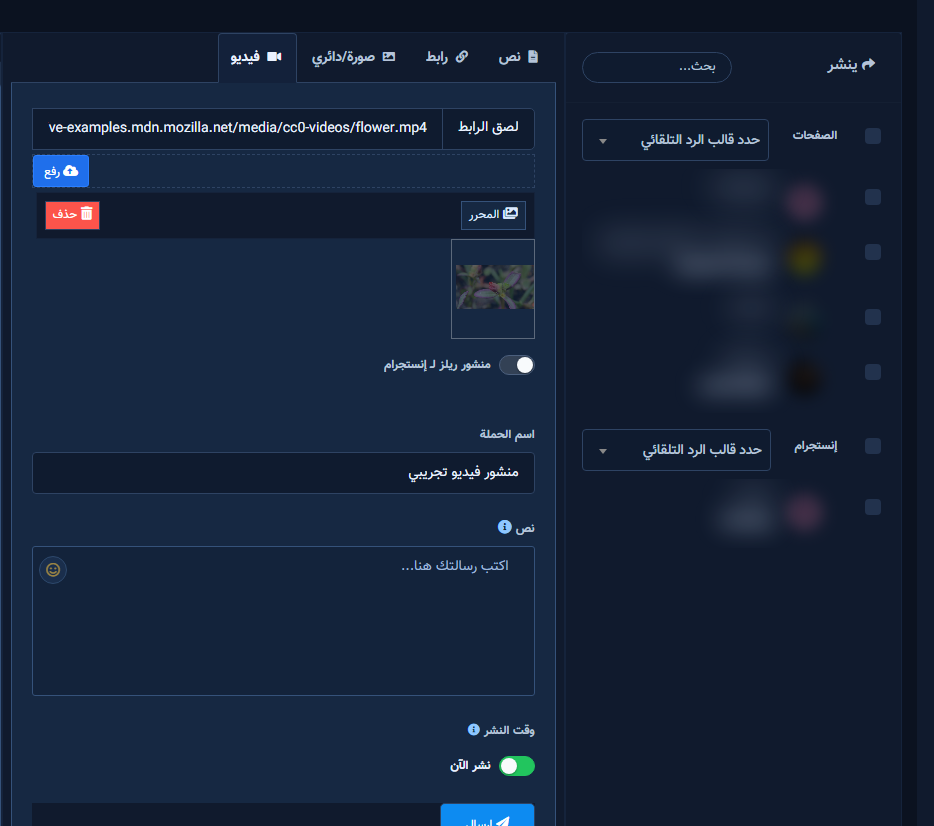
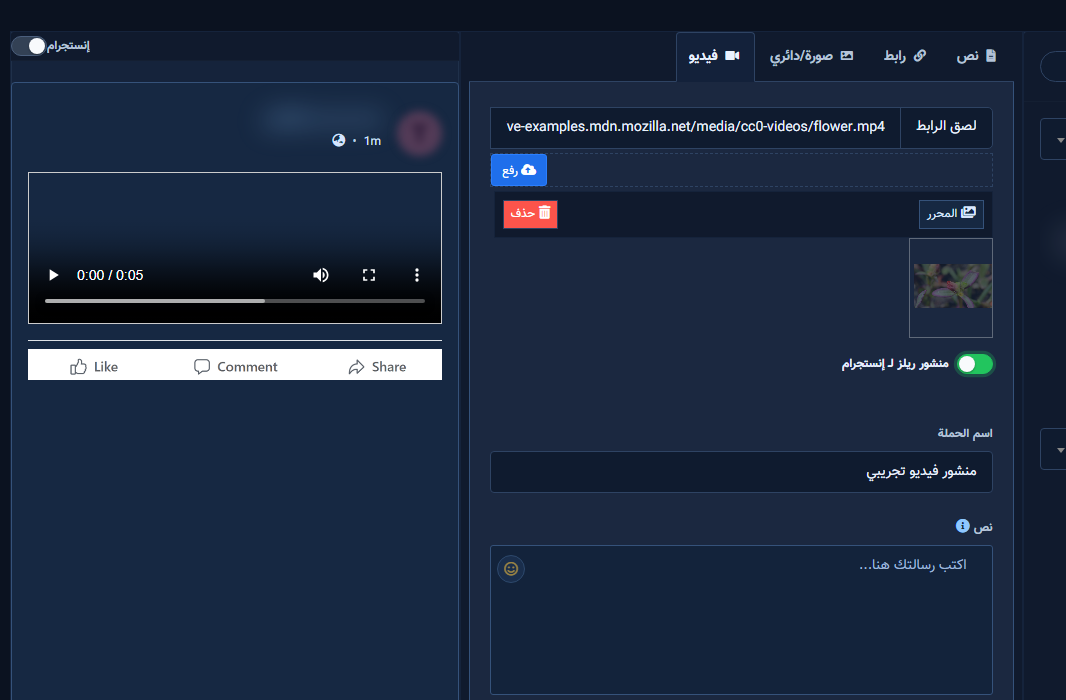
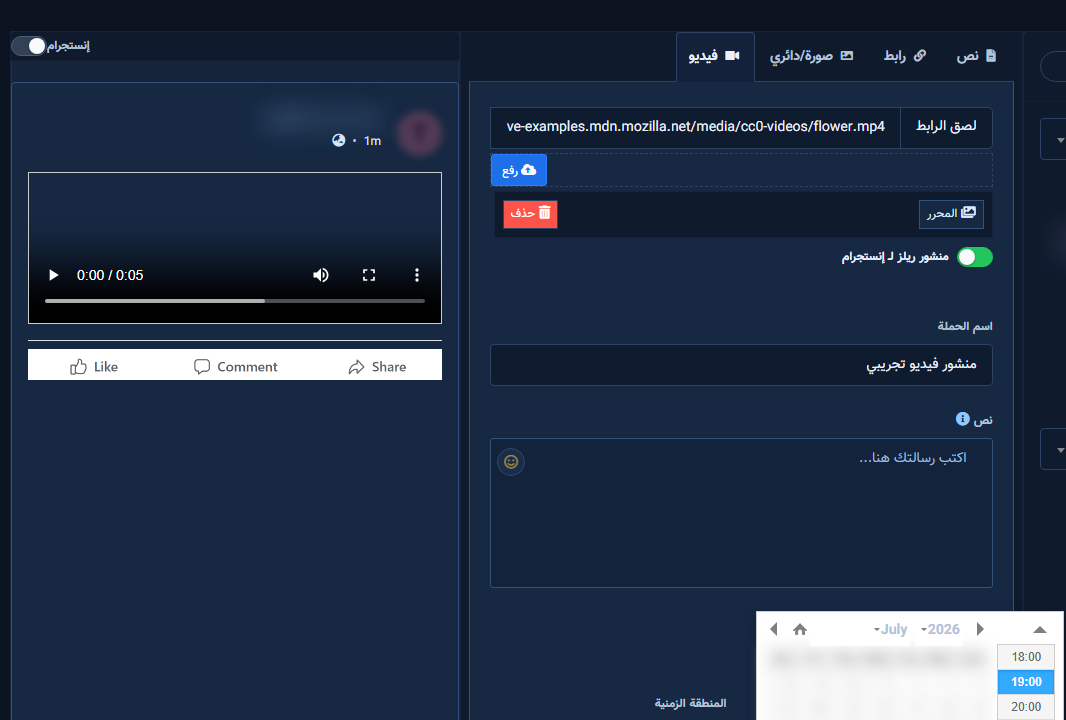
The Video tab uploads a file or pastes a video URL. Enable Reels Post for Instagram only when targeting Reels with the right aspect ratio.
Before you start
- Publish permission on Page/account.
- Open Multimedia from Posting Tools.
Fields & mode
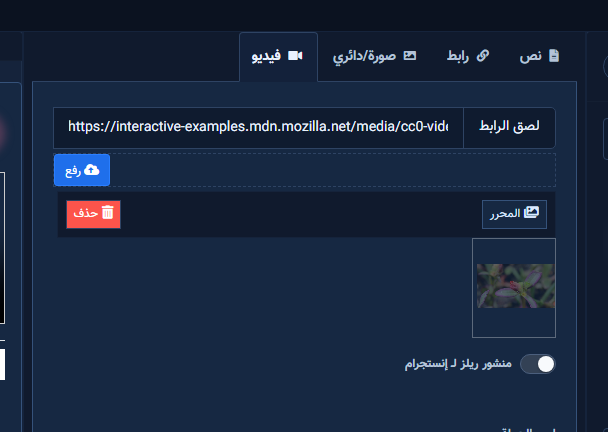
- Paste URL (
video_url). - Upload — MP4/MOV within limits.
- Reels Post for Instagram toggle.
- Message — caption.
- Shared schedule/repost controls.
Step-by-step
- Open with the Video tab active; set campaign name and destination.
- Confirm campaign and destination with Video tab active.
- Paste URL or upload until preview appears.
- Enable Reels only when needed.
- Schedule from this same Video form and wait for processing in the log.
Tips
- Check audio/length before bulk runs.
- Reels need a different aspect ratio.
Common mistakes
- Unsupported extension.
- Reels without an IG account.
Related
Next step
Try ChatLik via sign up.


