
Under Posting Tools (Ultrapost) open Multimedia Post to publish text, link, image, or video to Facebook & Instagram without full Post Studio. Dedicated guides: Text · Link · Image · Video.
Before you start
- Connect a Facebook Page and/or Instagram account with publish permission.
- Prepare media (JPG/PNG, MP4/MOV) in supported sizes.
- For intelligent bulk queues see Social Scheduler.
1) Posting Tools hub
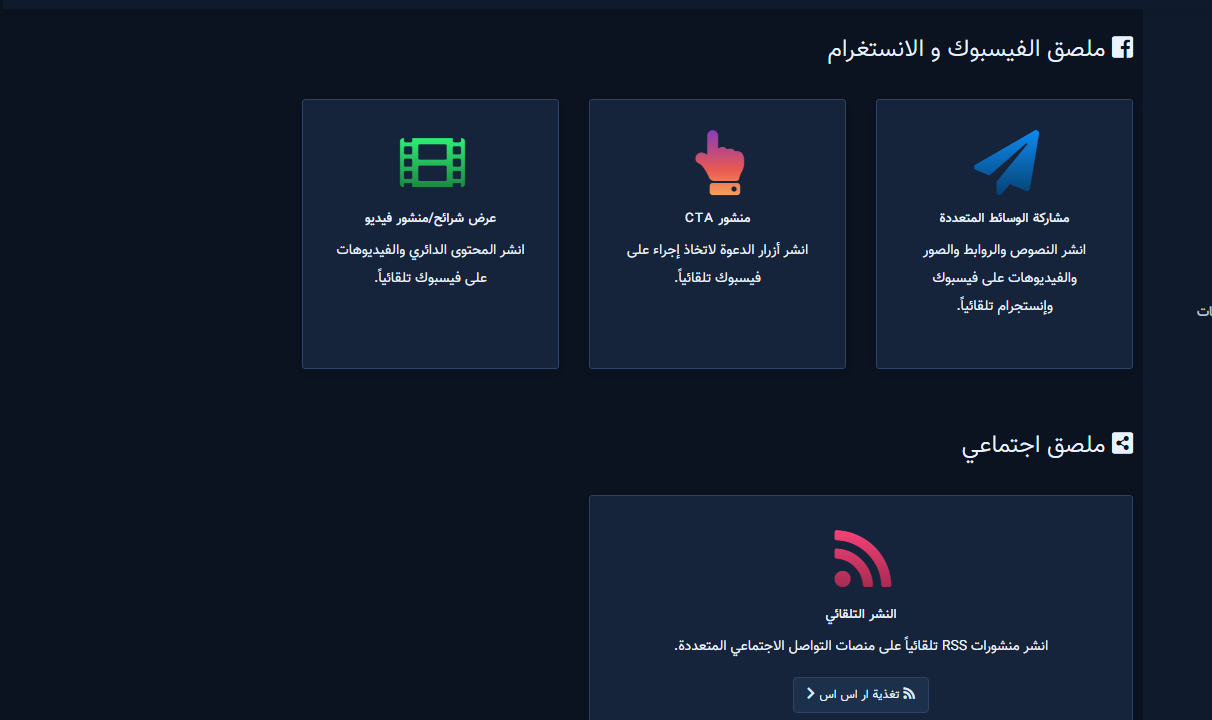
- Open Posting Tools — tiles for Multimedia, CTA, Carousel/Video, and RSS.
2) Create new post — form
- Multimedia → campaign list → Create new Post.
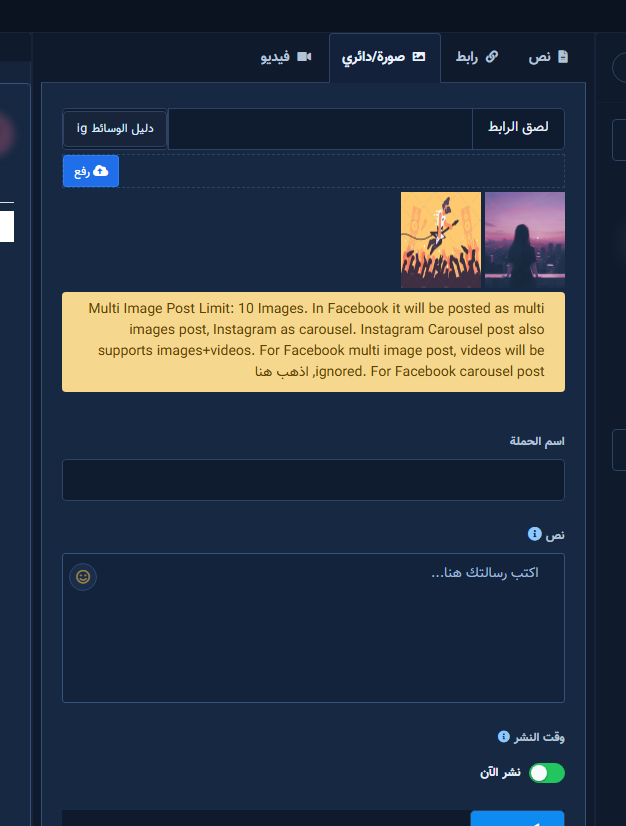
- Middle column = type tabs; left column = Pages/IG accounts.
3) Shared fields (all modes)
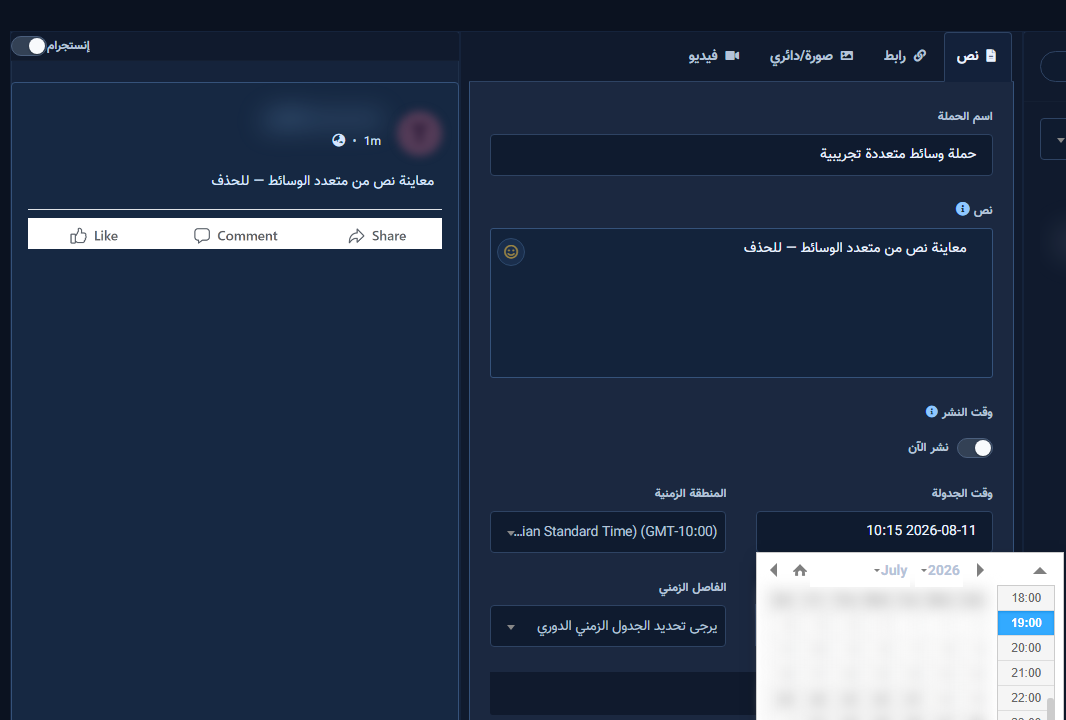
- Campaign Name — internal label.
- Pages / Instagram — destinations.
- Auto Reply Template — optional comment reply after publish.
- Message — caption/text.
- Post Now vs Schedule time + Time zone.
- Repost times + time interval — optional repeats.
- Submit — saves/publishes (avoid on live Pages while testing).
4) Type tabs
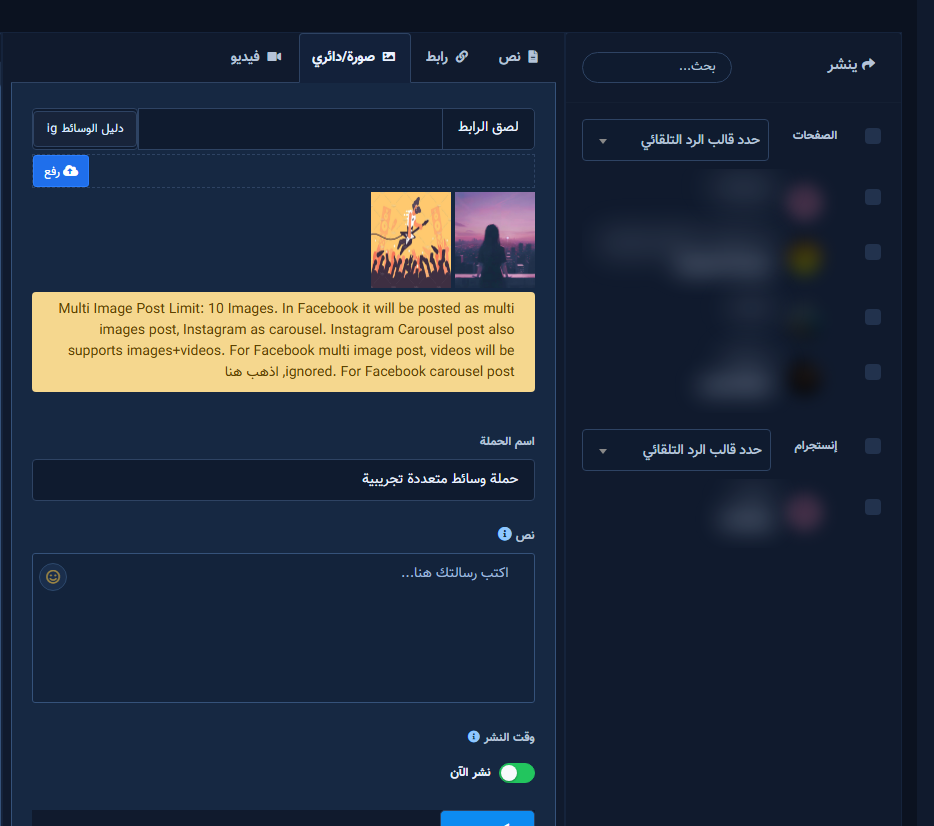
- Text / Link / Image-Carousel / Video — each unlocks its own fields.
5) Schedule & submit
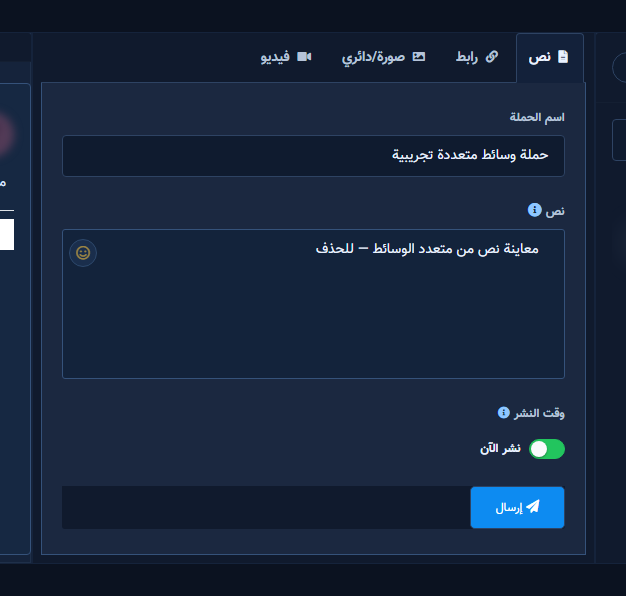
- Uncheck Post Now to schedule; set time/timezone; review destinations; Submit.
Common mistakes
- Submit with no Page/account.
- Unsupported video or private image URL.
- Wrong timezone when scheduling.


