
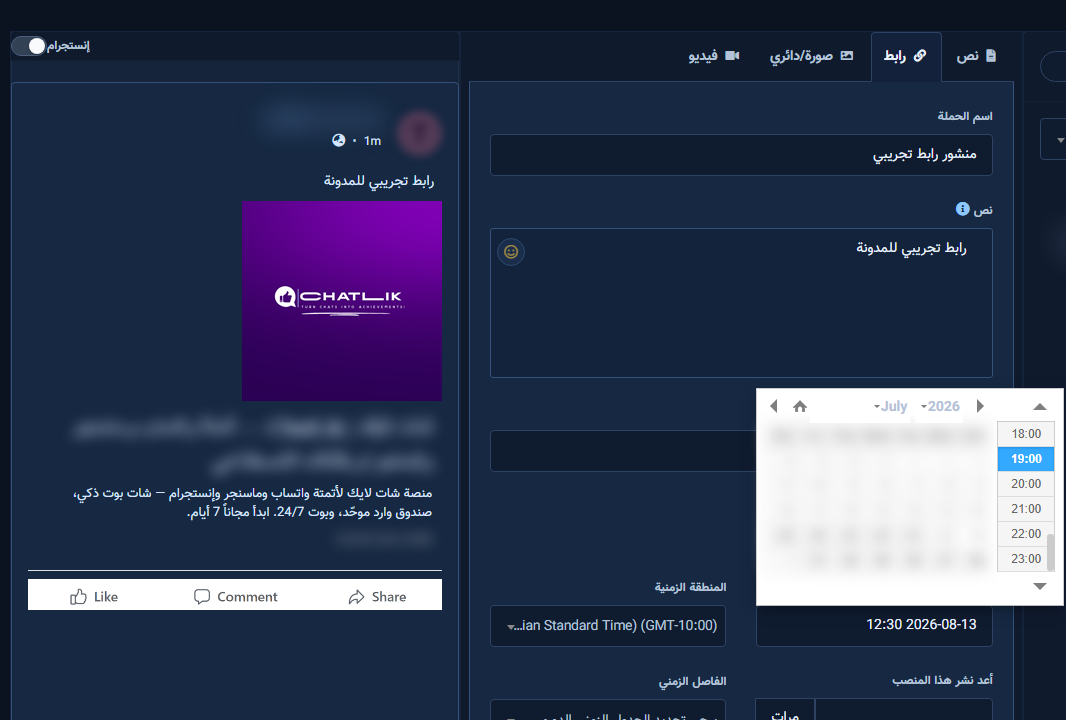
The Link tab attaches a URL with Open Graph preview. The link must be public with a valid OG image.
Before you start
- Publish permission on Page/account.
- Open Multimedia from Posting Tools.
Fields & mode
- Paste link — destination URL.
- Link caption — card title.
- Link description — card blurb.
- Message — text above the card.
- Shared: campaign, pages, schedule, repost.
Step-by-step
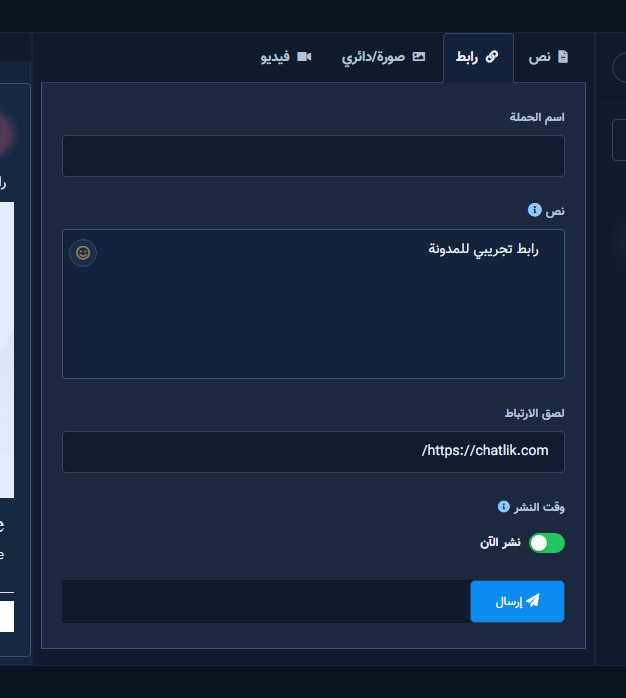
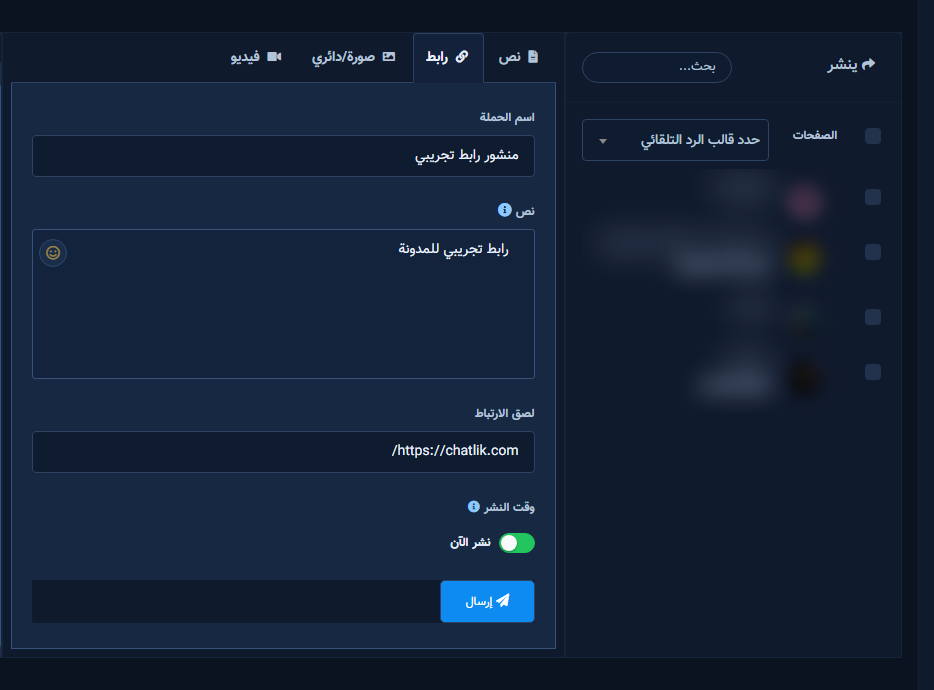
- Open Multimedia with the Link tab active; set campaign + Page.
- Confirm campaign name and Page on the left.
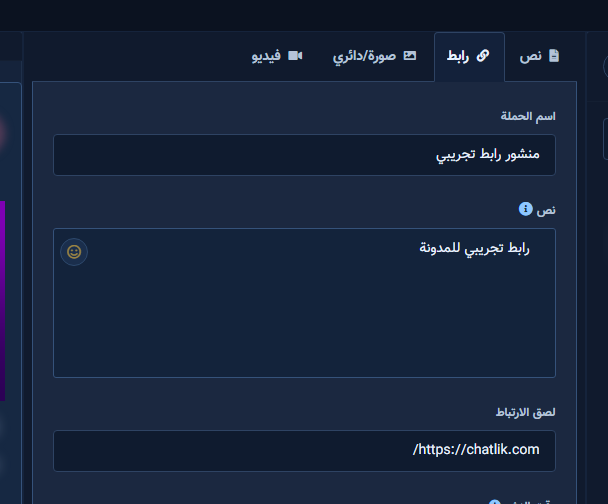
- Fill message + paste URL + caption/description.
- Schedule or Post Now from this same Link form after checking preview.
Tips
- Test redirects on mobile.
- Avoid private login-only URLs.
Common mistakes
- Broken/blocked URL.
- Caption mismatches landing page.
Related
Next step
Try ChatLik via sign up.


