
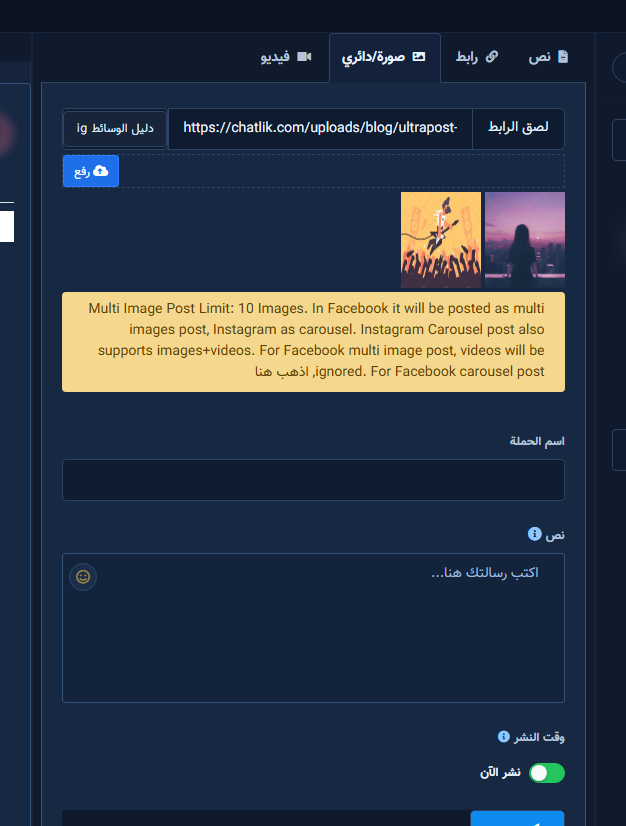
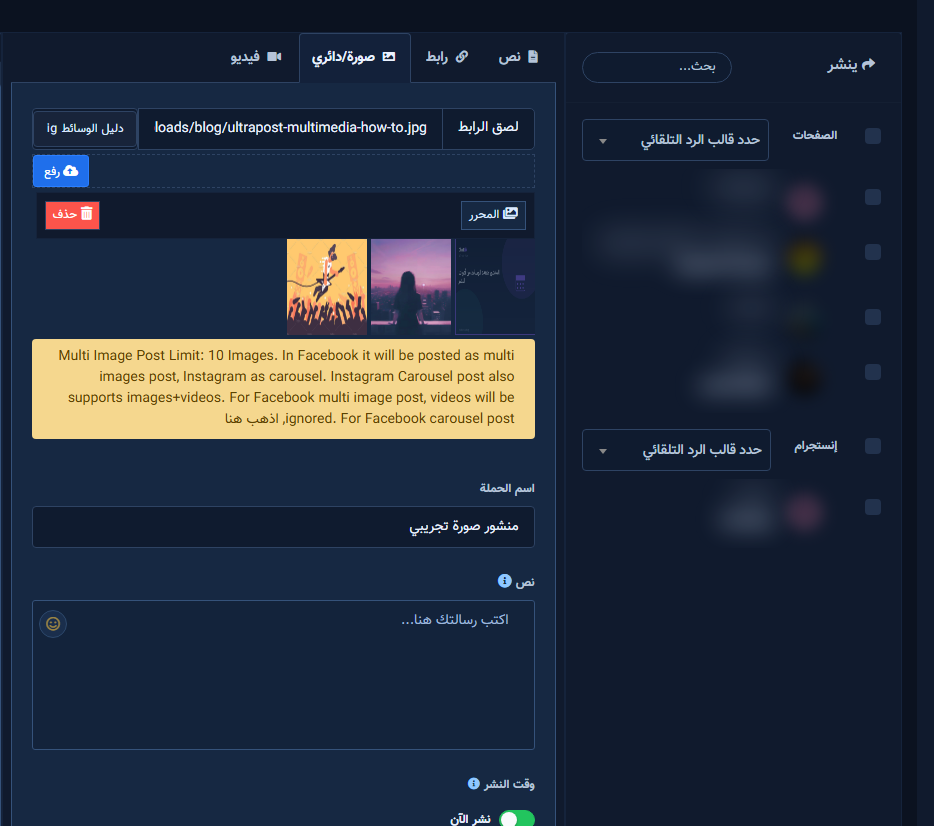
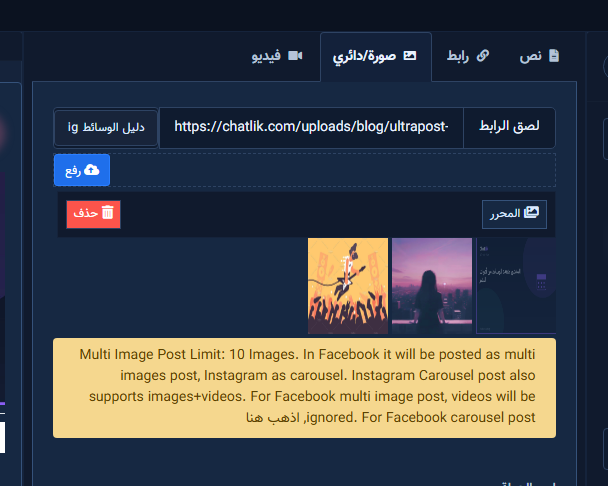
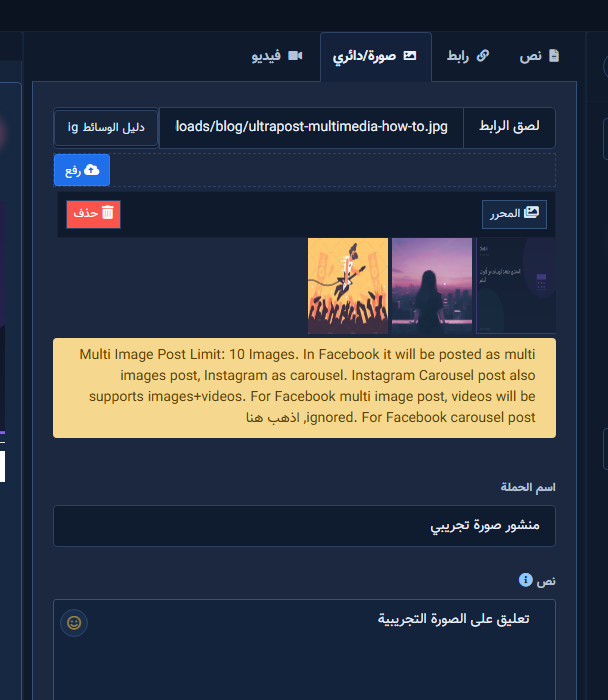
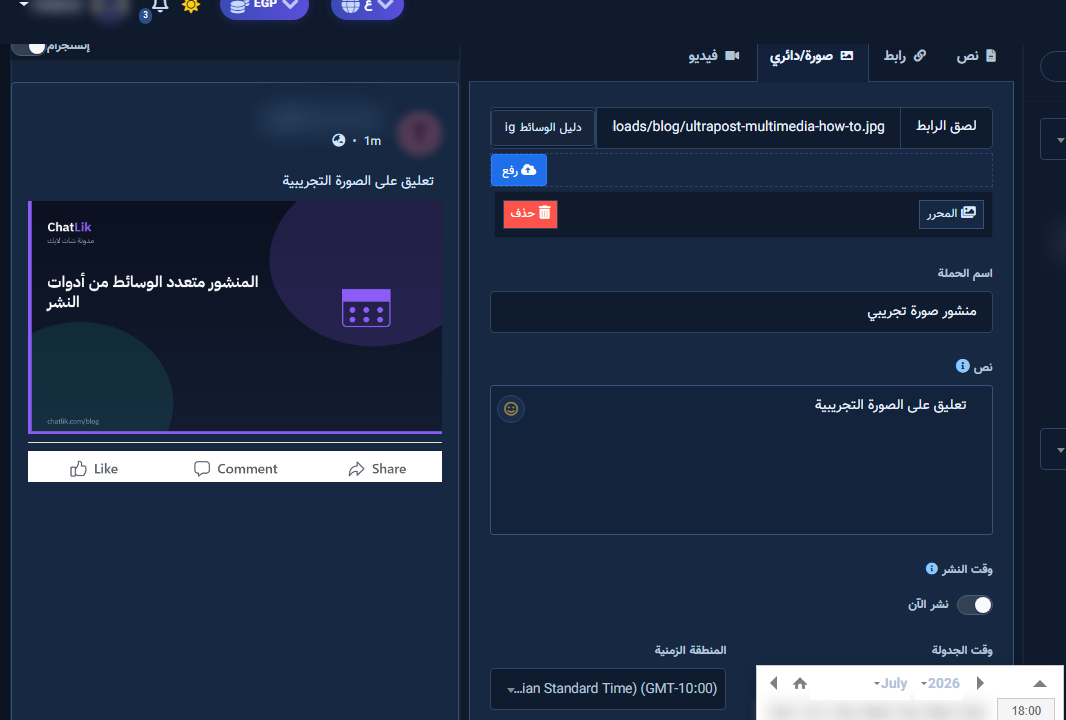
The Image/Carousel tab uploads one or many images. Facebook = multi-image; Instagram = carousel. Yellow notice limit is typically 10.
Before you start
- Publish permission on Page/account.
- Open Multimedia from Posting Tools.
Fields & mode
- Paste URL — add remote image then Enter.
- Upload — from device.
- Hidden multi-URL store + editor/delete controls.
- Message — caption.
Step-by-step
- Open the form with the Image tab active; set campaign and destination.
- Confirm destinations while the Image tab stays active.
- Upload or paste URL until preview appears.
- Write the caption with image preview.
- Schedule and save from this same Image form after reviewing order.
Tips
- Prefer JPG/PNG over unsupported WebP.
- Respect the yellow multi-image limit.
Common mistakes
- Unsupported file type.
- No destination checked.
Related
Next step
Try ChatLik via sign up.


