ChatLik Ecommerce Store — Complete Setup Guide

ChatLik Ecommerce Store — Complete Setup Guide

ChatLik Ecommerce Store is the built-in storefront under E-commerce FeaturesEcommerce Store (/ecommerce). Follow this order: create store → catalog → appearance & payments → share the storefront → run orders and reminders. Not Shopify; WhatsApp Catalog templates are a separate Meta layer.

1) Open Ecommerce Store

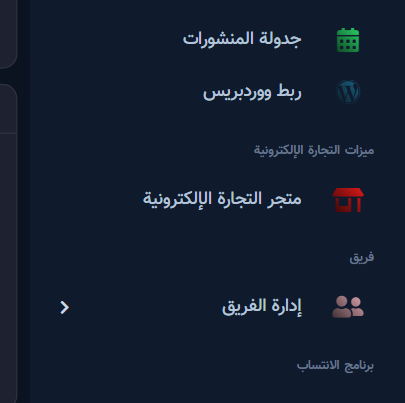
  1. Sidebar: E-commerce FeaturesEcommerce Store.
E-commerce Features sidebar and Ecommerce Store entry

2) Create a store

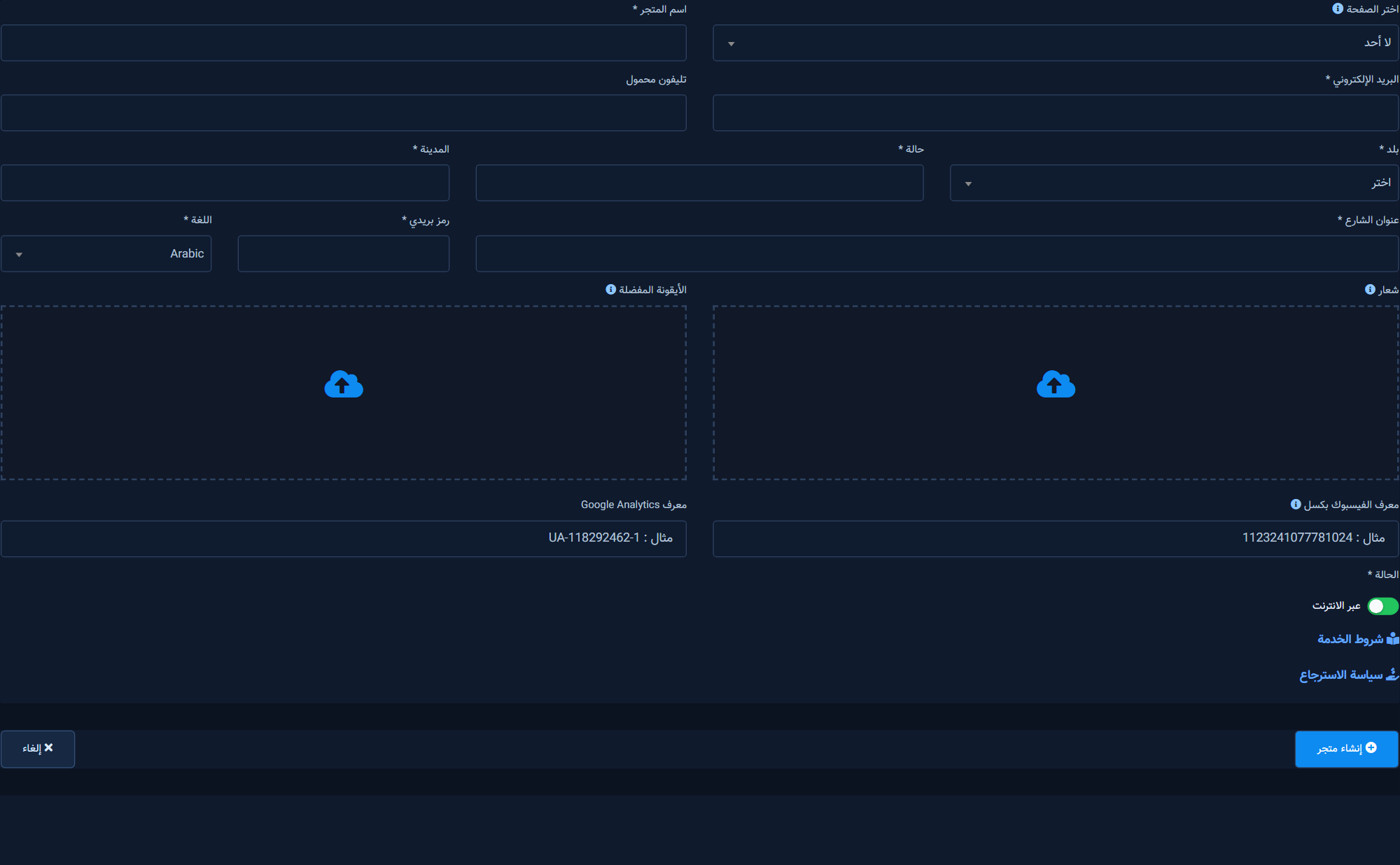
  1. Click Create store.
  2. Fill name, email, country, state, city, street, postal code.
  3. Facebook Page is optional for a public URL; required for Messenger flow wiring.
  4. Save with Create Store.
Create-store form: name, email, address, country, optional Page

3) Store hub

Select the store on the left. Recommended path after the hub: Categories → Attributes → Products → Appearance → Hours → Payments → Share URLs → Orders.
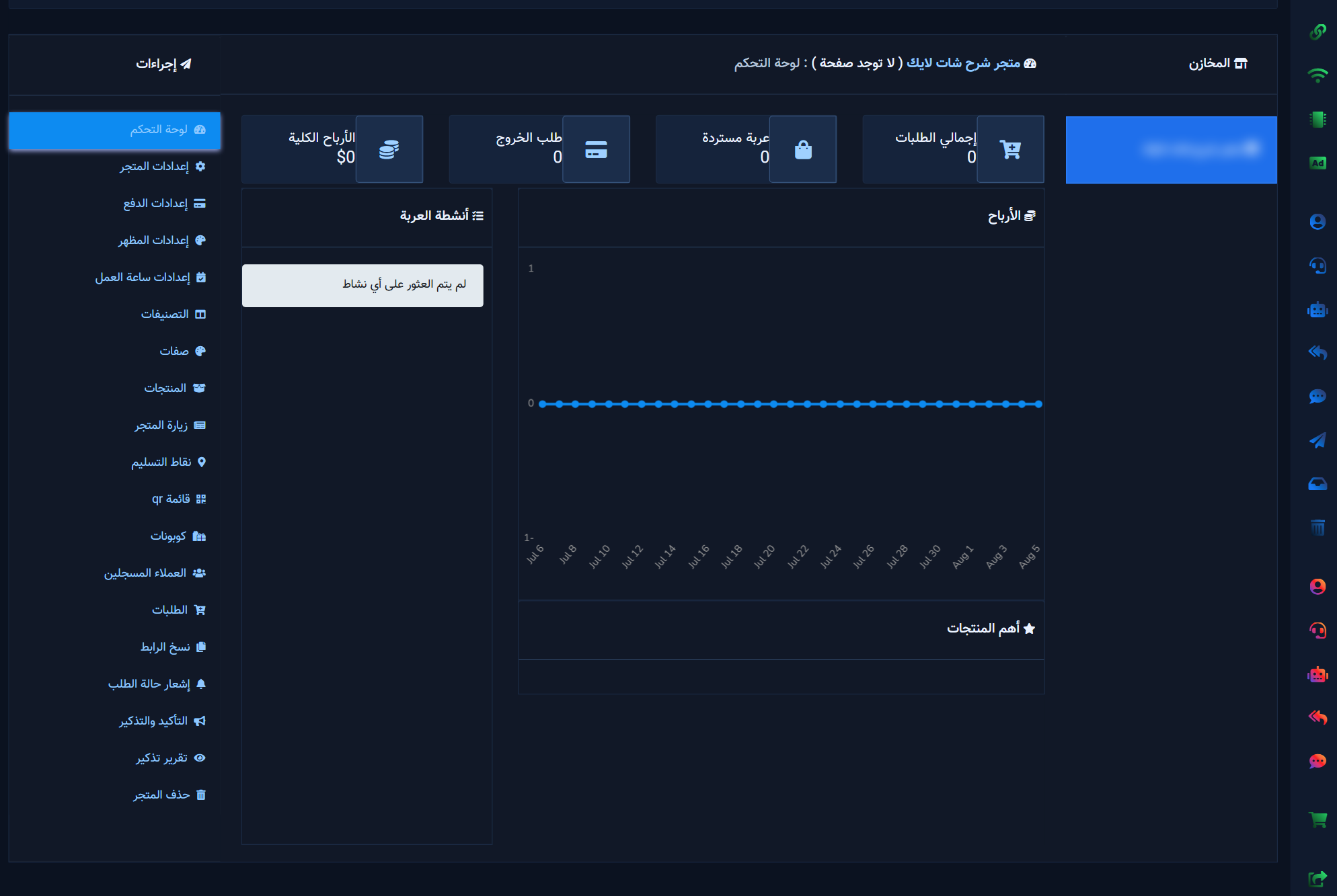
Store hub after selection with settings, catalog, and orders tiles

4) Categories

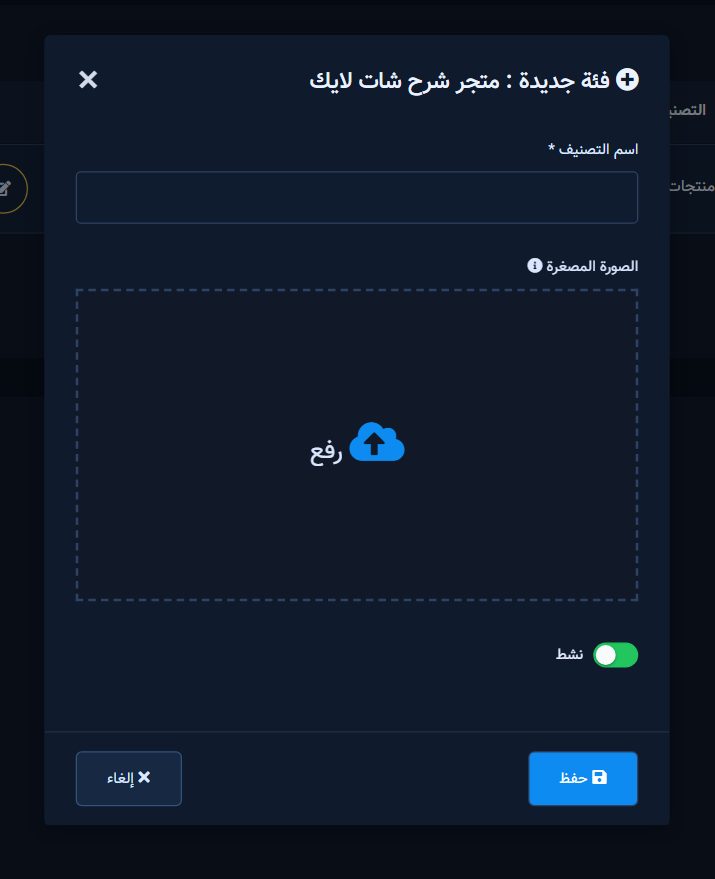
  1. Open CategoriesAdd.
  2. Name, optional thumbnail, Active, Save.
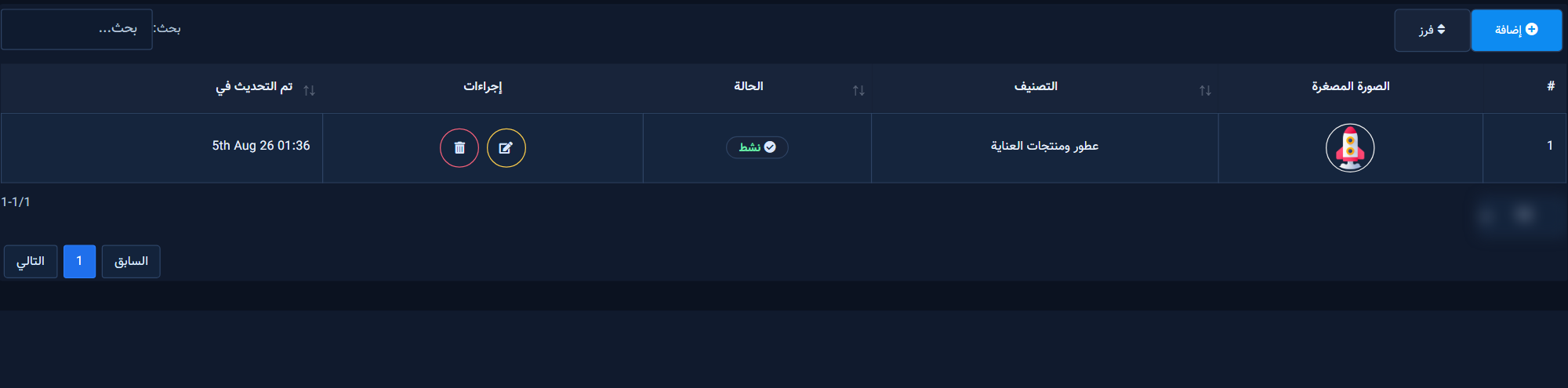
Categories list with Add, Sort, and an active category
New category modal: name, thumbnail, and Active status

5) Attributes

Define size/color options before products, then attach them on each product.
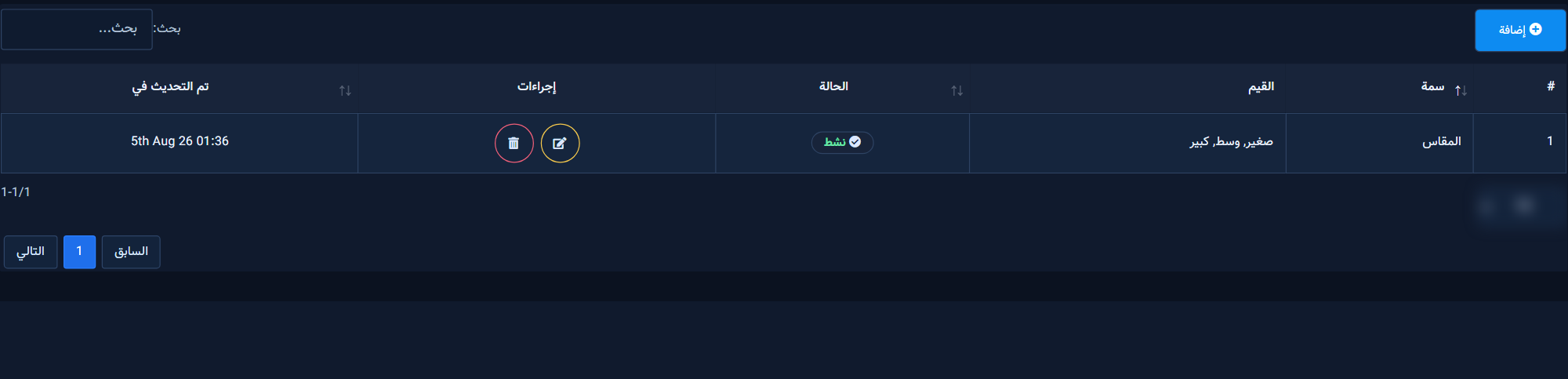
Product attributes such as size and their values

6) Products

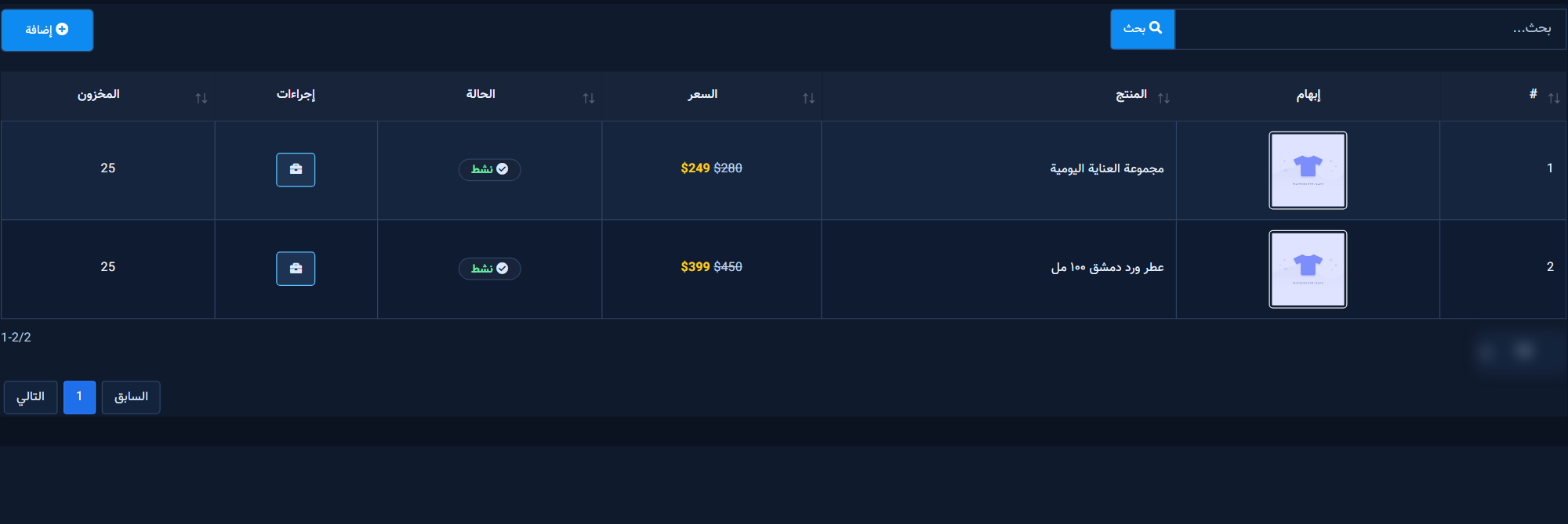
Product list

Products table: image, name, price, stock, Active status

Add product

Required: name and original price. Optional: sell price, category, attributes, description, stock, media.
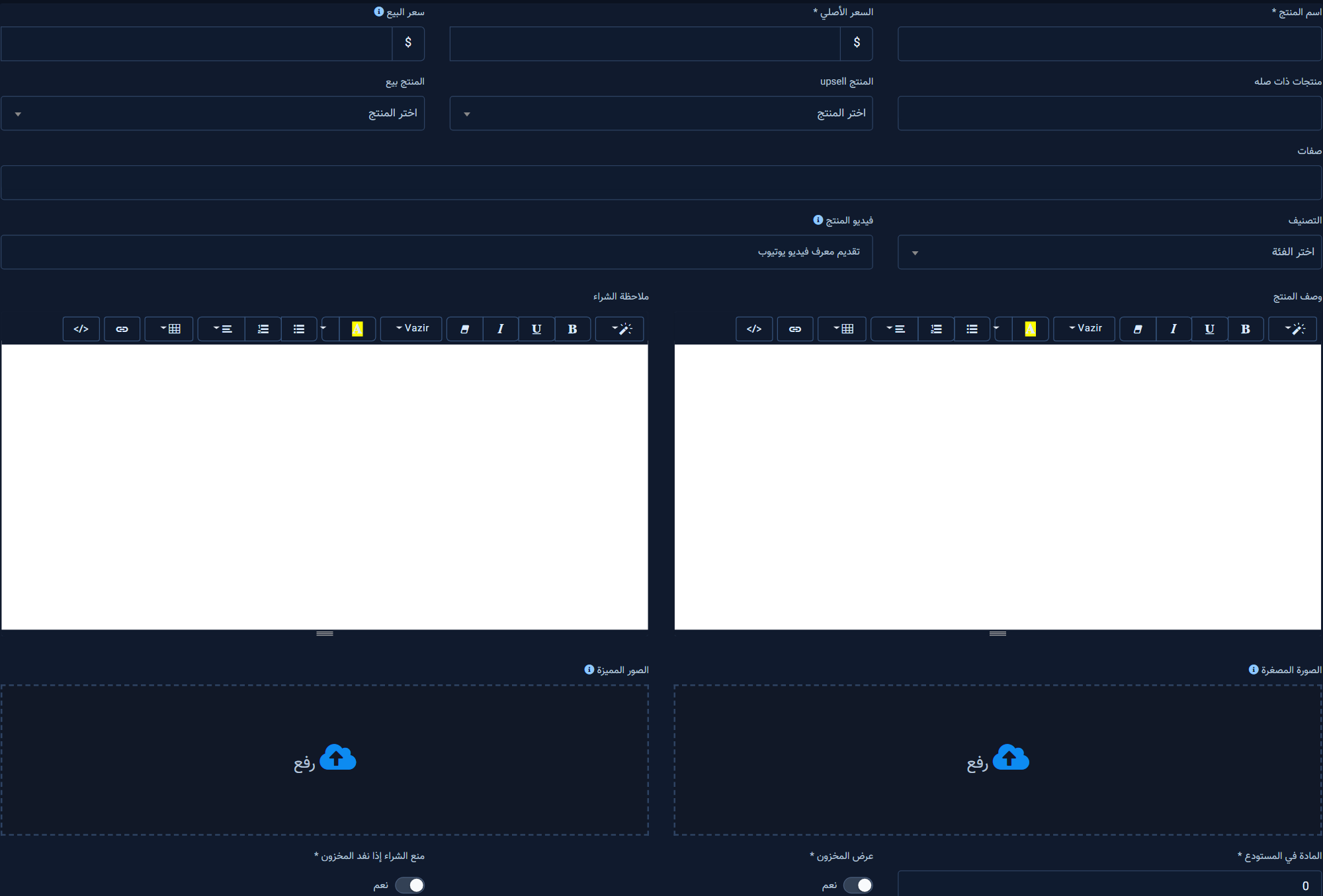
Add-product form: name, prices, category, attributes, description

7) Appearance

Theme color, list/grid, category grouping, cart/buy visibility.
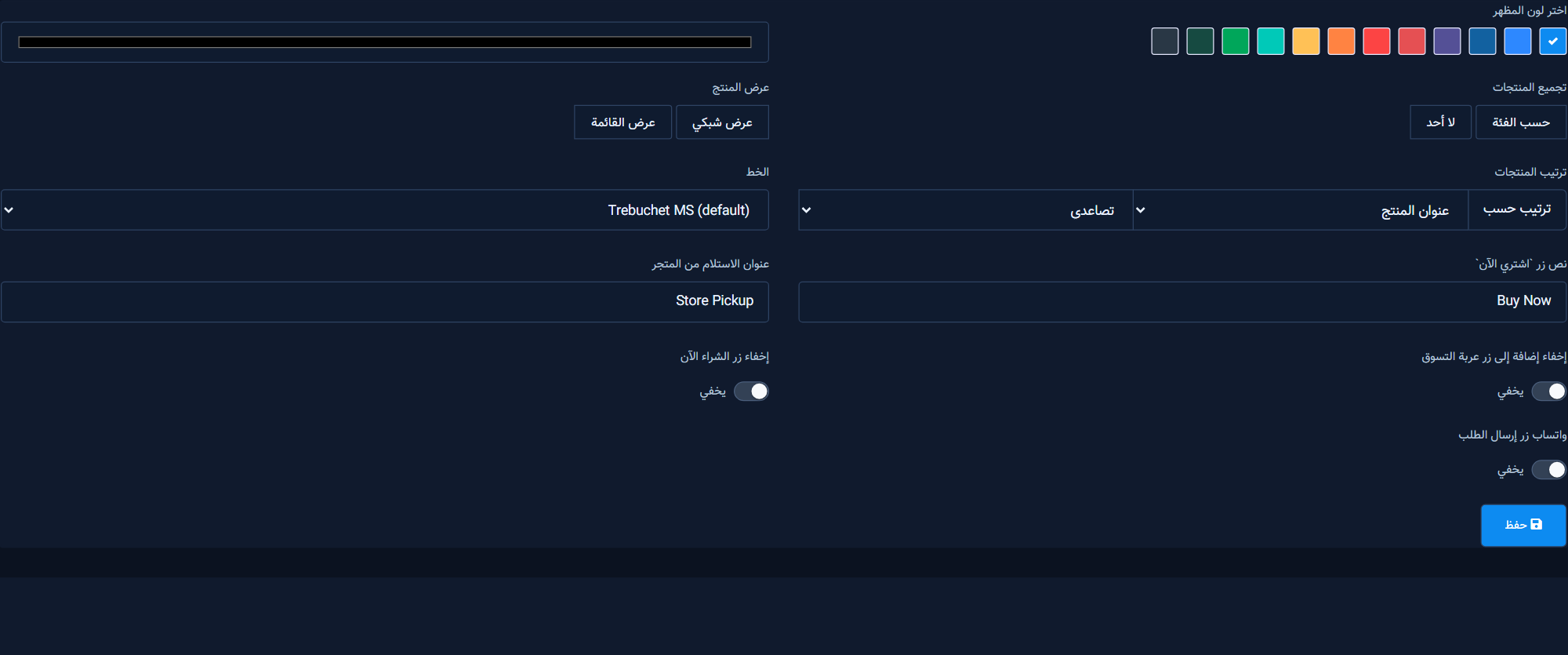
Appearance settings: theme color, grouping, listing style

8) Business hours

Keep Always Open, or disable it and set daily from–to times, then Save.

Business hours after turning off Always Open: weekly schedule then Save

9) Currency, tax, shipping, COD

On Checkout settings start with Currency & Formatting, then tax/shipping/COD (before gateway keys).
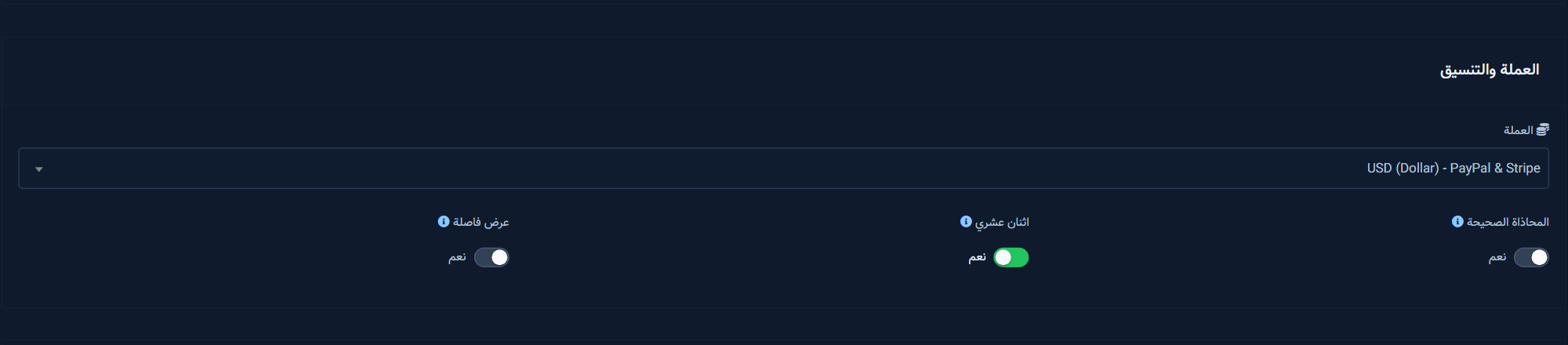
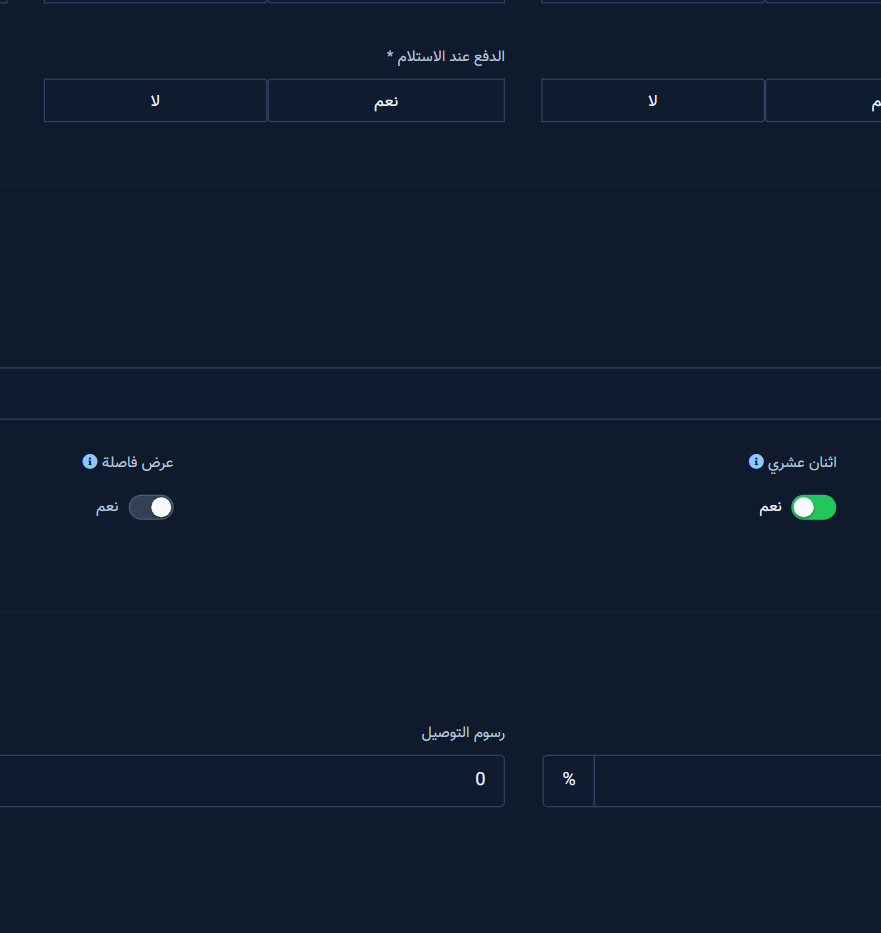
Currency & formatting: currency, alignment, decimals
Tax, shipping charge, delivery/pickup, and COD options

10) Payment gateways

PayPal, Stripe, MyFatoorah, Razorpay, and more — with sandbox toggles.
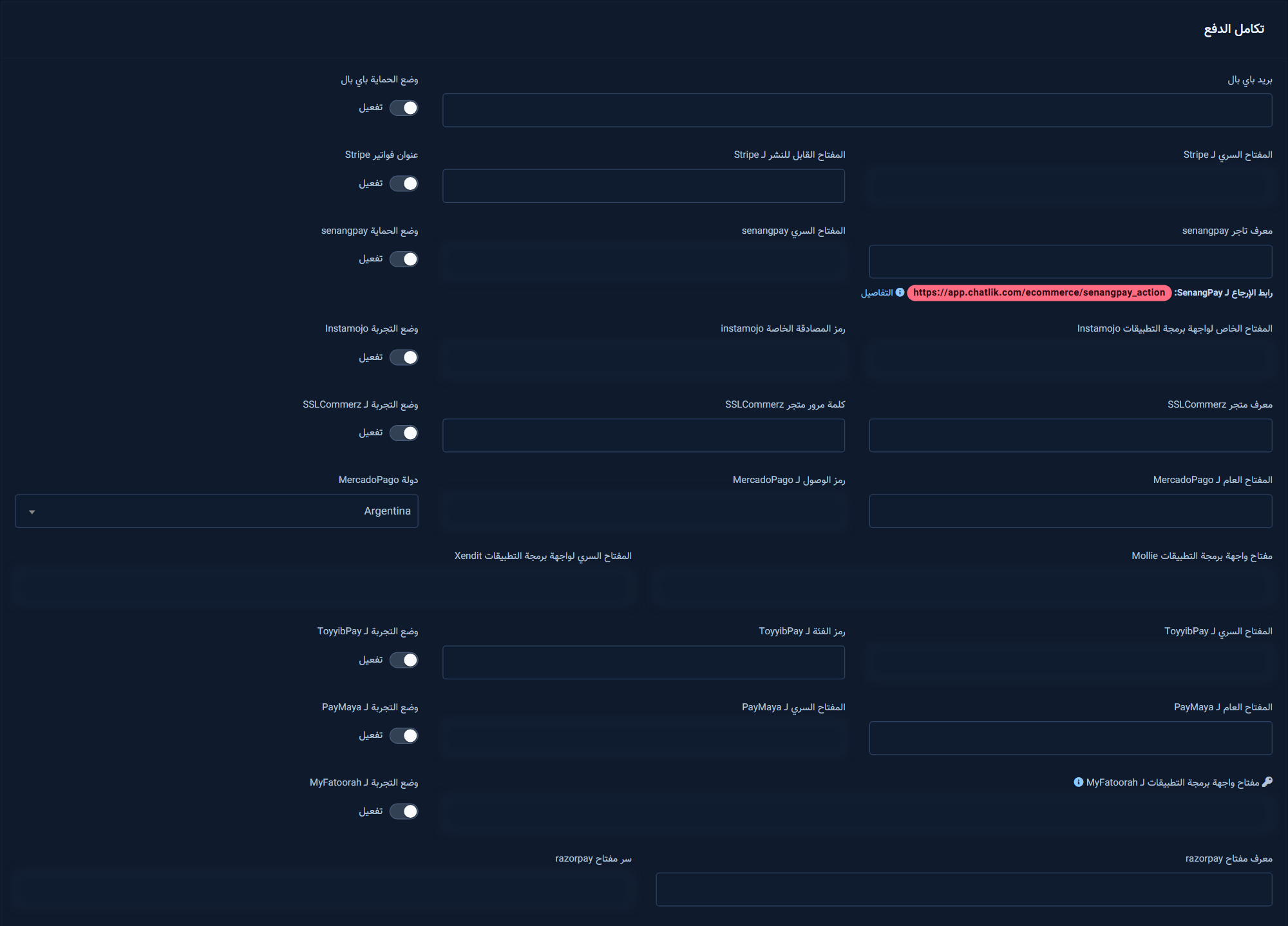
Payment gateways: PayPal, Stripe, and others with keys and sandbox

11) Coupons

Discount coupons: code, amount/percent, expiry, free shipping

12) Pickup points

Pickup/delivery points linked to the physical store

13) Copy URLs and QR

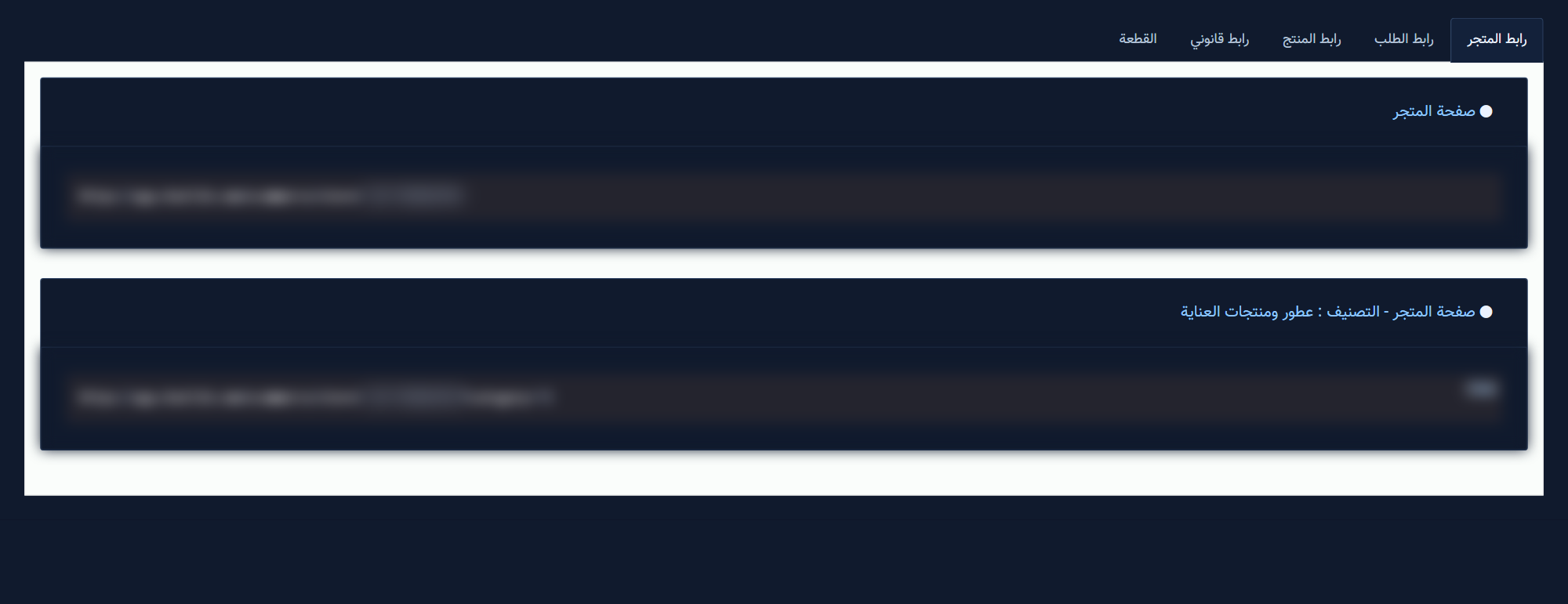
Copy public store URLs and embed widget
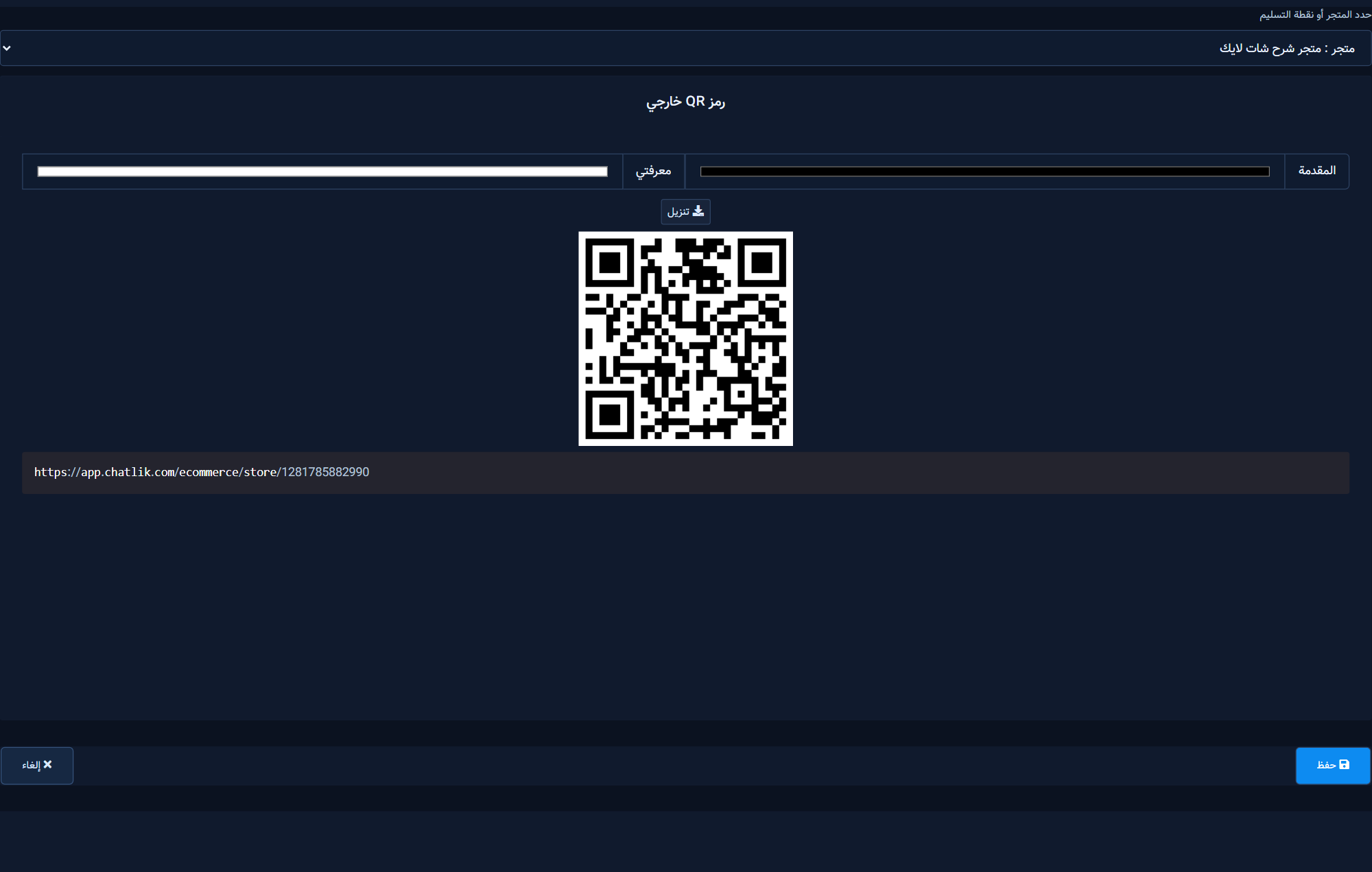
QR code for the store or menu URL for print or in-store use

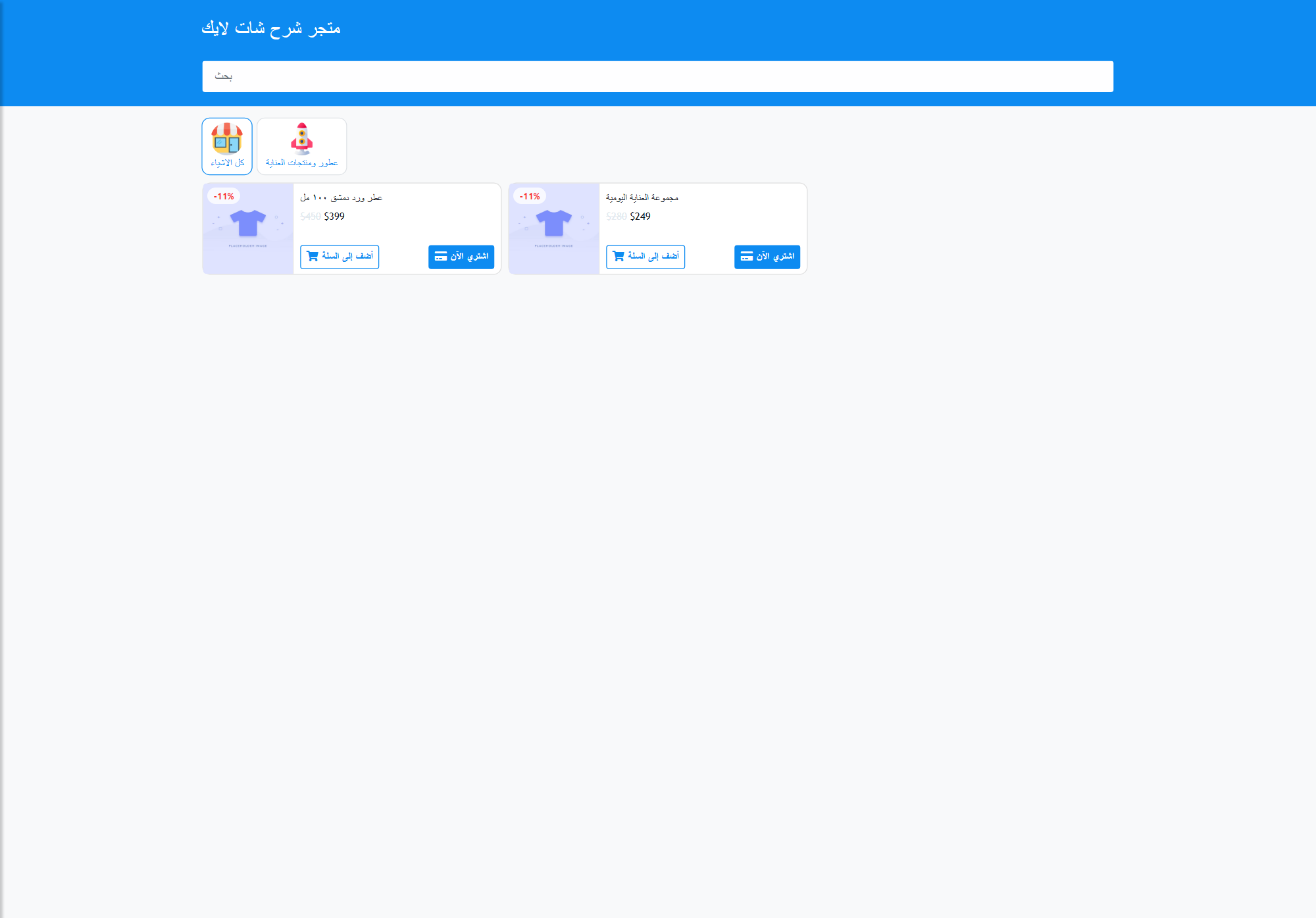
14) Customer storefront

Public storefront as the customer sees it

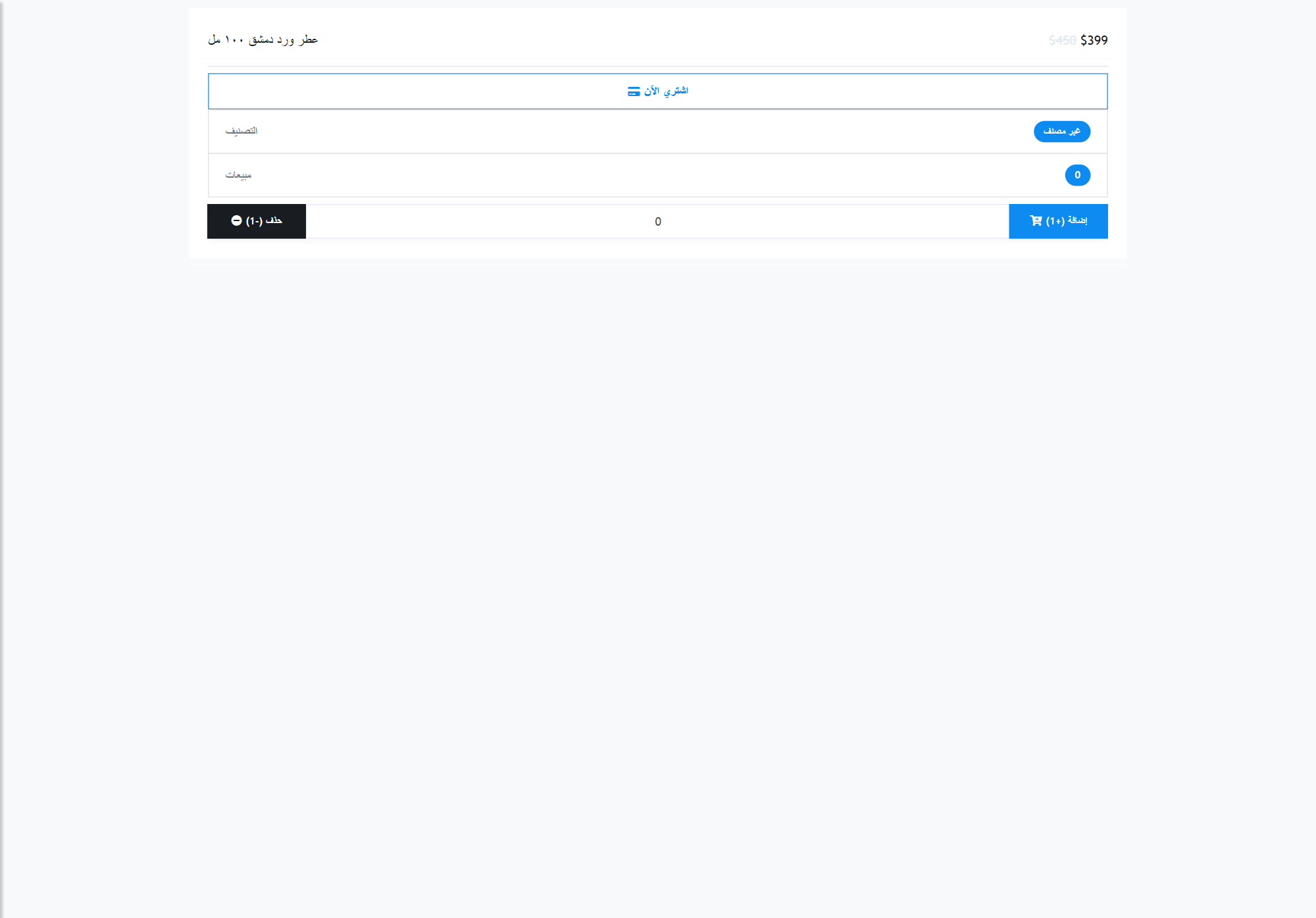
15) Customer product page

Public product page: price, discount, Add to cart / Buy now

Buyer path: browse → product → cart → shipping/pickup → payment → order appears under Orders.

16) Orders
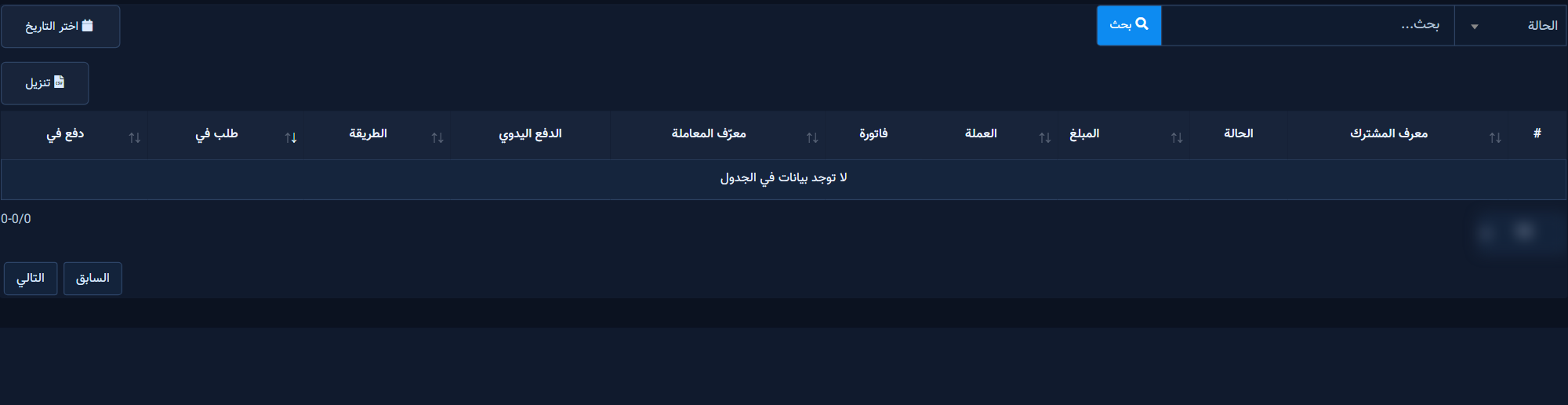
Store orders: statuses, amount, and payment method

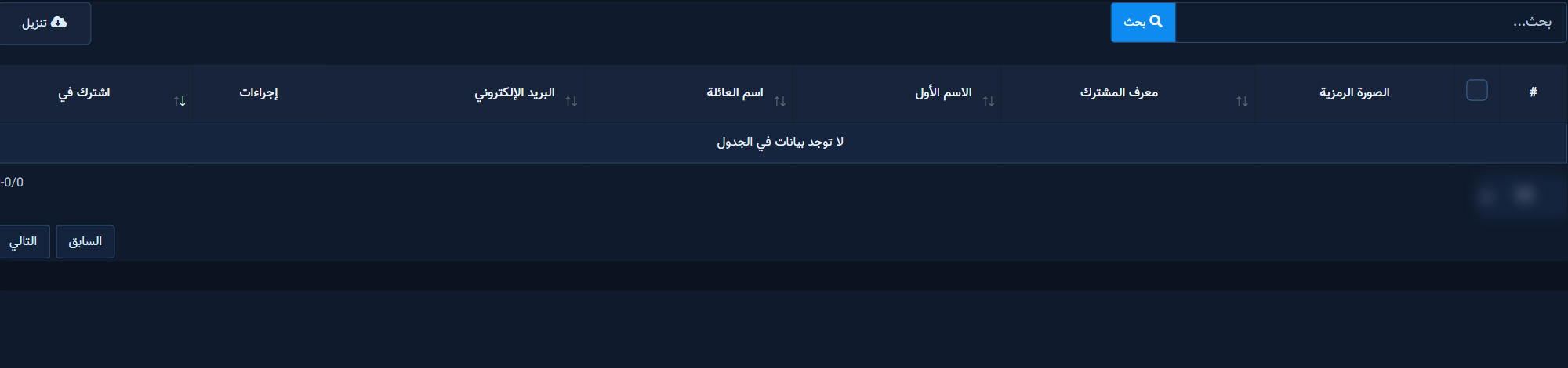
17) Customers

Store customers linked to subscribers and contact fields

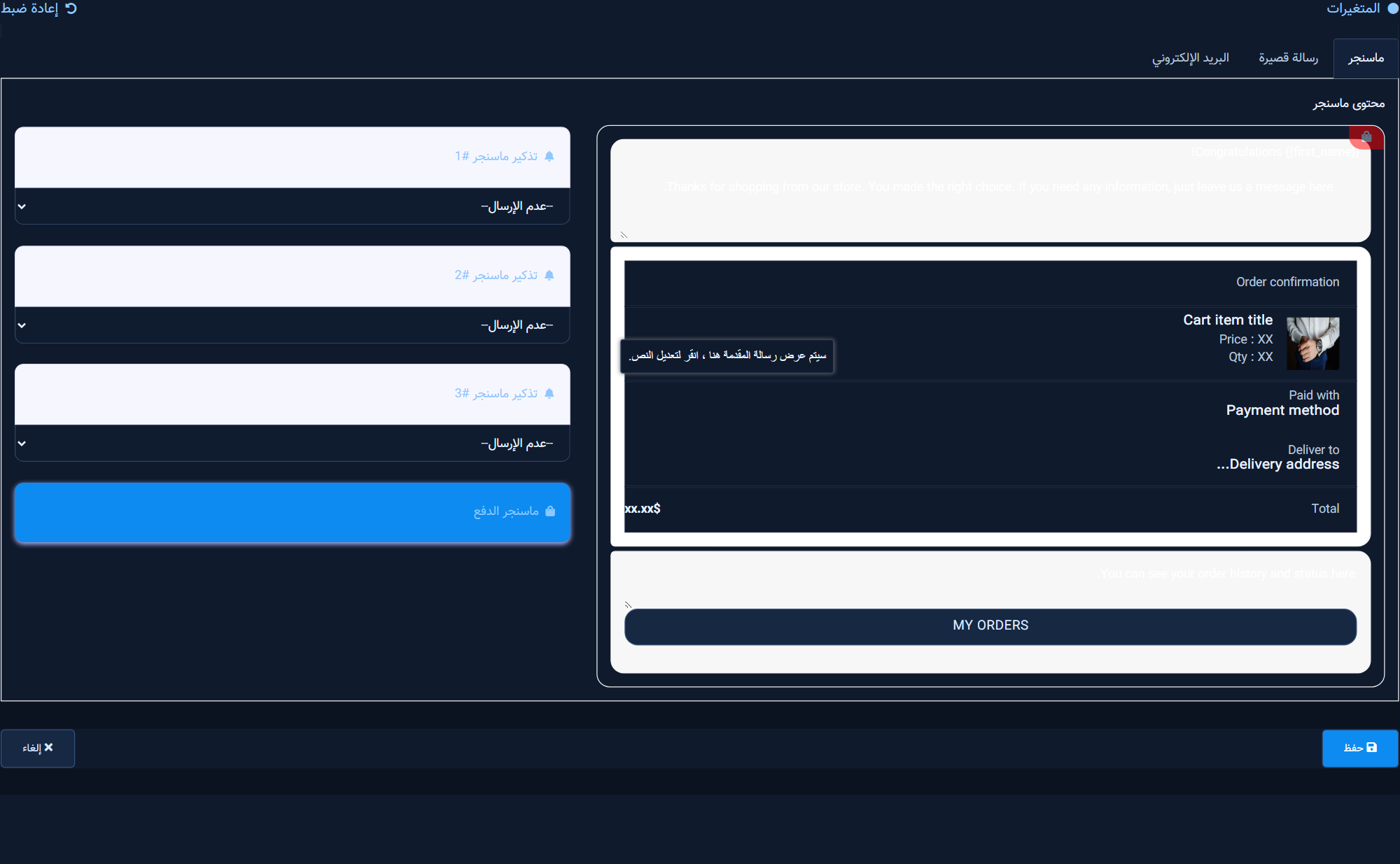
18) Abandoned-cart reminders

Cart confirmation and abandoned-cart reminders

19) Order-status notifications
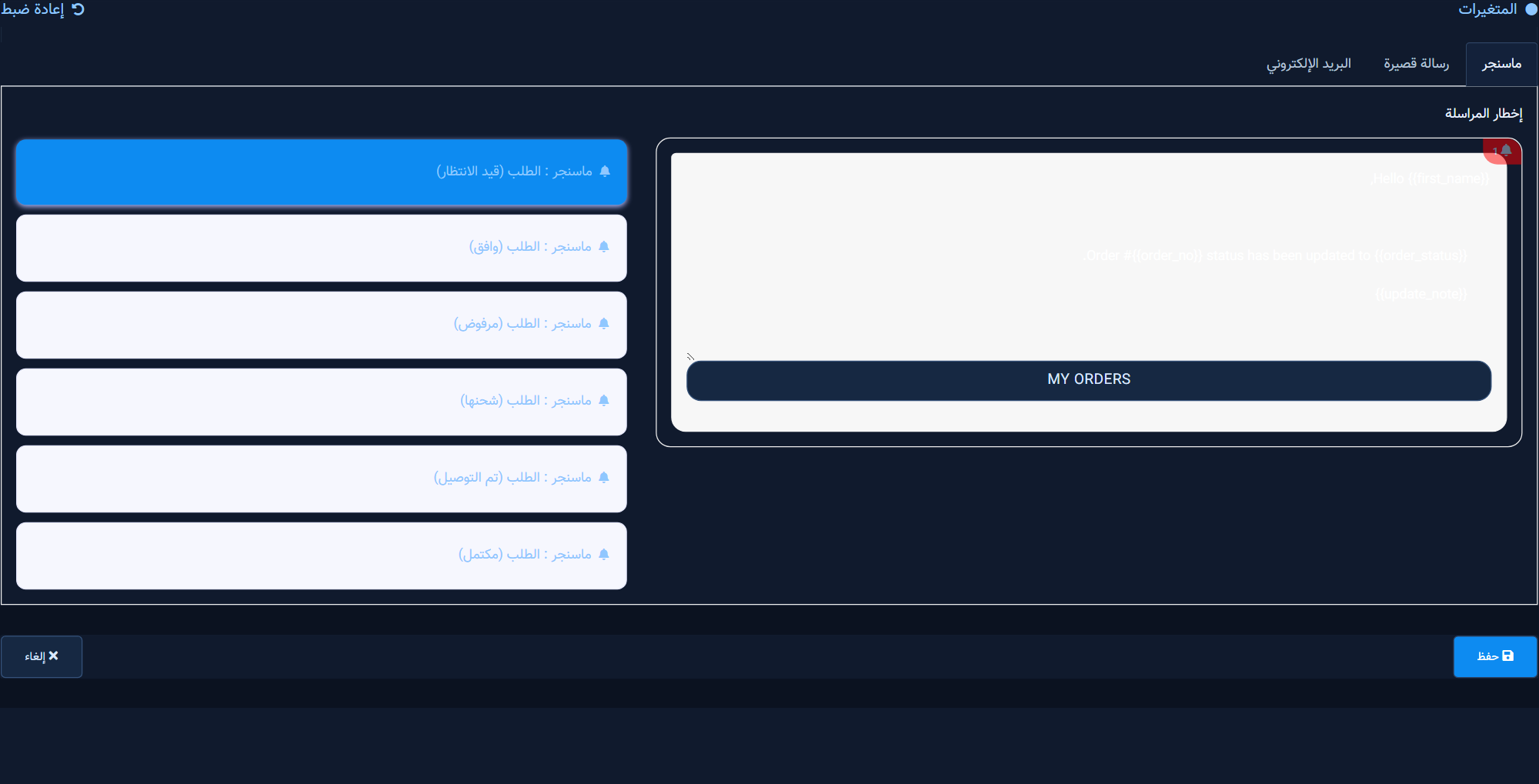
Order-status notifications on approve/ship/deliver

20) Messenger / WhatsApp scope

Use Visual Flow Ecommerce node for Messenger carousels. WhatsApp Catalog uses Meta Commerce Manager. No built-in Shopify.

21) Common mistakes

  1. Wrong store selected.
  2. Missing address fields on create.
  3. Payment keys or currency not saved.
  4. Always Open hides the weekly schedule.

Next step

Try ChatLik via sign up or compare plans.

Keywords EcommerceChatLik
Share this article: